Update UC
Prerequisites
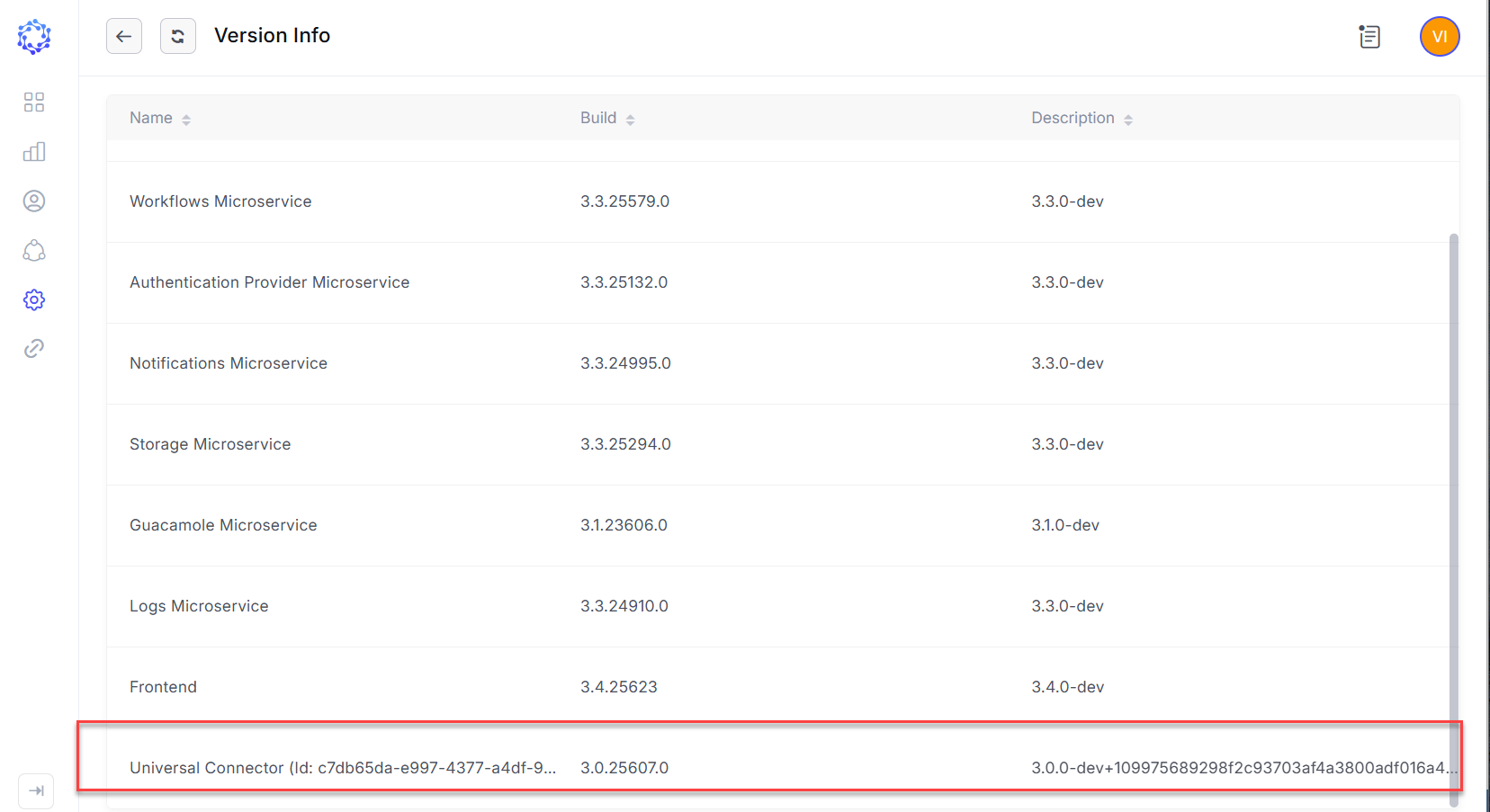
To update the UC for your ObserveID instance, it is needed to request the URL for the UC update from the ObserveID team; and before starting the update procedure, notice the current version number of the UC on the Version Info page in the Company Administration area.
Update
Having ObserveID Universal Connector up and running on premises, it is possible to update it to a new version. The update is performed remotely by your ObserveID instance, once it is provided with the required input information, as follows:
-
Open: ObserveID > Dashboard > Company Administration > Configuration Settings > Update Universal Connectors
-
Expand the Universal Connector dropdown list and select which Universal Connector to update.
In case if there are no options, refresh the Update Universal Connectors webpage, or watch for any notifications about the status on the UC connections in the Access Log. With the UCs connected, the dropdown list refreshes and displays the actual options in the format:
<host name>, <id>, where the host name is the name of the machine with the UC instance running on; and the id is the identification number of the UC instance.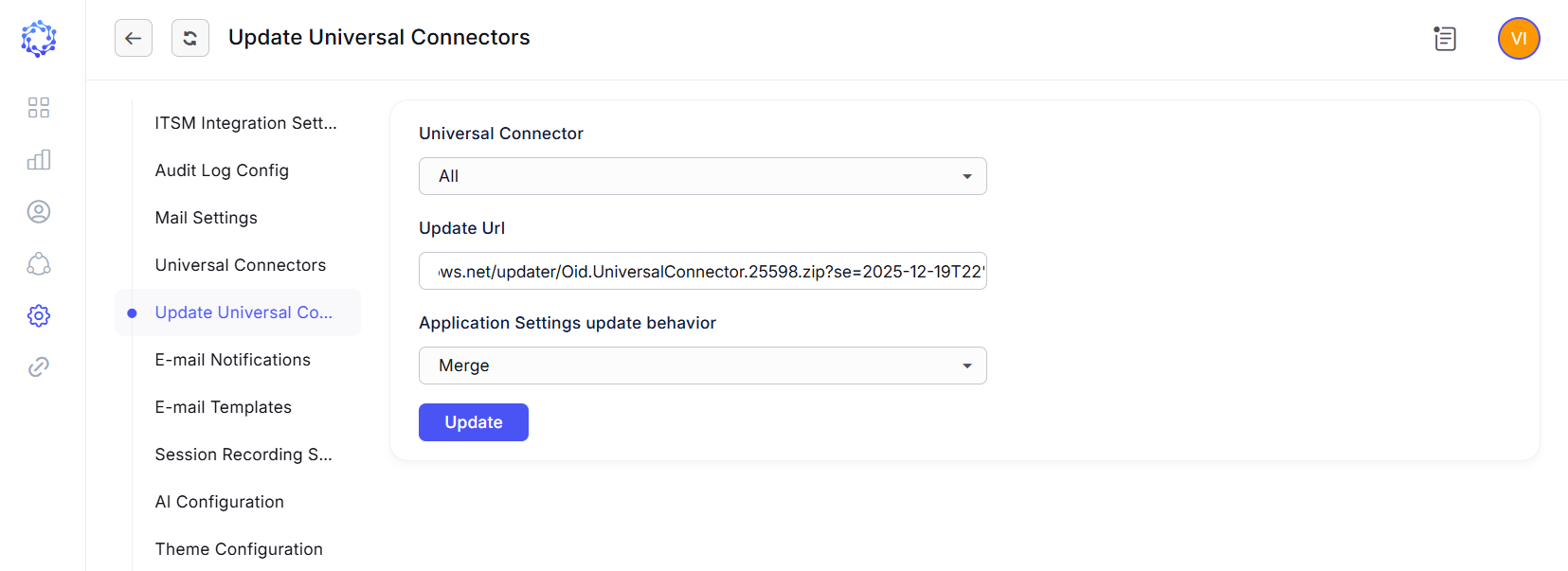
-
Provide the URL for the UC update received from the ObserveID team.
-
Select Merge in the Application Settings update behavior dropdown list.
-
Click Update.
-
Wait for about 3-4 minutes for the Universal Connector to stop and re-connect again. Consider the notifications in the Access Log for this, if needed.

-
To make sure the Universal Connector has re-connected, open the Integrations grid by selecting: ObserveID > Dashboard > Identity Automation and click New Integration on the header. If the New Integration page opens, the Universal Connector has re-connected after the update and successfully running.

-
Navigate to the Administration area.
-
Click Version Info, and notice the number at the Universal Connector. It should be greater, than the previous one.