
Azure OIDC SSO configuration
OpenID Connect (abbrev. as ‘OIDC’) is used as an authorization protocol to enable single sign-on (abbrev. as ‘SSO’) between ObserveID and Azure. Identities get the capability to log in to ObserveID with the credentials of their Azure users after the following configuration is performed:
- Establish OIDC parameters on the Azure side for ObserveID.
- Enable the Azure integration as an SSO Source on the ObserveID side.
In this section:
- OIDC SSO parameters
- How to set OIDC SSO parameters
- Enable SSO Source
OIDC SSO parameters
To enable SSO using OpenID Connect, the ObserveID application registered in the Azure portal must be provided with the following authentication parameters:
|
Parameter |
Description |
|
Redirect URI |
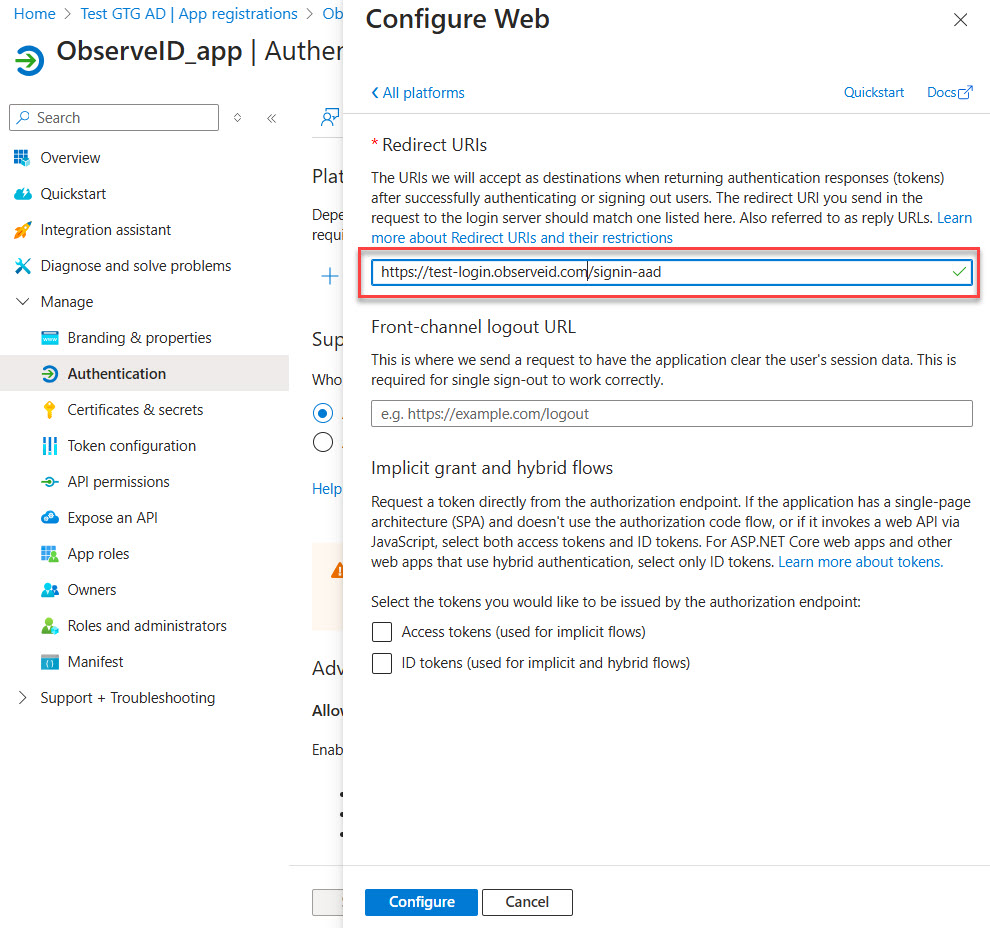
A redirect URI is an endpoint where OpenID Connect should redirect the user after authentication. Refer to the Dev team of ObserveID for what redirect URI to enter. |
|
ID token requirement |
The ID tokens option should be enabled for application authentication, a requirement for the OpenID Connect single sign-on flow. |
How to set OIDC SSO parameters
To establish the above OpenID Connect settings for the ObserveID application in the Azure portal, do the following:
- Go to any of the portals:
- the Azure portal: https://portal.azure.com and open the Microsoft Entra ID, and then the App registrations section.
- the Microsoft Entra admin center: https://entra.microsoft.com and open the App registrations section.
- Select the ObserveID application from the all applications list.
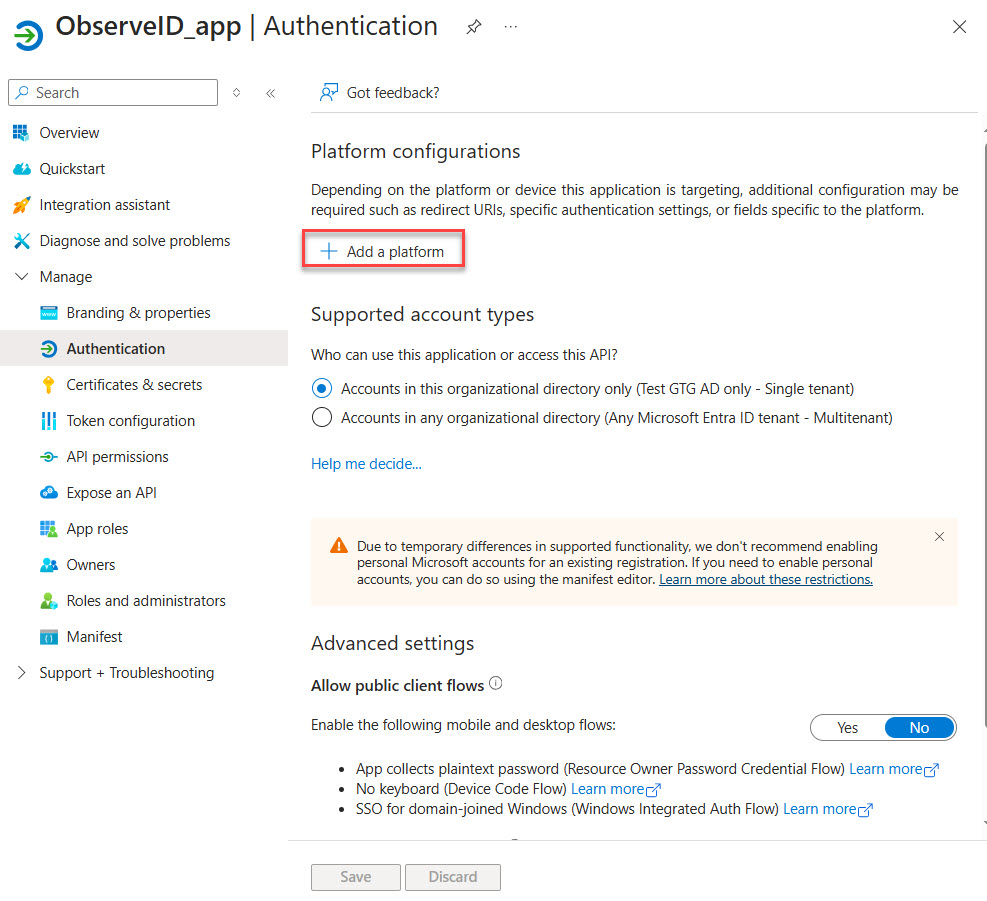
- Click Authentication in the left-hand menu.
- Click Add a platform.
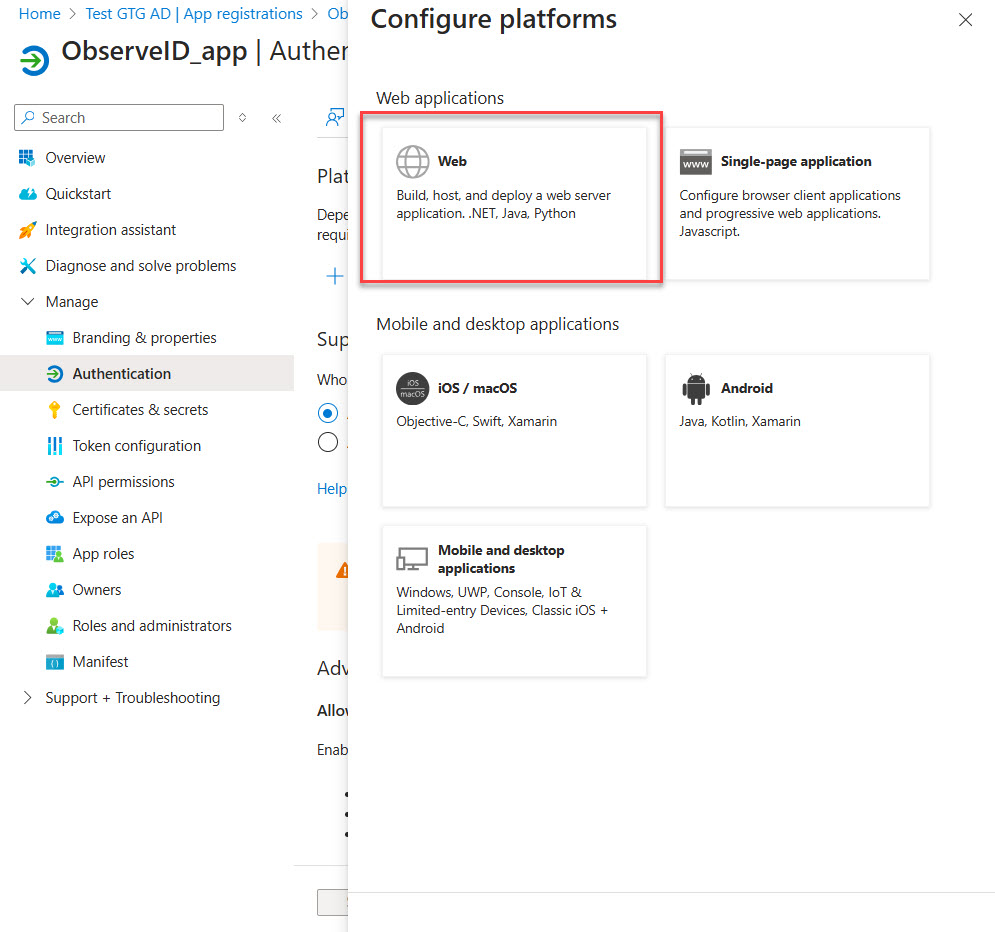
- Click Web in the opened popup window.
- Enter the Redirect URI received from the Dev team of ObserveID.
- Check the ID tokens (used for implicit and hybrid flows) option.
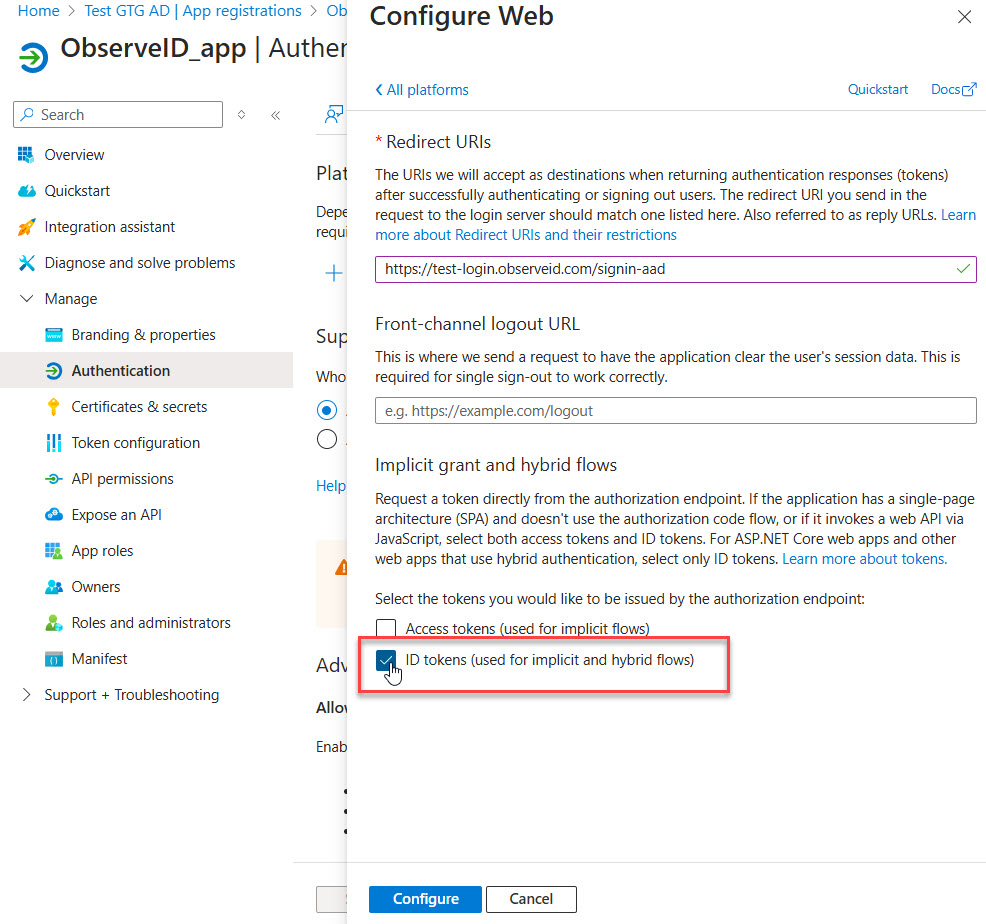
- Click Configure at the bottom of the popup window.
Enable SSO Source
Once all requirements are provided on the Azure side, on the ObserveID side, the Azure integration can be enabled as an SSO Source by clicking Enabled in: Identity Automation > Integrations > <an Azure integration> SSO Source.
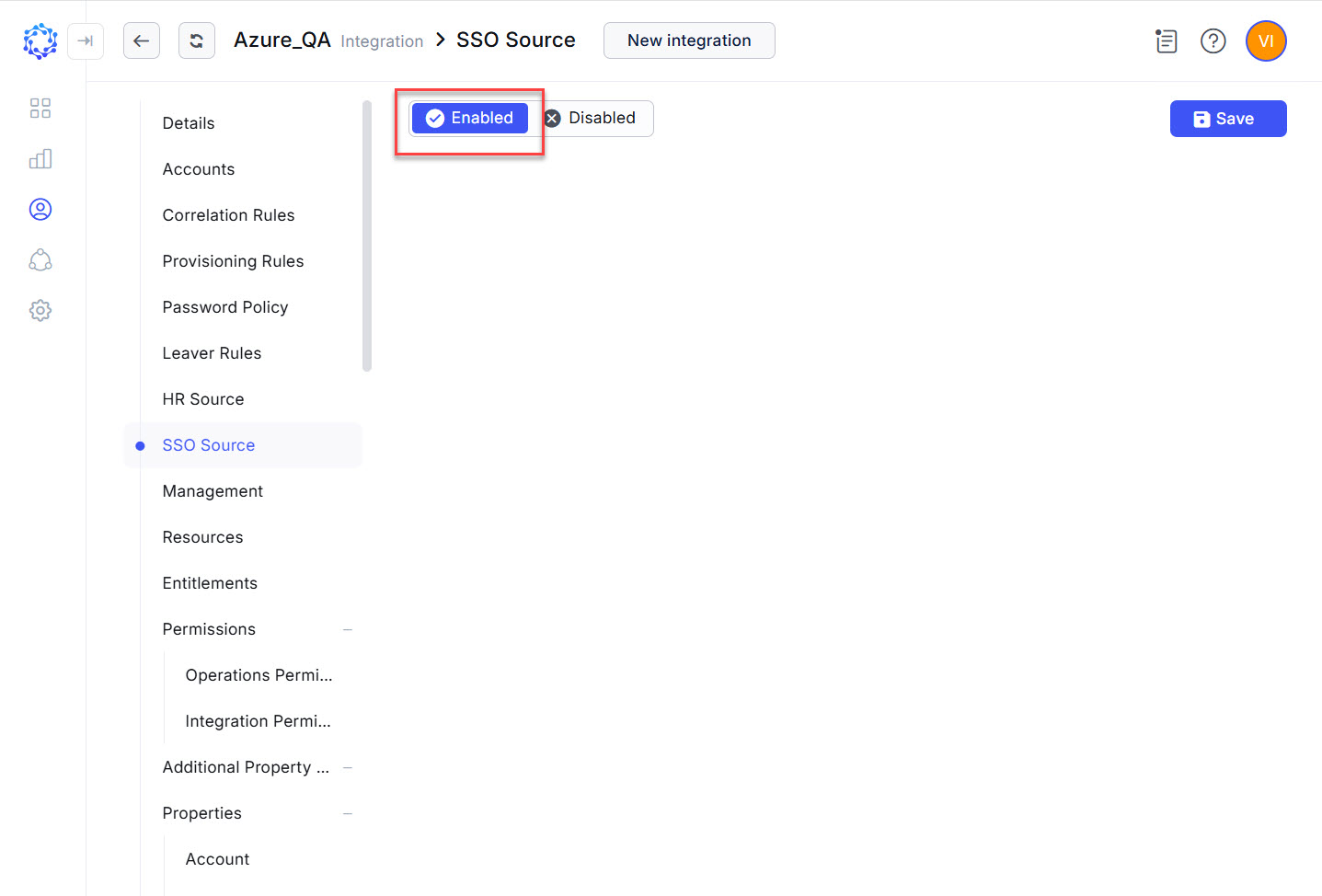 Enable SSO on the ObserveID side