Detailed tutorial on creating Oracle IDCS integration
The tutorial below provides a step-by-step guidance on the setup and configuration of an Oracle IDCS integration. It includes three aspects: preparation on the Oracle IDCS side; preparation on the ObserveID side, and the First Load of Integration Data from the Target to ObserveID. Once the data is loaded, the Integration is ready for further configuration of rules and use, according to the business processes in the organization.
In this section:
- Preparation for ObserveID on the Oracle IDCS side
- Identity Domain URL
- Register the app
- Configure the app as a Client
- Assign application role
- Activate the app
- Configuration of Oracle IDCS integration in ObserveID
- First load of data from Oracle IDCS to ObserveID
Preparation for ObserveID on the Oracle IDCS side
To begin the preparation for setting up an integration of Oracle IDCS with ObserveID, it is needed to log in to the Oracle Cloud, and open the Identity Domain of the Oracle Identity Cloud Service, as follows:
-
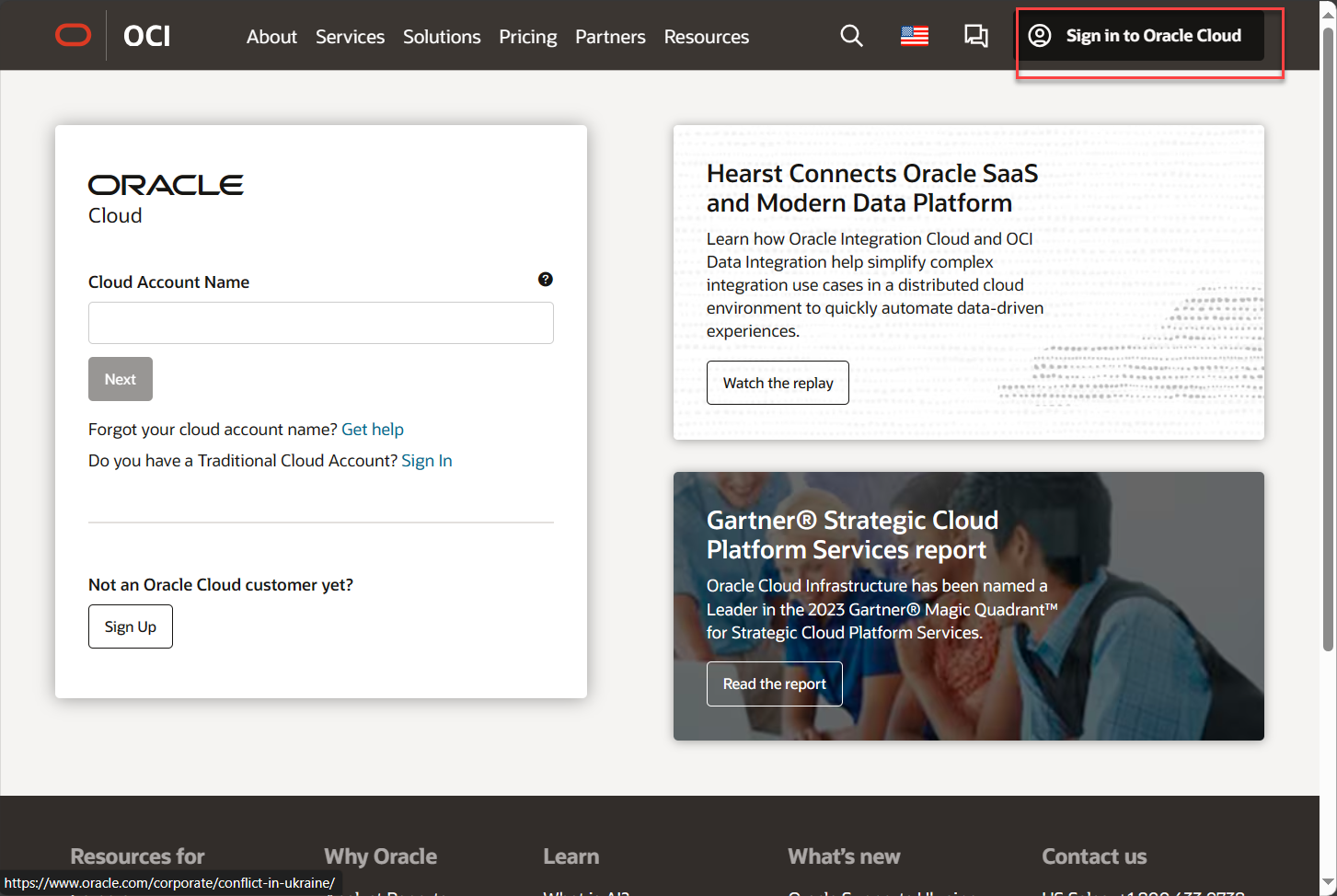
Go to: oracle.com/cloud/
-
Click Sign in to Oracle Cloud.
-
Enter the name of your tenancy in the Oracle Cloud into the Cloud Account Name field, and click Next.
-
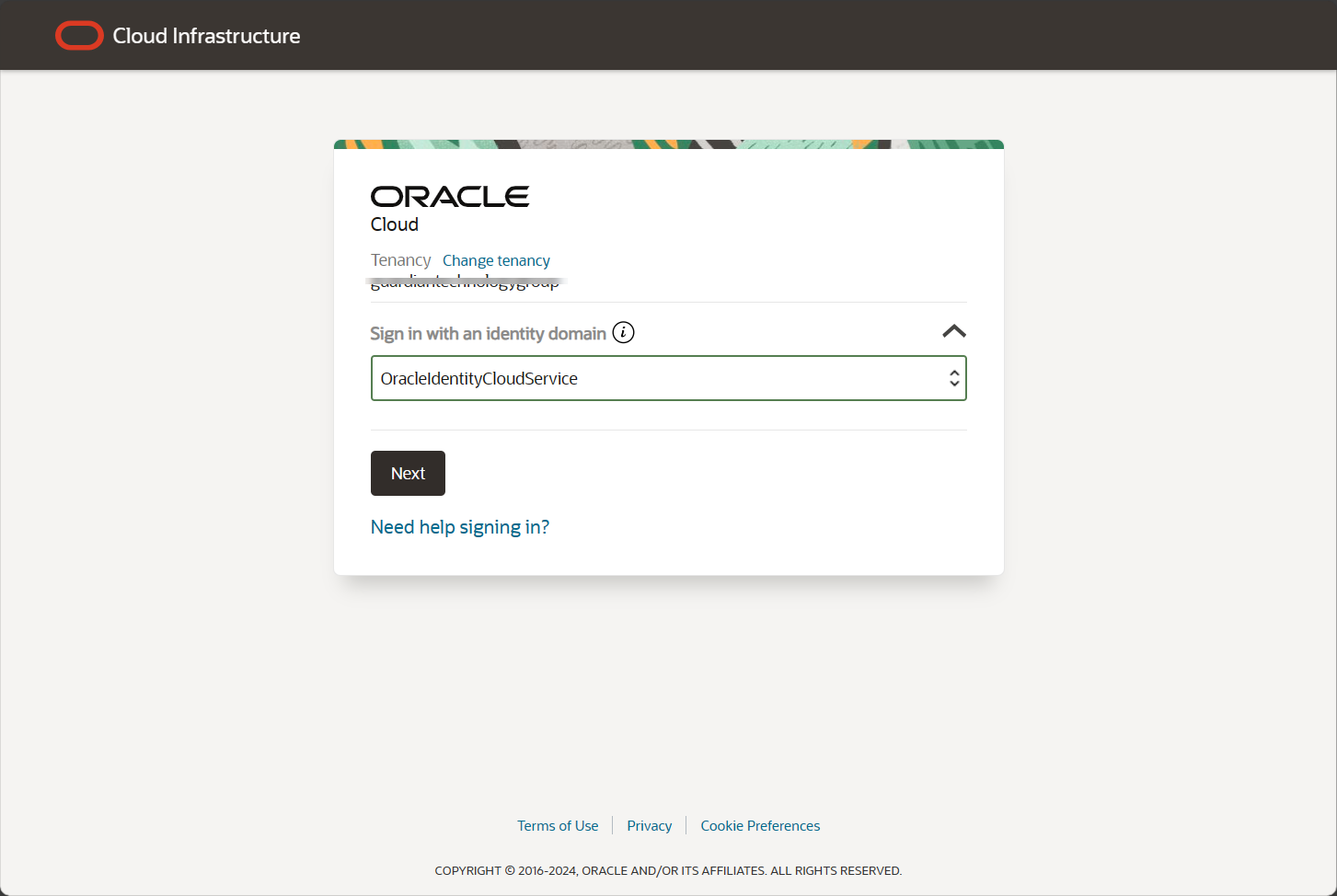
Select the OracleIdentityCloudService option from the Sign in with an identity domain list, and then click Next.
-
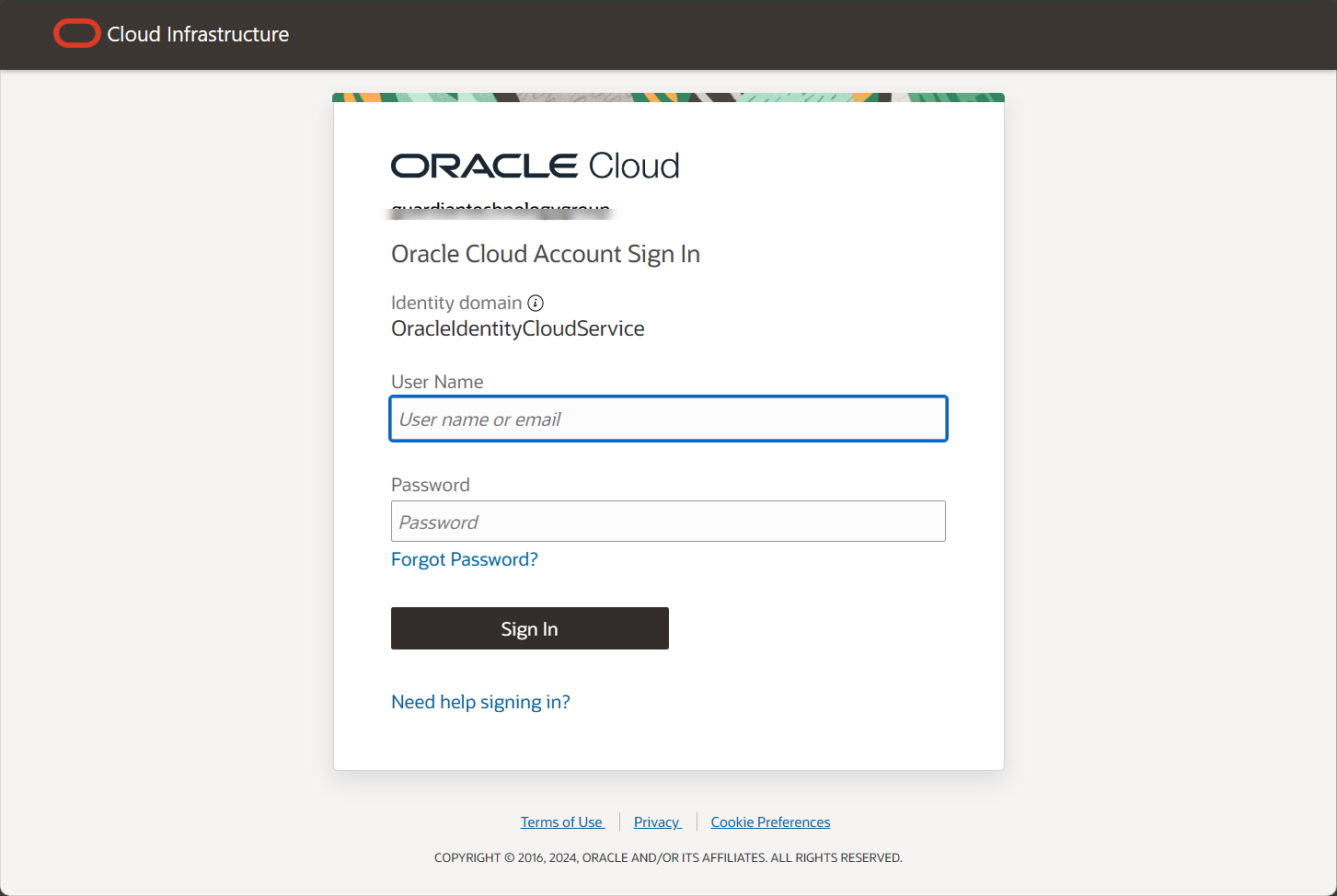
Enter the username and the password. Then click Sign In.
-
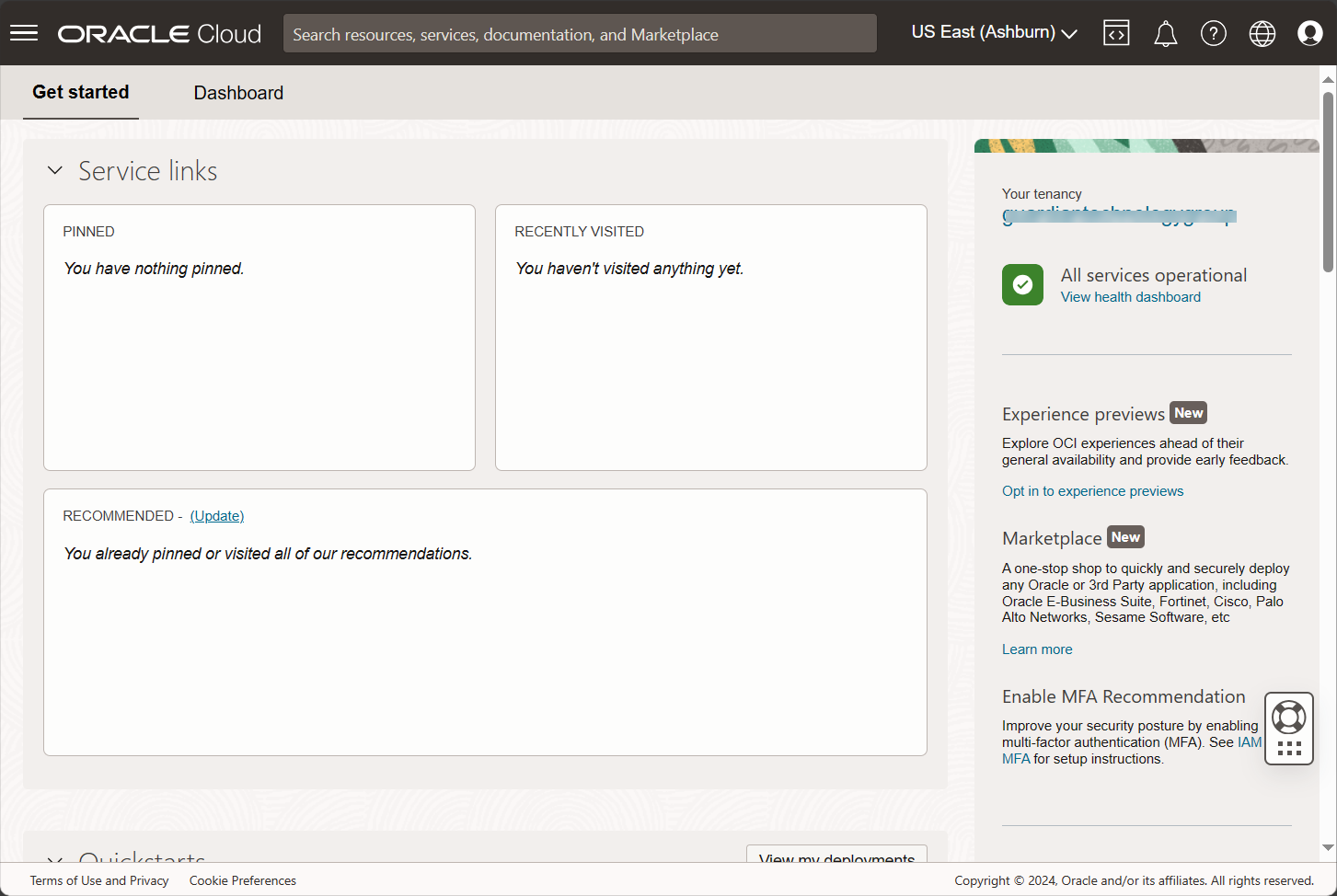
And the home page of the Oracle Cloud opens.
-
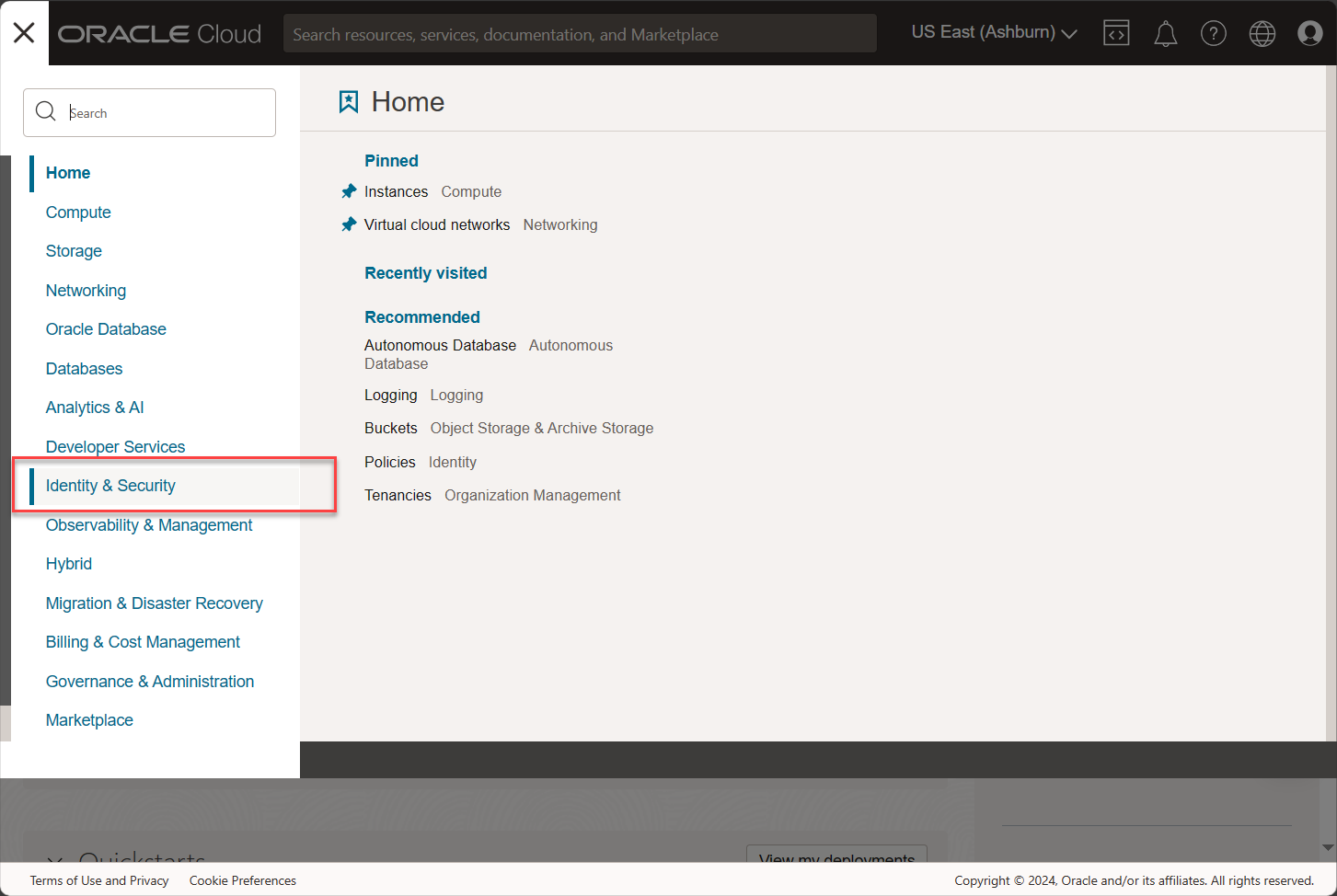
Open the main menu of the Oracle cloud and select Identity & Security.
-
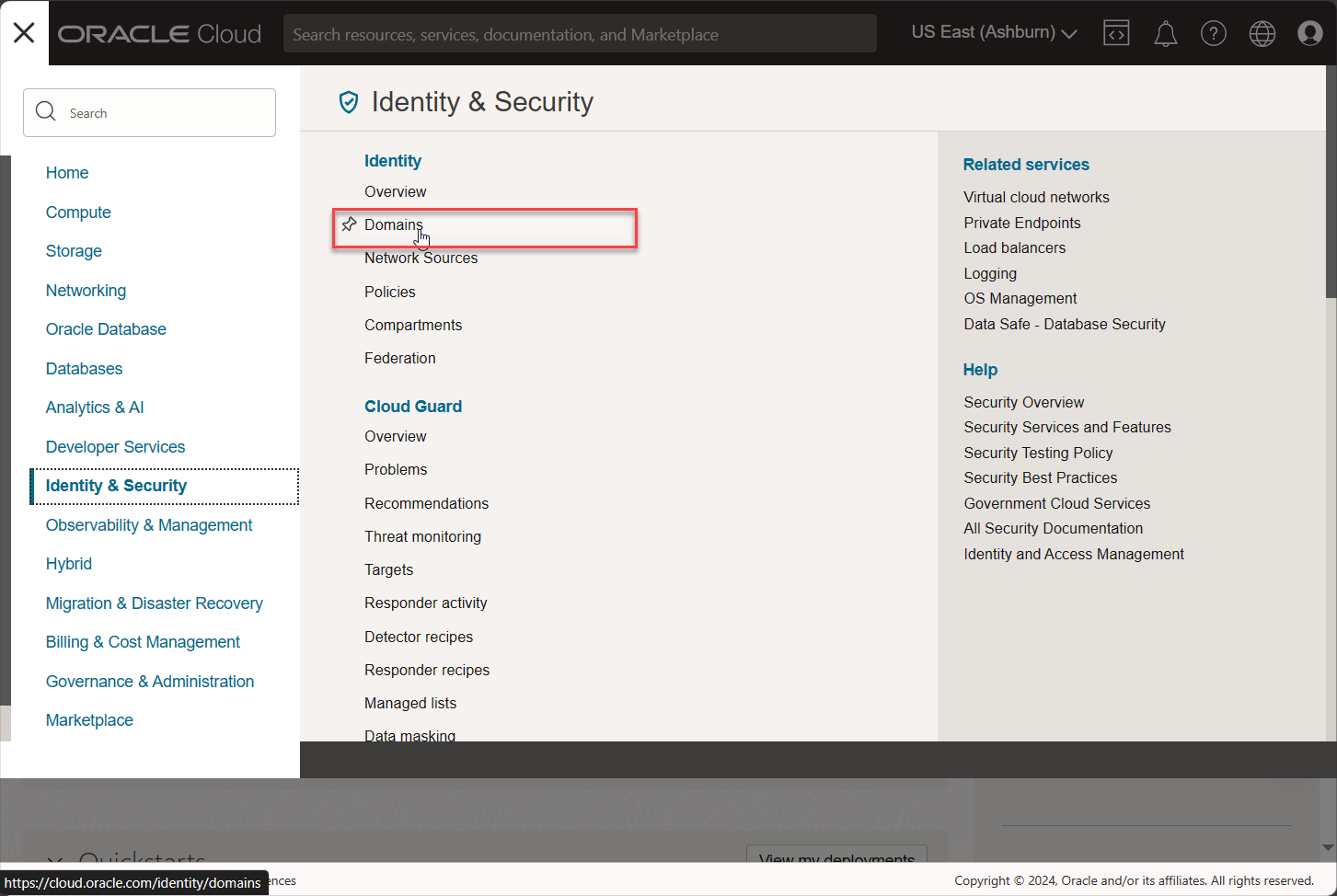
Select Domains.
-
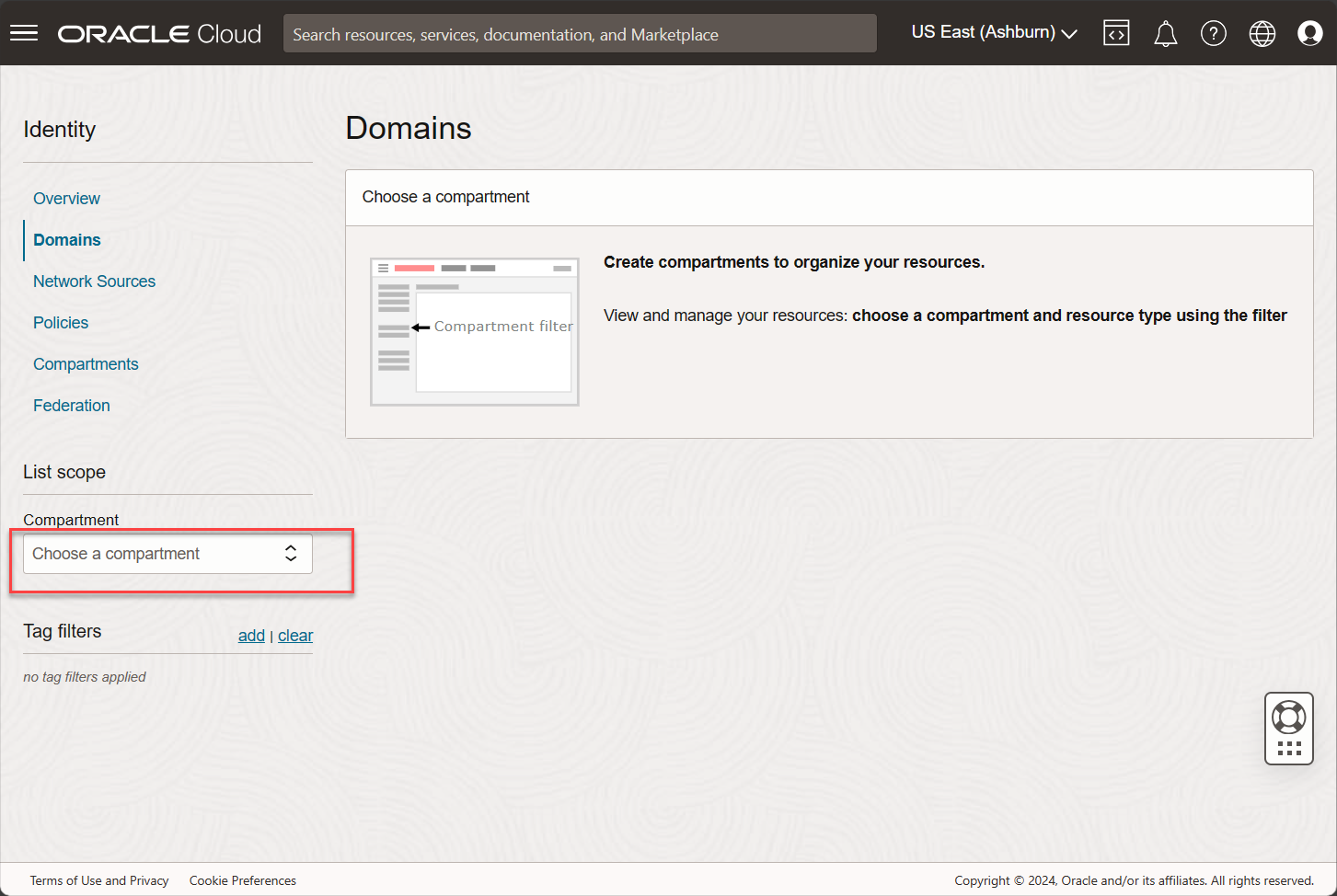
Select your tenancy from the Compartment list in the main menu on the right.
-
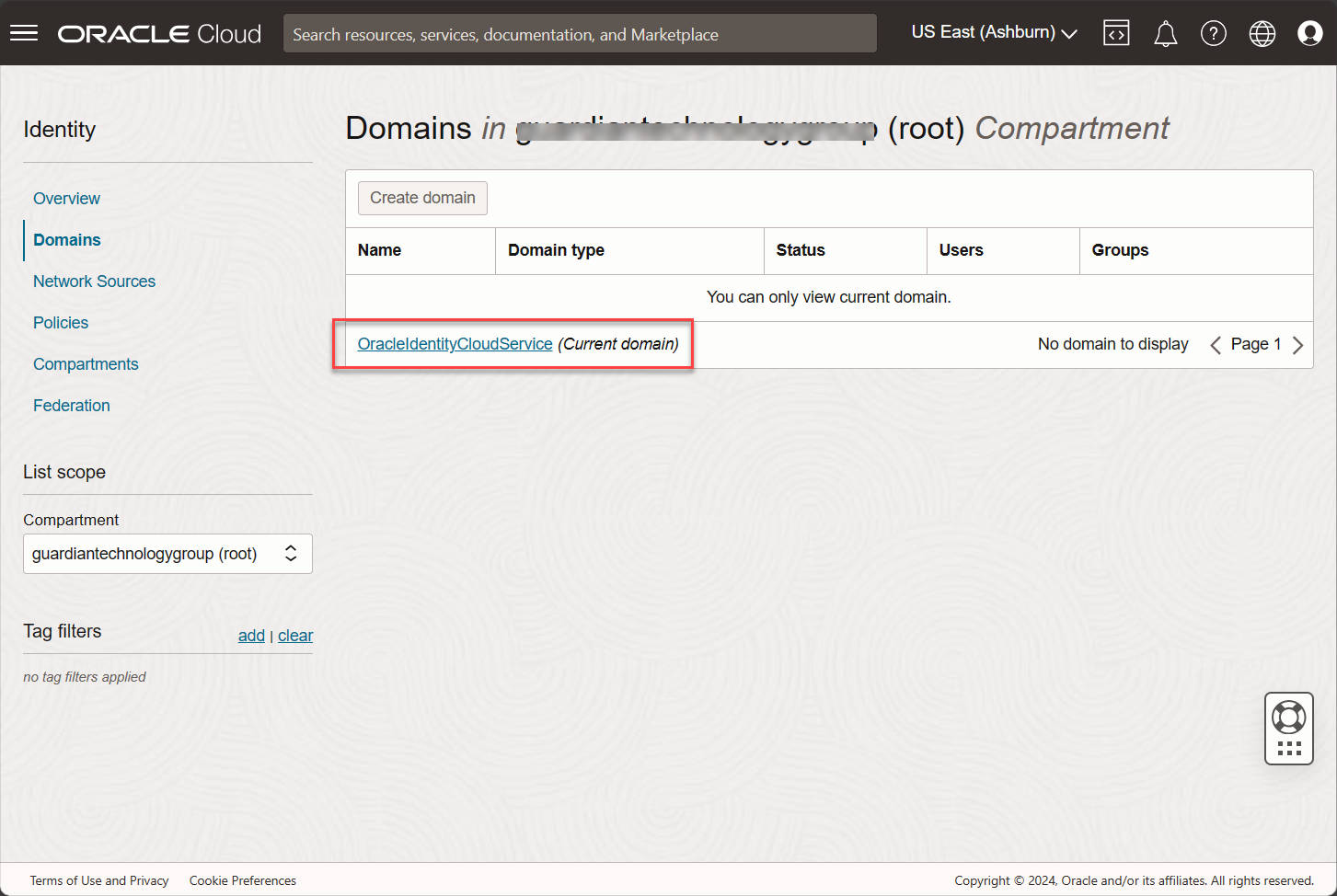
Click the OracleIdentityCloudService link under the list of domains.
-
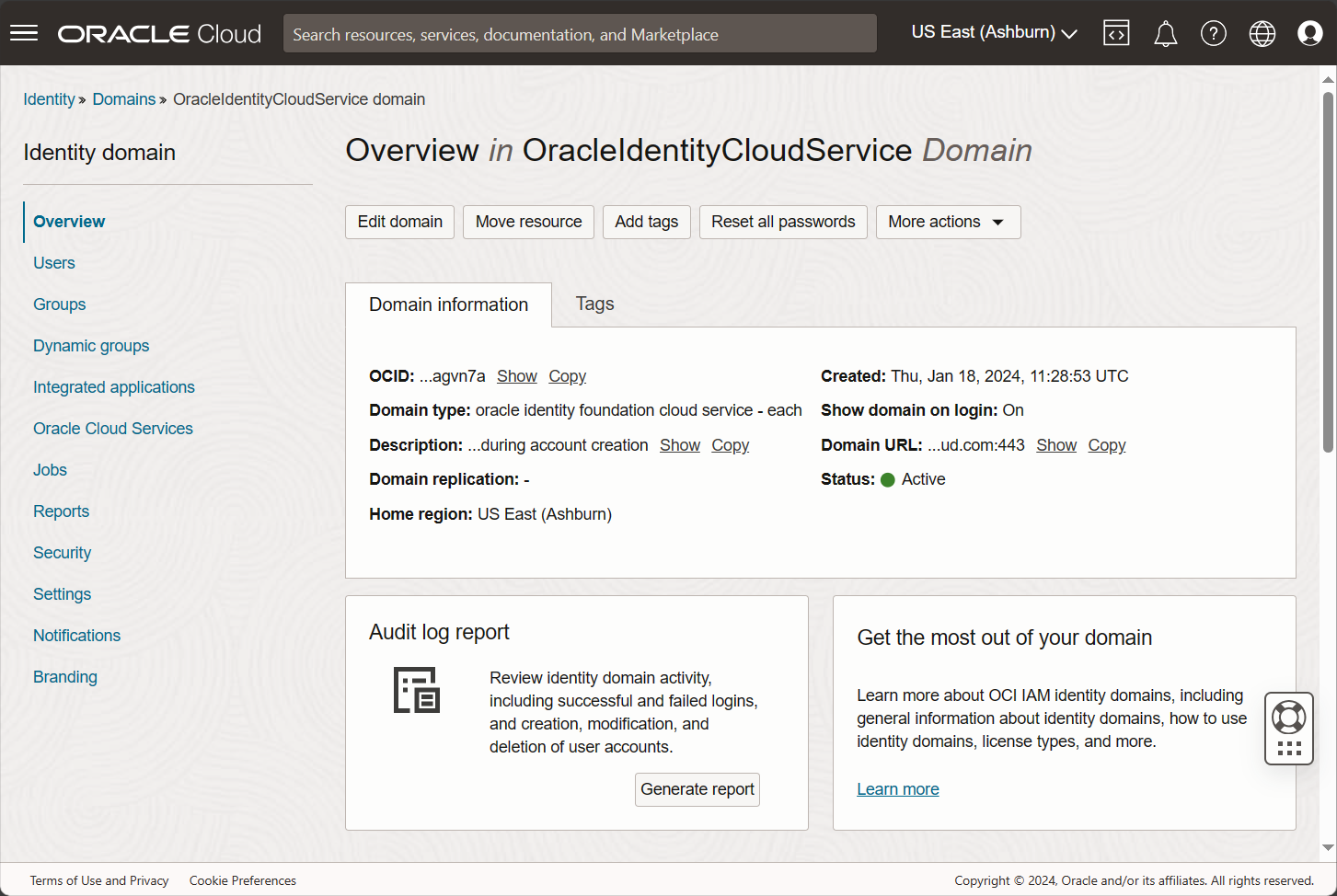
And the Identity Domain of the OracleIdentityCloudService opens.
Identity Domain URL
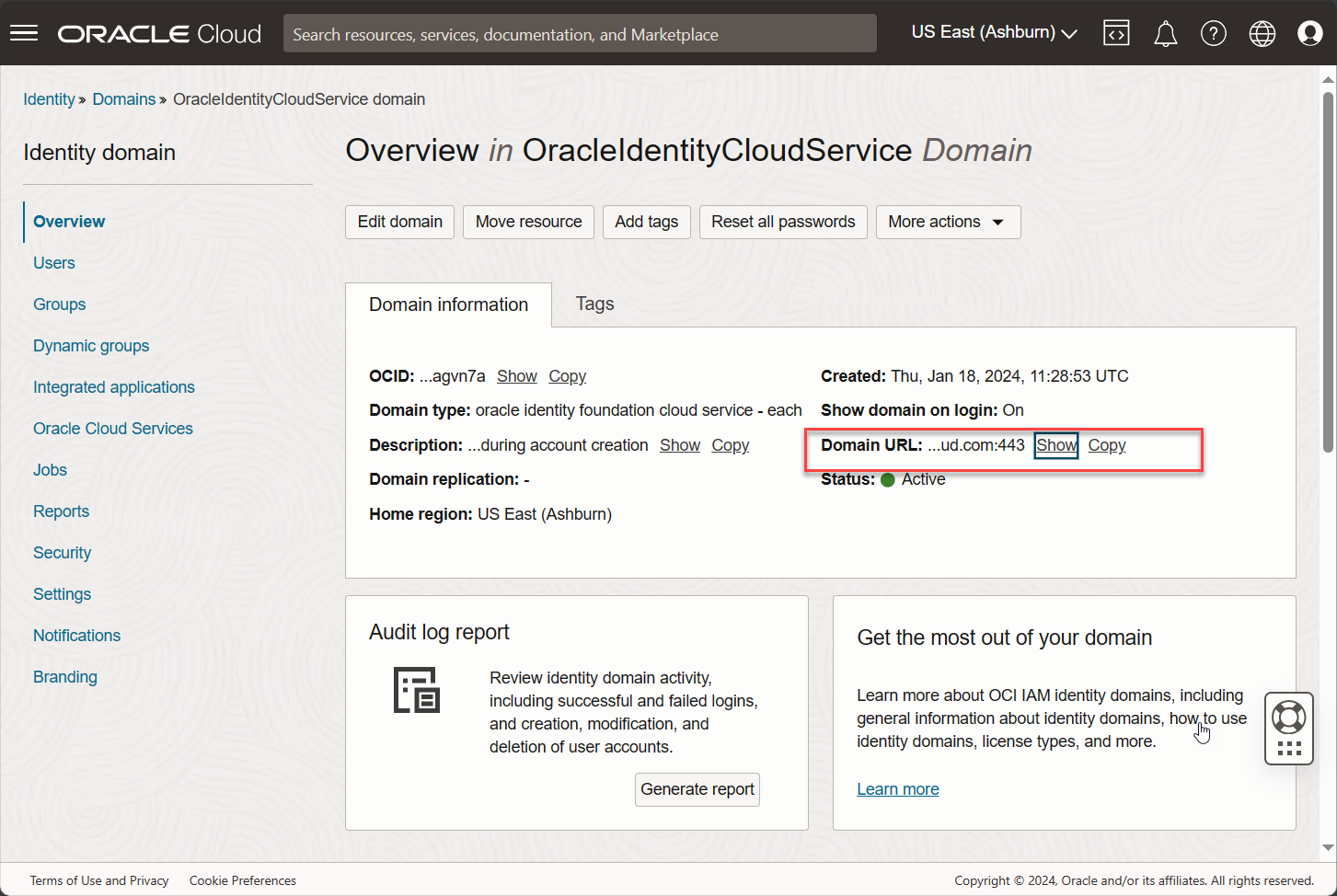
The Identity Domain URL is required for accessing Oracle IDCS progammatically via REST API calls. It is one of the parameters of the integration configuration on the ObserveID side. To view and\or copy the Identity Domain URL, it is needed to click the respective option on the Domain information tab of the Overview of the Identity Domain, see the figure below. An Identity Domain URL has the following format:
https://<tenant-name>.identity.oraclecloud.com:<port-number>
where <tenant-name>.identity.oraclecloud.com is the REST server portion of the service instance URL. The Oracle Identity Cloud Service tenant name begins with the characters idcs- followed by a string of numbers and letters (for example, idcs-9a888b7e6ebb44b4b65).
Register the app
To register ObserveID as one of the apps that Oracle Identity Cloud Service integrates with, do the following:
-
Open the Identity Domain of the Oracle Identity Cloud Service in: Oracle Cloud > Identity > Domains > OracleIdentityCloudService
-
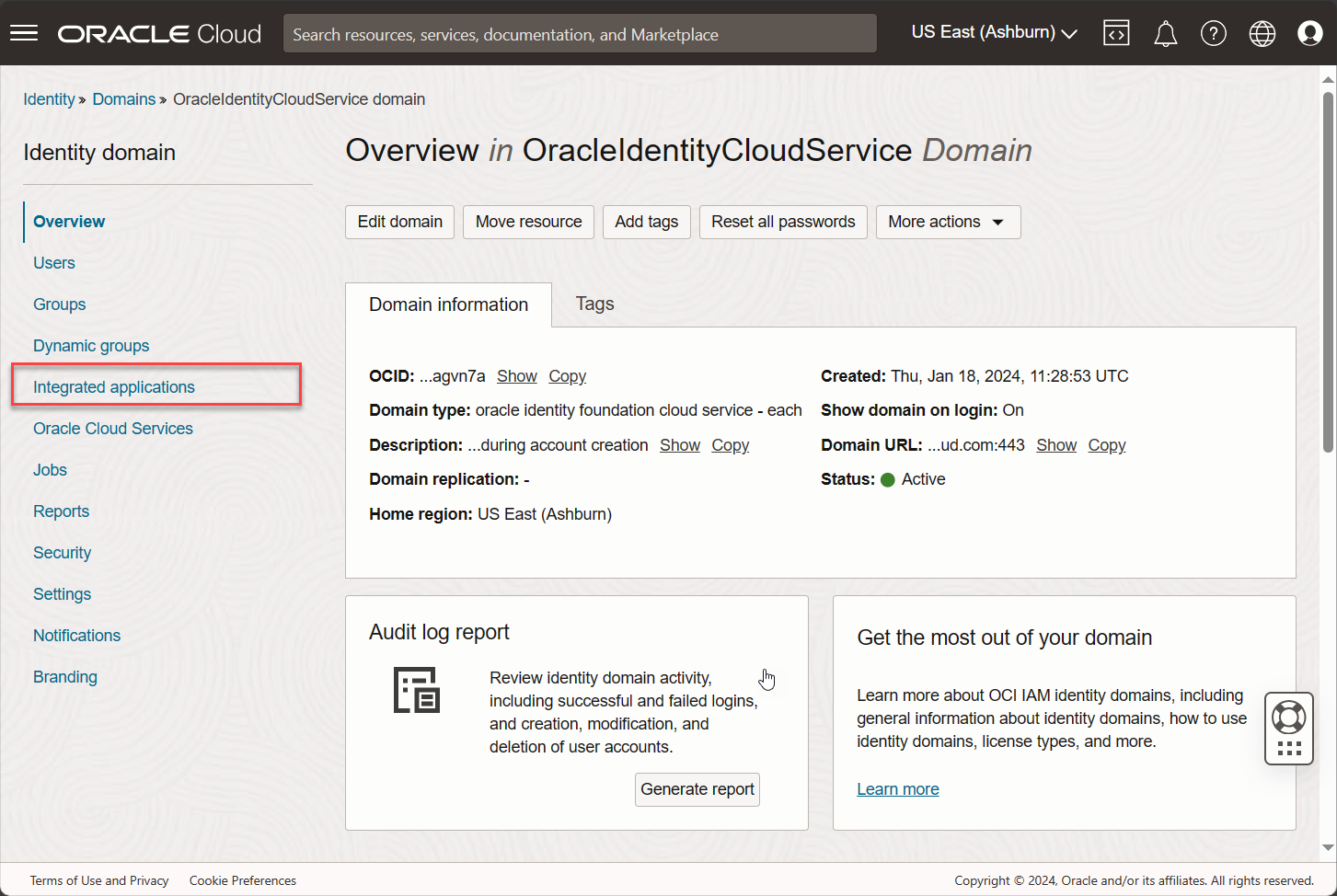
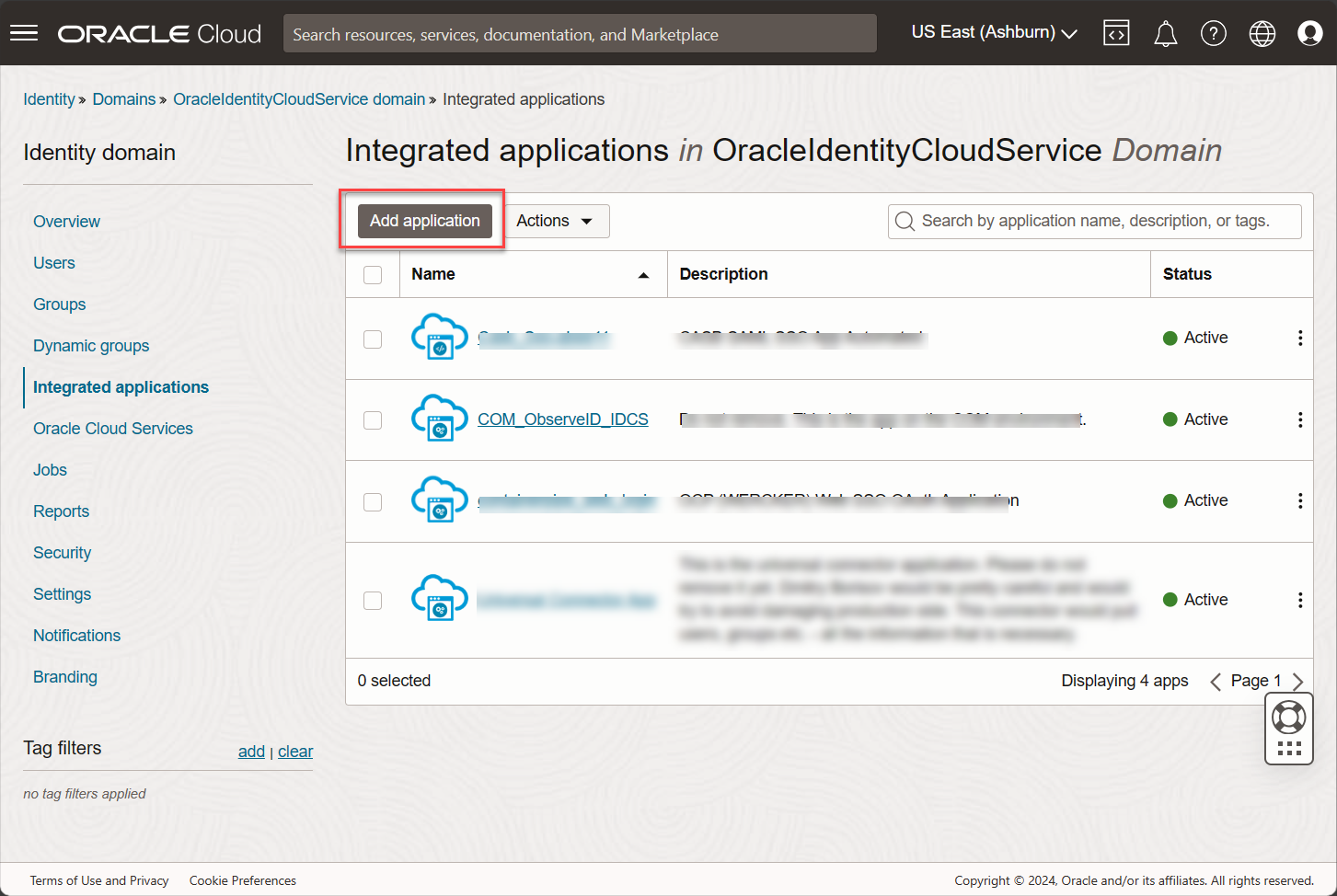
Click Integrated applications.
-
Click Add application. And the Add application popup window opens.
-
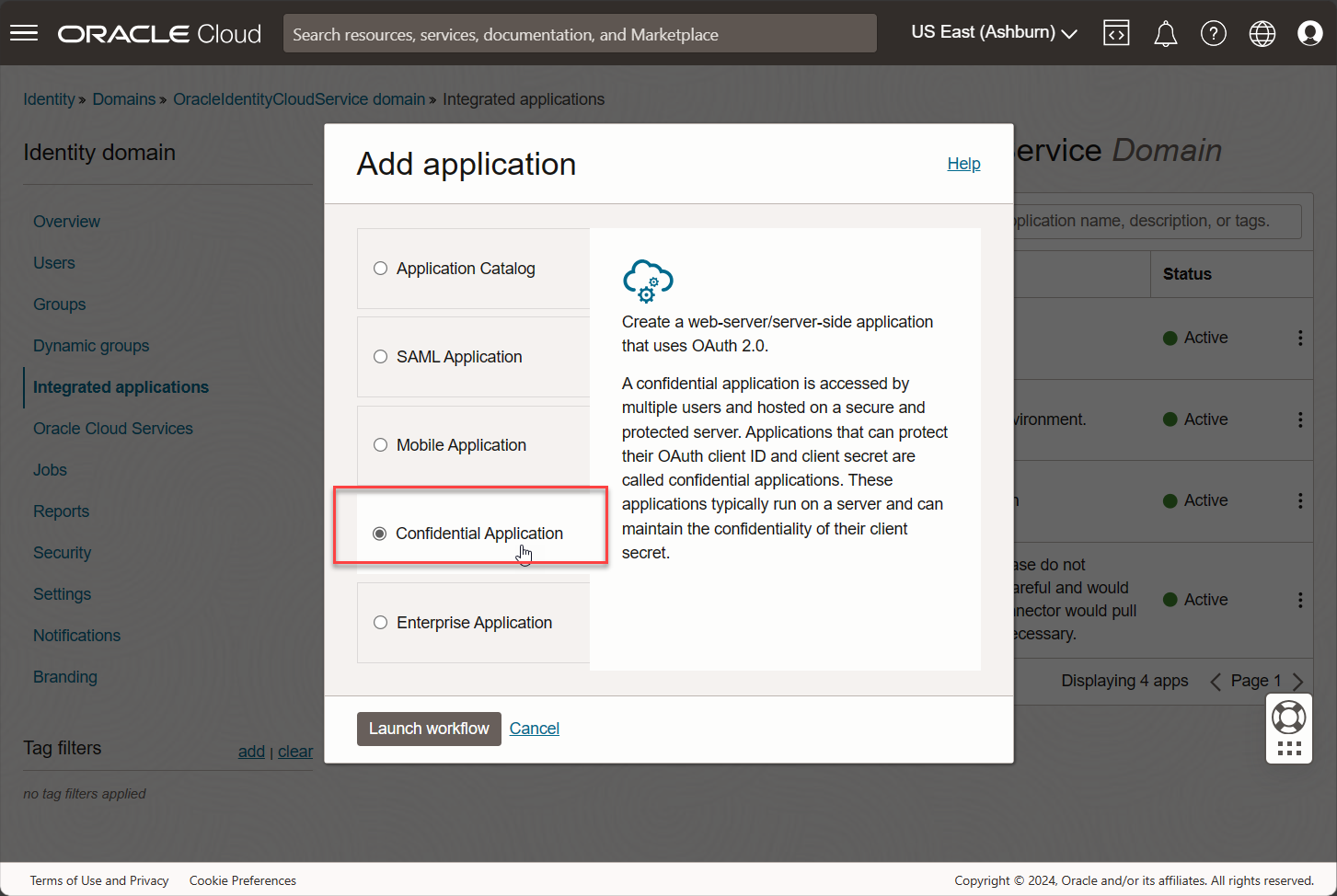
Select the Confidential Application option and click the Launch workflow button at the bottom.
-
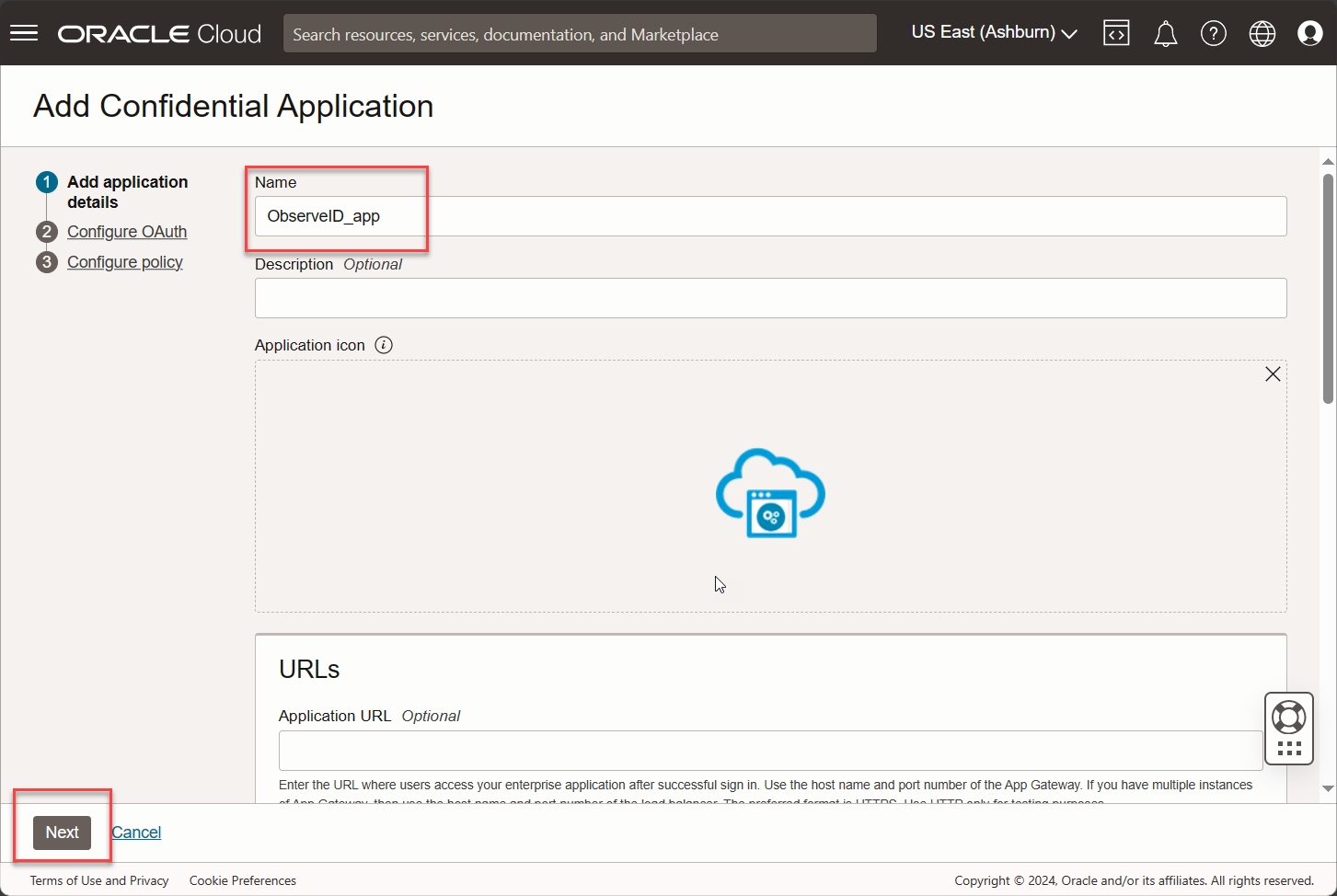
Enter a name for the app, then click Next.
-
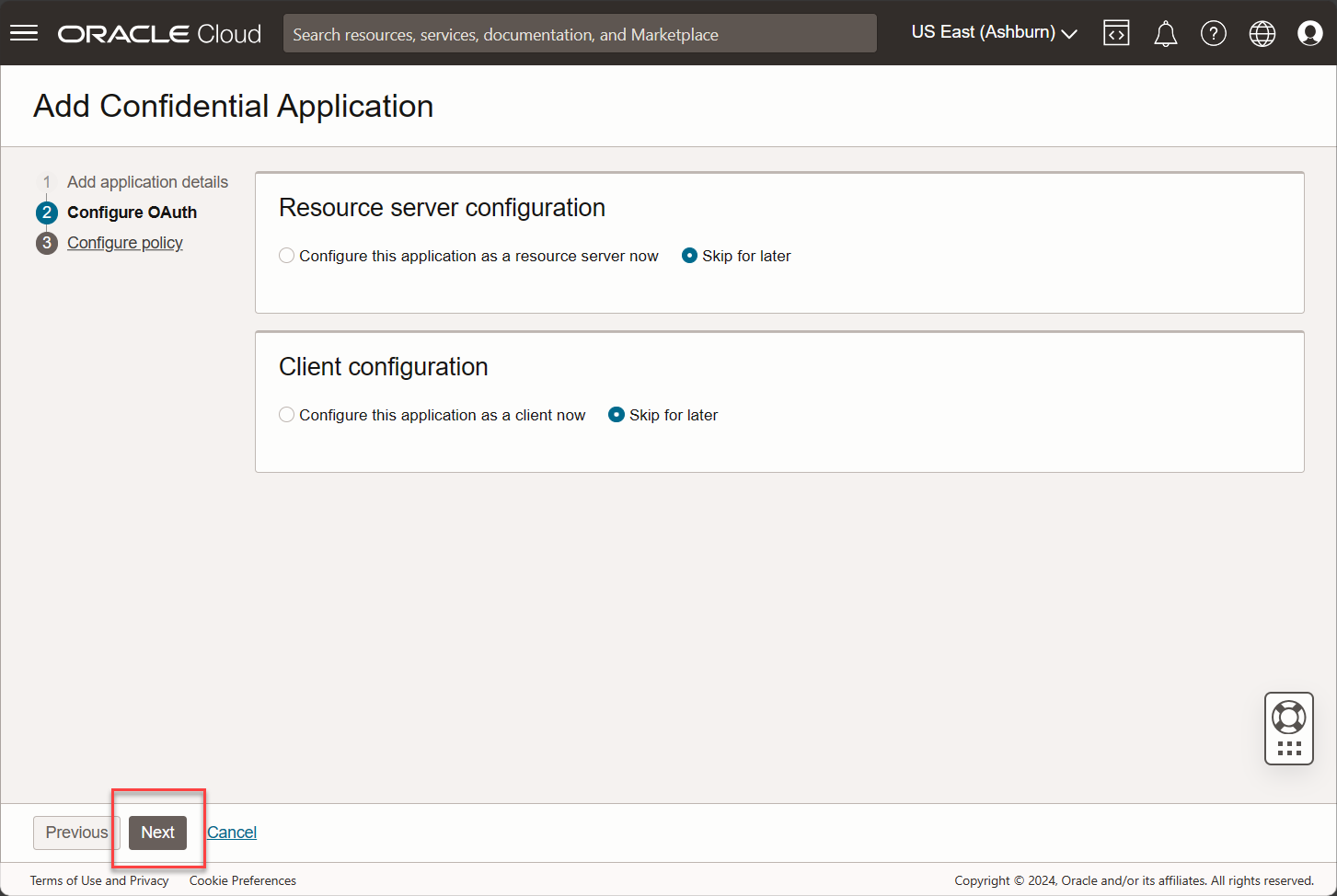
Click Next to skip the Configure OAuth step.
-
Click Finish to skip the Configure policy step and finish the configuration.
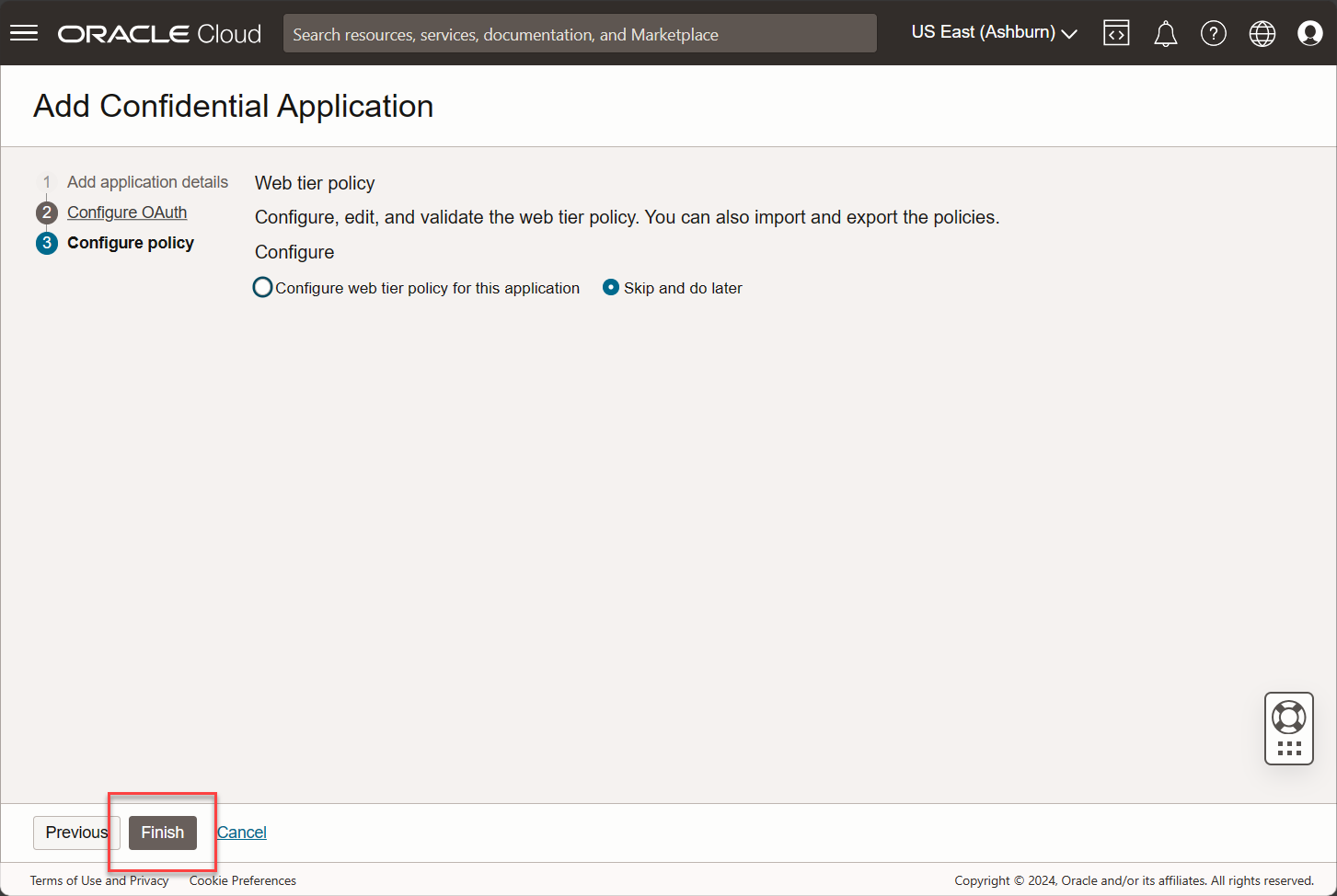
-
The app is registered. It is possible to go through the next steps of the wizard to configure the app for the integration with ObserveID, or return to the Applications list and continue with the configuration later.
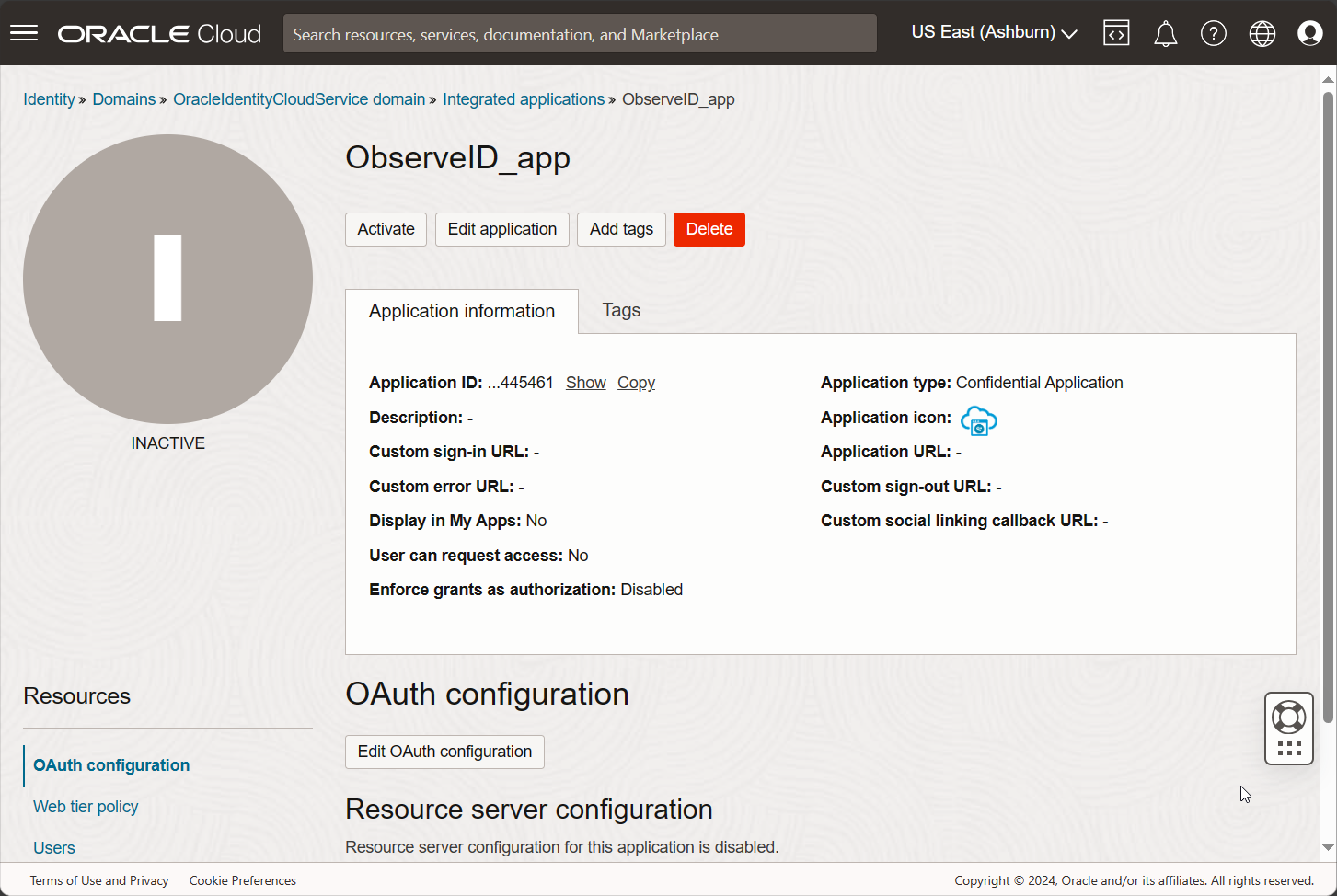
Configure the app as a Client
To establish the authentication method and get the credentials, do the following:
-
Select the app in the Applications list.
-
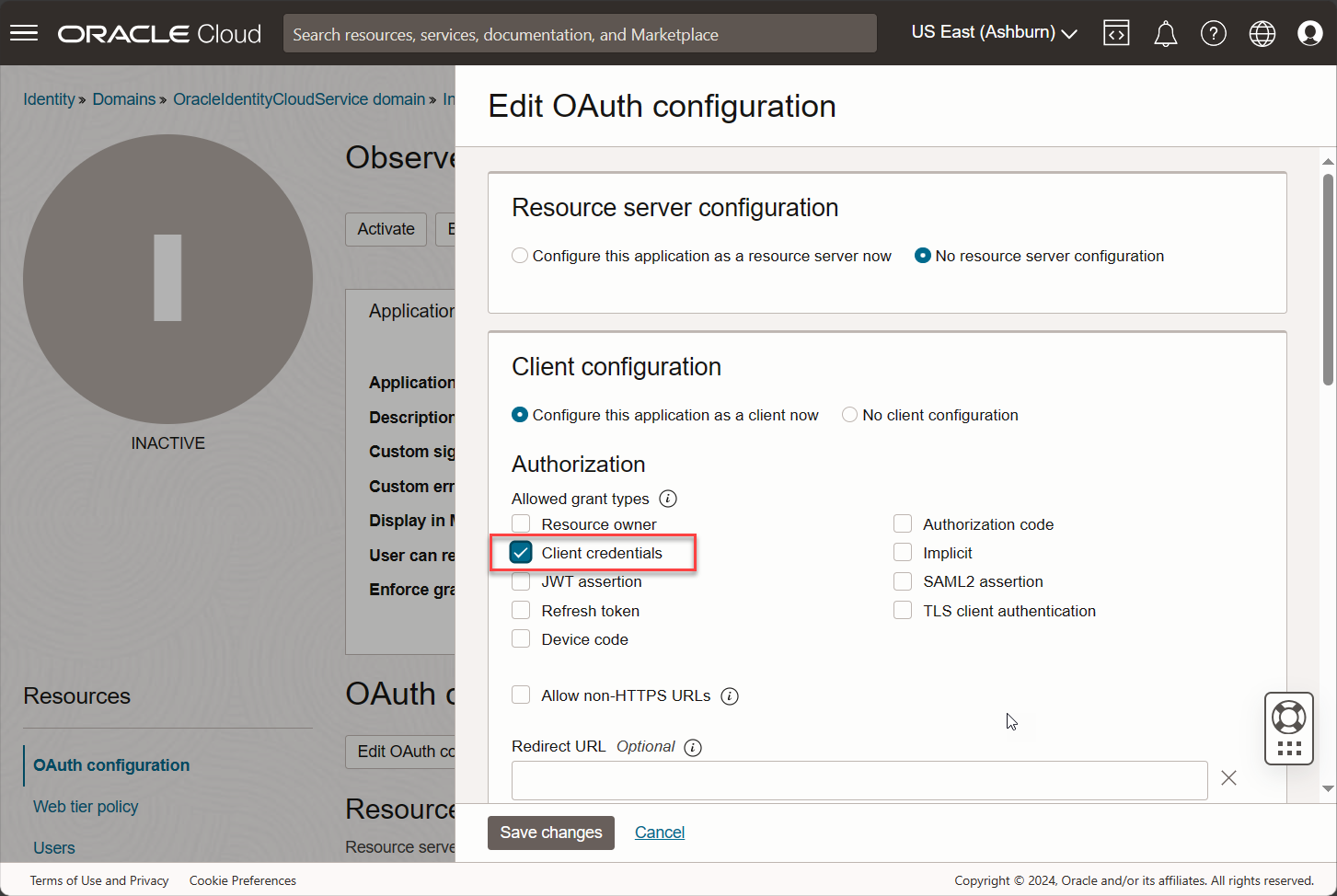
Click the Edit OAuth configuration button below the Application information tab.
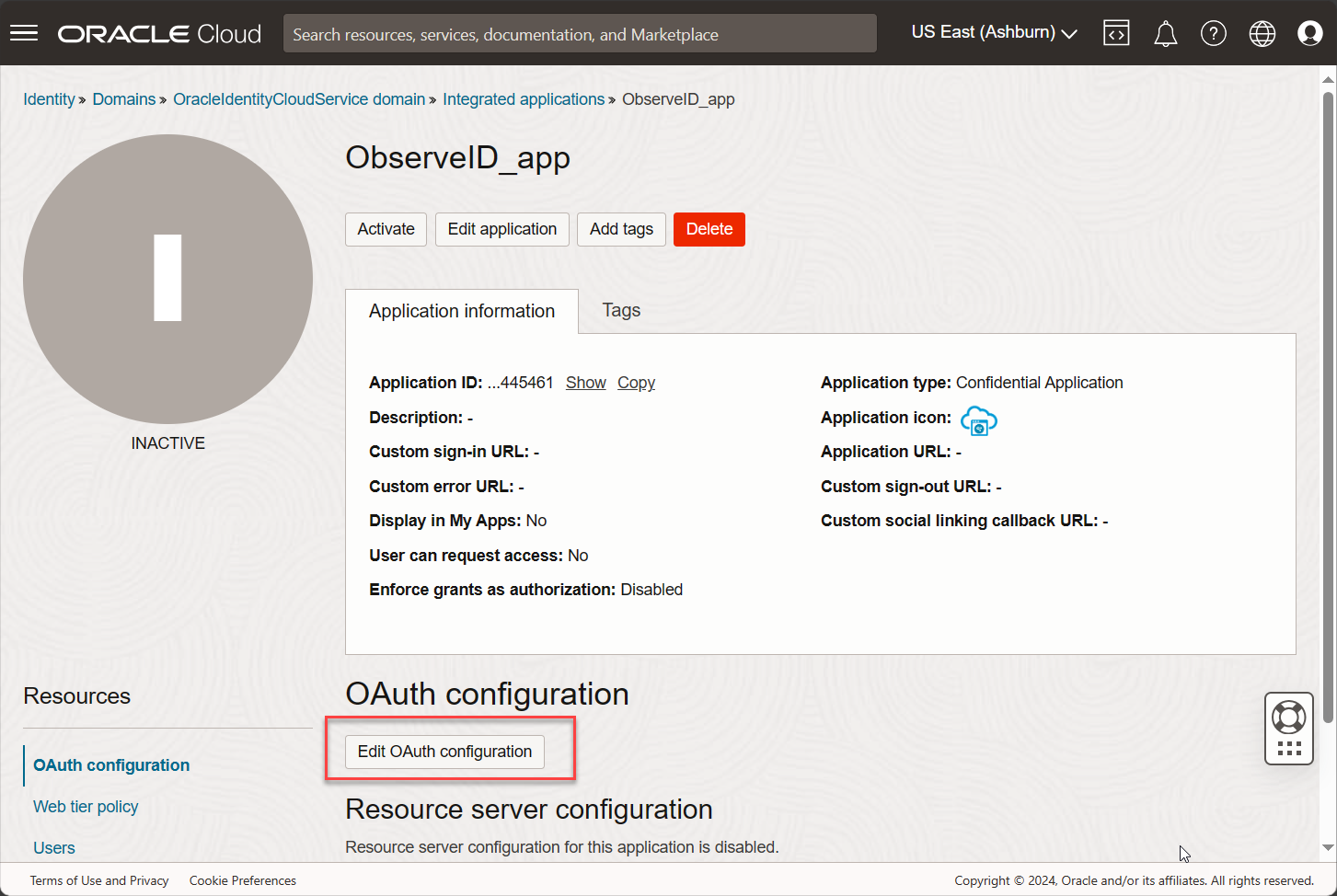
-
Click the Configure this application as a client now option in the Client configuration section.
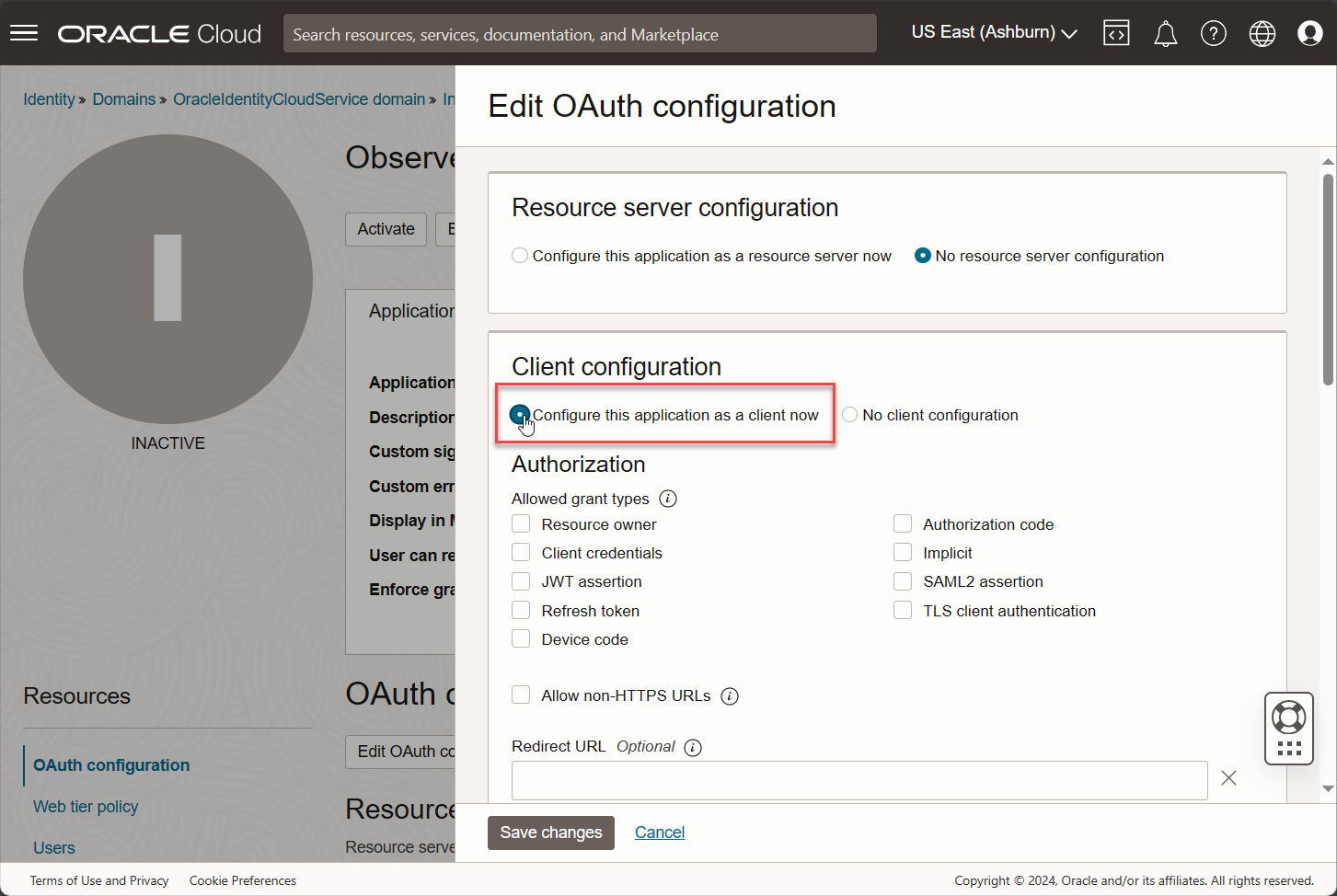
-
Then check the Client credentials checkbox in the Authorization section.
-
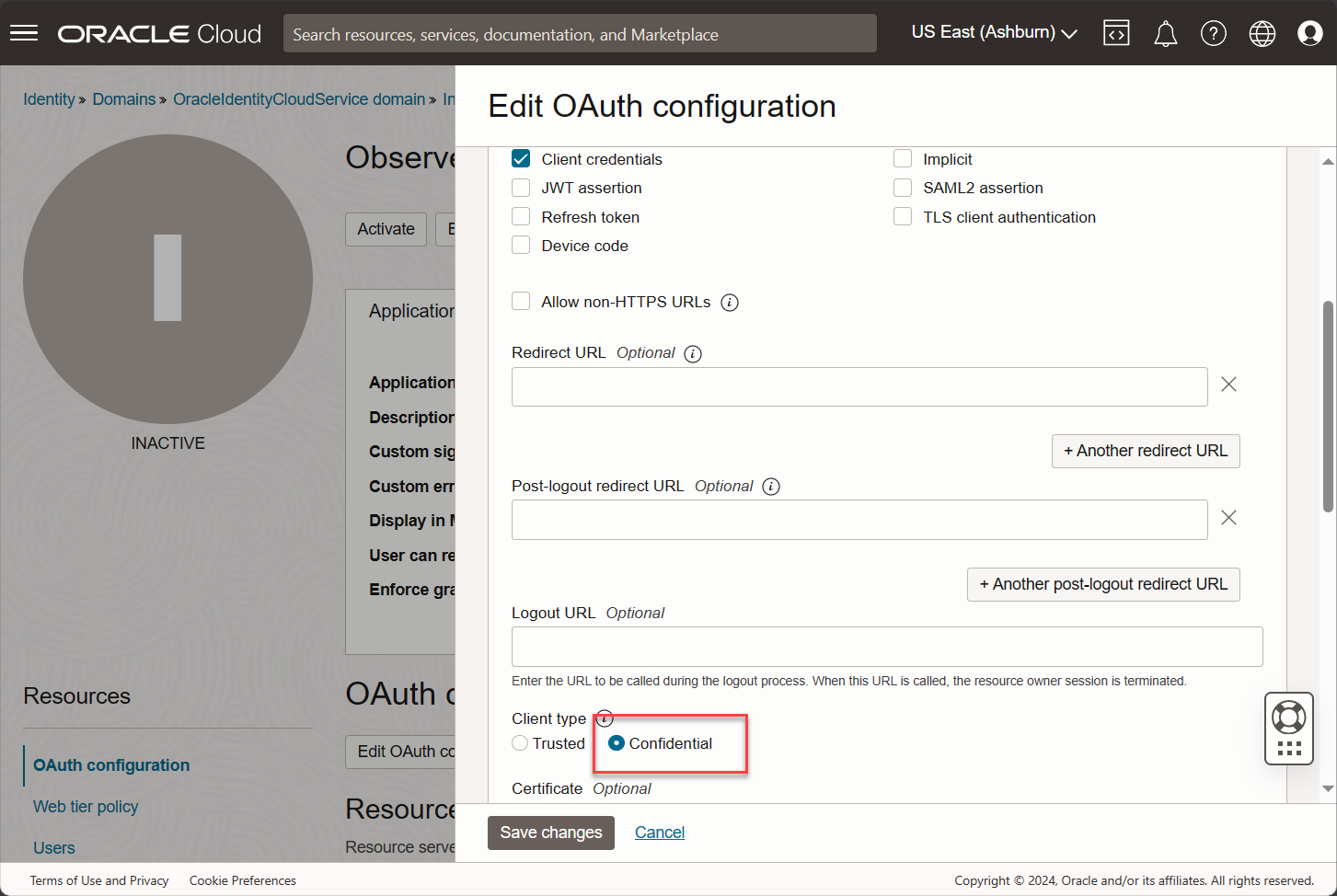
Scroll down up to the Client type section and select the Confidential option.
-
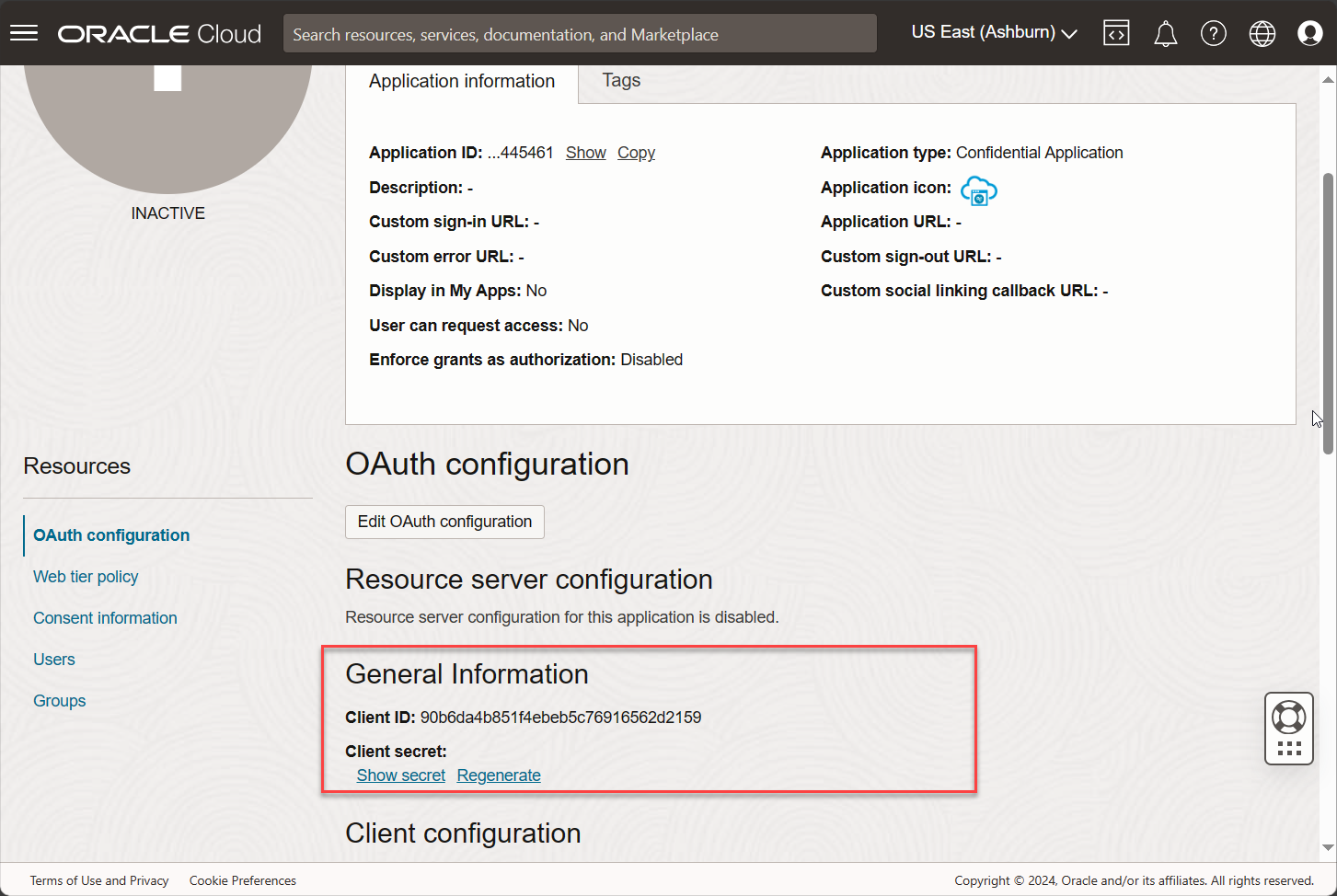
Click Save changes, and the General Information section shows up for the application.
-
Copy Client ID and Client Secret to save them for using later.
Assign application role
To allow the application to access programmatically the Oracle Identity Cloud Service via REST API, it is needed to assign the application role to the app registered in the service for ObserveID, as follows:
-
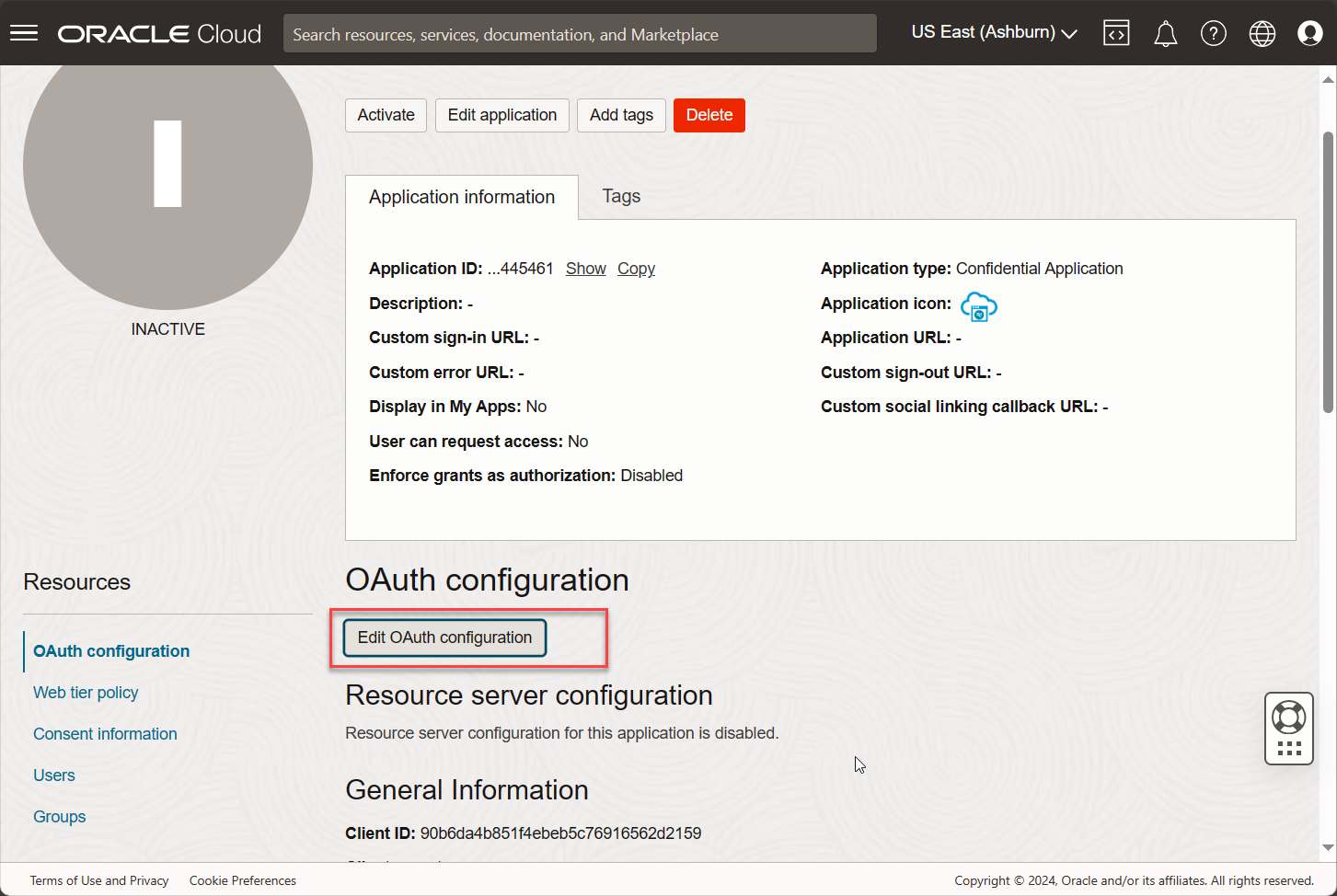
Select the app in the Applications list.
-
Click the Edit OAuth configuration button below the Application information tab.
-
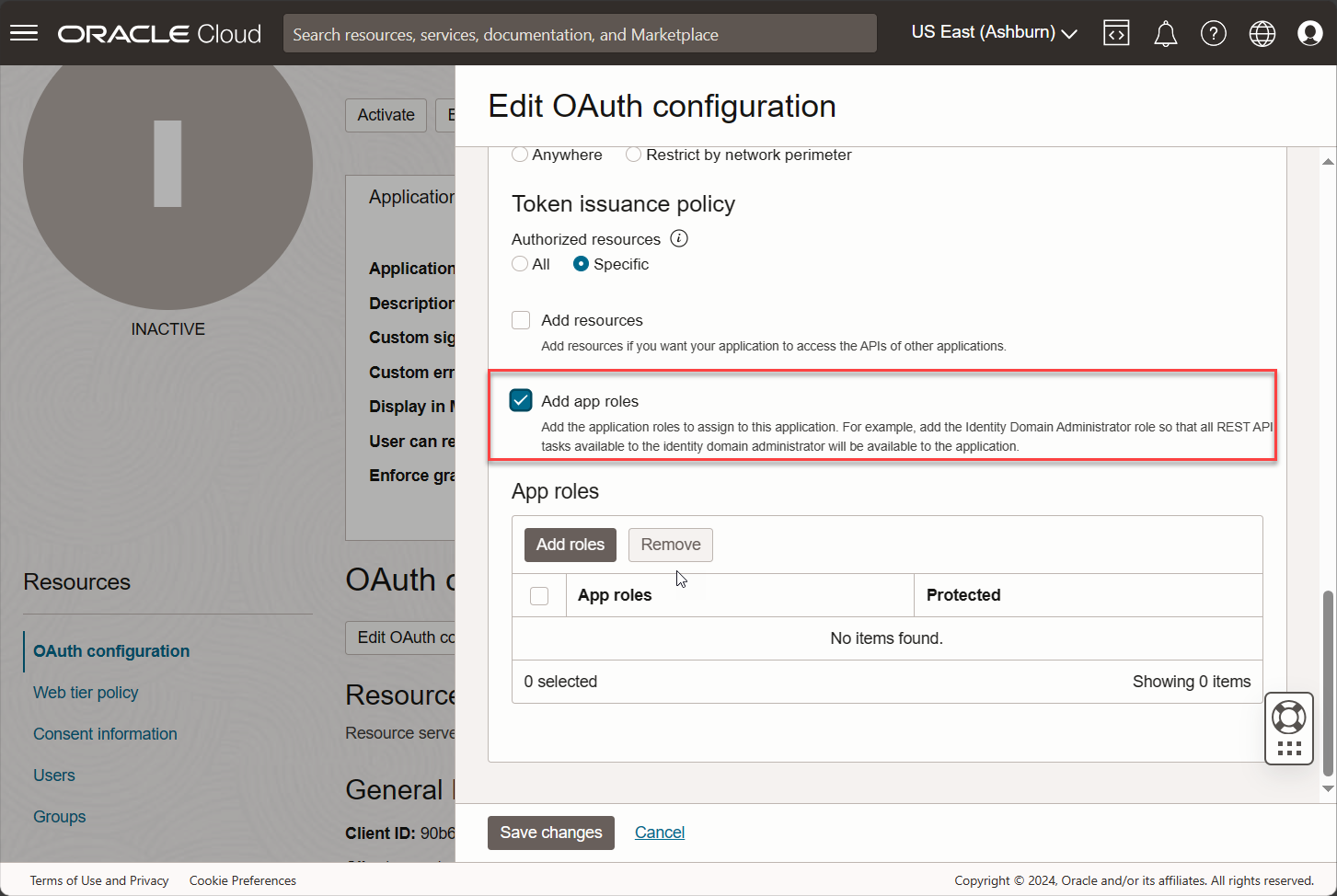
Scroll down up to the Add app roles checkbox. Check it and the App roles grid shows up.
-
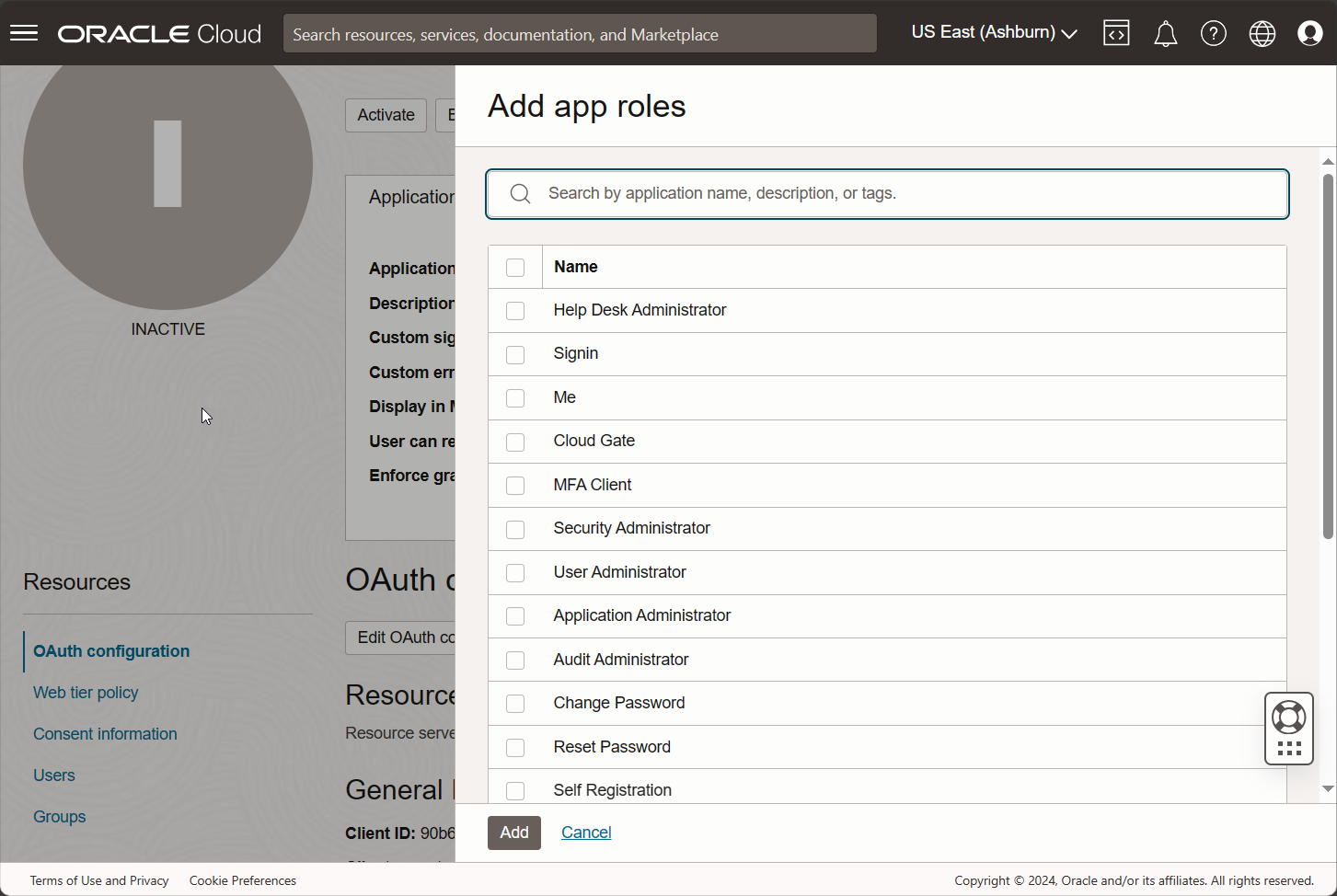
Click the Add roles button, and the Add app roles popup opens.
-
Start typing
Identity Domain Administratorin the search bar, and the available role shows up. Check the Identity Domain Administrator role, and click Add.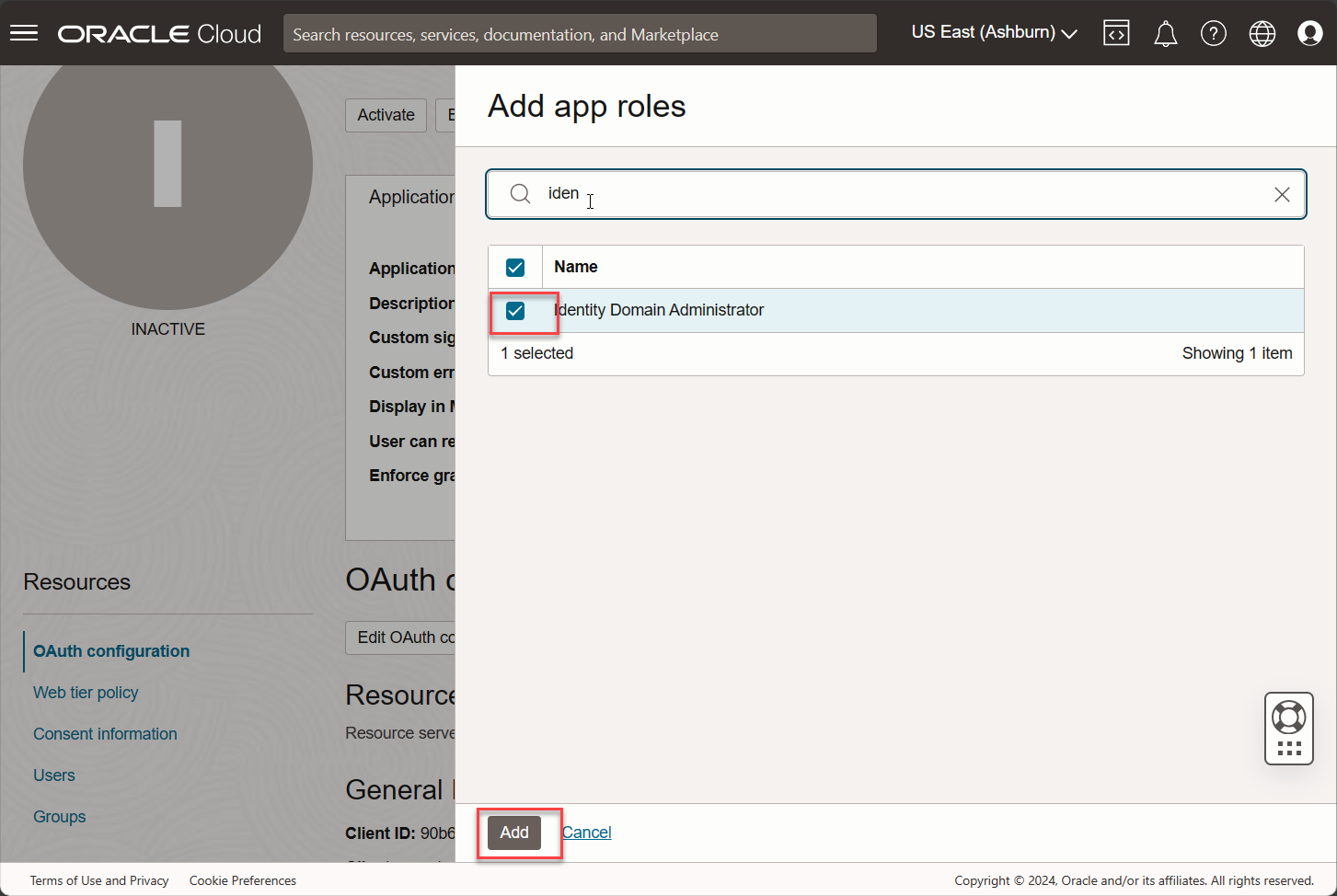
-
Click Save changes.

Activate the app
To make the app active and available for use, it is needed to activate it as follows:
-
Select the app in the Applications list.
-
Click Activate.

-
Click Activate application in the confirmation window.

-
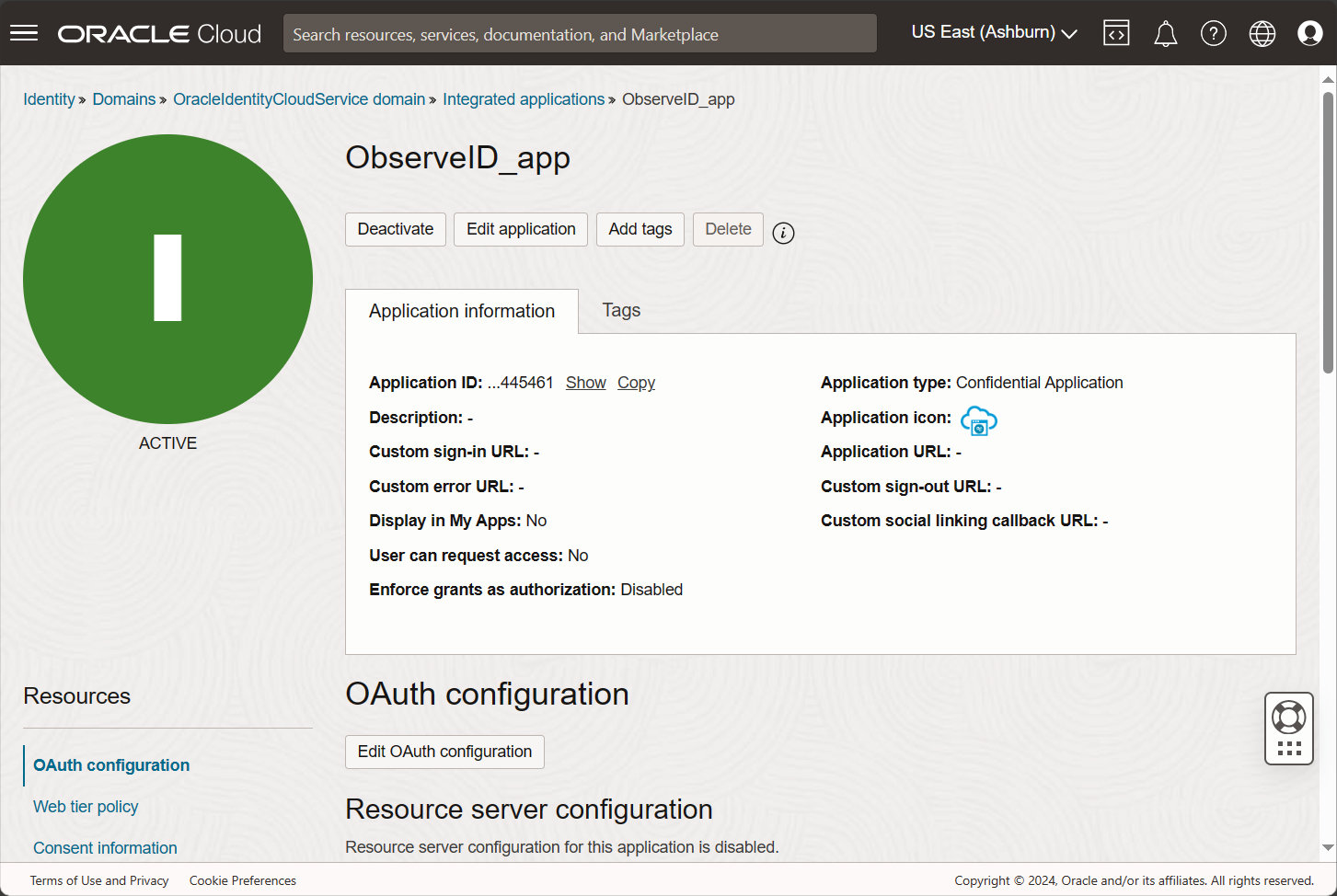
And the application is activated, and ready for use.
Configuration of Oracle IDCS integration in ObserveID
-
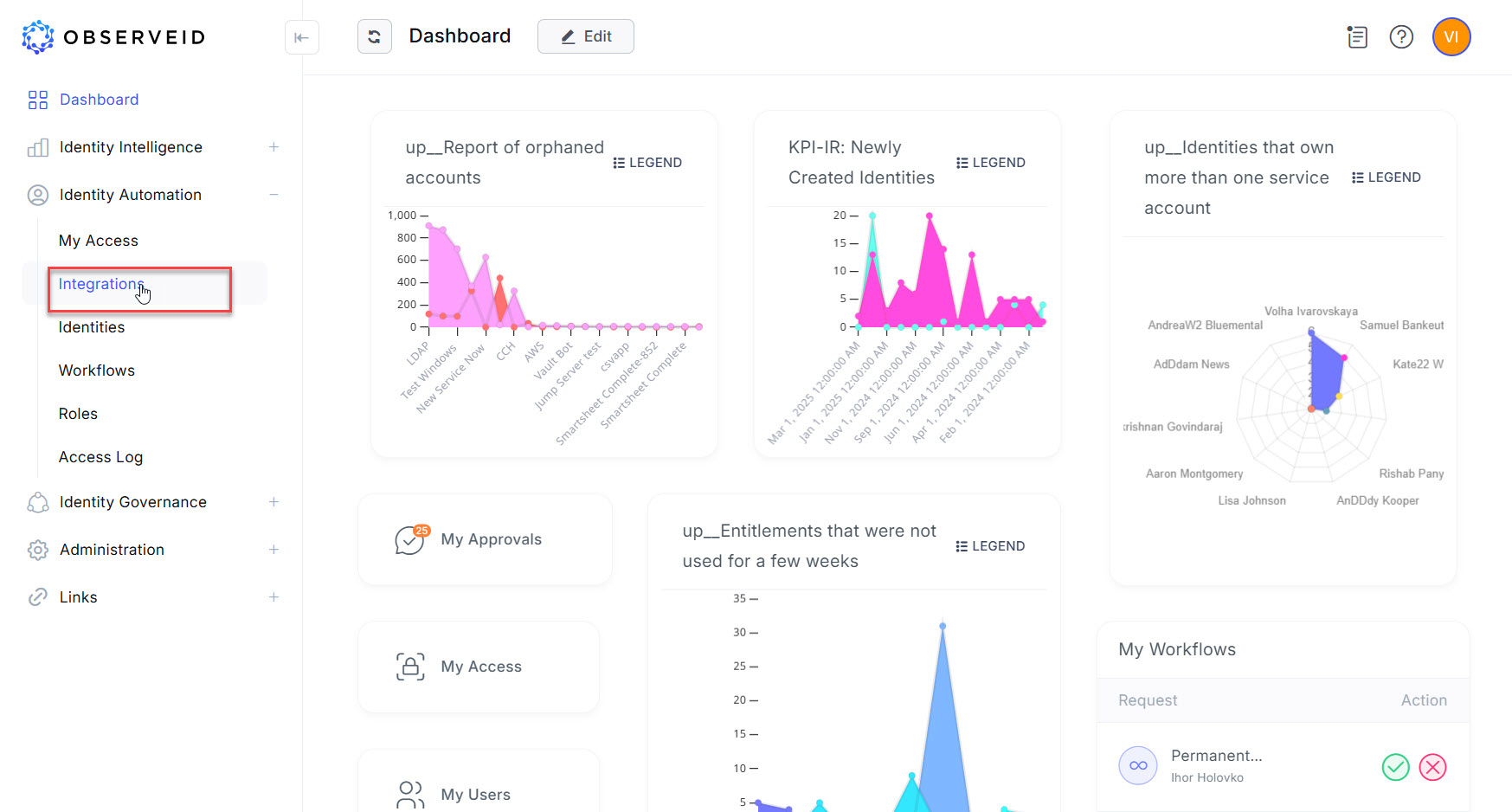
Log in to the ObserveID platform. And the Dashboard is the first page that is opened.
-
Expand the Identity Automation section in the menu on the left.
-
Click Integrations.
-
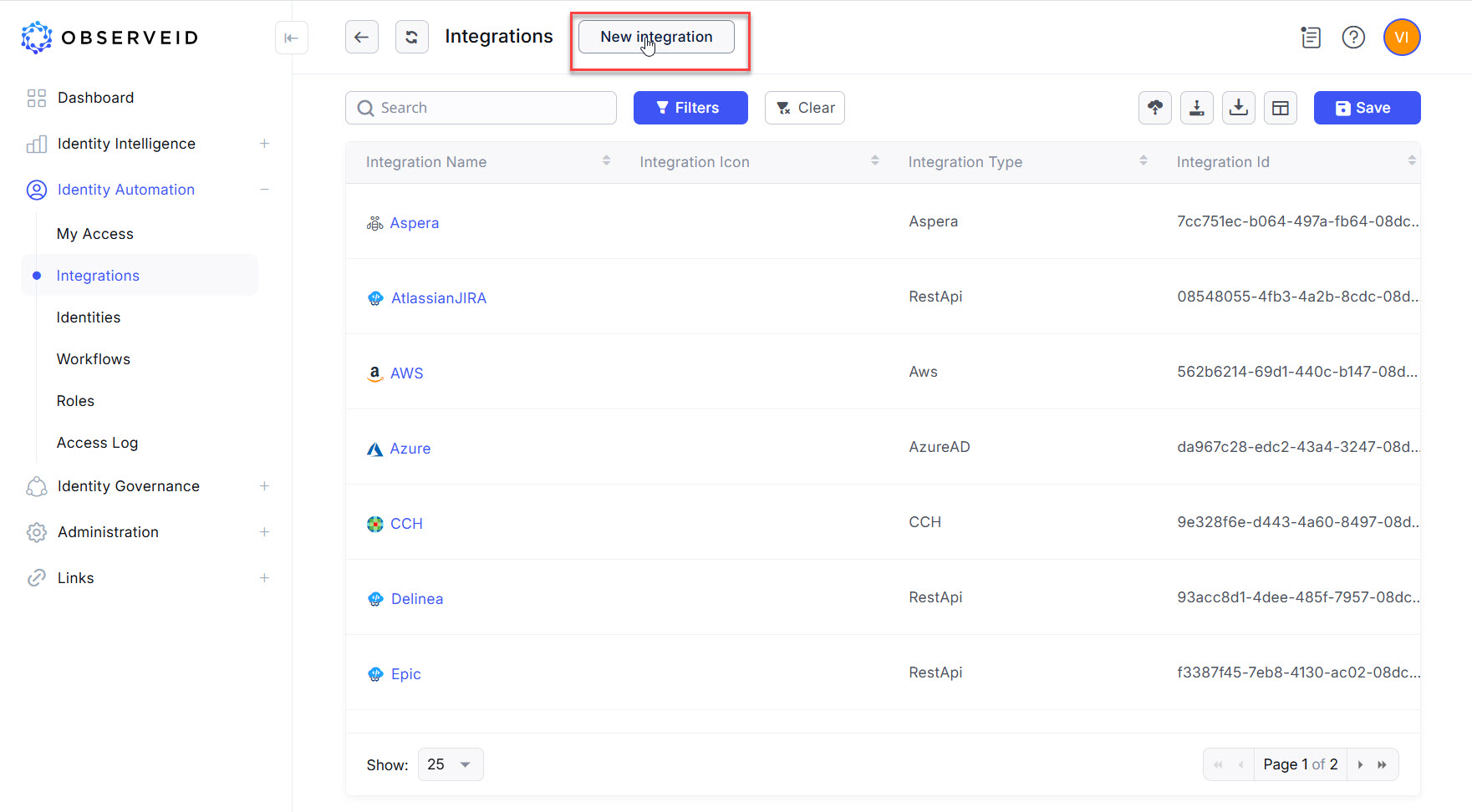
Click New integration in the header of the page.
-
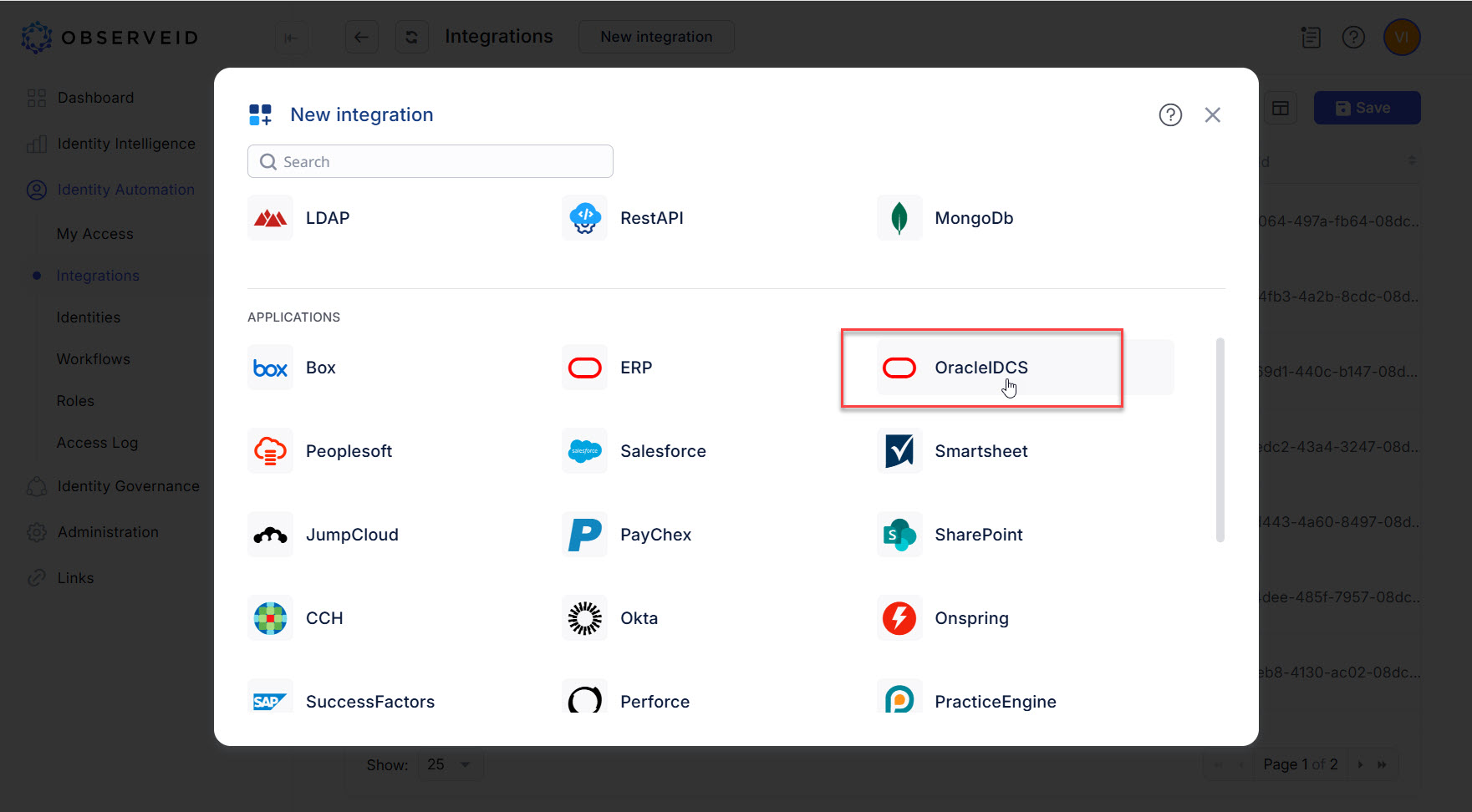
Click Oracle IDCS in the opened New Integration popup window.
-
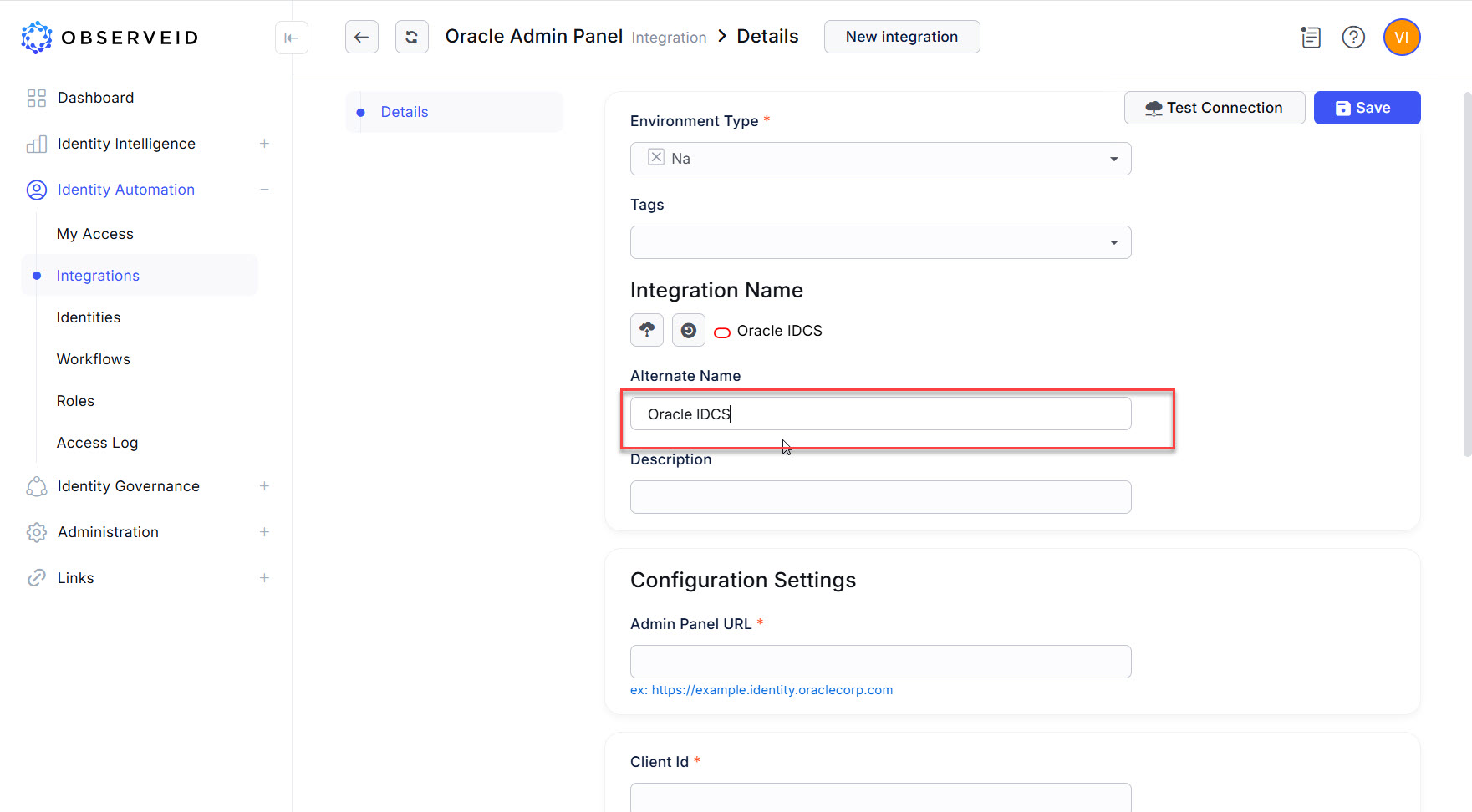
Enter a name for the integration.
-
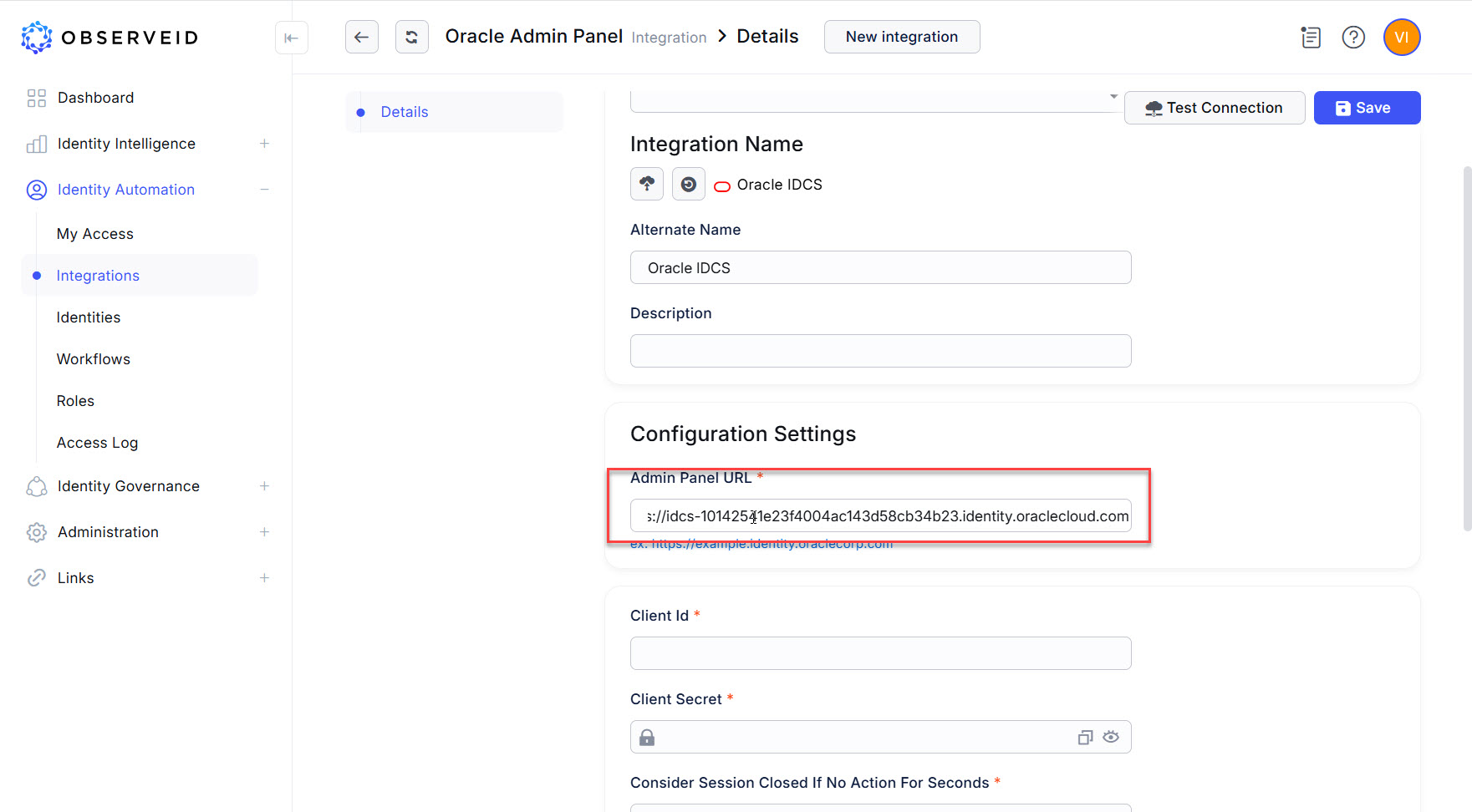
Copy the Identity Domain URL from the Overview page of the Oracle Identity Cloud Service in the Oracle Cloud, and paste it in the Admin Panel URL field.
-
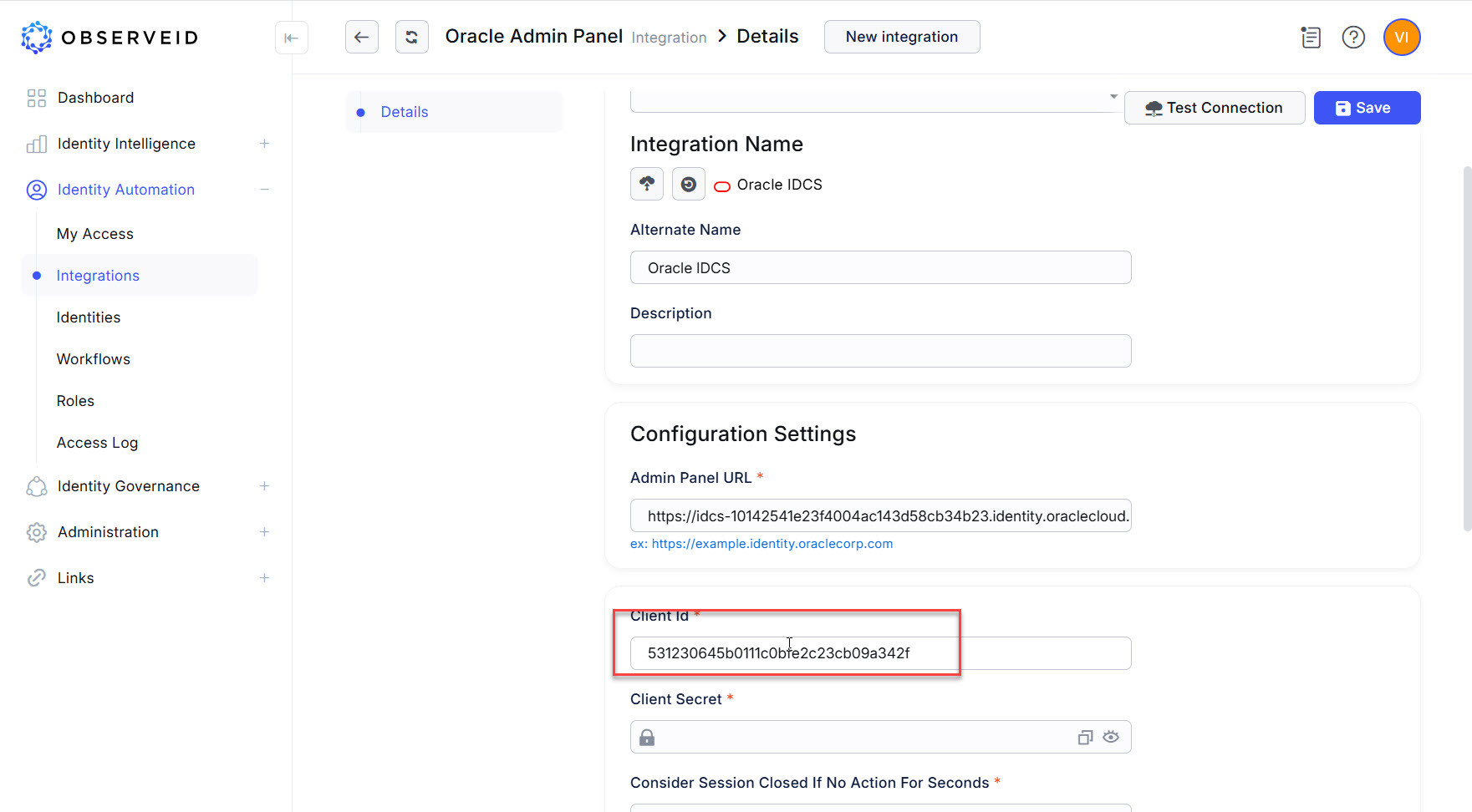
Copy the Client ID from the registered app details, and paste into the Client ID field.
-
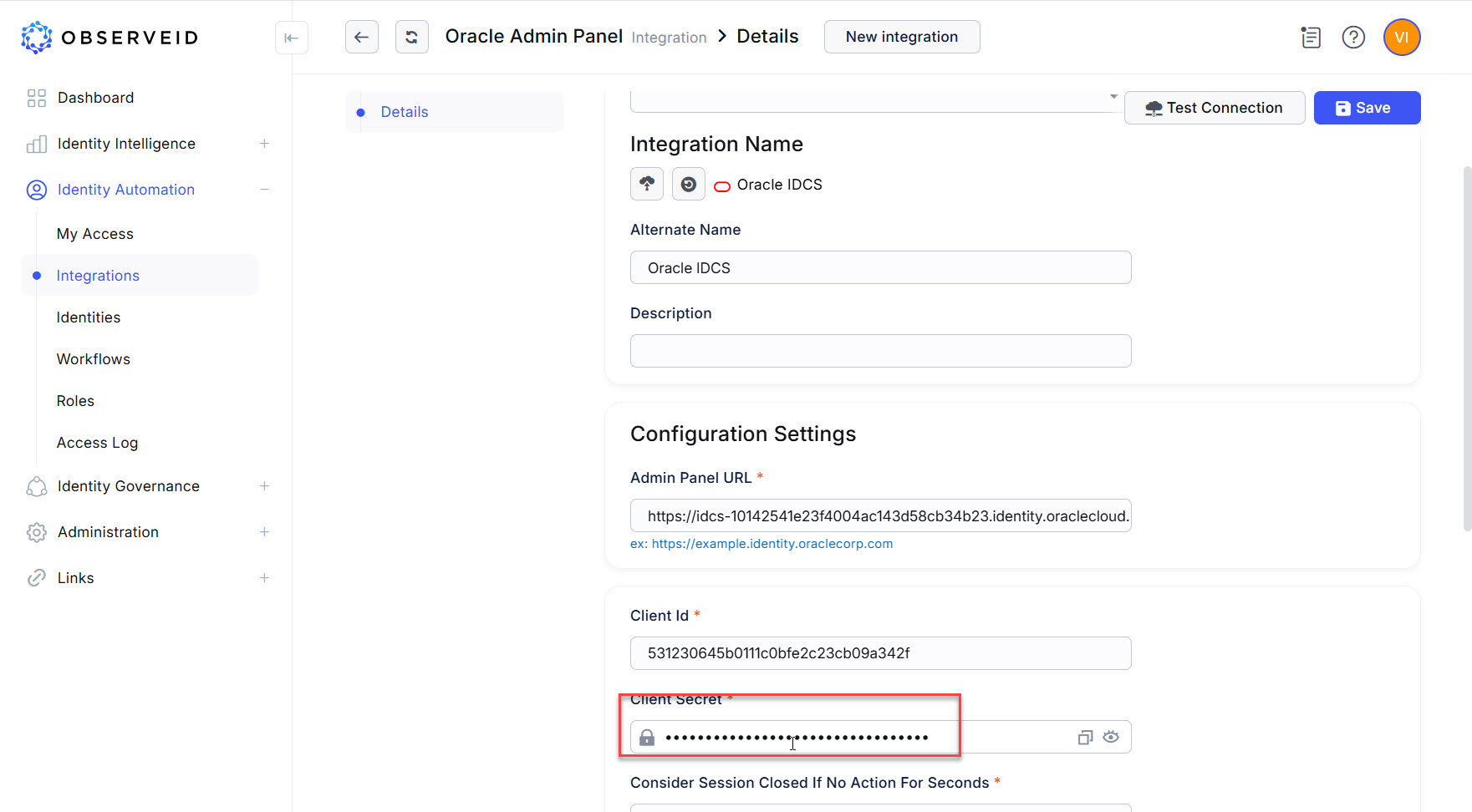
Copy the Client Secret from the registered app details and paste into the Client Secret field.
-
Enter 600 or any other preferred value in the Consider Session Closed If No Action For Seconds field.
-
Click Test Connection.
-
Click Save.
If Test Connection finished successfully, go on with the next step, which is the first load of the Integration Data. Otherwise, open Access Log for any details to troubleshoot the connection.
First load of data from Oracle IDCS to ObserveID
-
Click Workflows in the menu on the left.
-
Click Tasks on the horizontal toolbar.
-
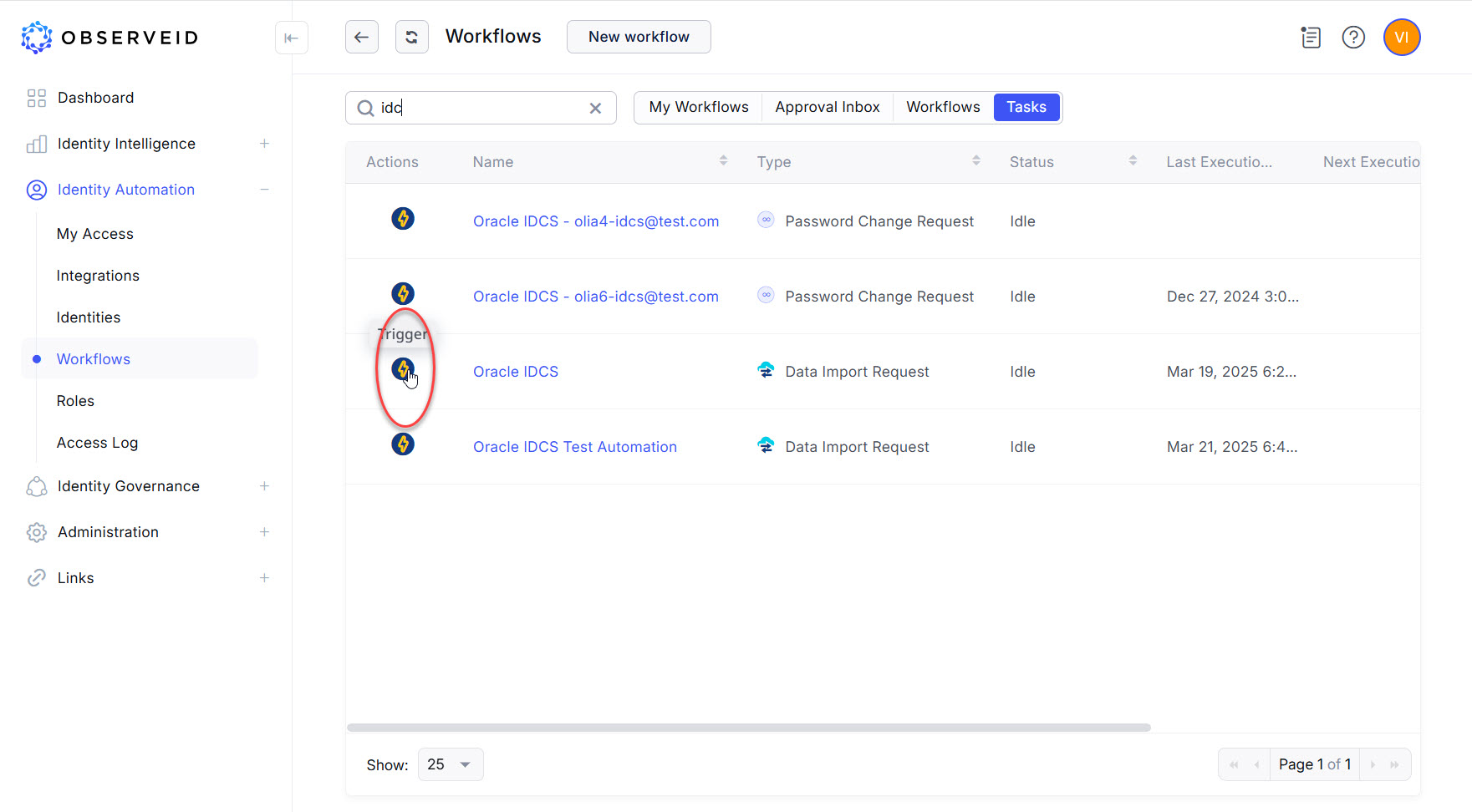
Verify that the Tasks grid has a new Data Import task with the name of the new Oracle IDCS integration.
-
Click the Trigger icon on the left beside the new task, which is the DataImport task for Oracle IDCS.
-
Click the Refresh button a couple of times until the task will change its status from Triggered to Idle.
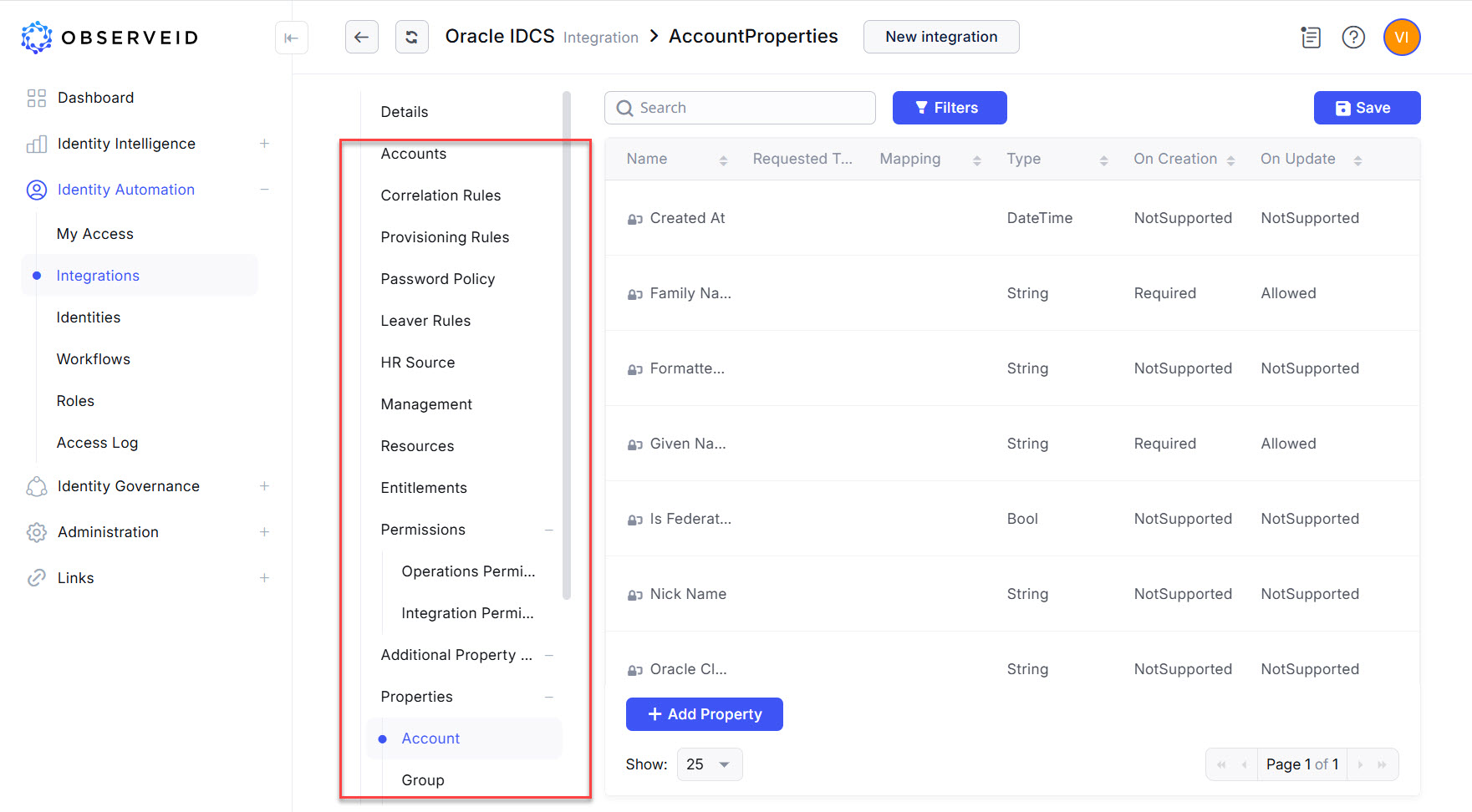
The successful execution of the DataImport task for Oracle IDCS should bring the data from the Oracle IDCS target to ObserverID. Verify that the data shows up by returning to the integration details in the Integrations area and making sure that such options in the third-level vertical menu will appear as Accounts, Resources, Entitlements, Properties, etc.