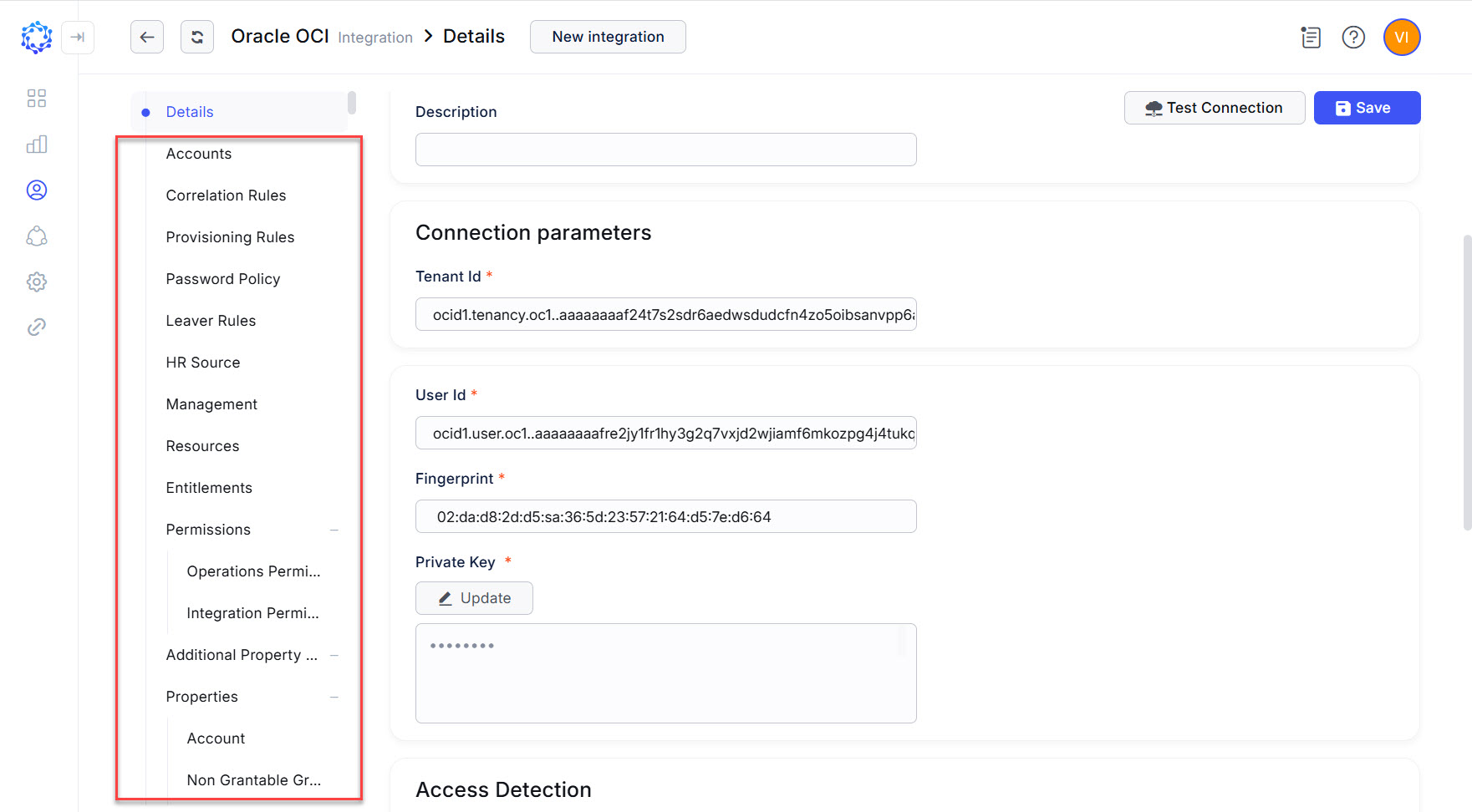
Detailed tutorial on creating Oracle OCI integration
The tutorial below provides a step-by-step guidance on the setup and configuration of an Oracle OCI integration. It includes three aspects: preparation on the Oracle OCI side; preparation on the ObserveID side, and the First Load of Integration Data from the Target to ObserveID. Once the data is loaded, the Integration is ready for further configuration of rules and use, according to the business processes in the organization.
In this section:
- Preparation for ObserveID in the Oracle OCI Console
- Create Local User
- Grant Privileges to the Local User
- Generate API Key
- Configuration of Oracle OCI integration in ObserveID
- First load of data from Oracle OCI to ObserveID
Preparation for ObserveID in the Oracle OCI Console
To begin the preparation for setting up an integration of Oracle OCI with ObserveID, it is needed to open the login page of the Oracle OCI Console at: https://cloud.oracle.com Then to enter your tenancy name in the Cloud Account Name field, click Next, and then expand the lower Direct Sign-In pane and enter the credentials: the User Name and the Password.
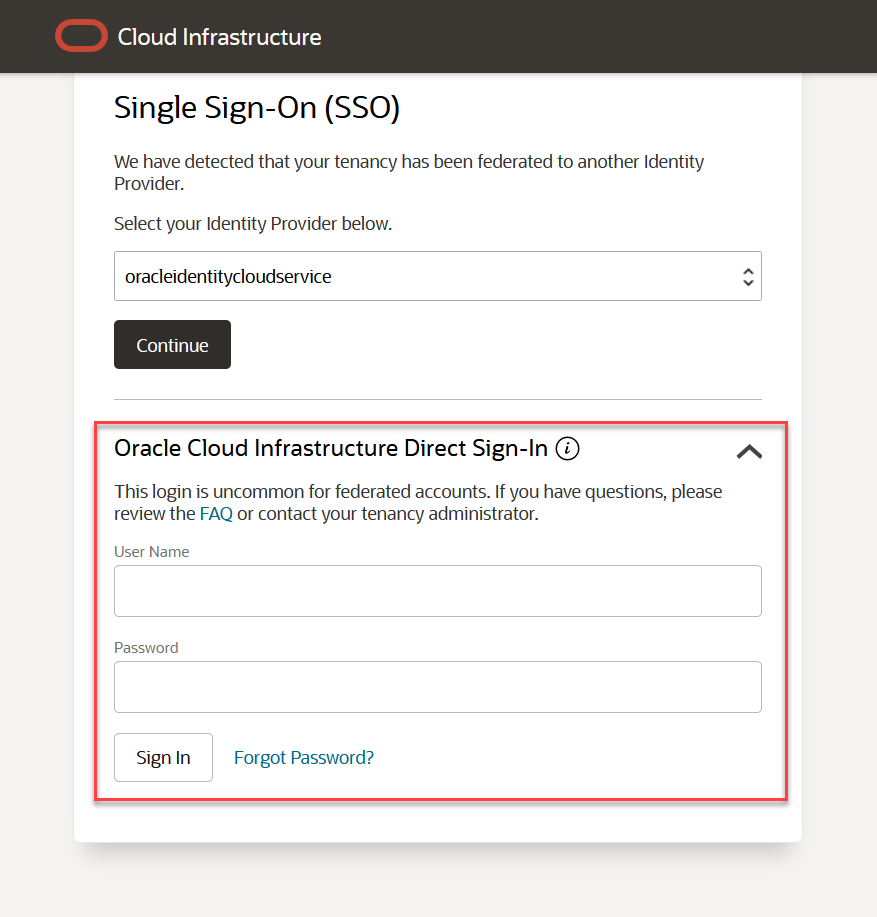
Create Local User
For the ObserveID to connect to Oracle OCI programmatically via API, a local user should be created for ObserveID in Oracle Cloud Infrastructure Console. To create users, the logged-in user should have the following privileges: Administrators group, - and proceed, as follows:
-
Click the drawer icon of the navigation menu in the left top corner.
-
Select Identity & Security, and then select Users under the Identity section.
-
Click Create User.
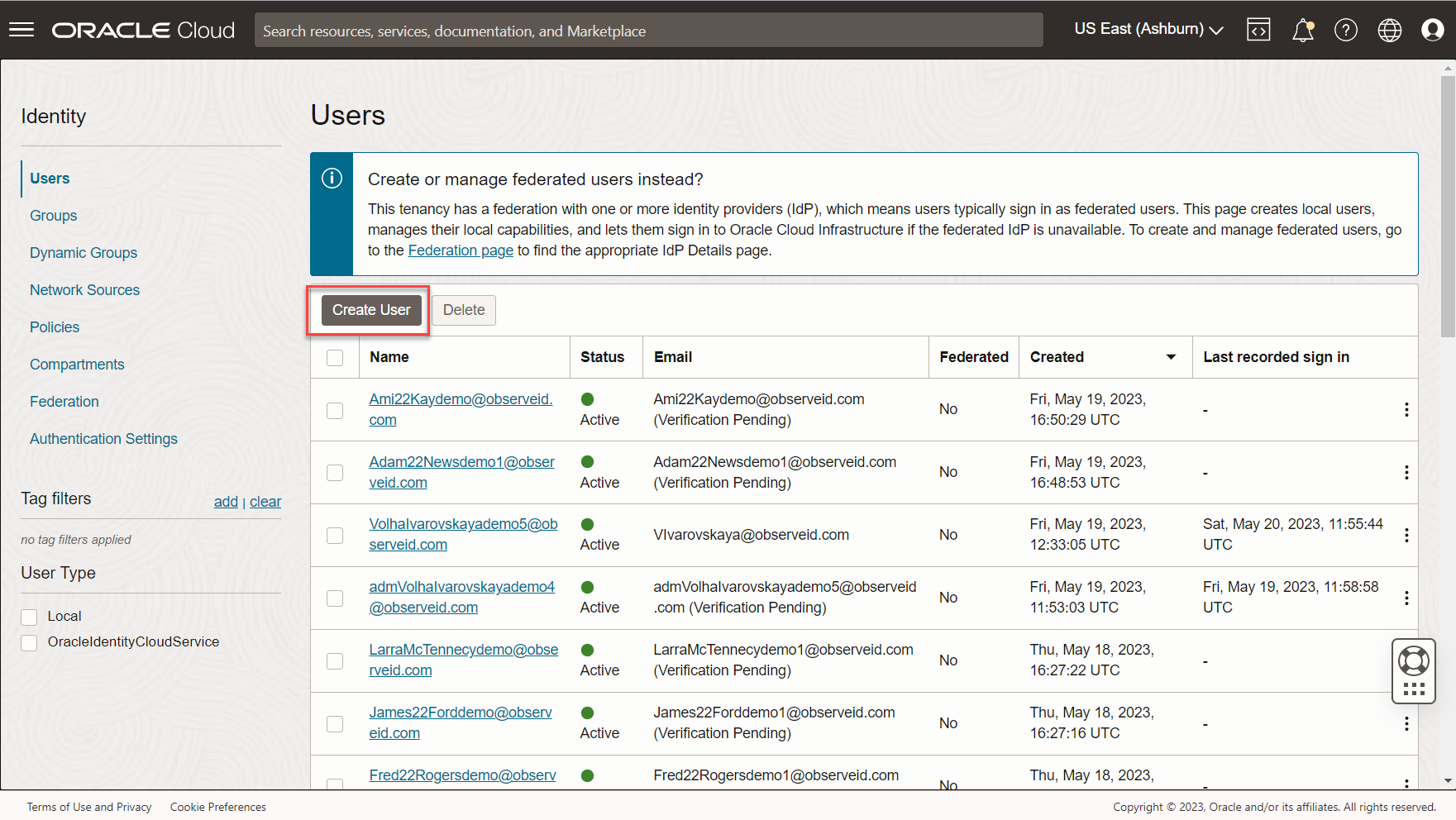
-
Fill out the information for the local user:
- the user name;
- some descriptive text for more details;
- the email.
-
Click Create.
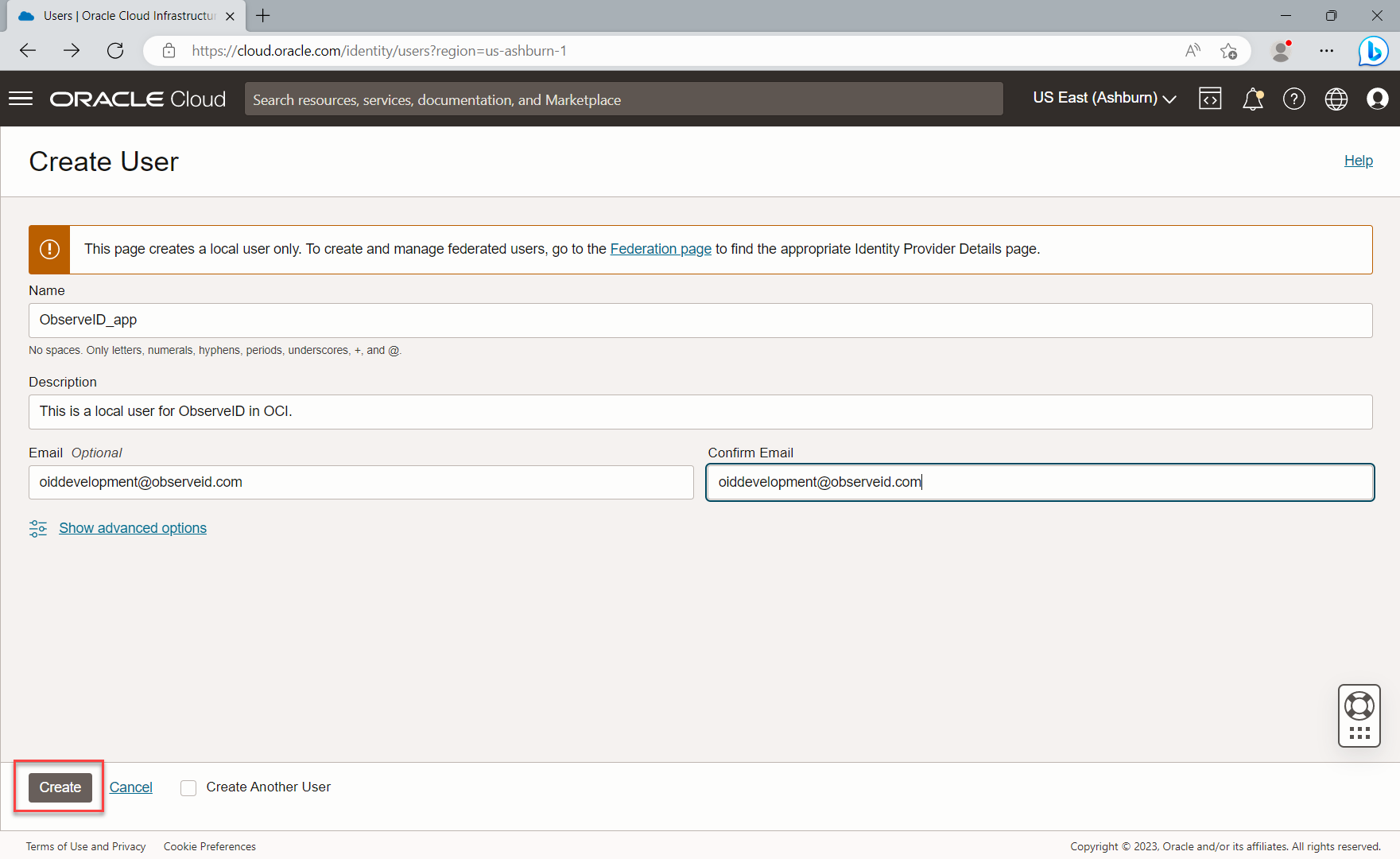
And the user is created and ready. It is the user who will be calling the API.
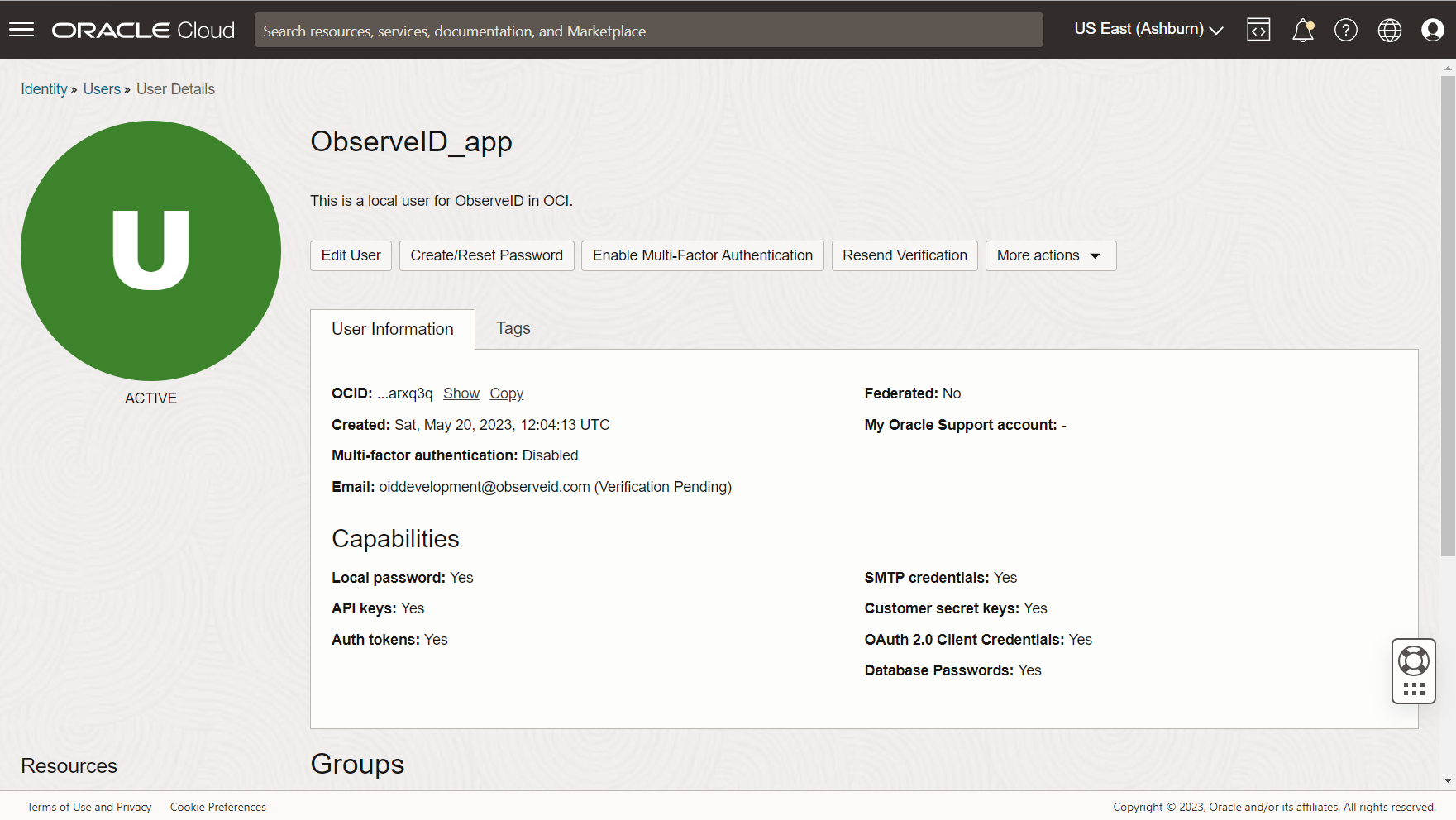
Grant Privileges to the Local User
Once the user for ObserveID is created, it needs privileges to be granted, as follows:
-
Scroll down the profile page of the Local User created for ObserveID.
-
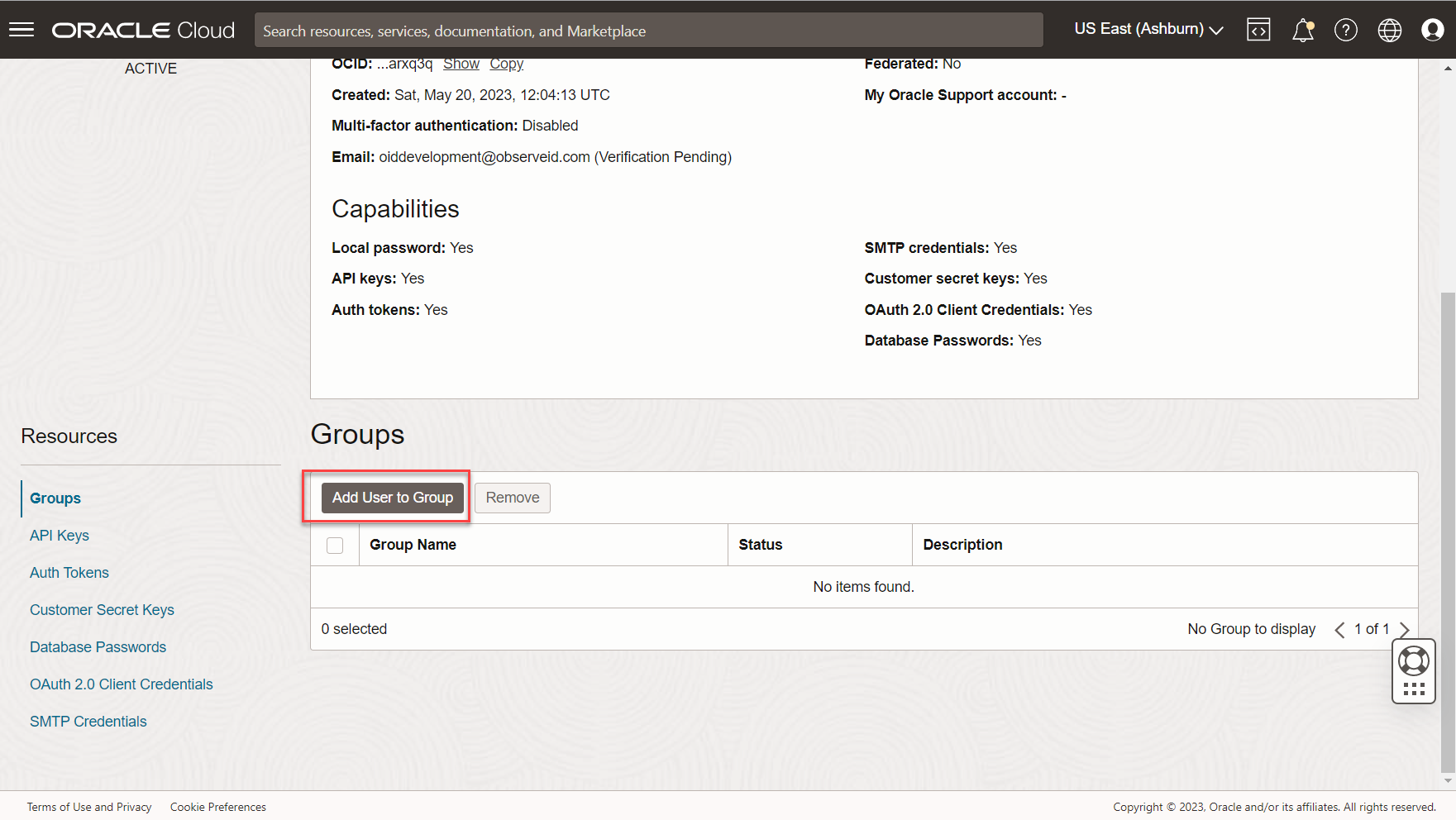
Click Add User to Group at the Groups section.
-
Select a group in the opened popup window, and click Add. And the user is assigned with the group membership.
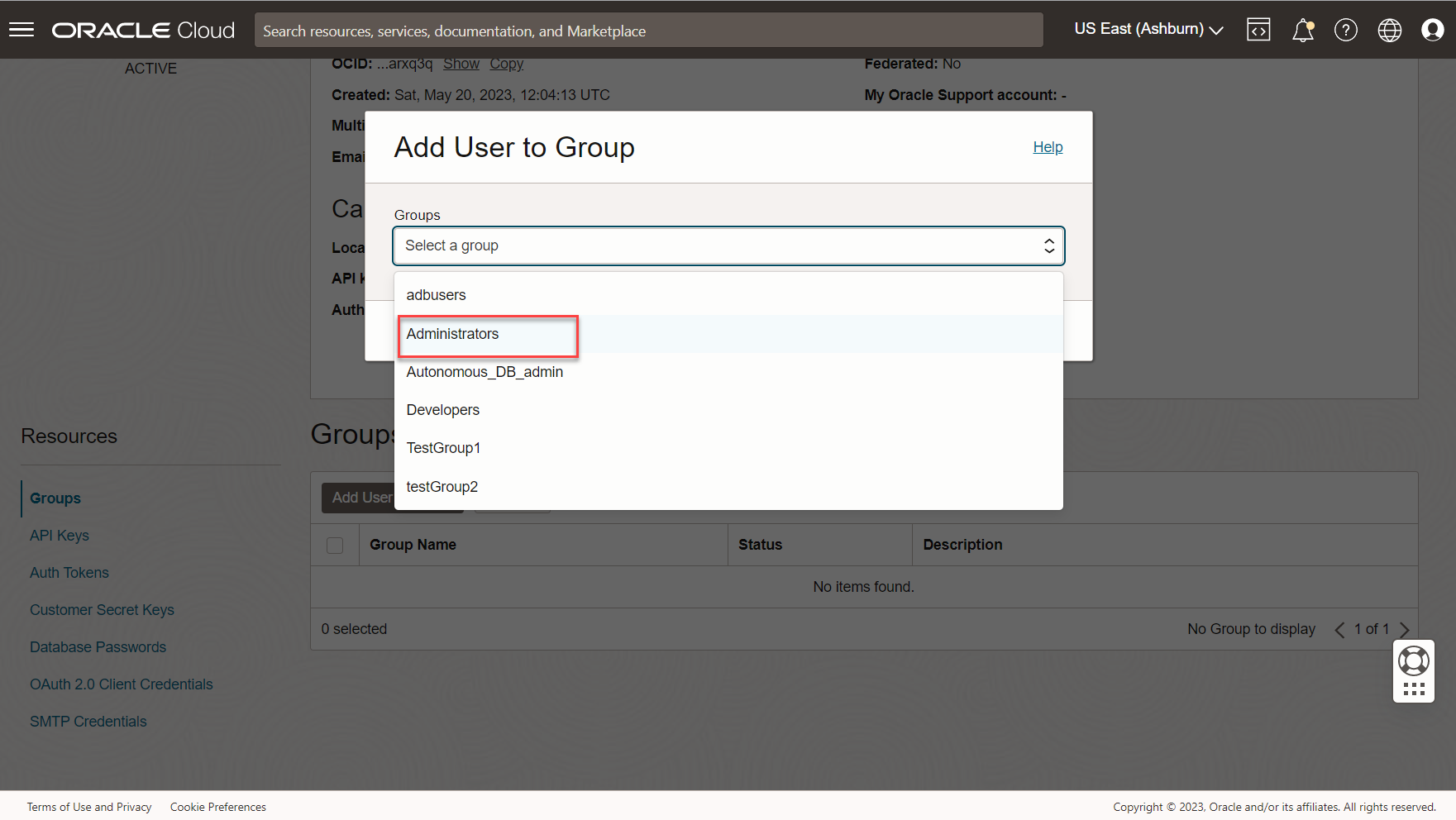
For ObserveID to be able to get resources, users, and entitlements programmatically, it is important to make certain the policy exists for the assigned group and that this policy allows the group to perform all those API calls. As an optimal option, consider assigning the Administrators group to the Local User.
Generate API Key
The credentials for the API calls authentication are generated as follows:
-
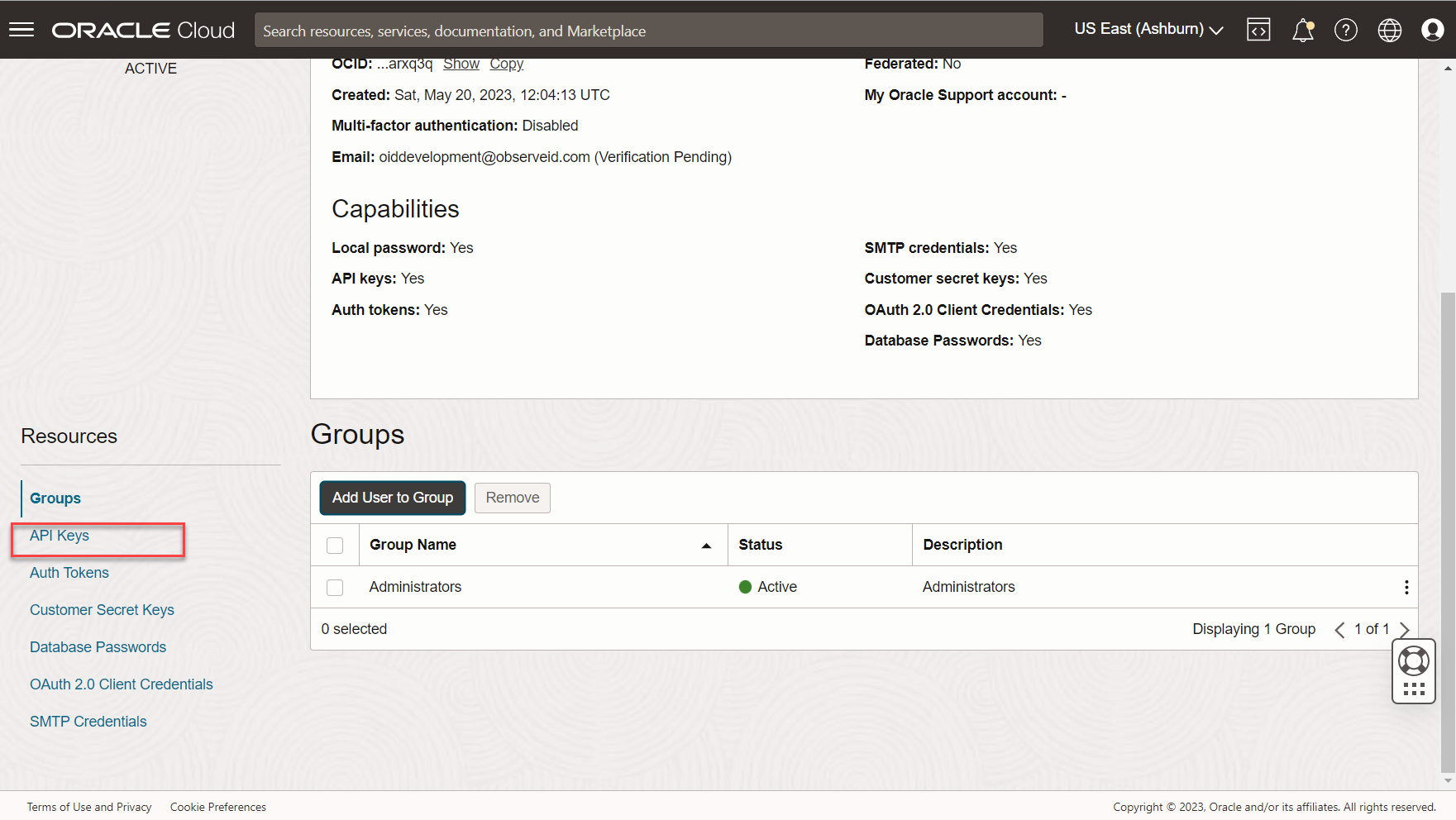
Click API Keys in the profile of the Local User created for ObserveID.
-
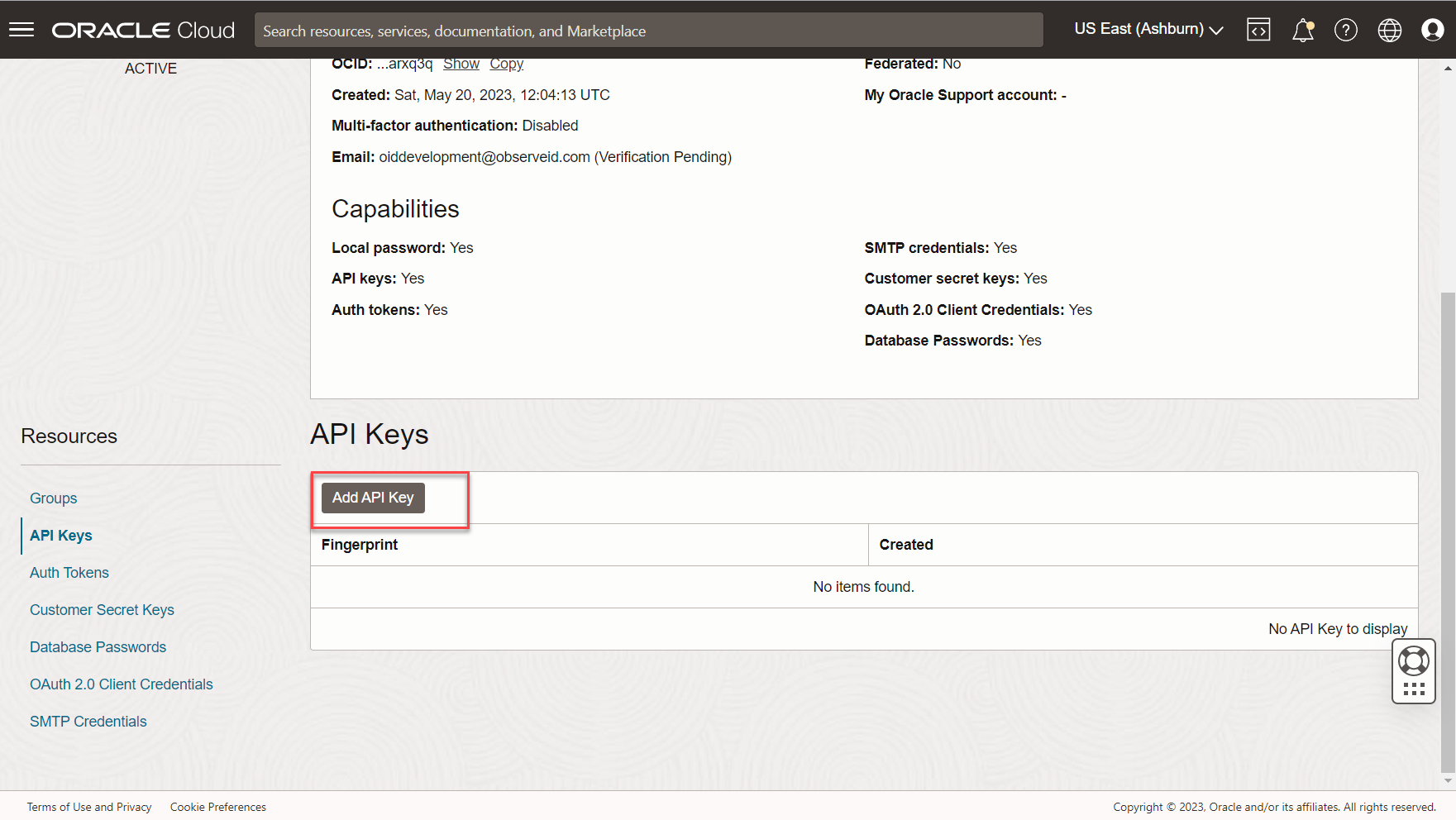
Click Add API Key to generate a new private key.
-
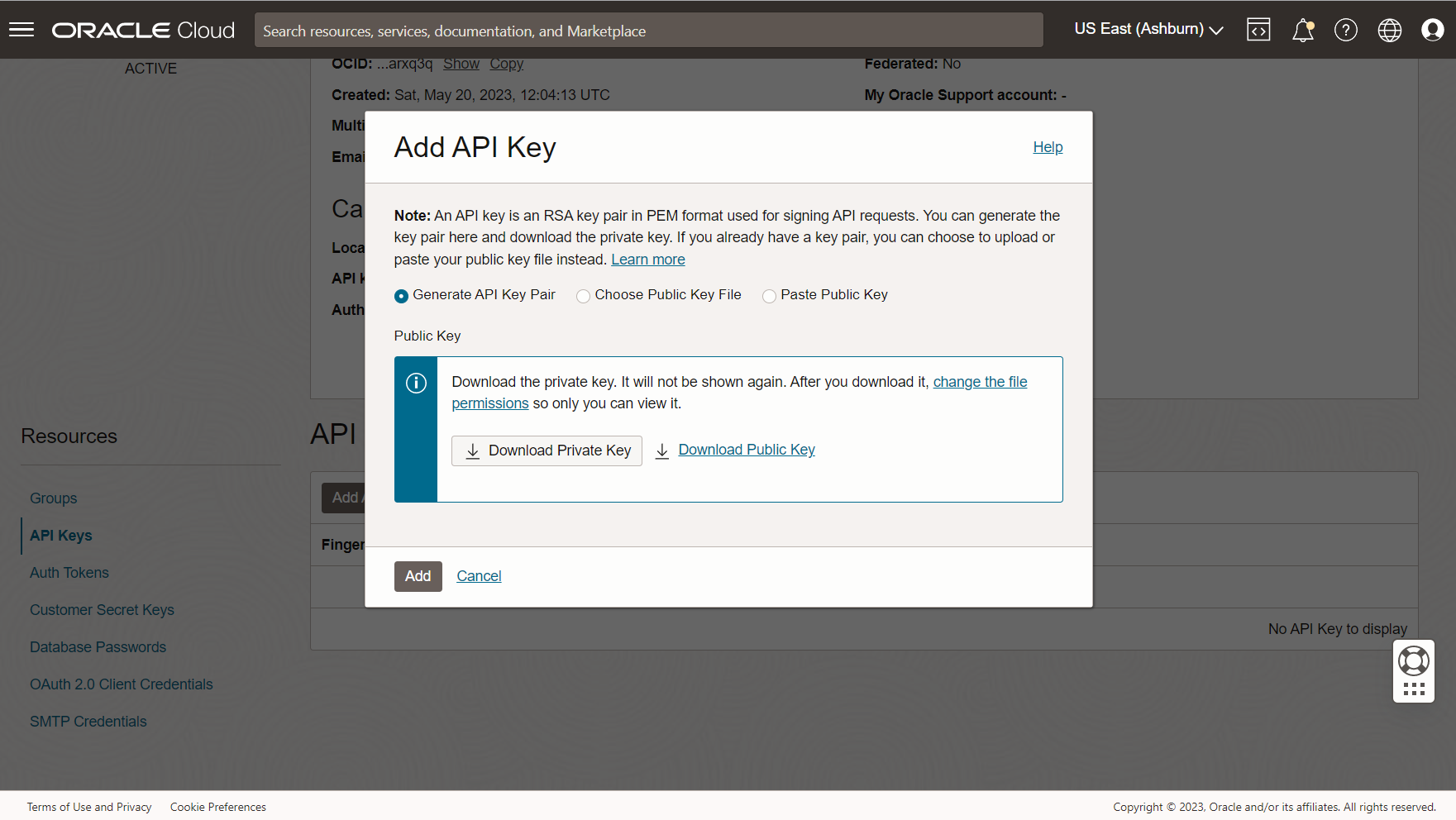
Check Generate API Key Pair option in the opened popup window. Then click Download Private Key, and a pem-file shows up for downloading. Download the file, and when ready, click Add.
-
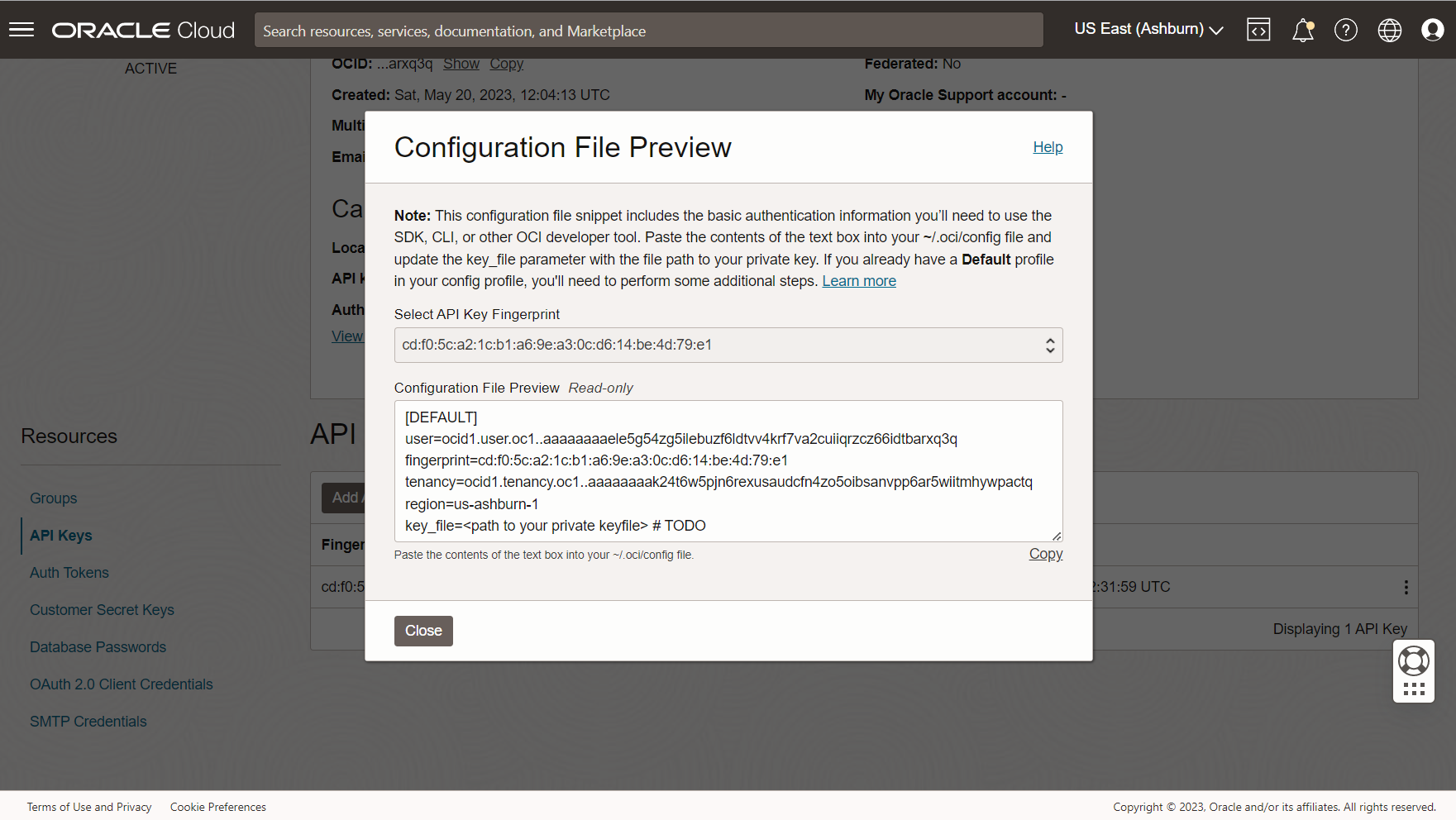
The Configuration File Preview opens. Copy and save for using later the parameters in the preview:
-
the user’s OCID,
-
the tenancy’s OCID,
-
the fingerprint.
-
Configuration of Oracle OCI integration in ObserveID
-
Log in to the ObserveID platform. And the Dashboard is the first page that is opened.
-
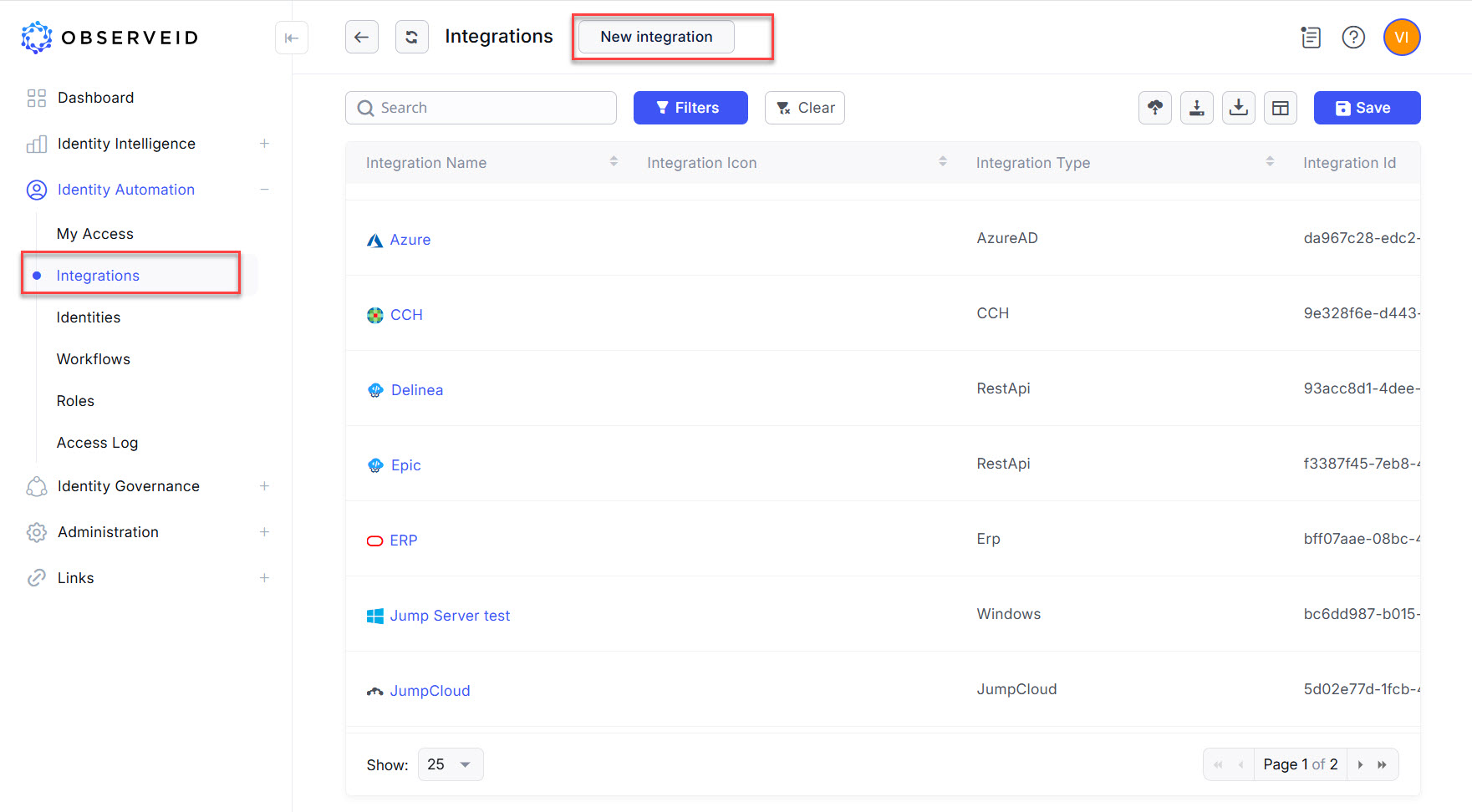
Expand the Identity Automation section in the menu on the left.
-
Click Integrations.
-
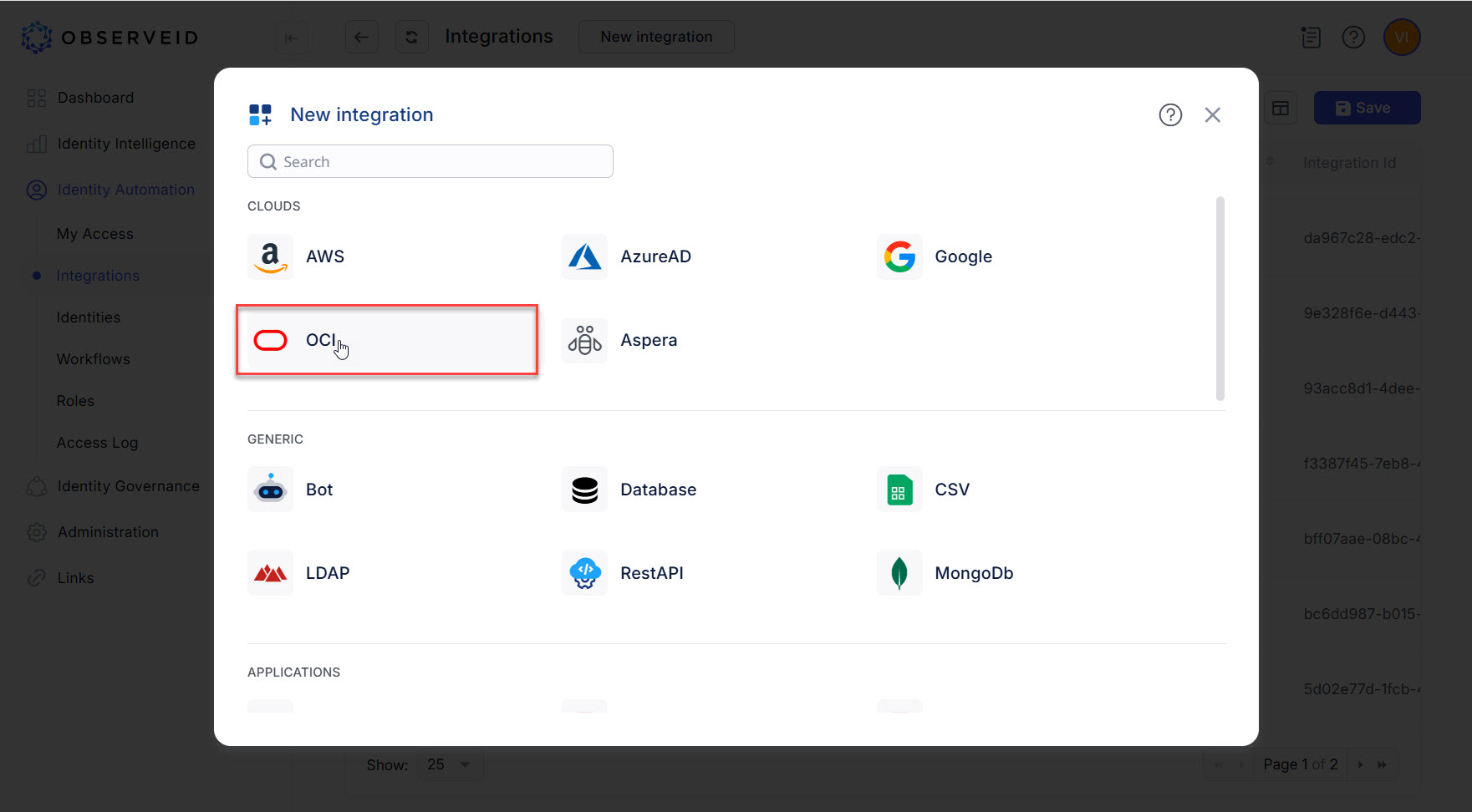
Click New integration in the header of the page, to create a new integration.
-
Click OCI.
-
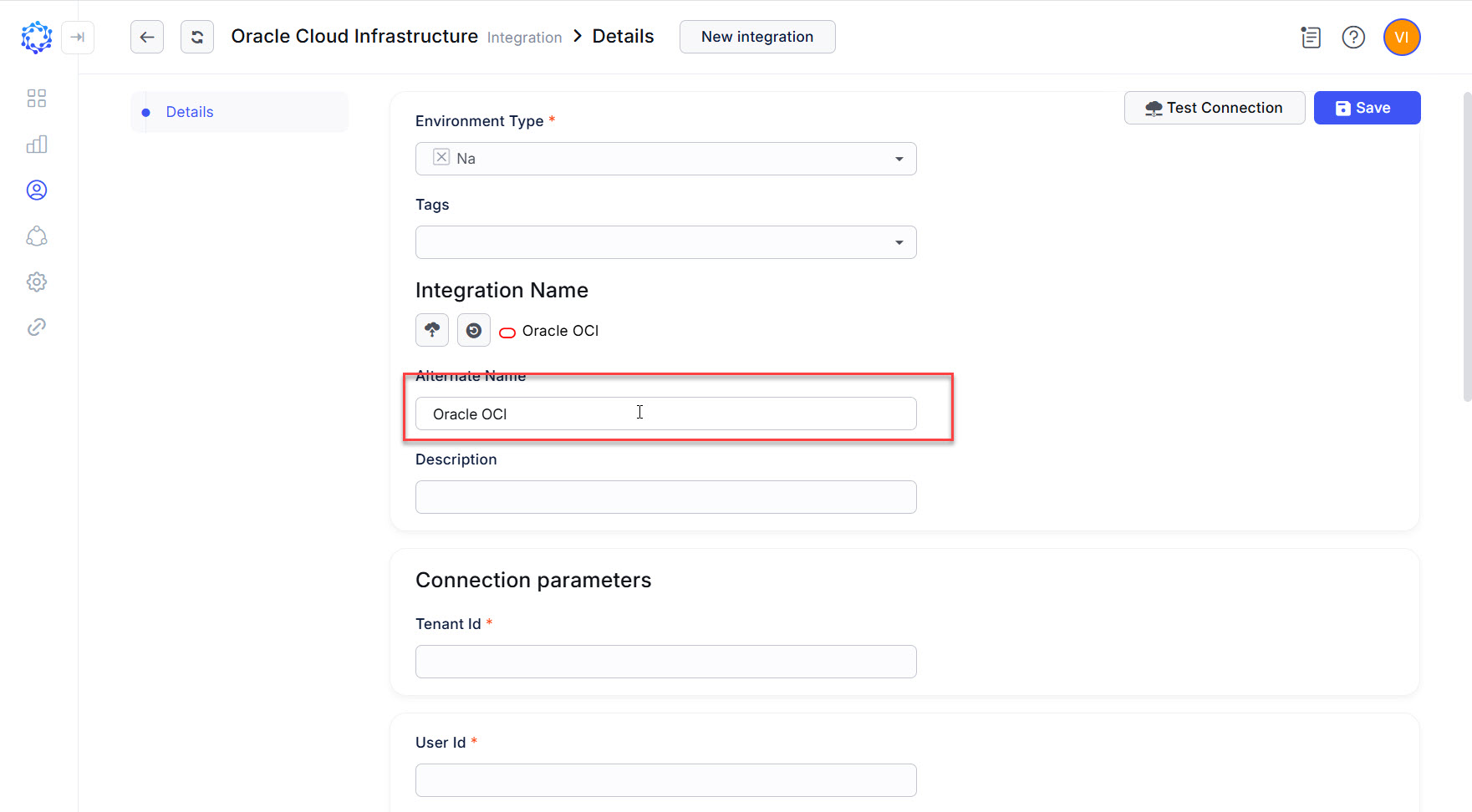
Enter a name for the new Oracle Cloud Infrastructure integration.
-
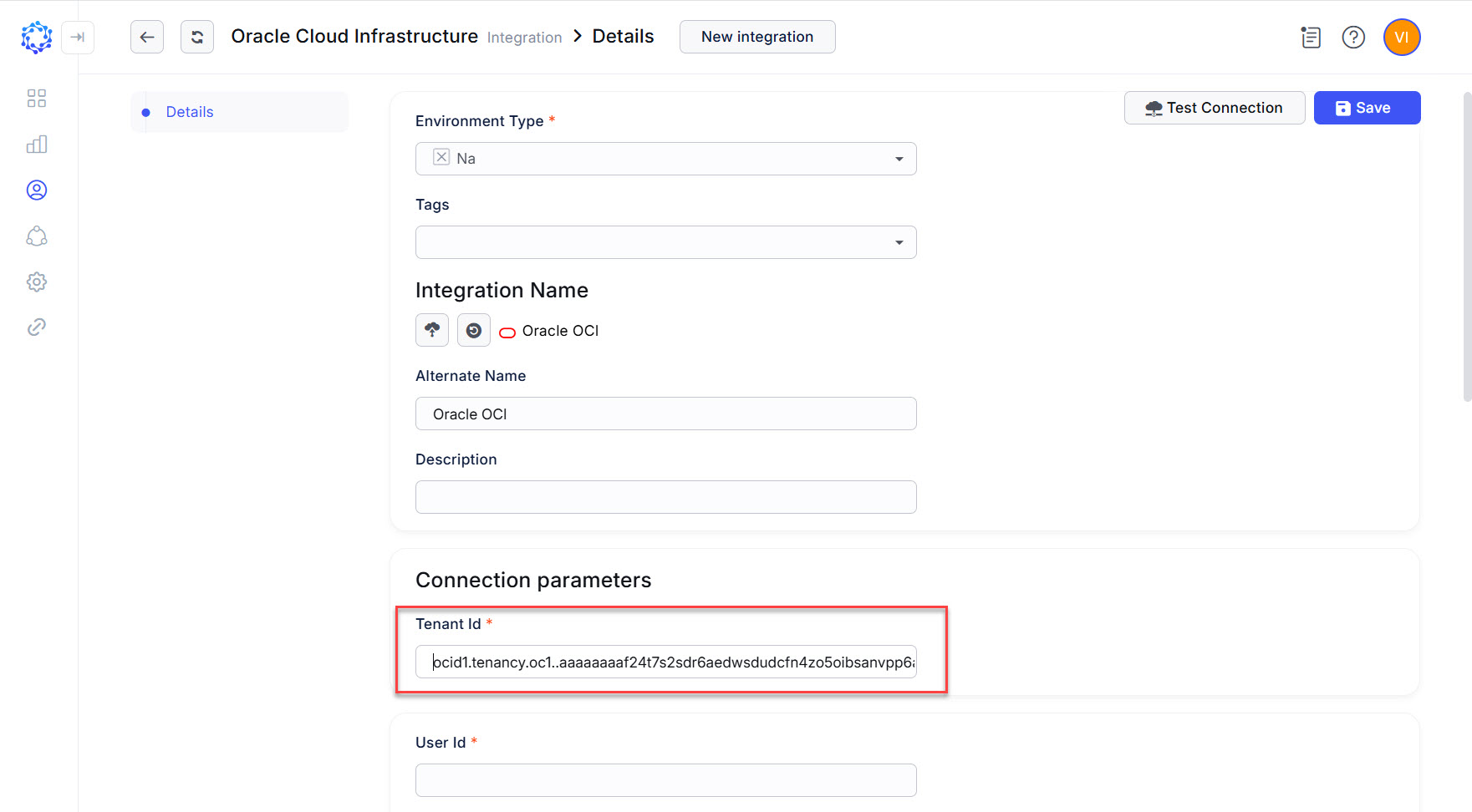
Copy the tenancy’s OCID from the configuration file generated for the API Key and paste it in the Tenant Id field of the new integration.
-
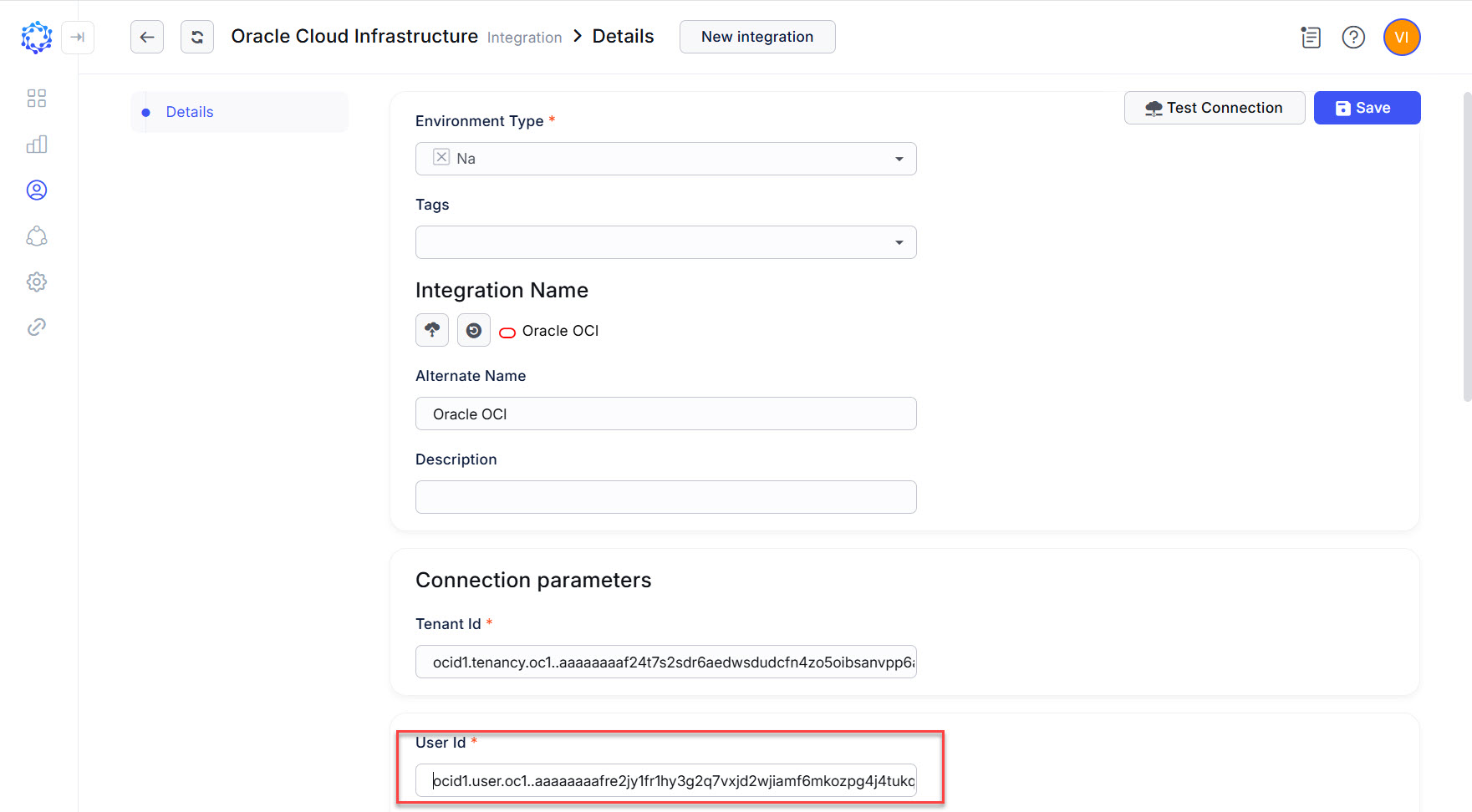
Copy the user’s OCID from the configuration file generated for the API Key, and paste it in the User Id field of the new integration.
-
Copy the fingerprint from the configuration file generated for the API Key, and paste it in the Fingerprint field of the new integration.
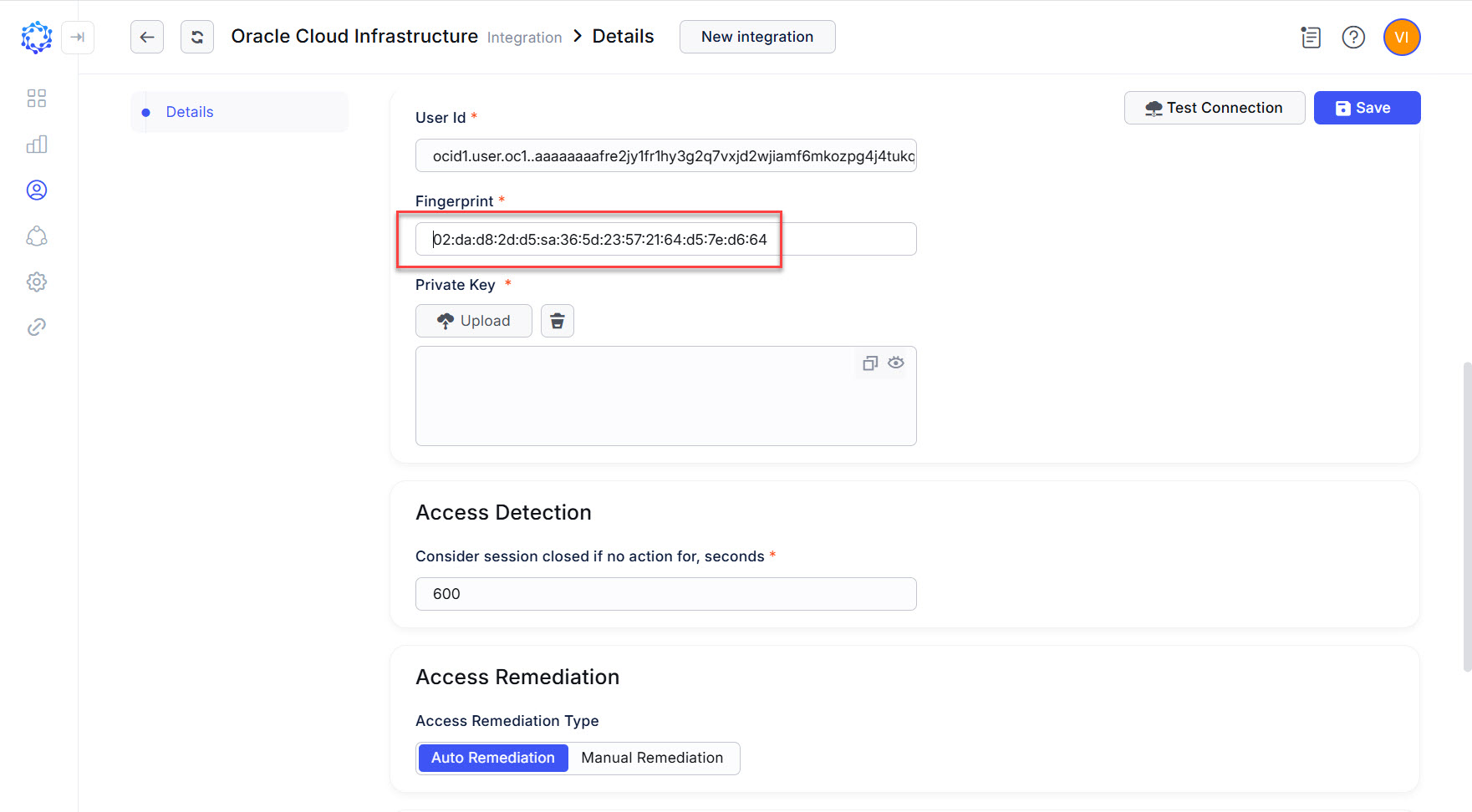
-
Copy the key from the downloaded pem-file.
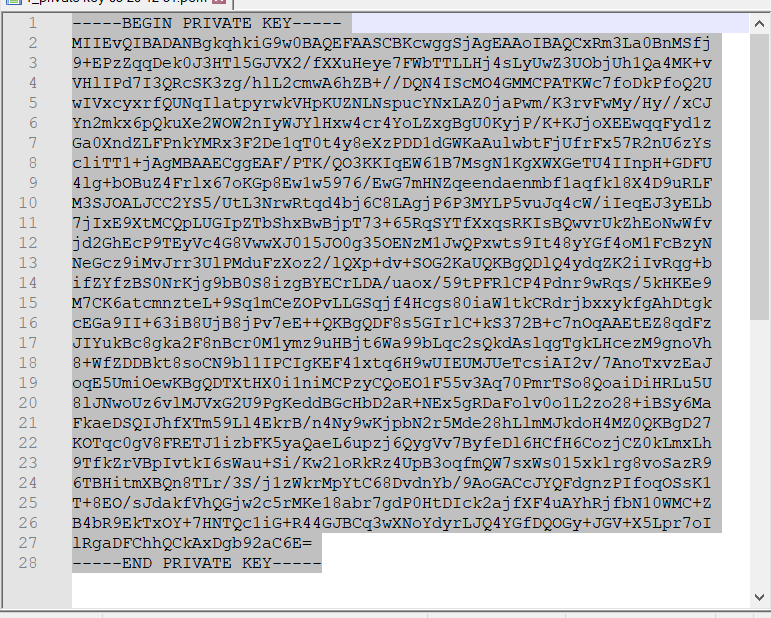
-
Paste the copied key in the Private Key area of the new integration.
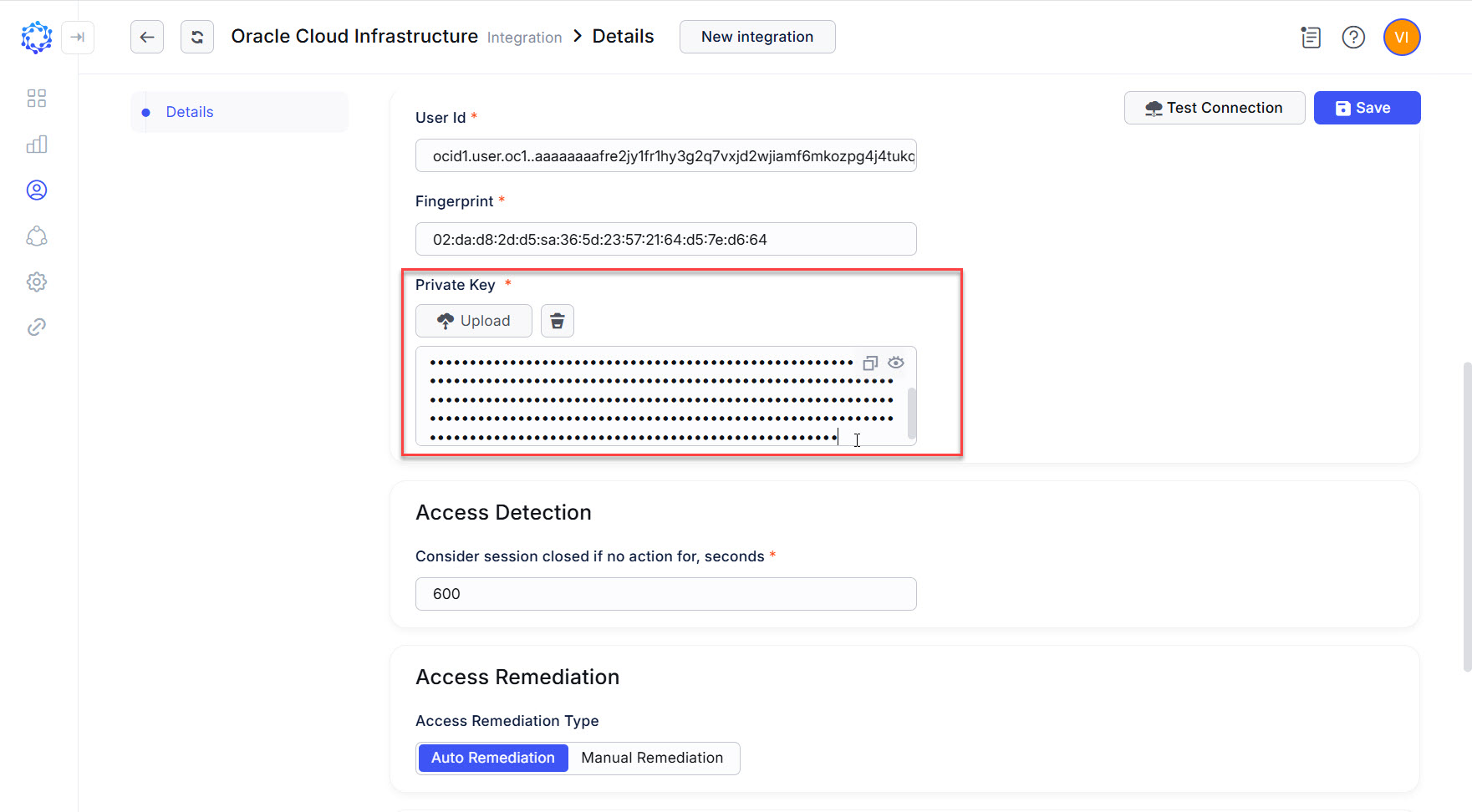
-
Click Test Connection. And wait for it to finish. If anything, use the Access Log for troubleshooting.
-
Click Save. And wait for it to finish, and a list of other configuration sections shows up for the saved integration.
First load of data from Oracle OCI to ObserveID
After the details for the new integration are saved, next is to make the first load of the Integration Data, as follows:
-
Click Workflows in the menu on the left.
-
Click Tasks on the horizontal toolbar.
-
Click the Trigger icon on the left beside the new task, which is the DataImport task for Oracle OCI, where
Oracle OCIis the name entered for the new integration. -
Click the Refresh button a couple of times until the task will change its status from Triggered to Idle.
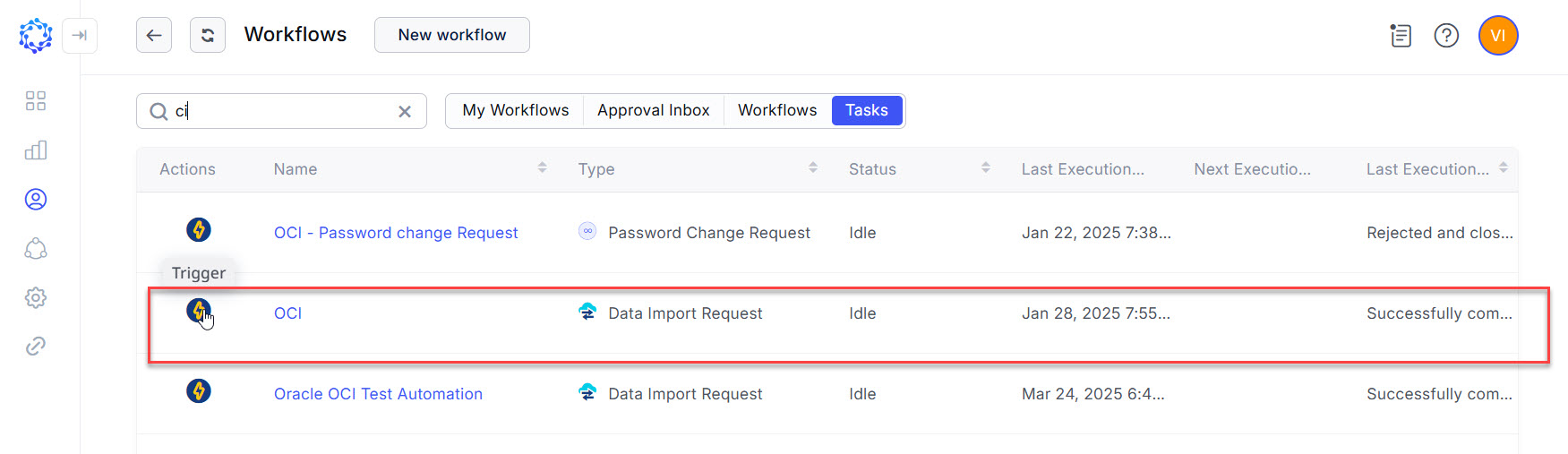
The successful execution of the DataImportTask for Oracle OCI should bring the data from the Oracle OCI target to ObserverID. Verify that the data shows up by returning to the integration details in the Integrations area and making sure that such options in the third-level vertical menu will appear as Accounts, Resources, Entitlements, Properties, etc.