
Detailed tutorial on creating Windows integration
The tutorial below provides a detailed visual explanation of every step in the Windows integration setup and configuration process, highlighting various aspects to make the entire process transparent. Below is a list of tasks required to set up a Windows integration:
- Preparation on the Universal Connector VM.
- Preparation on the Windows target VM
- Troubleshooting Windows target
- Connection configuration in the ObserveID platform
- First load of data from Windows to ObserveID
Preparation on the Universal Connector VM
To prepare the Universal Connector for integration with a Windows target, on the Universal Connector VM, it is necessary to start the PowerShell utility and run the following set of commands:
(1) to add the IP address of the Windows target machine to the trusted hosts of the Universal Connector VM.
winrm set winrm/config/client '@{TrustedHosts="target_machine_ip"}'
Note, that to resolve the "Invalid use of command-line..." error, remove the single quotation marks.
(2) If any target machine is required to be added as a trusted host of the Universal Connector VM, then the following command, instead of the previous one, should be used.
set-item wsman:localhost\Client\Trustedhosts -Value *
(3) If it is needed to check what IP addresses exist in the trusted hosts list of the Universal Connector.
get-item wsman:\localhost\Client\TrustedHosts
Preparation on the Windows target VM
To prepare the Windows target for the integration with the Universal Connector, on the Windows target VM, it is necessary to start the PowerShell utility and run the following set of commands:
(1) to start the WinRM service.
net start winrm
(2) To add the Universal Connector VM to the list of trusted hosts on the Windows target machine.
Attention: This command must be executed for each virtual machine (VM) that hosts the Universal Connector. Failing to do so may result in an error message indicating that the local machine's firewall is configured for public network settings. If you encounter this message, please ensure that all Universal Connector VMs are added to the trusted hosts on the Windows target.
Set-Item WSMan:\localhost\Client\TrustedHosts -Value "host_with_universal_connector_ip_address"
(3) To establish a secure session, you can configure the WinRM service to operate over the HTTPS protocol. Ensure that you have an appropriate certificate installed on the Windows target machine.
winrm quickconfig -transport:https
(4) If remote access using the PowerShell utility is needed, it can be enabled with the following command.
Enable-PSRemoting
(5) To enable inbound connections through the WinRM service via HTTP/TCP, establish the following firewall rule on the Windows target machine.
Set-NetFirewallRule -Name "WINRM-HTTP-In-TCP-PUBLIC" -RemoteAddress Any
Troubleshooting Windows target
Firewall rules
In case the Windows target machine does not have any firewall rule with the 'WINRM-HTTP-In-TCP-PUBLIC' name, the following command creates a new firewall rule with the PowerShell utility.
New-NetFirewallRule -Name "WINRM-HTTP-In-TCP-PUBLIC" -RemoteAddress Any
Private network
To enable the Windows target machine in the development environment to receive remote commands, the network must be set to private.
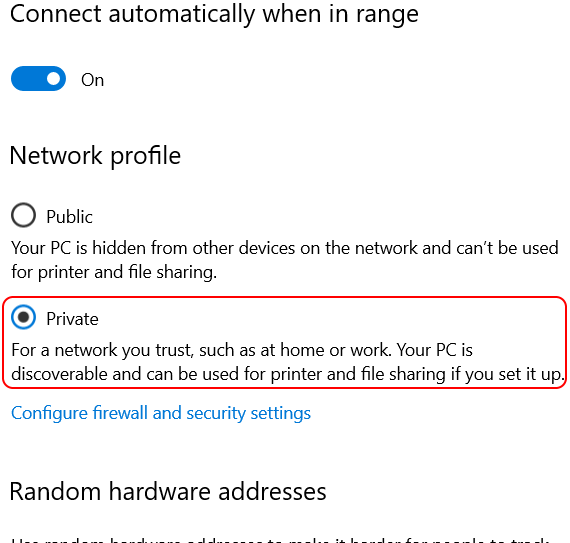 Private network
Connection configuration in the ObserveID platform
-
Log in to the ObserveID platform. And the Dashboard is the first page that is opened.
-
Expand Identity Automation in the menu on the left, and click Integrations.
-
Click the New integration button in the header of the Integrations grid page.
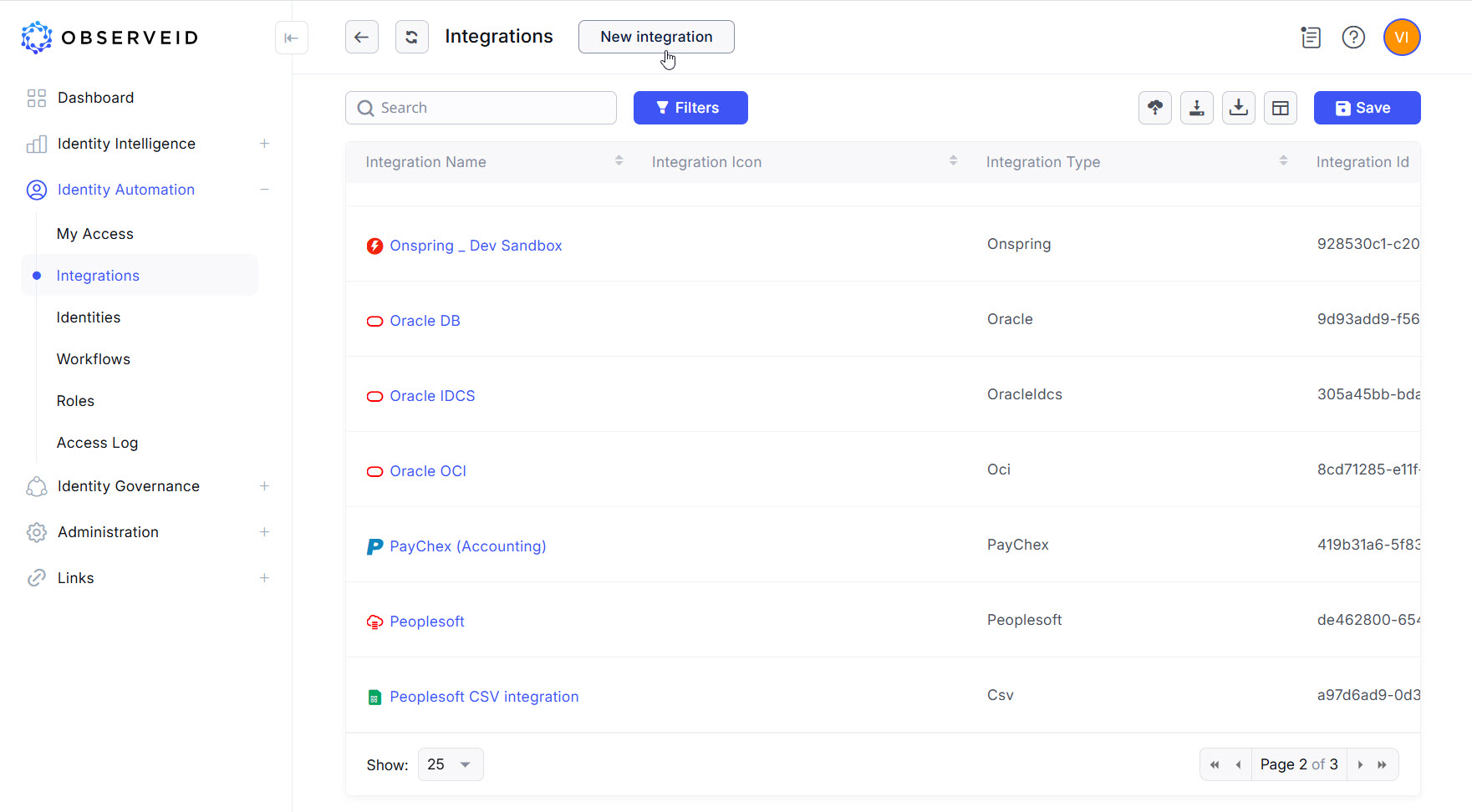 The Integrations grid
 -
Click Windows in the opened New integration popup window.
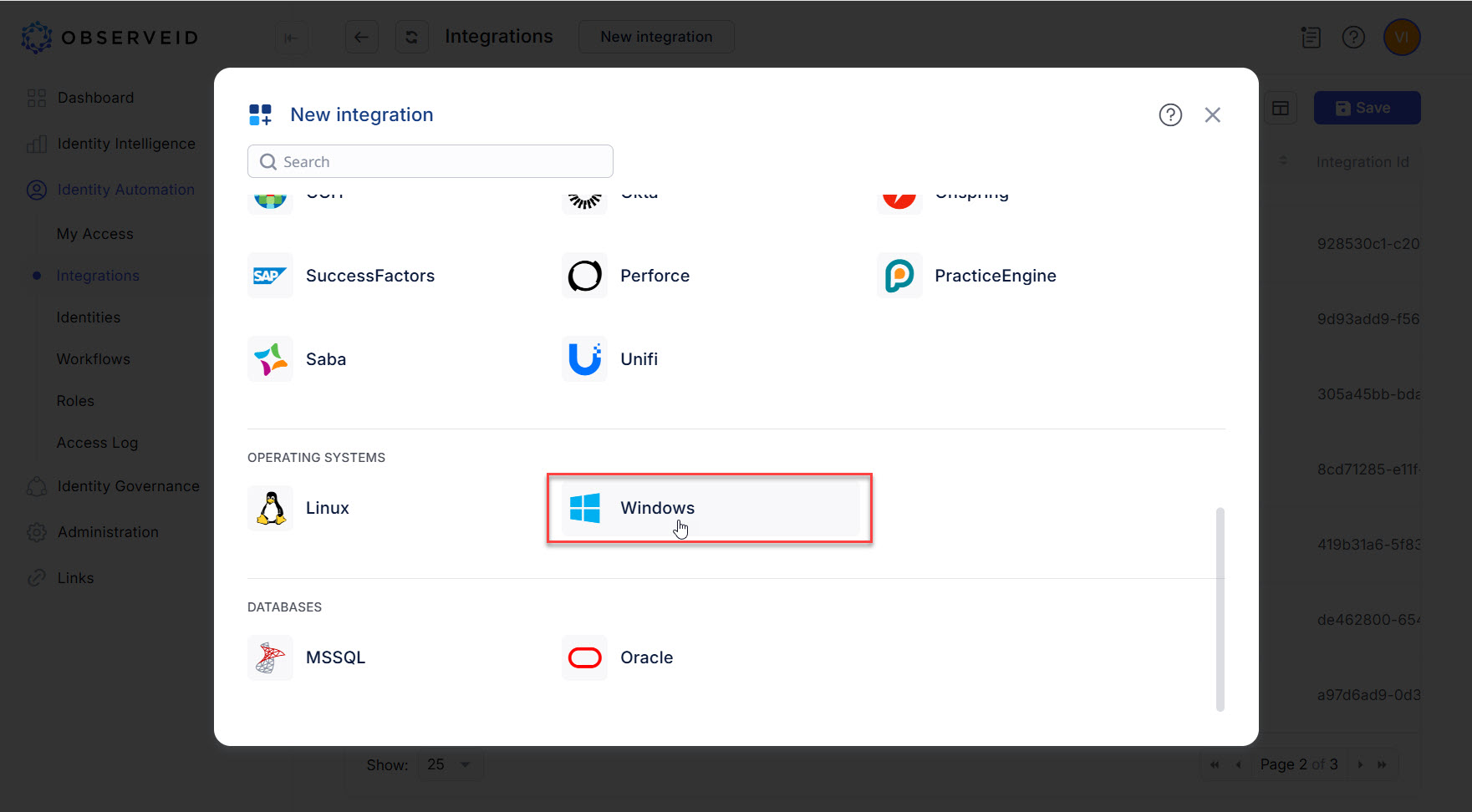 The New integration popup
 -
Enter a name for the new integration in the opened New Integration - Details window.
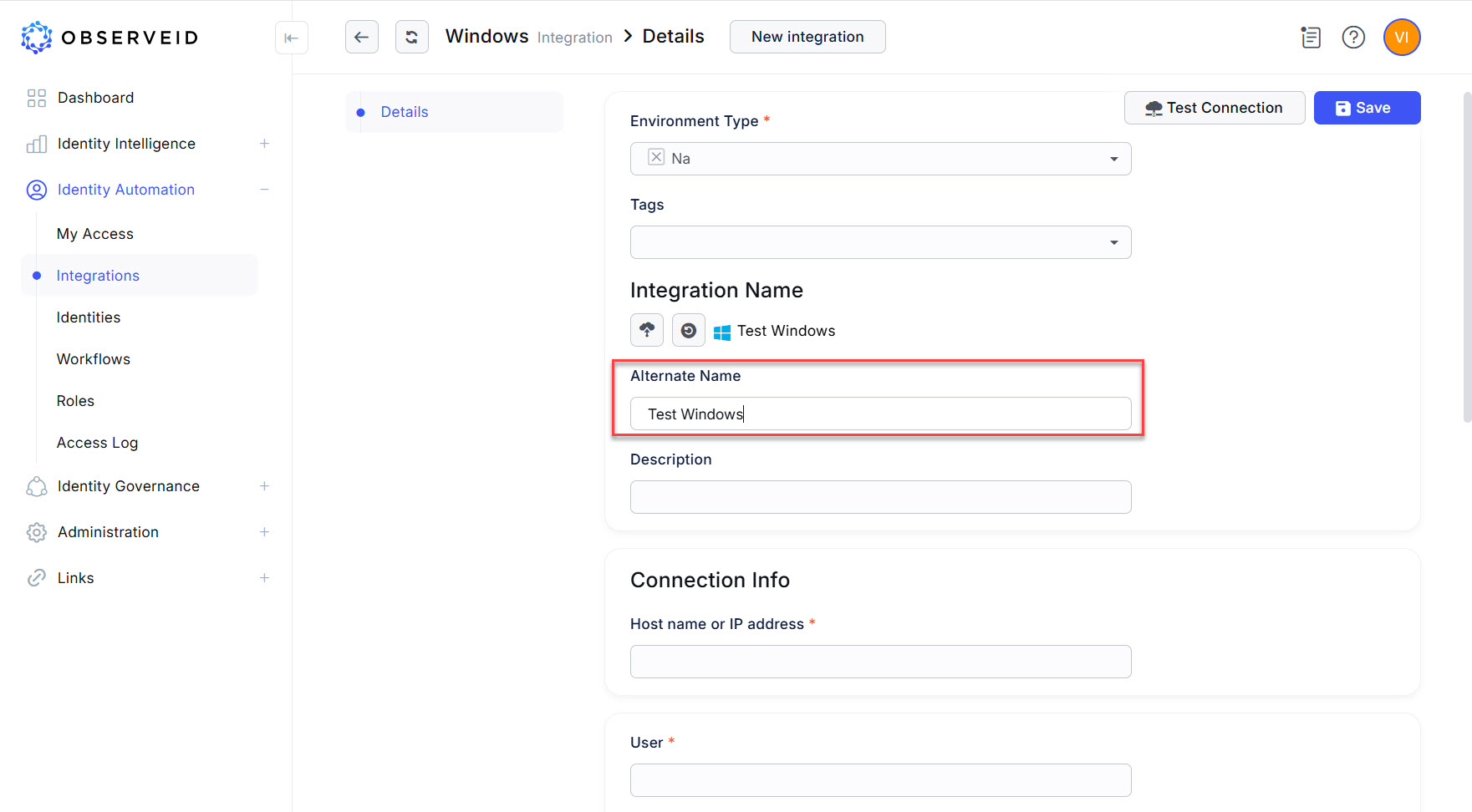 Entering the name for the integration
 -
Enter the host name, or the IP address of the Windows target machine.
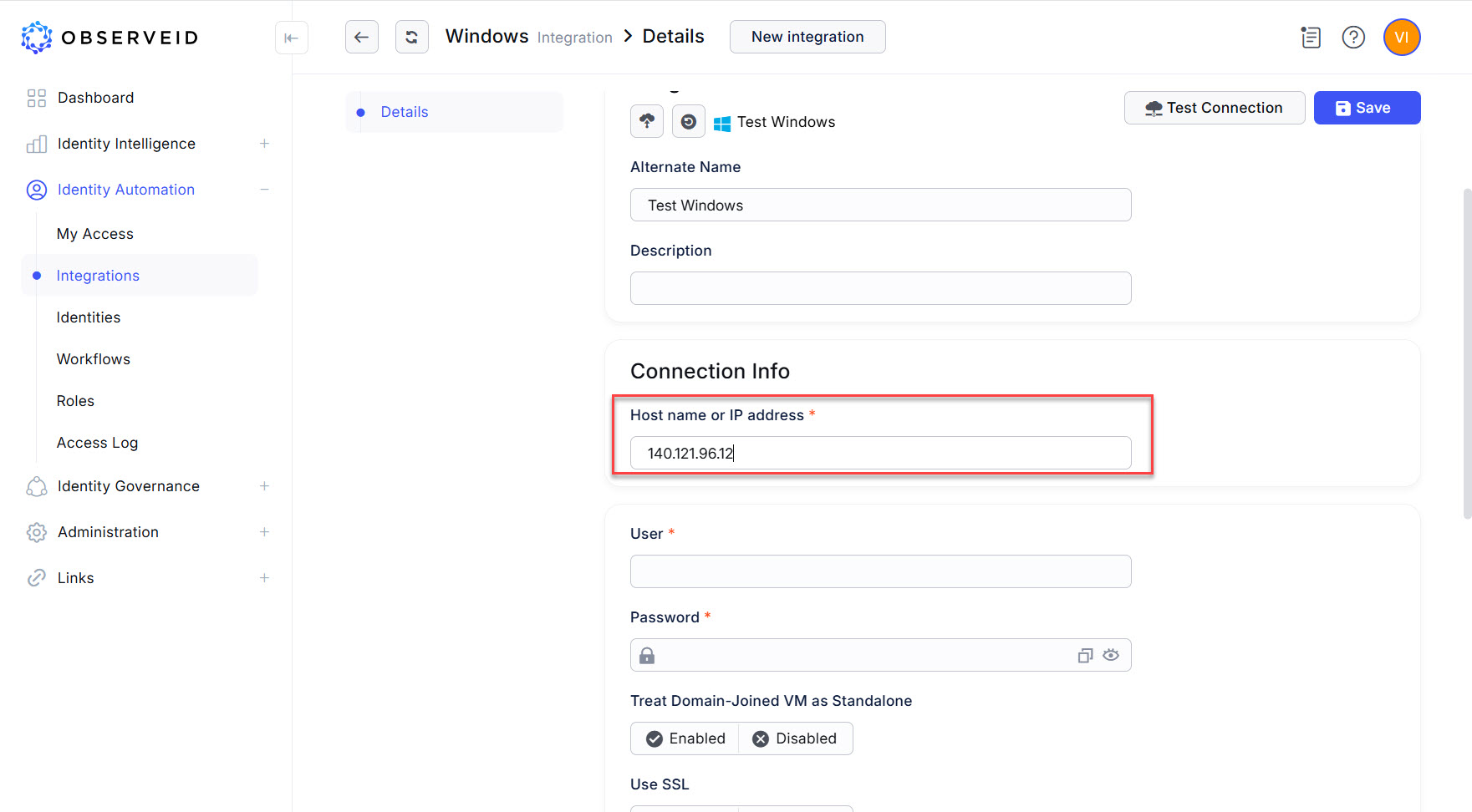 Entering the host name
 -
Enter the user name of an account with the administrator level access on the Windows target machine.
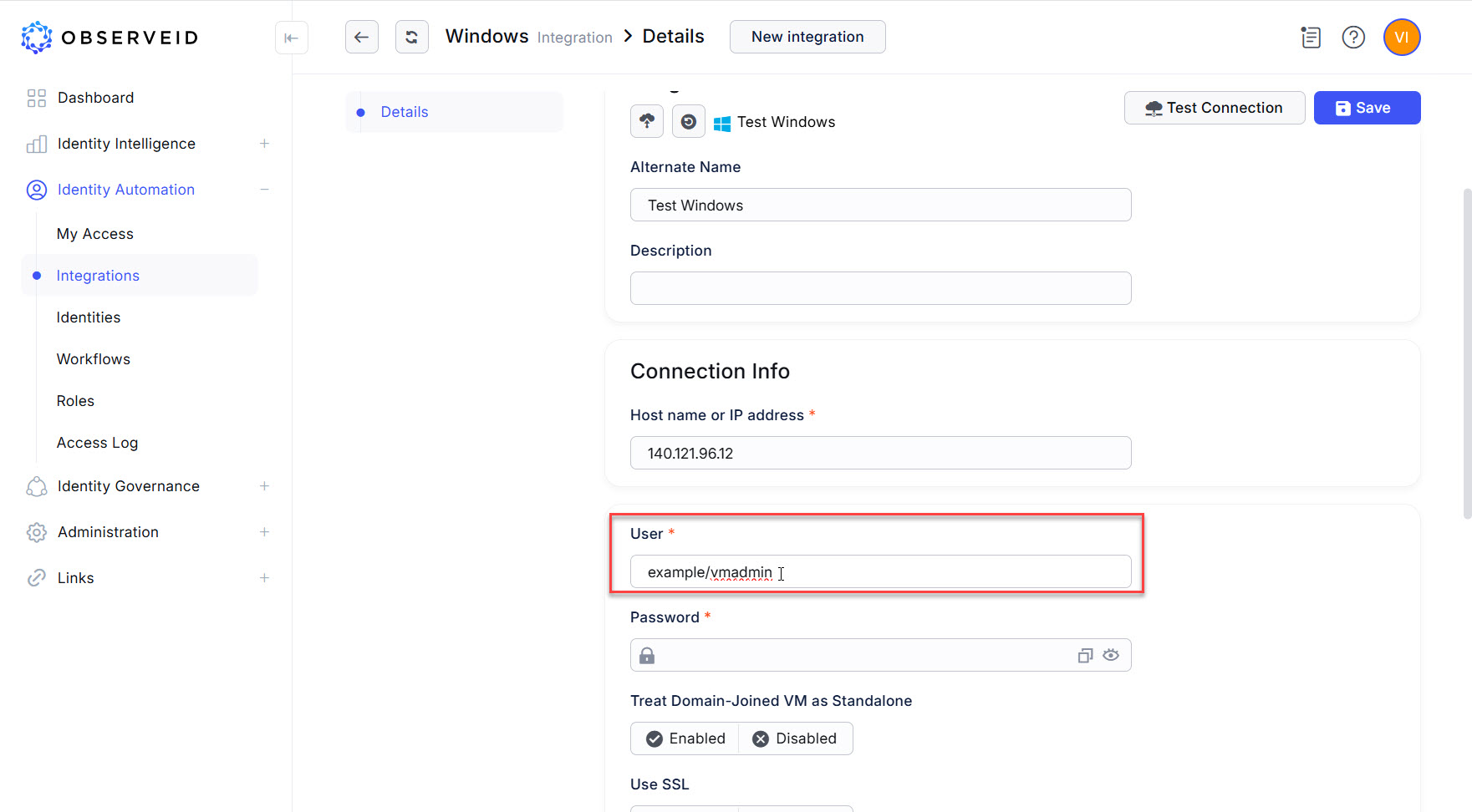 Entering the user
 -
Enter the password of the account.
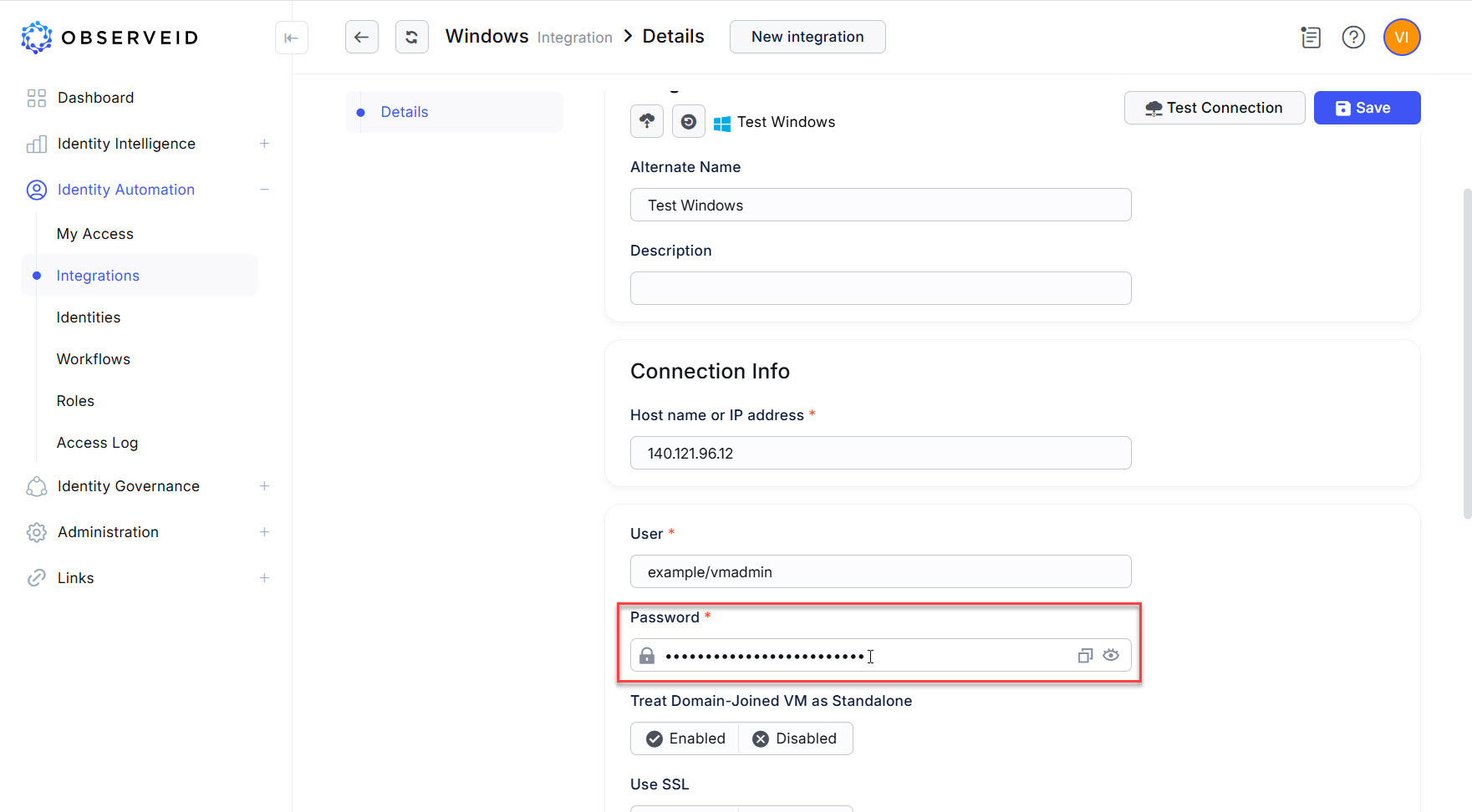 Entering the password
 -
Click Test Connection.
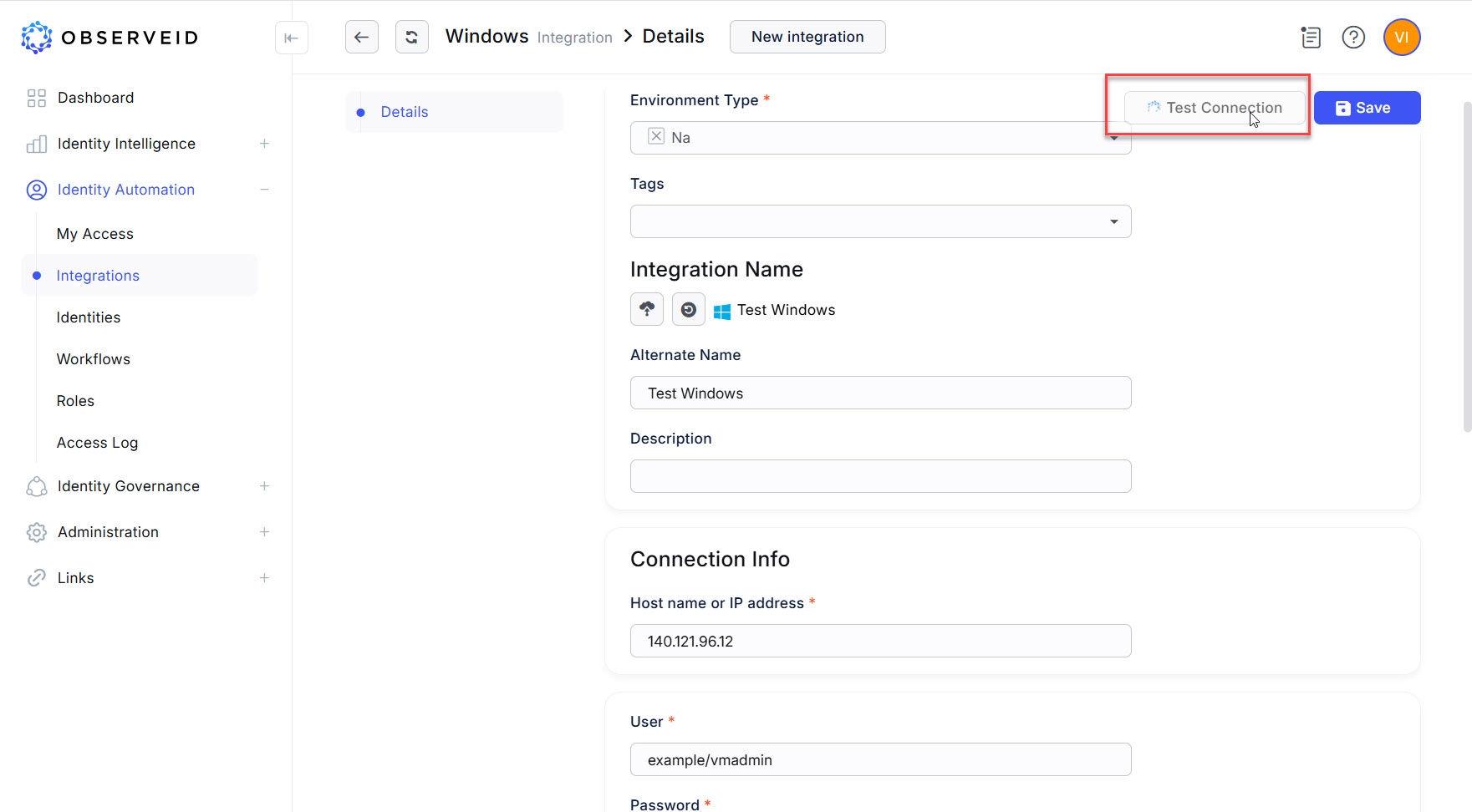 Test Connection
 -
The system message should inform about successful connections.
-
Click Save, and wait for the saving operation to finish successfully.
First load of data from Windows to ObserveID
-
Click Workflows in the menu on the left.
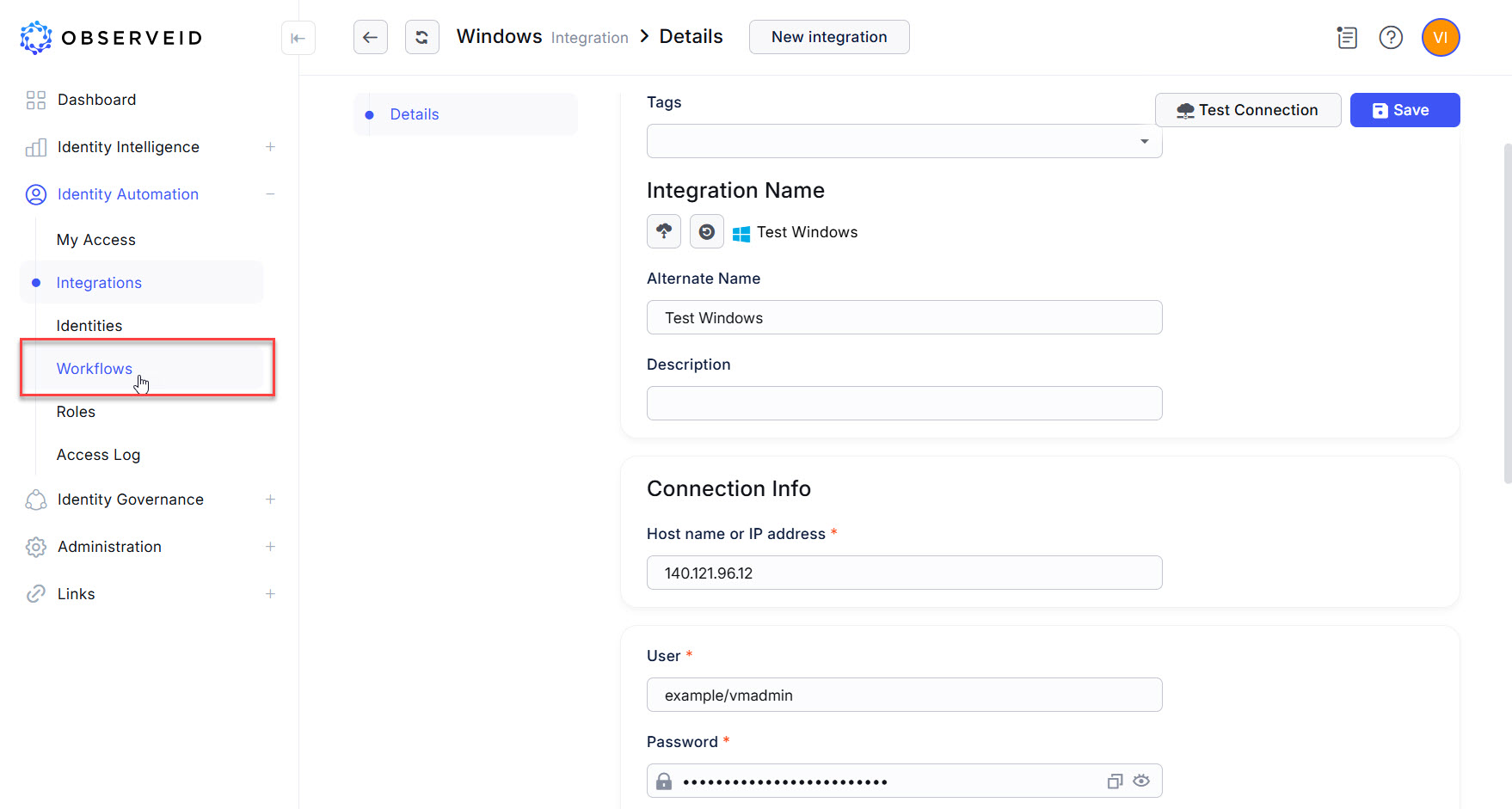 Opening the Workflows grid
 -
Click the Tasks button on the horizontal toolbar.
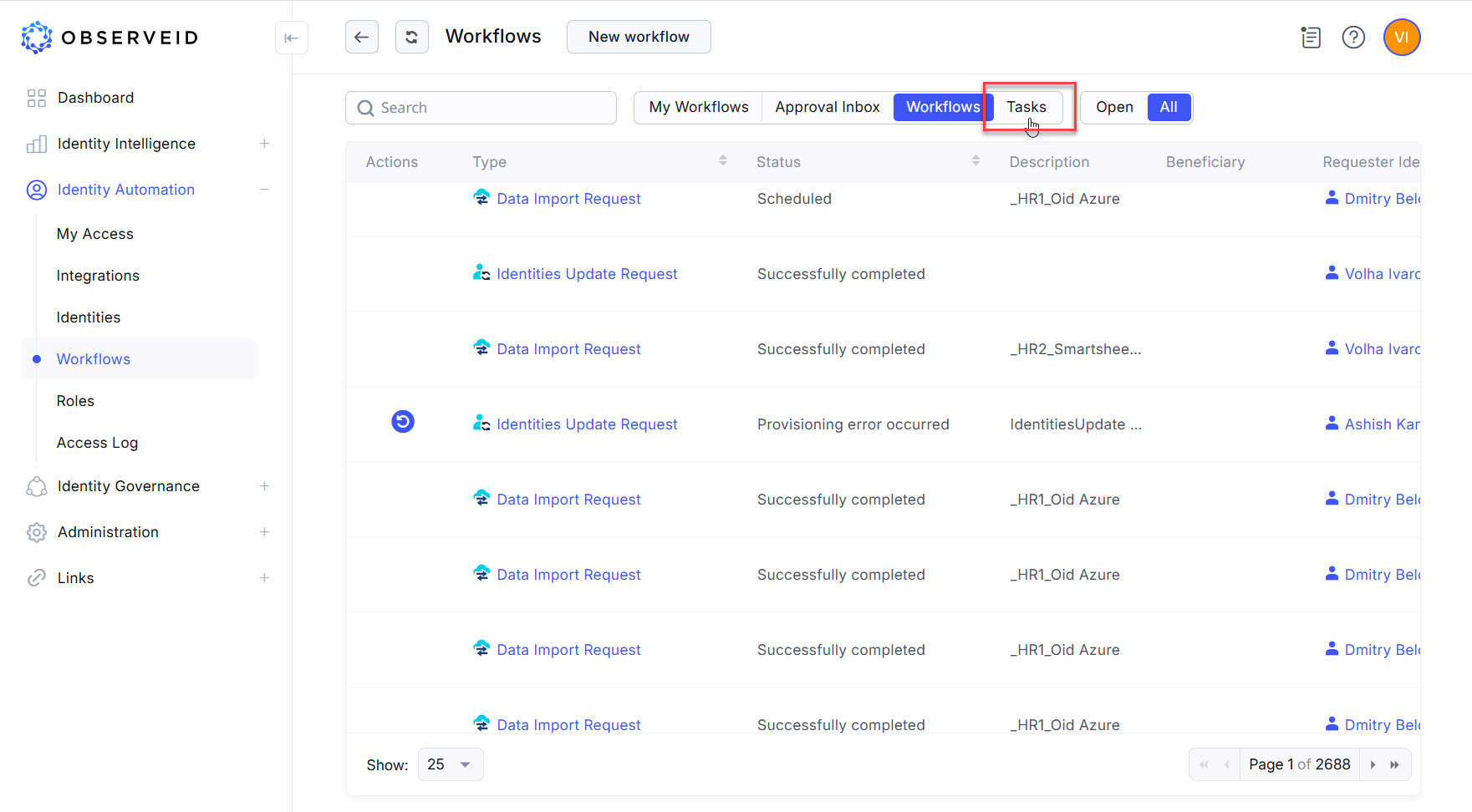 Opening the Tasks grid
 -
Find a new DataImport task with the name of the new Windows integration in the Name column. Click the Trigger icon on the left beside the new task, which is the DataImport task for Test Windows, where
Test Windowsis the name entered for the new integration.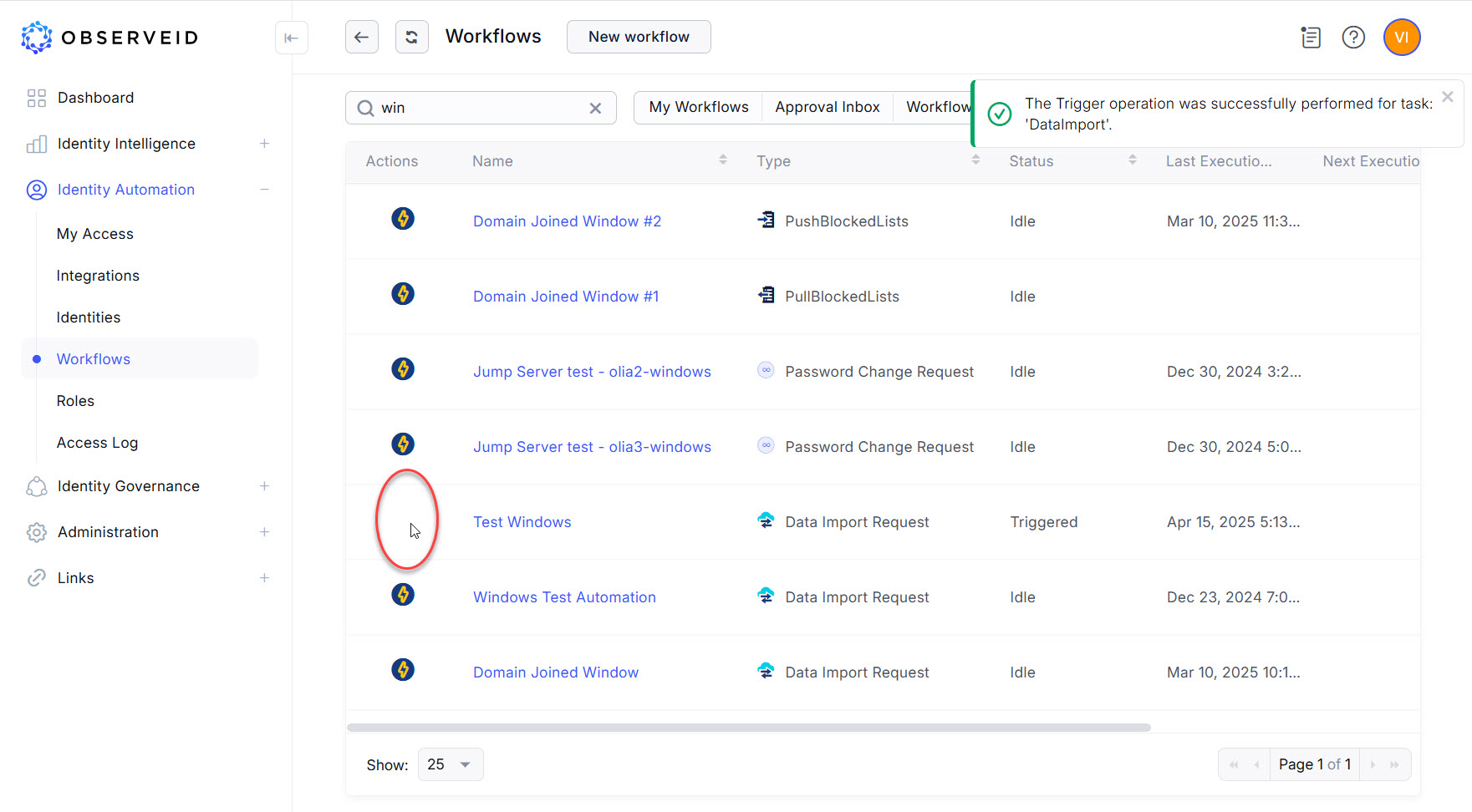 Triggering Data Import for Windows
 -
Click the Refresh button a couple of times until the task will change its status from Triggered to Idle.
-
The successful execution of the DataImport task for Test Windows should bring the data from the Windows target to the ObserveID platform. Verify that the data appears by returning to the integration details in the Integrations area and ensuring that the options in the third-level vertical menu are visible, such as Accounts, Targets, Entitlements, Properties, etc.
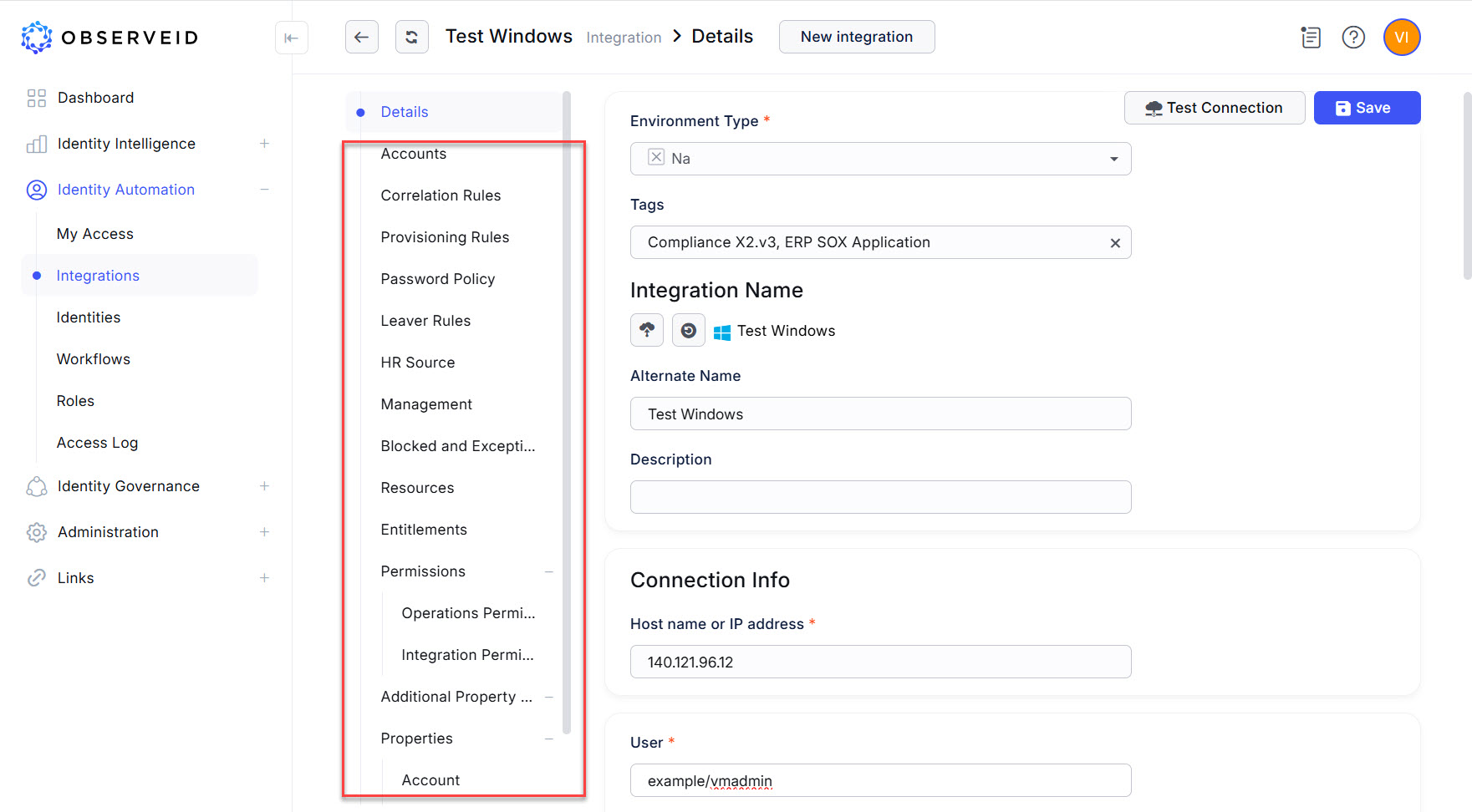 Integration Data of the Test Windows integration