
Windows integration
The ObserveID Windows integration facilitates access and user management by accumulating security information, providing access auditing capabilities, supporting remote sessions, and establishing a secure infrastructure for efficient work. This integration communicates with remote computers using PowerShell Remoting via WinRM (Windows Remote Management), which is Microsoft's implementation of the Web Services for Management protocol. It can import integration data and operate in read-only mode or perform authorized actions. These actions include provisioning access, establishing remote sessions with enabled file transfer, detecting access, generating audit logs, and more.
Microsoft Windows is a series of operating systems for use on personal computers, business desktops, laptops, tablets, and other computing devices. This section describes how to set up the integration with a Windows system, including configuration of the integration and schema details for the Windows integration data.
In this section:
- Overview
- Windows integration operations
- Pre-requisites to setup of Windows integration
- WinRM on the Windows target
- WinRM on the machine with UC
- Setup of Windows integration
- First load of data from Windows target
- Coding integration rules
Overview
The Windows integration allows one to manage Windows users and groups, and monitor and control access to the computer. From the high-level perspective, the following integration data is retrieved from Windows:
- Windows groups;
- local or domain users;
- entitlements assigned to users;
- properties attributed to users.
To create a Windows integration in ObserveID and get ready for the use, the base setup and configuration flow includes the following steps:
- Prerequisites must be implemented on Windows for ObserveID.
- Configuration of WinRM must be performed on the Windows target, and if needed, on the machine with UC running on.
- Connection parameters must be set up on ObserveID for the Windows target.
- First load of data from Windows to ObserveID should be successfully completed.
- Coding integration rules according to the business case requirements is the final step before the Windows integration is ready for use in ObserveID
Windows integration operations
A Windows integration can perform the following operations on the Integration Data:
|
Integration Operation |
Used by |
General description |
Integration-Specific Requirements |
|
Account Management | |||
|
Create Account |
Permanent Access Request, Temporary Access Request, Onboarding, Reinstatement, Role Creation, Role Update, Identities Update |
The Windows integration can create accounts. It requires Additional Properties to be established for accounts. The Additional Properties are coded with Provisioning Rules. |
The Additional Properties mandatory on the creation of a Windows account are:
|
|
Credentials Update |
Password Change Request, Privileged or Firecall Unlock Request |
A password is established on Account Creation. The password can be updated with a workflow according to the Password Policy. For Privileged or Firecall account types, the password can be rotated. The password is rotated if ‘yes’ is established for a Windows account in its ‘Rotatable’ property. |
The following Password Policies are available for the Windows integration:
|
|
Delete Account |
Account Removal, the Finish action on Temporary Access Request |
The Windows integration can delete accounts. The respective history records are stored for every Identity. |
n/a |
|
Offboarding, Emergency Deprovisioning |
When an Identity is terminated, their Windows account(-s) are deprovisioned according to the Windows Leaver Rule. |
During Identity Termination, the Windows integration Leaver Rule can set one of the following available options:
For coding the Windows Leaver Rule, refer to the Coding Integration Rules section below. | |
|
Lock Account |
Privileged Access Management, Firecall Unlock Request |
When the Windows integration unlocks Privileged or Firecall accounts, it sets the usage period for the account. |
When the Windows integration unlocks an account, the boolean Account is disabled property gets the |
|
Unlock Account |
Privileged Access Management, Firecall Unlock Request |
On the Finish button or on the end of the usage period, the unlocked account is locked back. |
When the Windows integration unlocks an account, the boolean Account is disabled property gets the |
|
Update Account Additional Properties |
Identities Update |
Windows account properties can be updated if the Identity property has changed. Provisioning Rules can be configured to pass the Identity property to the Windows account. |
The Additional Properties allowed on the update of a Windows account are:
For what information can be displayed for a Windows account, refer to the schema of Windows integration data. |
|
Entitlement Management | |||
|
Grant Account Entitlements |
Permanent Access Request, Temporary Access Request, Manage Access, Role Creation, Role Update, Identities Update |
The Windows integration can assign an account with an entitlement. |
The Windows entitlements that can be assigned are:
|
|
Revoke Account Entitlements |
Manage Access, Role Update, Role Deletion, Identities Update |
The Windows integration can revoke an entitlement from the account. |
The Windows entitlements that can be revoked are:
|
|
Domain Controller | |||
|
Read-Only mode |
No operation |
Edge case: when the Windows machine is set up as a Domain Controller. |
None of operations on local accounts are available available. Domain accounts are fetched as Federated accounts from the LDAP integration enabled with federation capabilities. Management of domain accounts happen on the LDAP integration side. For details, refer to the LDAP integration documentation. |
|
Target Management | |||
|
Pull Data |
DataImport task, Identities Update, most workflows |
The Windows integration imports users and groups as part of the Integration Data. The configuration of the Windows target impacts what data is reflected in the integration. There are options: |
For the schema of the fetched integration data, refer to the subsequent section. |
|
Local Users and Local Groups are fetched. | ||
|
The Treat Domain-Joined VM as Standalone toggle in the integration configuration determines to fetch local or domain users and groups. | ||
|
Built-in Local Users are fetched. | ||
|
Correlation and Customization Rules can be configured to recognize the Identity for an account and the account type. |
Refer to the requirements to Correlation and Customization Rules. | ||
|
Test Connection |
Test Connection function |
It is possible to troubleshoot if there is a connection between ObserveID and the Windows target. |
n/a |
|
Blocked List |
Pull Blocked List task; Push Blocked List task |
With the Blocked List agent installed on the Windows machine, ObserveID can block access to a user on the server. |
The Windows-specific Blocked List parameters for defining what access to block:
|
|
Access Detection | |||
|
Detect Access |
Audit Log report type of Analytics |
The Windows integration can help one track the user’s sessions on the Target. |
|
|
User sessions detected on the Windows target can be compiled into a report. The detected session records are provided with extra details:
|
Windows-specific additional properties of the detected sessions are as follows:
| ||
|
Detect Access Text Logs |
Information generated by the Windows machine. |
Windows provides log events for every detected session with the following json-data schema:
| |
|
Remote Connection | |||
|
Remote Connection |
Connect in My Access |
The Windows integration can establish a remote session via the ObserveID user interface. |
The parameters below should be specified in the Details of a Windows integration:
|
|
Virtual Drive |
The Windows integration can set up a virtual drive to store the uploaded files and enable downloading files from the remote computer. |
Given that the remote connection is set up for a Windows integration, the enabled | |
|
SFTP support |
With the Windows integration, users can transfer files over SFTP and utilize a built-in File Manager. |
Two prerequisites for that are:
Afterwards, the following SFTP parameters must be specified for SFTP on ObserveID:
|
Pre-requisites to setup of Windows integration
There are prerequisite activities that are required to be performed on the Windows target before the connection to the Windows target is initialized by the Universal Connector. Below is a short overview of prerequisites to complete:
|
Pre-requisites |
Values |
Description |
|
Administrator permissions |
|
The account intended for ObserveID, created in the Windows target and specified in the connection details of the Windows integration, should be of the system user account type and added to the |
|
User/Password authentication |
n/a |
WinRM on the machine with the UC running may require credentials (i.e., a username and password pair) for authentication on the Windows target. |
|
PowerShell utility |
n/a |
The PowerShell utility is used to send commands to the WinRM service, thereby configuring the machines and allowing remote access to the Windows target. |
|
WinRM service |
n/a |
The WinRM service must be configured and running on both machines:
The UC uses WinRM to connect to the Windows target. Further details on the configuration prerequisites for the WinRM service are provided below. |
|
Allow TCP/UDP outbound connection in Firewall |
|
The firewall on the machine running the UC should permit TCP/UDP outbound connections using the WinRM service to the Windows target machine. |
|
Allow TCP/UDP inbound connection in Firewall |
|
The Windows target machine’s firewall must permit inbound TCP/UDP connections via the WinRM service for the machine running the UC. |
WinRM on the Windows target
Below is a set of commands to configure WinRM on the Windows target.
1 - The WinRM service should be running on the Windows target. The following Powershell command (re)starts the WinRM service.
net start winrm
2 - The list of trusted hosts on the Windows target should include the machine's IP address with the UC. The following PowerShell command adds the IP address to trusted hosts.
Set-Item WSMan:\localhost\Client\TrustedHosts -Value "host_with_universal_connector_ip_address"
3 - If the connection over HTTPS is required to communicate with the Windows target, the WinRM service is enforced to communicate over the HTTPS protocol with the following PowerShell command. The respective certificate is needed.
winrm quickconfig -transport:https
4 - The PowerShell on the Windows target should have remoting enabled.
Enable-PSRemoting
5 - If needed, with the following PowerShell command, allow inbound connections from the machine's IP address with the UC on the Firewall of the Windows target.
New-NetFirewallRule -Name "WINRM-HTTP-In-TCP-PUBLIC" -RemoteAddress "Address"
WinRM on the machine with UC
Below is a set of commands to configure WinRM on the machine with UC.
1 - The list of trusted hosts on the Universal Connector VM should include the Windows target machine's IP address. The following PowerShell command adds the IP address to trusted hosts.
winrm set winrm/config/client '@{TrustedHosts="target_machine_ip"}'
If needed, the command below allows the connection from the machine with UC to any target:
set-item wsman:localhost\Client\Trustedhosts -Value *
2 - If required, it is possible to check the entire list of all permitted targets with the following command.
get-item wsman:\localhost\Client\TrustedHosts
3 - If needed, it is entirely optional; using the WinRM services, it is possible to establish the connection to the Windows target with the following command and, thus, to test that it works.
Enter-PSSession -ComputerName target_machine_name_or_ip -Credential target_machine_username
4 - This step is for troubleshooting, if WinRM services does not work due to proxy issues, run below commands to bypass proxy:
            netsh winhttp show proxy
            netsh winhttp reset proxy
Setup of Windows integration
The connection parameters specified below must be populated in ObserveID for the Universal Connector to connect to the Windows machine as a Target. The connection parameters are established in: ObserveID > Identity Automation > Integrations > {specific Windows integration} > Details.
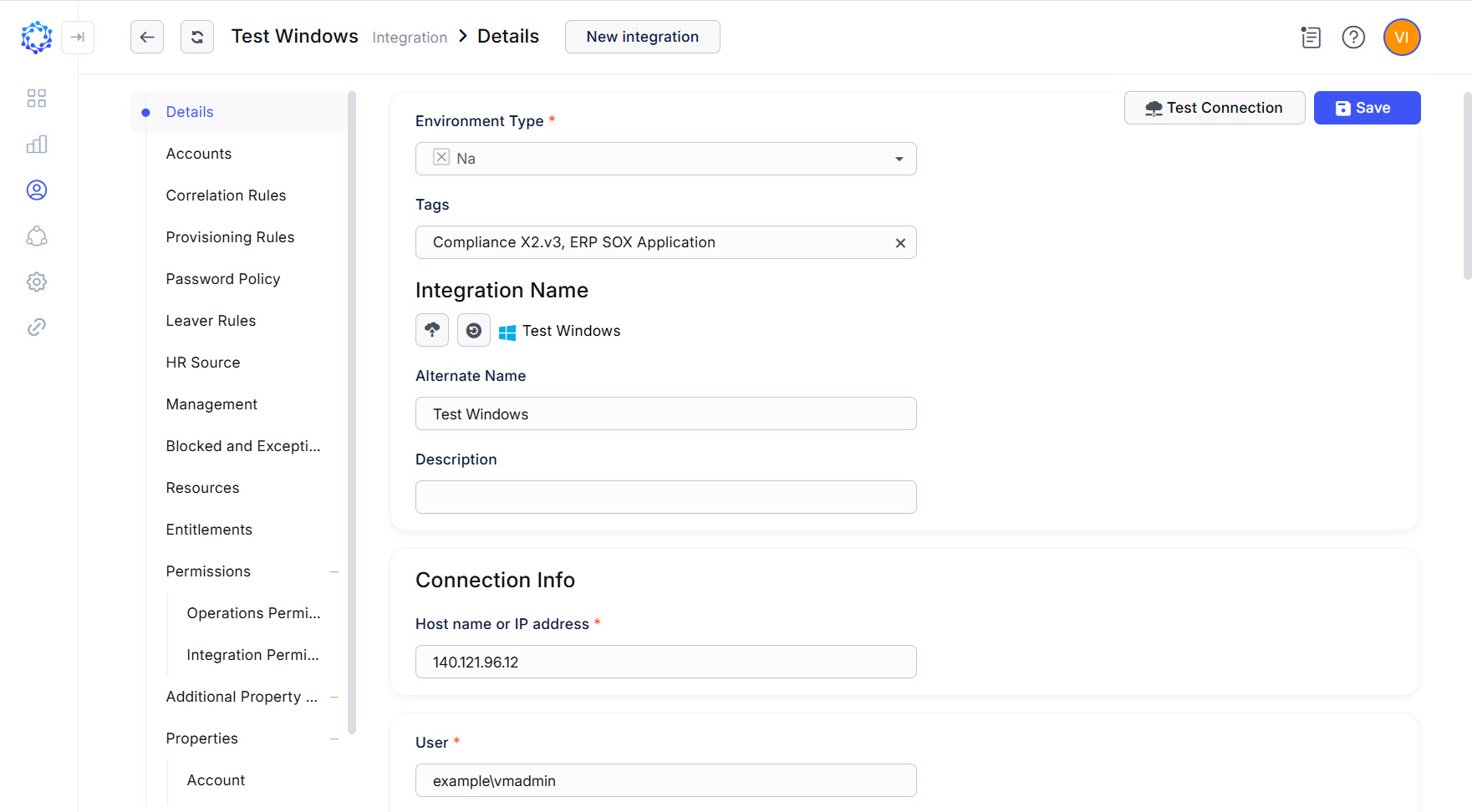 Windows integration config
|
Connection parameter |
Description |
|
Environment Type |
Environment the new integration pertains to. The Na option establishes no environment. |
|
Integration Name |
Automatically generated name for the new integration. The name is created by combining the Integration Type with what is established as Environment Type, Alternate Name, and Description for the new integration. |
|
Alternate Name |
Any preferred name for the new integration. |
|
Description |
Any valid text to differentiate one integration from another. This text is displayed in addition to the integration name in several UI elements, e.g., dropdown lists, in the system. |
|
Hostname or IP address |
Hostname, or IP address of the Windows VM. |
|
User |
User ID of the account intended for ObserveID on the Windows target. |
|
Password |
Password of the account intended for ObserveID on the Windows target. |
|
Consider session closed if no action for seconds. |
Timeout in seconds, after which the UC would automatically send the ClosedSessionEvent. |
First load of data from Windows target
After the connection parameters are established for Windows in ObserveID and the connection test is completed, the next step is to load the first data. It allows the systems to set up an initial point, starting from which it is possible to determine and synchronize deltas later. For the data loaded, refer to the schema of the Windows integration data.
There is a DataImport task that is used to perform the initial load, as well as subsequent data imports.
The DataImport task is automatically created for the Windows integration when the integration is saved. However, if anything, it is possible to manually create a DataImport task in:
- ObserveID > Identity Automation > Workflows
The DataImport task is considered successful if the integration data (i.e., accounts, entitlements, resources, and additional properties) is imported and displayed in the Windows integration in ObserveID.
Coding integration rules
By C#-coding the integration rules, the functional capabilities of the Windows integration are configured ad hoc to meet the requirements of a specific business case. In addition to flexibility, an essential factor in data management is the ability to maintain consistency across multiple systems within the organization's infrastructure. The integration rules help to determine identity data in relation to the Windows integration.
Below are the code samples and the Dependable variables \ parameters presented are the examples of how the integration and identity data can be defined.
|
Functional area |
Integration Rules |
Description |
Dependable variables \ Parameters |
|
Identity correlation |
Correlation Rule |
Since the The correlation establishes the Identity as the owner of an account. |
Account’s Identity’s |
|
Differentiating accounts by type |
Customization Rule |
Given that an identity is allowed to have only one account on a Windows machine, if the |
Account’s Identity’s |
|
Account Creation |
Provisioning Rules |
Provisioning Rules set additional properties for the Windows accounts created or updated in ObserveID. The following additional properties of a Windows account can be established with the Provisioning Rules:
|
Identity’s |
|
Identity Termination |
Leaver Rule |
Windows integration has no constraints on how accounts should be deprovisioned in the event of an Identity's termination. And all Leaver Rule options are applicable. The Leaver Rule defines how to treat Windows accounts when an identity is terminated. A code sample of the Leaver Rule is presented in the following sections. To change one option into another, it is sufficient to set the required value for the |
|