
Offboard Identities
This is the scenario of steps to run offboarding for terminated Identities. During offboarding, the access is de-provisioned from the terminated Identities. Offboarding is performed automatically by the Offboarding workflow. The triggering event for the Offboarding workflow to be created and to be executed is the change in the status of an Identity: from Active into Terminated.
The access is de-provisioned according to the Leaver Rule of every specific integration, where the Identity has had an account.
In this section:
- Prerequisites
- Offboarding scenario
- How to run Offboarding
- Results of Offboarding
Prerequisites
|
|
Prerequisite |
Description |
|
1 |
Configure the Leaver Rules for all integrations in ObserveID. |
By configuring the Leaver Rule for all integrations, the user determines how to treat accounts from each specific integration when the Identity as the owner of the account gets terminated. |
|
2 |
Configure the Global Leaver Rule. |
With the Global Leaver Rule established, it is determined where, or whom to transfer the ownership in Integrations, Resources, Entitlements, and Roles in case if the current Owner gets terminated. |
|
3 |
Terminated Identity |
The existing Identity becomes terminated, and has the ‘Terminated’ status. |
Offboarding scenario
To run offboarding, the user is expected to do the following:
- Wait for the Offboarding workflow to finish. And in case of failure, resolve inconsistencies and click Retry to run the Offboarding workflow again manually.
 Offboarding scenario
The offboarding scenario on the diagram above shows actions performed by the user, and the areas of activity controlled by ObserveID for the user. The scenario involves the following systems:
- ObserveID;
- Other corporate systems that ObserveID integrates with to manage access of Identities.
The offboarding scenario finishes successfully, if the de-provisioning is fully executed. The de-provisioning is defined with the global and integration-specific Leaver Rules.
The integration-specific Leaver Rules for different integrations can be different, for example, as follows:
- accounts are locked ‘as is’;
- first, entitlements are removed from accounts, and then the accounts get locked;
- accounts are deleted;
- accounts can be left ‘as is’, but the ownership gets transferred to another identity, or workgroup.
How to run Offboarding
To run Offboarding, do the following:
-
Wait for the HR Source Check to finish in: Identity Automation > Workflows > Tasks.
And when the status of the HR Source Check task changes to Successfully Completed, click the HR Source Check Request, and then click History. Make certain that the latest event record has the information:
Created workflow Offboarding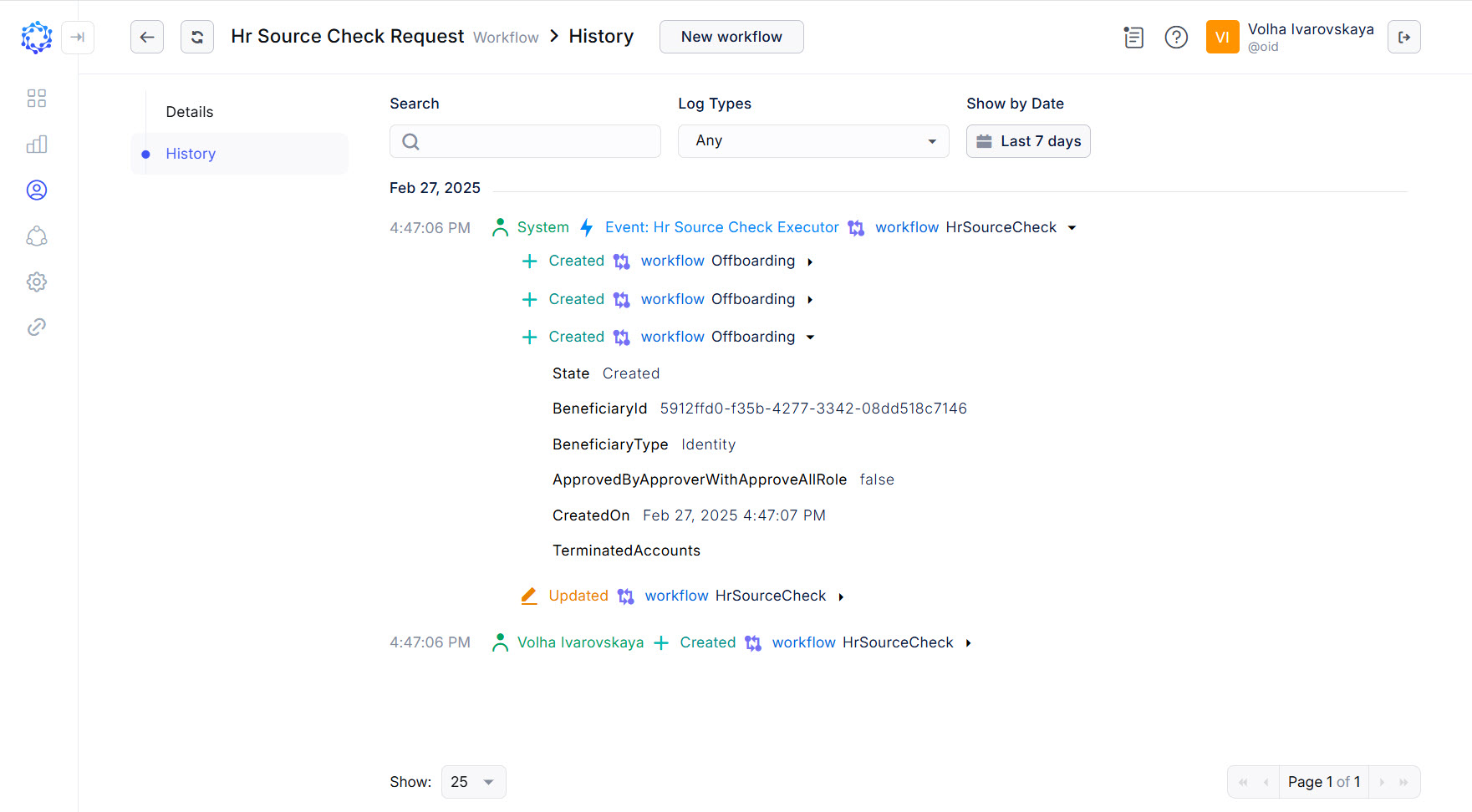 HR Source Check launched three Offboarding workflows
 -
The Workflows grid will be added with as many Offboarding workflows, as many existing active Identities were terminated at that moment.
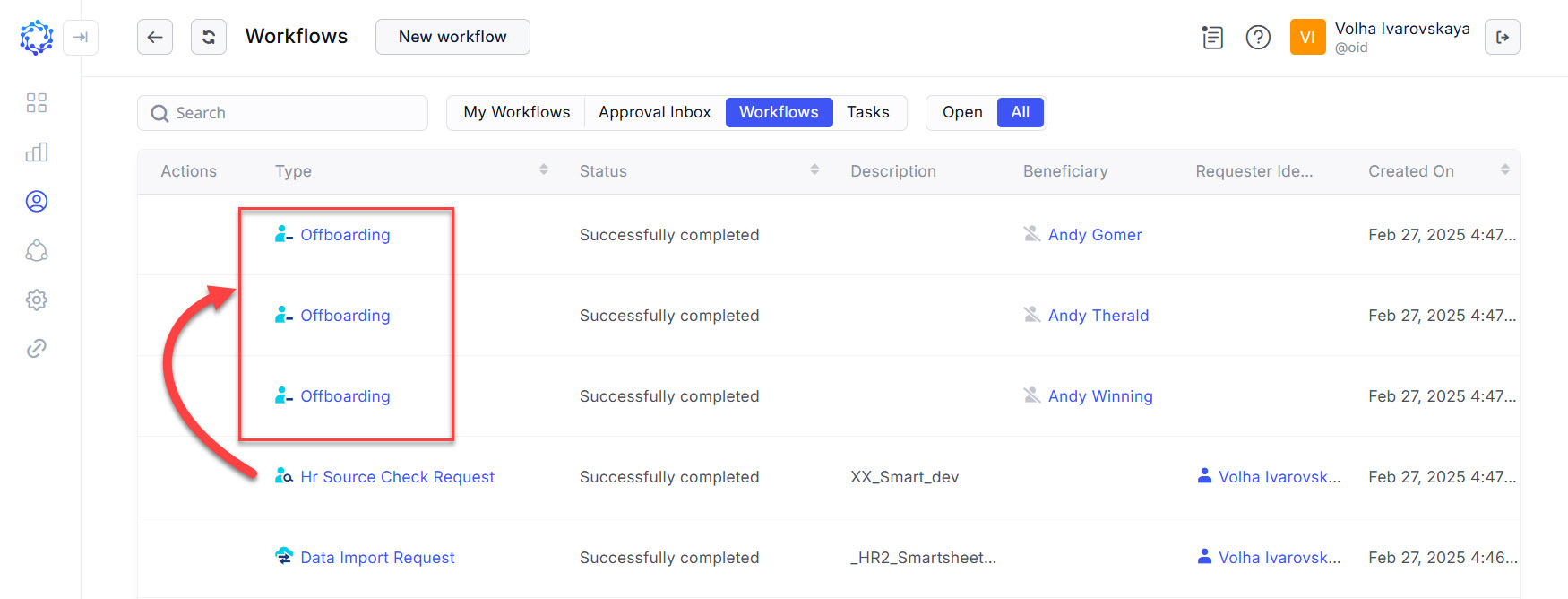 Workflows grid with all Offboarding workflows
 -
Automatically, an Offboarding workflow starts for every terminated Identity. And once the offboarding is finished, the access of all terminated Identities will be de-provisioned.
Results of Offboarding
Given that the Offboarding workflow finishes successfully, for the terminated Identity:
-
The accounts will be de-provisioned in line with each respective integration-specific Leaver Rules.
For example, if the Leaver Rule of the integration X instructs that the accounts should be locked; while the Leaver Rule of the integration Y instructs that the accounts should be deleted; then for the terminated Identity after the Offboarding finishes, the accounts of the integration X will be locked, and the accounts of the integration Y will be deleted.
-
In case when the terminated Identity was established as the Owner of any of integrations, resources, entitlements, or roles, then the ownership will be transferred according to the Global Leaver Rule.
-
The membership in Workgroups will be revoked.
-
The Local User account will be deleted.