
Analyze Integration Data
With Analytics it is possible to create an aggregated data representations from the Integration Data. Such datasets is called Analytics reports, and can be owned by the currently logged-in user, or shared with everybody in the organization. In the latter case, it is possible to define if the shared report is allowed for editing by others. To work with the analytics reports, go to: Identity Intelligence > Analytics.
In this section:
- Grid of reports
- View and Edit modes
- Grid and Chart views
The Analytics grid displays the reports available for the currently logged-in user. The reports can be filtered with the All | My Reports | Shared Reports toggle as follows:
- The All option shows everything: the reports created by the currently logged-in user, and the reports shared organization-wide.
- The My Reports options shows only the reports owned by the currently logged-in user.
- The Shared Reports allows the user to view the list of the reports shared organization-wide.
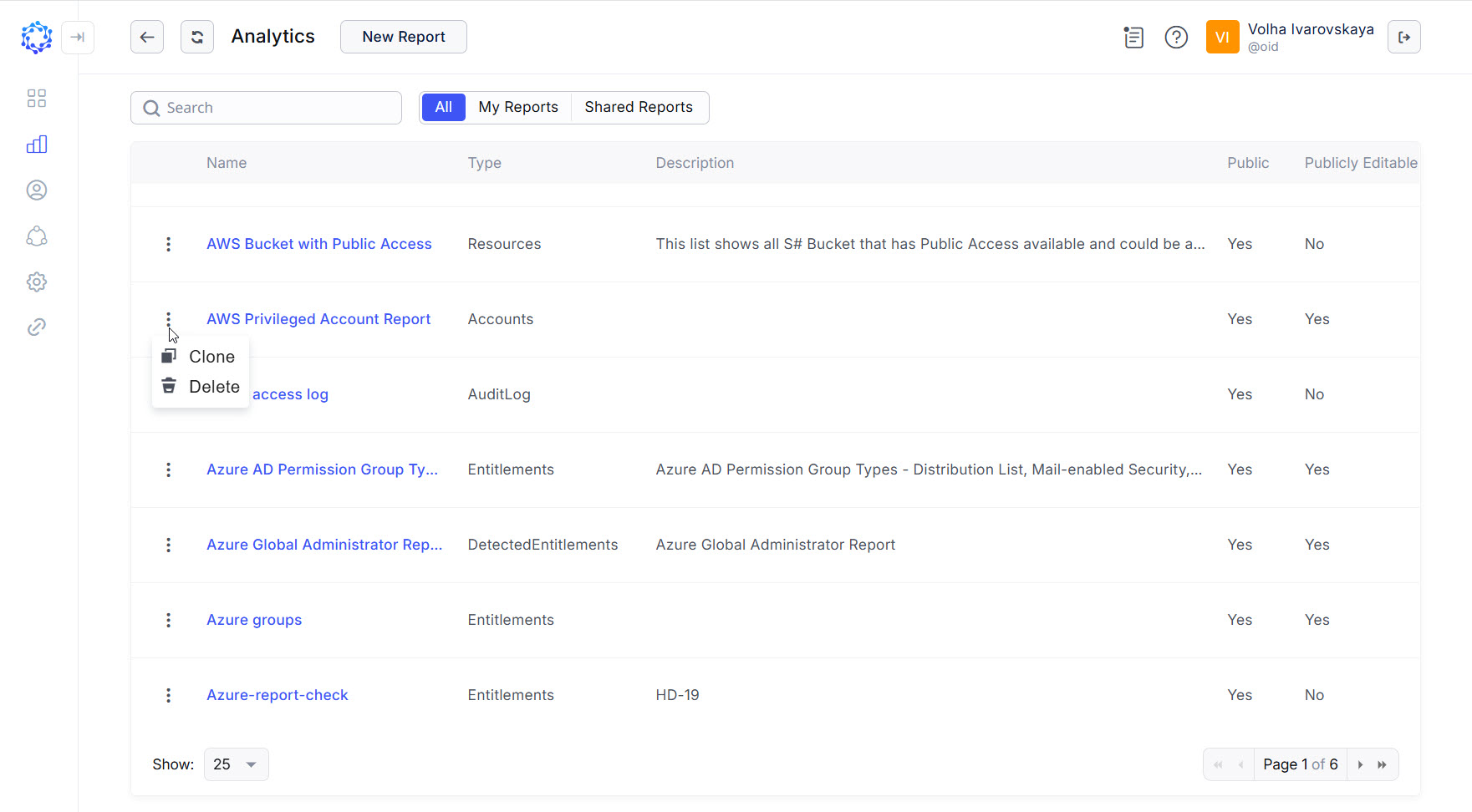 Analytics grid
Grid of reports
The Analytics grid shows the following information:
|
Column |
Description |
|
Name |
It is the user-defined name for the report. |
|
Type |
The type is selected for the report on its creation, and determines the availability of data in the report. The report types available are:
|
|
Description |
It is the user-defined text about the report. |
|
Public |
If it is |
|
Publicly Editable |
If it is |
|
Actions |
There are the following actions that can be performed on the report:
|
View and Edit modes
There are two modes of a report: the View mode and the Edit mode. To work with the data, use the ready-to-use View mode. It would open with the default Grid, or Chart view and present the data exactly the way the user has configured it. To configure what data to display and how to present it, the Edit mode should be used, and opened with the Configure button.
Grid and Chart views
There are two basic views of a report: the Grid view and the Chart view. One of the views should be established as default individually for every specific report. The default view is opened when a report is opened, and also displayed for the widget if the report is added as a widget to the Dashboard.
The Grid view shows data in a grid. The Chart view presents the data on a diagram. Both the Grid and Chart views are configurable, and it is possible to apply a number of approaches, and try different hypothesis, to find the best one that suites the context and helps to achieve the goal of the data representation.