
Configure Grid in Analytics report
To configure data in the Grid, use the Edit mode of the required report by clicking the Configure button. The Grid representation is available in the Data and Filters sub-section. It provides the following capabilities for defining the needed dataset:
- search bar to search for specific matches;
- Choose columns to select columns for the grid;
- basic filtering by an option selected in the dropdown lists or a toggle;
- advanced Filters to make complex queries,
- sorting rows by a specific column.
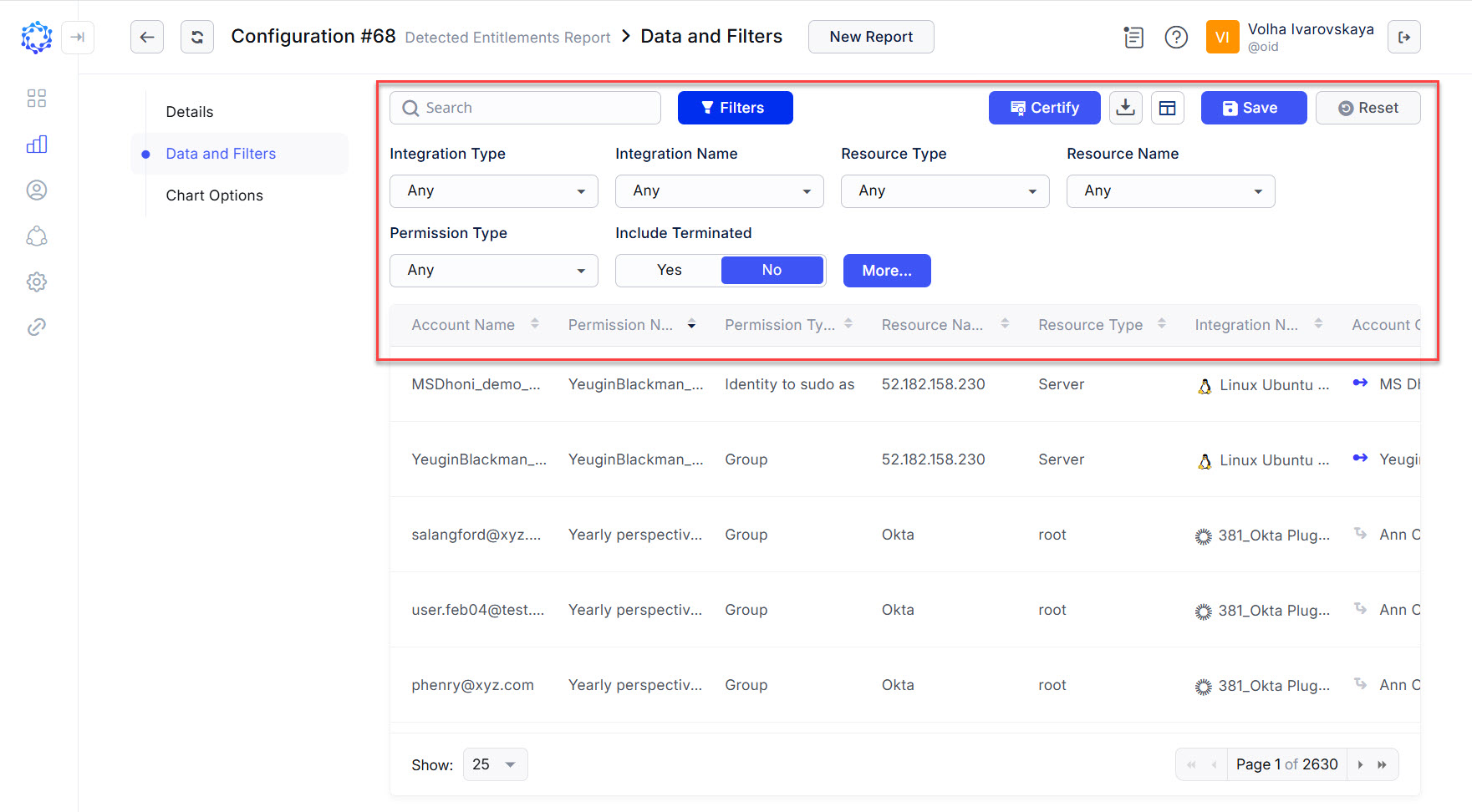 Configuration capabilities for the data displayed in the Grid
The basic filters have such options as: Select All - to make all options selected, or otherwise, to filter the data by the selected options only.
The search bar looks for any matches with the search entry across all attributes of a record.
Once the configuration of the Grid is done, to exit it, click Save, and the View mode will open. If to click Reset, it will discard all changes made and return the Grid back to the previous state before any changes.
Advanced Filters
To create a query with multiple clauses, the advanced Filters are used, as follows:
-
Click Filters, and then click More... The Filters popup window will open. It provides the data selectors and the operators to build queries to determine what data to show.
-
Select the first parameter, and the next selector would show up. It would provide the operators applicable to the selected parameter.
-
Select an operator, and available values will be offered.
-
Select the required value, and the clause is ready.
-
If needed, click Add property to add another clause.
-
In case of some clauses, join them with either the
AND, orORoperator.Remember that
ANDhas precedence beforeOR. It accounts for any expression to be written as with the parentheses, so as without the parentheses. For example, the following expression with the parentheses can be presented also without any parentheses:(((value=true)|(name like 'joe')) & (location != 'China')Below is the same expression without parentheses:
location != China AND value = true OR location != China AND name like 'Joe' -
If needed, to enclose some clauses into the parentheses, use the Lock checkbox on the left between the clauses to unite them together, like in math to set the order of operations.
-
Click Apply, when the query is ready. And the Grid view will update according to the established filter.
To clear the advanced filters, click the Clear icon that will appear only if the advanced Filter has a query established.
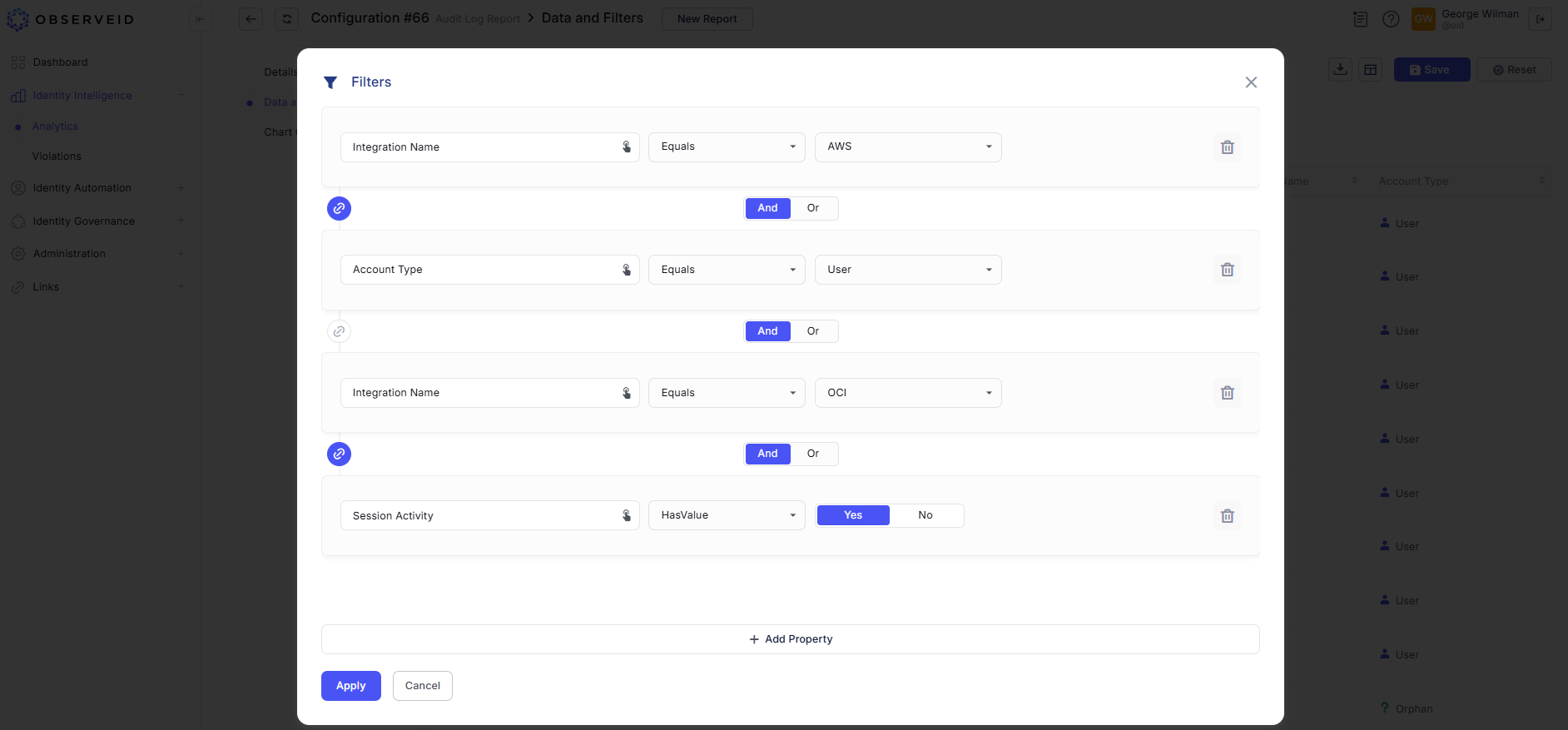 Advanced Filters
Choose columns
With the Choose columns functionality, it is possible to select what columns to display on the Grid view. Once a column is checked in the list of the Choose columns, the grid immediately refreshes and reflects this by adding the checked column to the grid. And vice versa, if it is needed to remove a column from the grid, it is enough to find it in the list of the Choose columns and uncheck.
To change the order of the columns in the grid, use the left-hand list of parameters in the Select Columns popup, see the figure below, opened on click on the Choose columns icon. By drag-and-dropping the items in the list, the order of the grid columns gets updated respectively and follows the order of how the items in list are organized.
Remember to click Save and save the changes in the current configuration of the data.
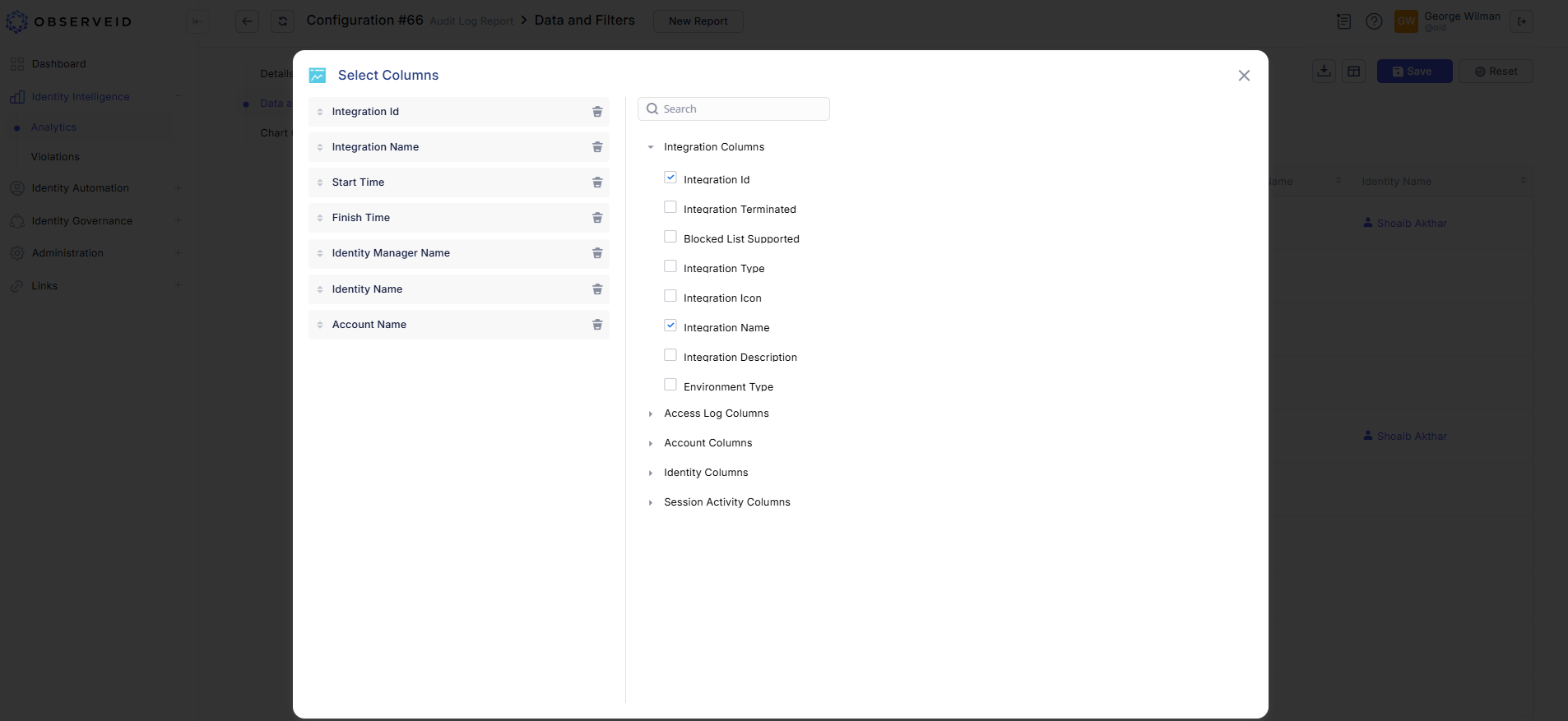 Choose columns