
Create new Analytics report
A new analytics report is created as follows:
(1) click the New Report button on the Analytics page in the Identity Intelligence area;
(2) the New Report pop-up opens, see the figure below.
(3) select the type of the report;
(4) select the required filters.
(5) click Save.
For more information on the report types, refer to: Types of Analytics reports
Note please, that all reports that the logged-in user would create in Analytics, will available for this user to select as a widget on the Dashboard.
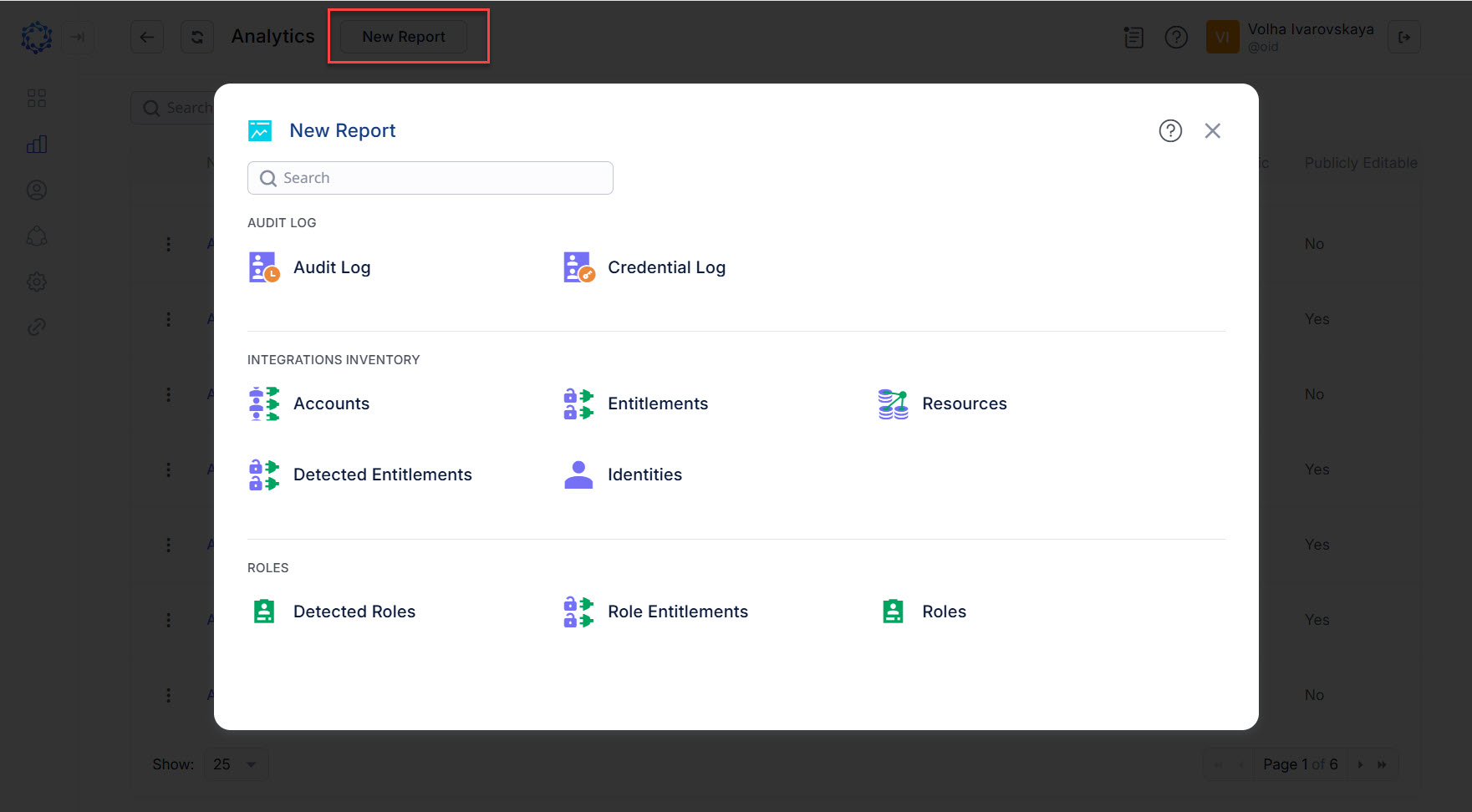 Selection of report types on the New report popup
The new report of the selected type opens in the Edit mode in the Data and Filters sub-section and has an automatically generated title: Configuration #<latest number> <report type> This is a freshly created report that shows all data available. It needs to be prepared for your goals and needs.
First, the data is prepared in the grid. Then the work with the data can be continued in the Chart. Consider also the report details. There are capabilities in the Details, that allow you to share the report and define what view should be a default view.
- For the information on how to prepare the Grid, see: Configure Grid in Analytics report
- For the information on how to work with the Chart, see: Configuring Chart
- For how to set the report details, see: Details of an Analytics report
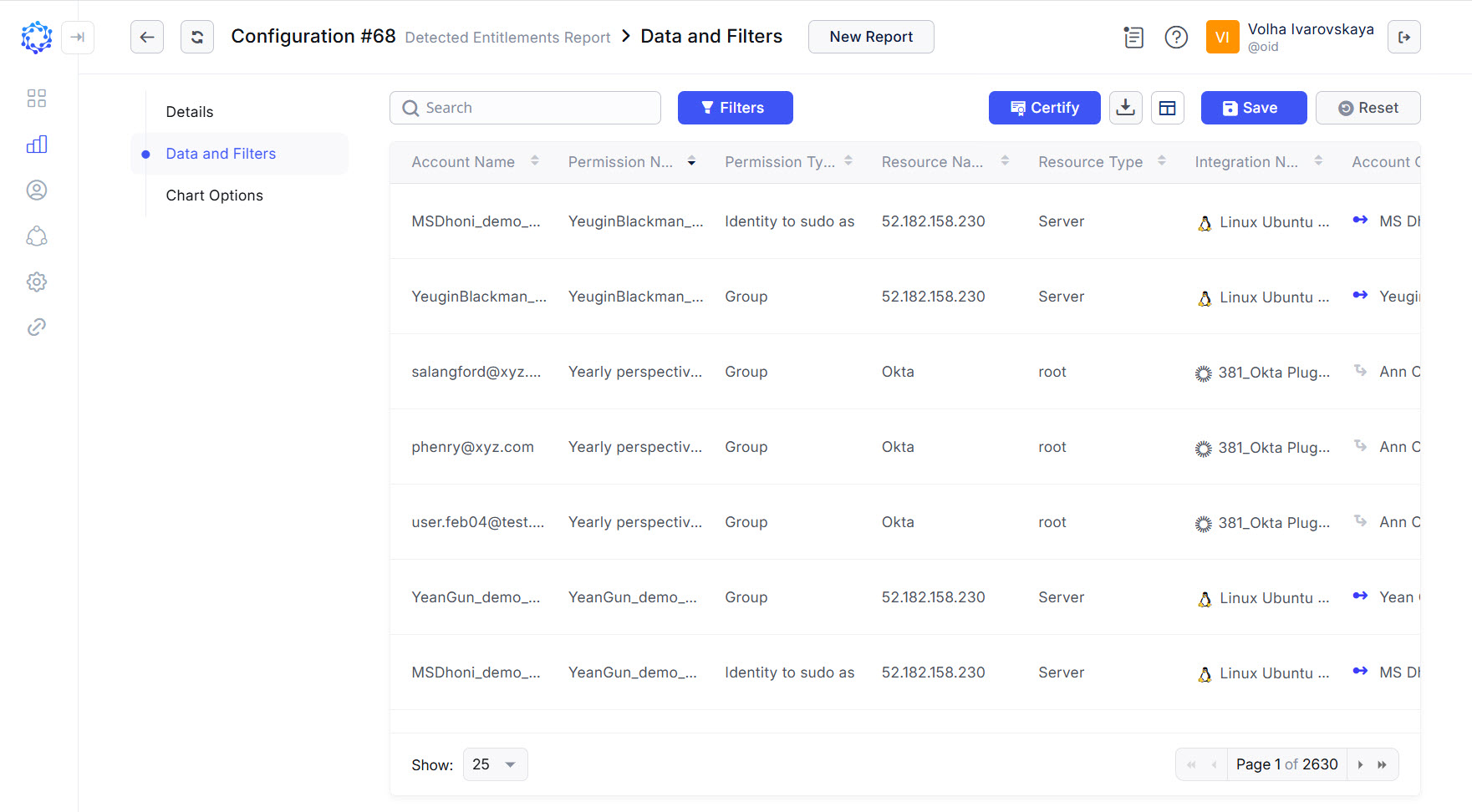 Raw data in a freshly created report
Remember to click Save, and the changes of the report will be saved with the name that is currently displayed: either the auto generated one, or the custom name that could be established a new Analytics Report in the Details sub-section.