
Block Access
In ObserveID, it is possible to block access to a user on the target system by: IP Address, Application Name, or Account Name, and\or Login Time, or other. The availability of parameters is determined by the integration. They are factored in the Blocked List policies, which the target system uses to compare the login attempts against. With any matches detected, the user is rejected access to the target. The attempt is registered and put to the storage, and can be further queried through the Analytics, used for building data representations and reporting.
The Blocked List policies are supported not by all integrations. And before the first use, it is recommended to check out the pre-requisites and verify if the Blocked List is supported by the integration, and if yes, how to enable it. With the integration configured for the Blocked List, it is possible to set the policies on the target system, and monitor the blocked access in the Analytics.
In this section:
- Set Blocked List policy
- Pre-requisites
- How to enable Blocked List
Set Blocked List policy
Before beginning, please note that it is assumed the integration supports the Blocked List feature, and configured respectively to enable it. If needed, use the Prerequisites part presented further in the current section for any guidance.
-
Go to: ObserveID > Identity Automation > Workflow > Tasks, and run the PullBlackListsTask for the given integration to update the Block List policies on the integration with the ones currently existing on the target system.
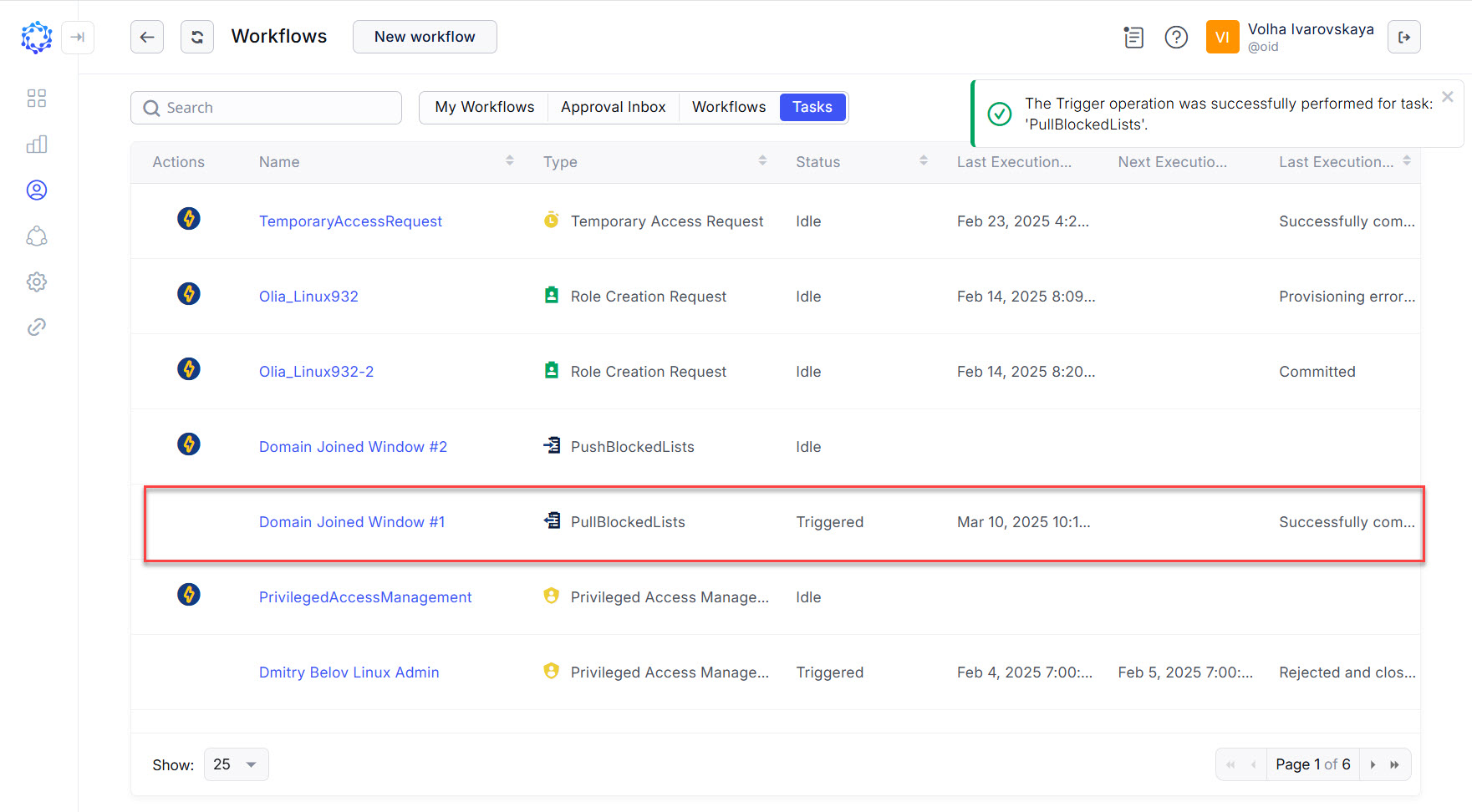 PullBlockedLists task triggered
 -
Go to: ObserveID > Identity Automation > Integrations > {specific Integration} > Blocked and Exception Lists, and click Add Record at the Blocked List part.
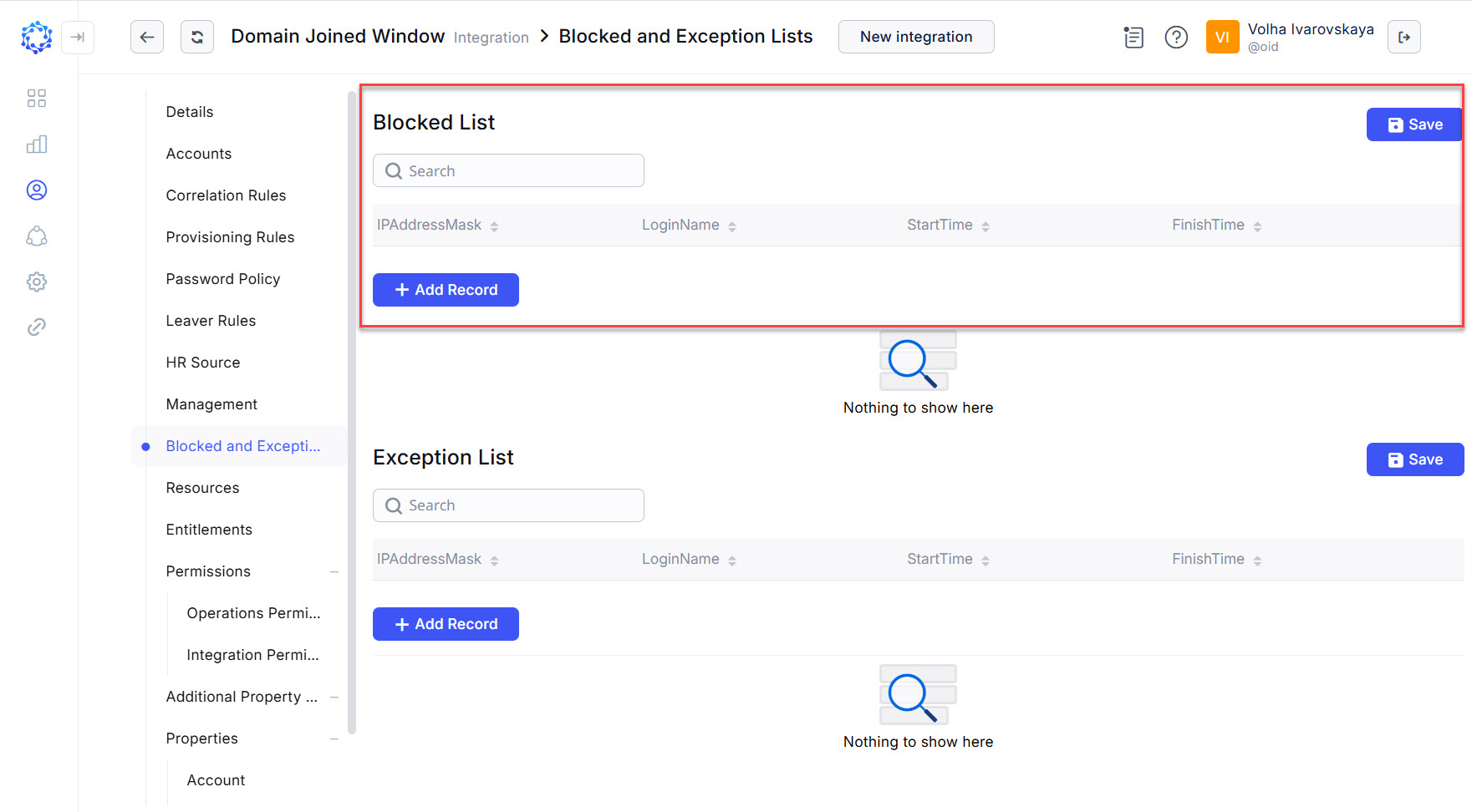 Availability of the Blocked Lists functionality for the integration
 -
Fill out the record, according to the Blocked List policy rules, and click Save. If needed, add more records, and save again.
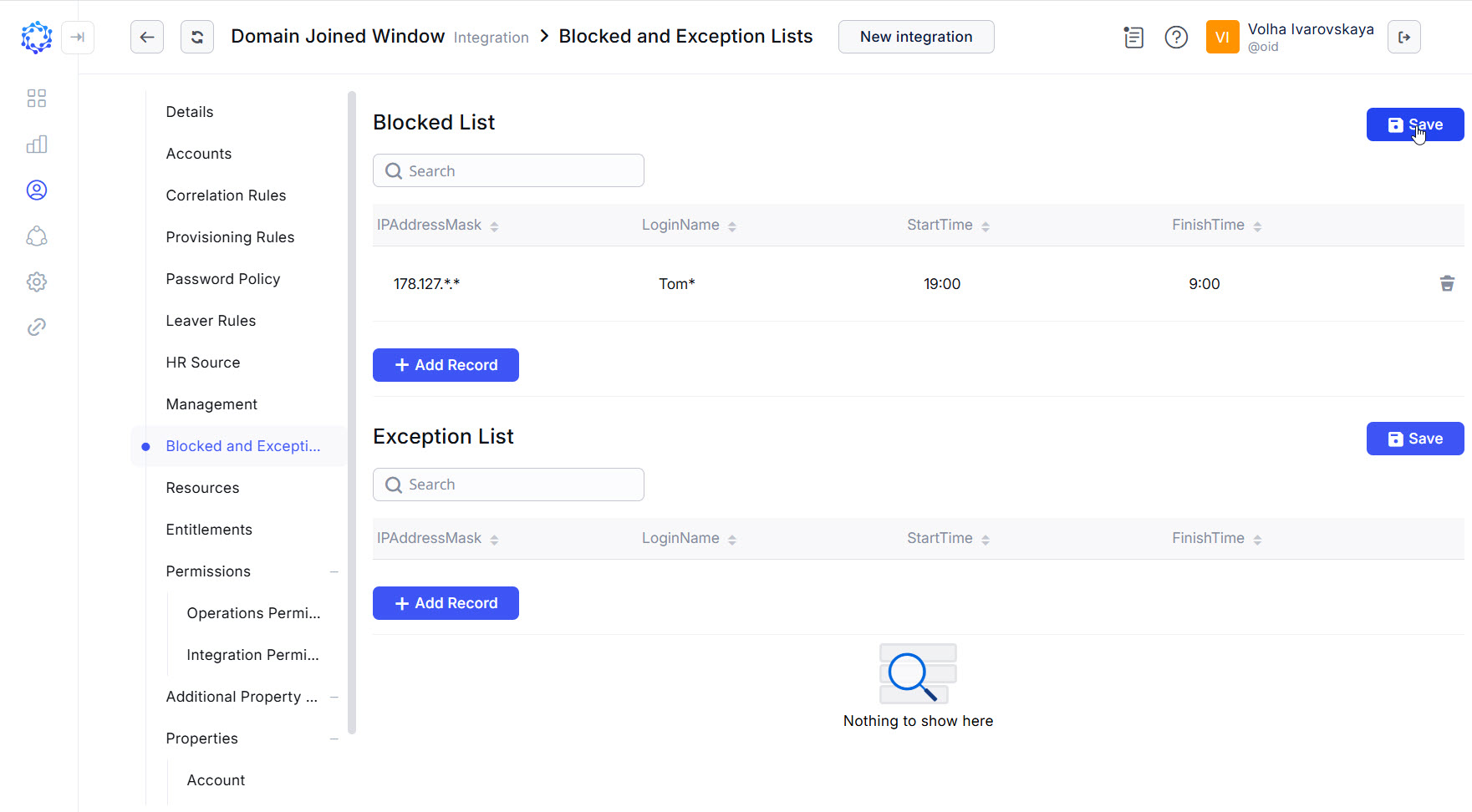 Blocked List policy is added
 -
Click Save to make certain all created Blocked List policies are saved
-
Go to:ObserveID > Identity Automation > Workflow > Tasks, and run the PushBlackListsTask for the given integration, so that to send the newly created the Block List policies to the target system.
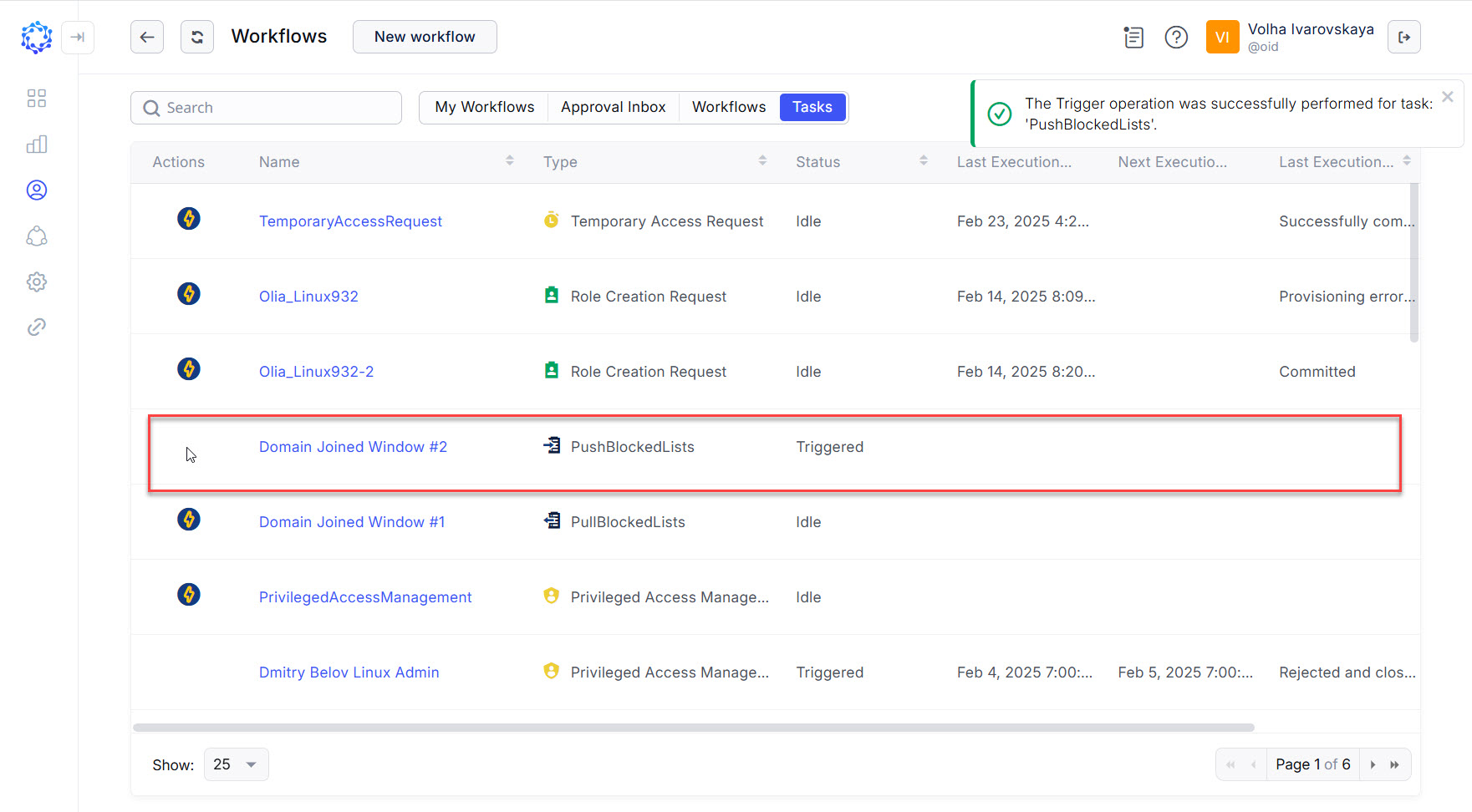 Blocked List policy pushed to the target
Pre-requisites
If it is the first time when the Blocked List is used for an integration, or to check the Blocked List configuration in general for the integration, it is recommended to consider the following:
|
Pre-requisites |
Description |
|
Blocked and Exception Lists |
It is an option in the menu of the integration. If it is absent, the integration cannot block access, according to the Blocked List policies. If it exists, other pre-requisites need to be checked. |
|
Manage Blocked List |
These are operations in the Operations list of the integration. If the both have a ‘not-supported’ notice, the integration cannot block access according to the Blocked List policies. Otherwise, the Push \ Pull Blocked Lists options should be allowed, and then other pre-requisites need to be checked. |
|
PullBlackListsTask PushBlackListsTask |
These are the tasks in the Tasks grid. They should be created and available for the integration, automatically after the integration is created and the blocked list agent is available on the target. If the creation of the tasks fails, ask your administrator to check if the Blocked List agent is installed onto the target system. |
|
Agent is not installed |
This is an error displayed for the integration to notice that the Blocked List agent needs to be installed on the target system. Ask your administrator to resolve this. |
|
Detect Rejected Access |
This is an operation in the Operations list of the integration. If it has a ‘not-supported’ notice (usually, if non-supported, it is non-supported together with the Push \ Pull Blocked List options), the integration cannot block access according to the Blocked List policies. However, if the Detect Rejected Access is allowed, ObserveID will show rejected access data in Analytics. Otherwise, the rejected access data cannot be viewed in ObserveID. |
How to enable Blocked List
-
The Blocked and Exception Lists option exists in the details of the integration, or otherwise, the Blocked List feature is not supported for the integration.
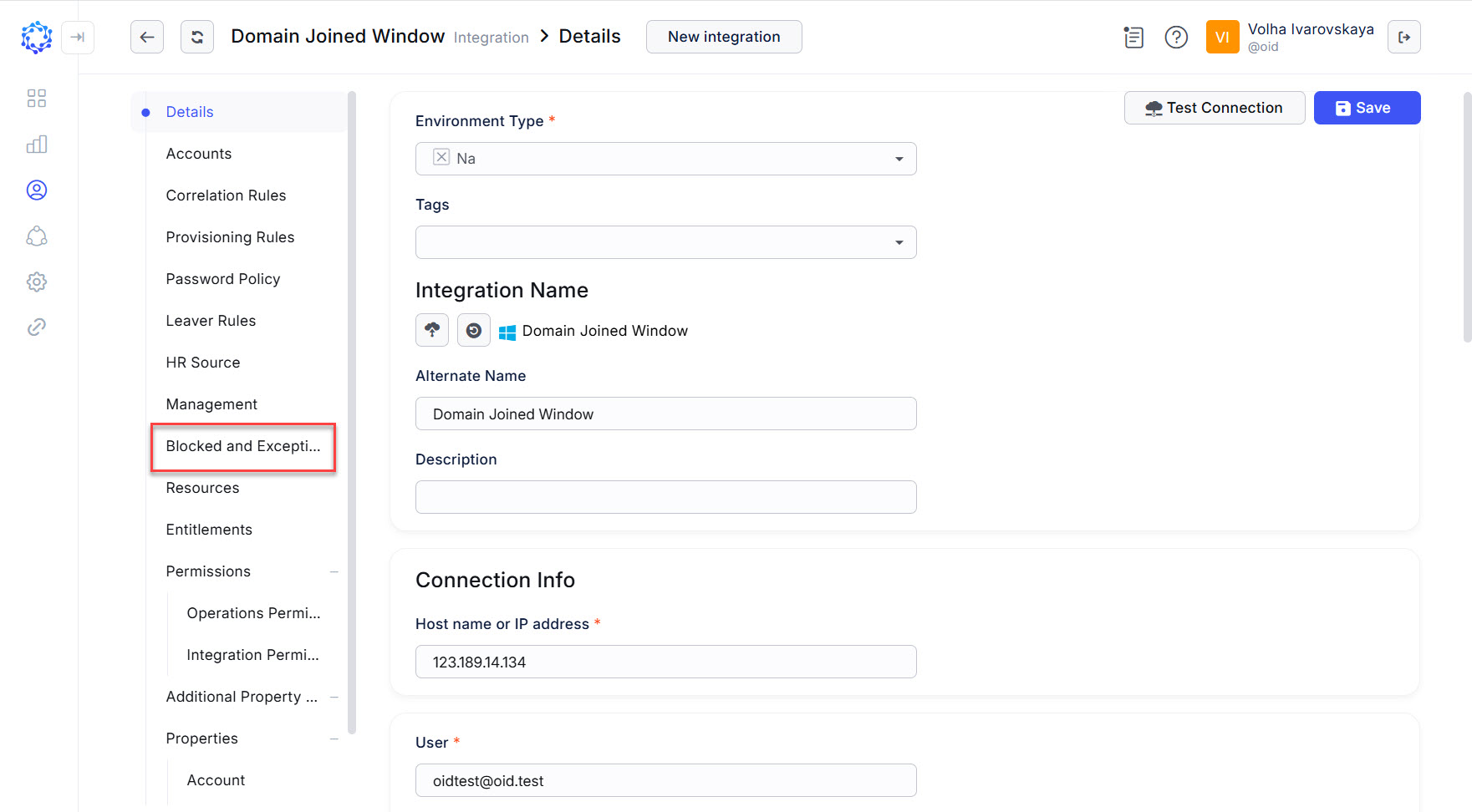 Blocked List is available in the menu of the integration
 -
The following operations are allowed in the Operations Permissions menu of the integration:
-
- Detect Rejected Access,
-
- Manage Blocked List.
In case if for the Detect Rejected Access operation the integration has the
Not supported by Universal Connectornotice, the Blocked List cannot be used for the integration, as this feature is not supported by the Universal Connector. And the rest of steps are irrelevant to this integration.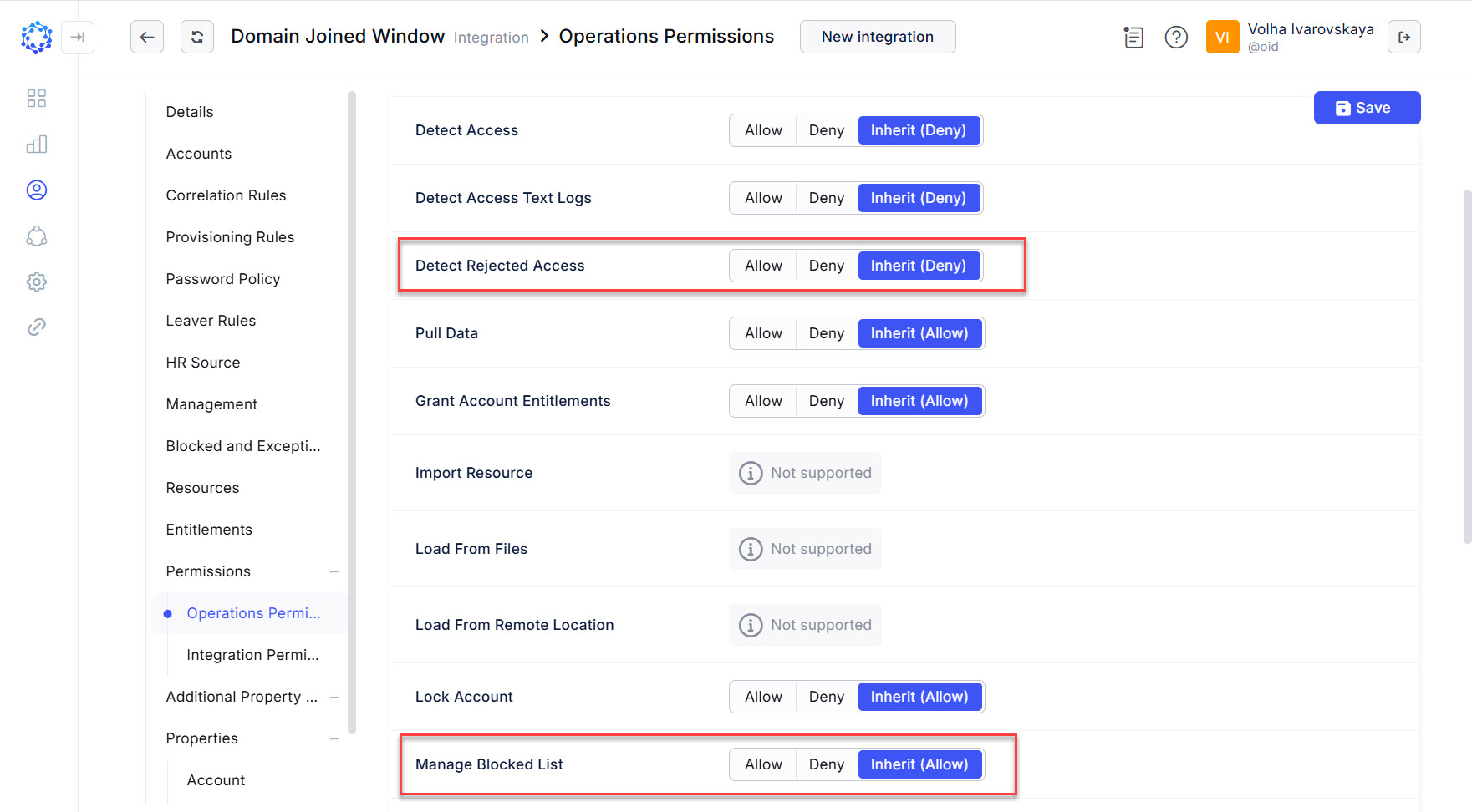 Integration operations required for the Blocked List
 -
-
Check out the PushBlackLists task and the PullBlackLists tasks intended for the given integration in the Tasks grid.
-
In case if there are no tasks in the grid for the given integration, skip the current step, and complete the next step first.
-
In case if the tasks exist in the grid for the given integration, run the PullBlackLists task to refresh the Blocked List on the integration with the currently existing Blocked List policies from the target system.
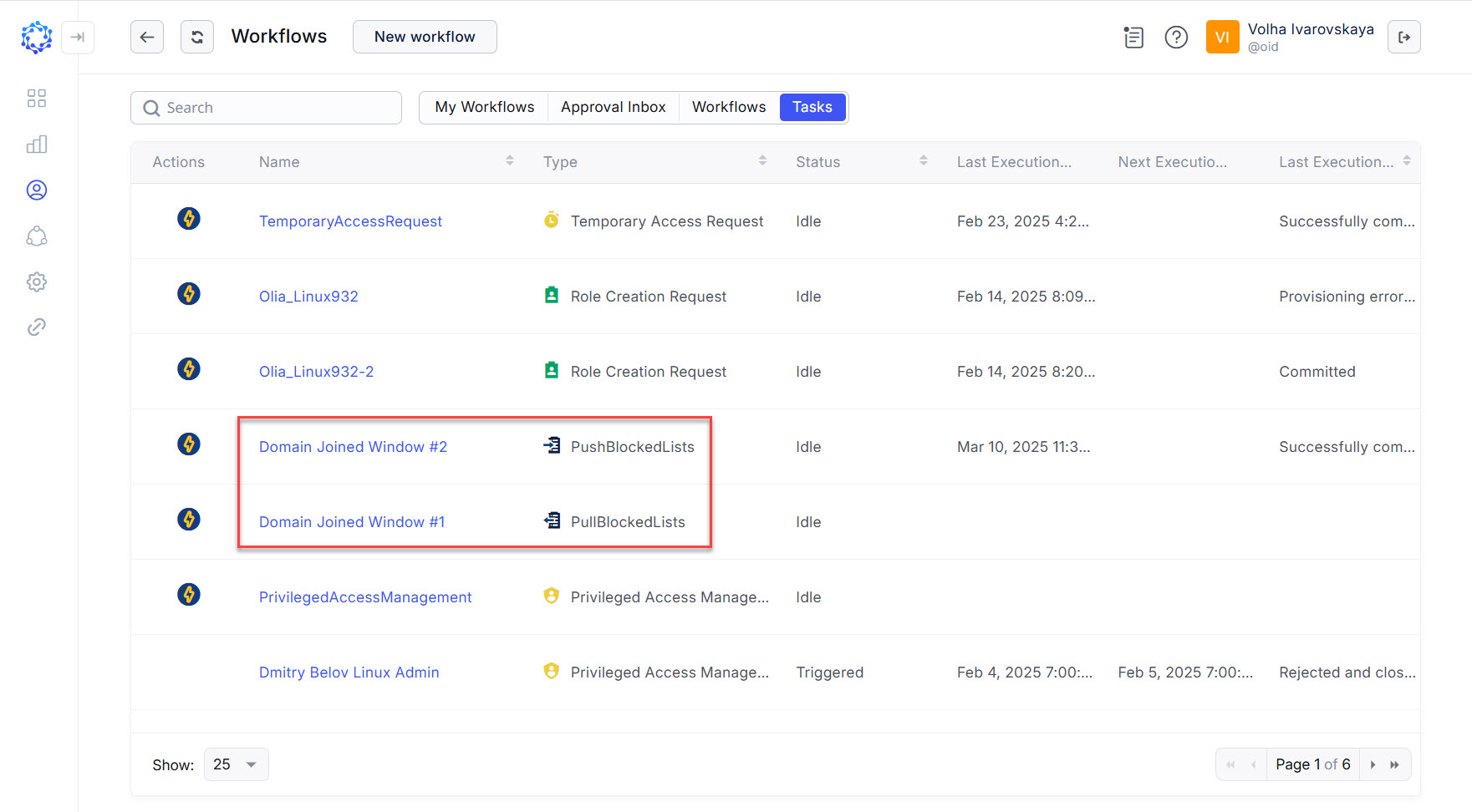 Integration operations required for the Blocked List
-
-
Contact your administrator to check if the target system has the Blocked List agent installed. Then start the current prerequisite list verification anew.
-
Open the Blocked and Exception Lists option in the integration details, and check if there is no “agent is not installed” error.
- In case of the error exists, the target system is not configured for the Blocked List feature. Please, ask your administrator to check if the target system has the Blocked List agent installed.
- If there is no error and the normal DataImport is successful for the integration the Blocked Lists are ready to be used.