
Enable MFA
Multifactor authentication (MFA) enhances the security of the sign-in process by requiring two steps for access. First, the user enters their standard password. Next, they must input a code sent to their mobile device. This type of multifactor authentication is often referred to as two-factor authentication (2FA).
An authenticator app on your mobile device generates MFA codes. For multifactor authentication with ObserveID, you can use either the Microsoft Authenticator app or the Google Authenticator app.
Enable MFA
-
On your mobile device, download and install one of the available apps from the store listed below:
- the
Microsoft Authenticatorapp- for Android: https://go.microsoft.com/fwlink/?Linkid=825072
- for iOS: https://go.microsoft.com/fwlink/?Linkid=825073
- the
Google Authenticatorapp
- the
-
Open the Authenticator app on your mobile device. Tap the user settings icon located in the top right corner, then select Two-Factor Authentication.
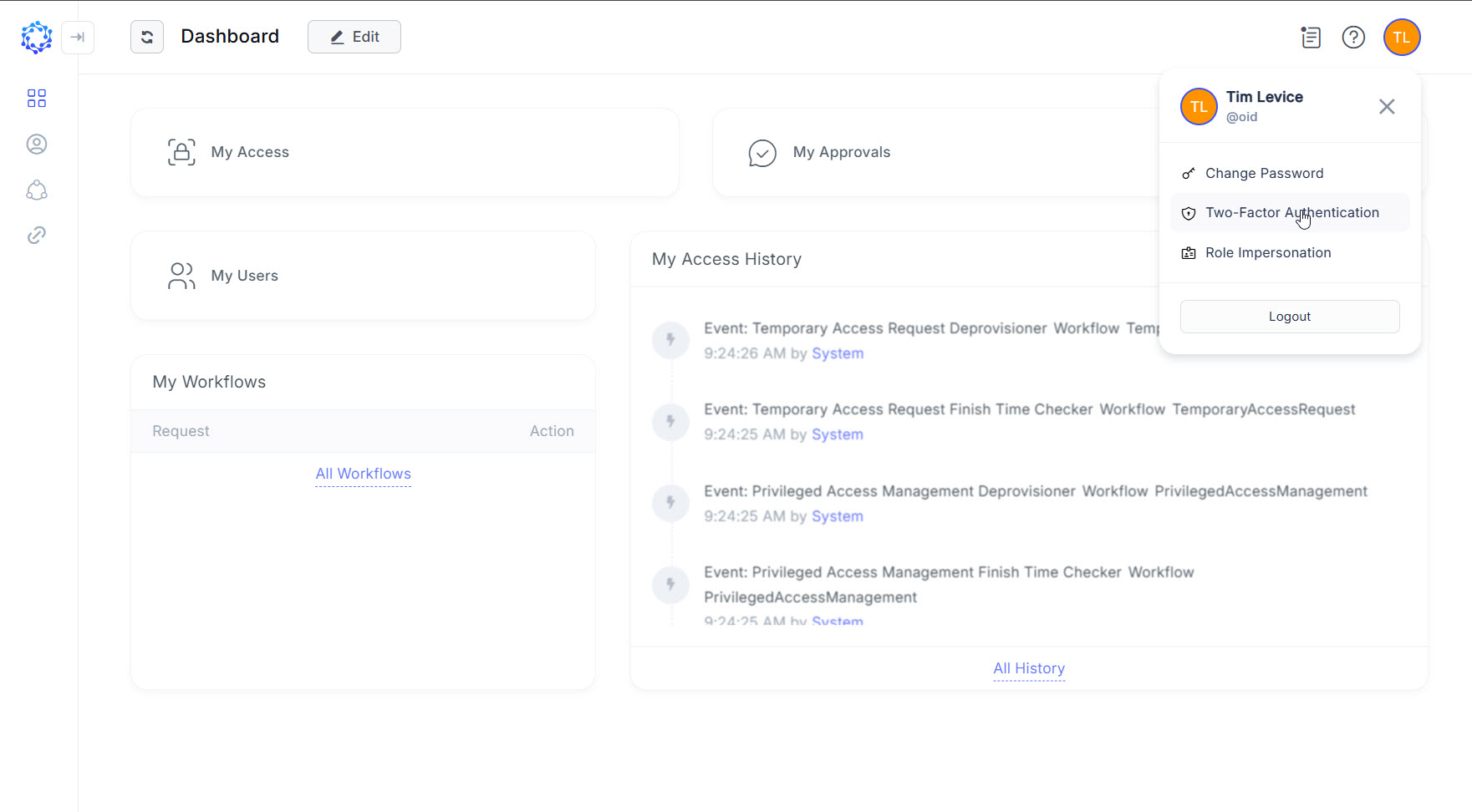 User setting
 -
Click Set Up Authenticator App in the opened Two-Factor Authentication (2FA) pop-up window.
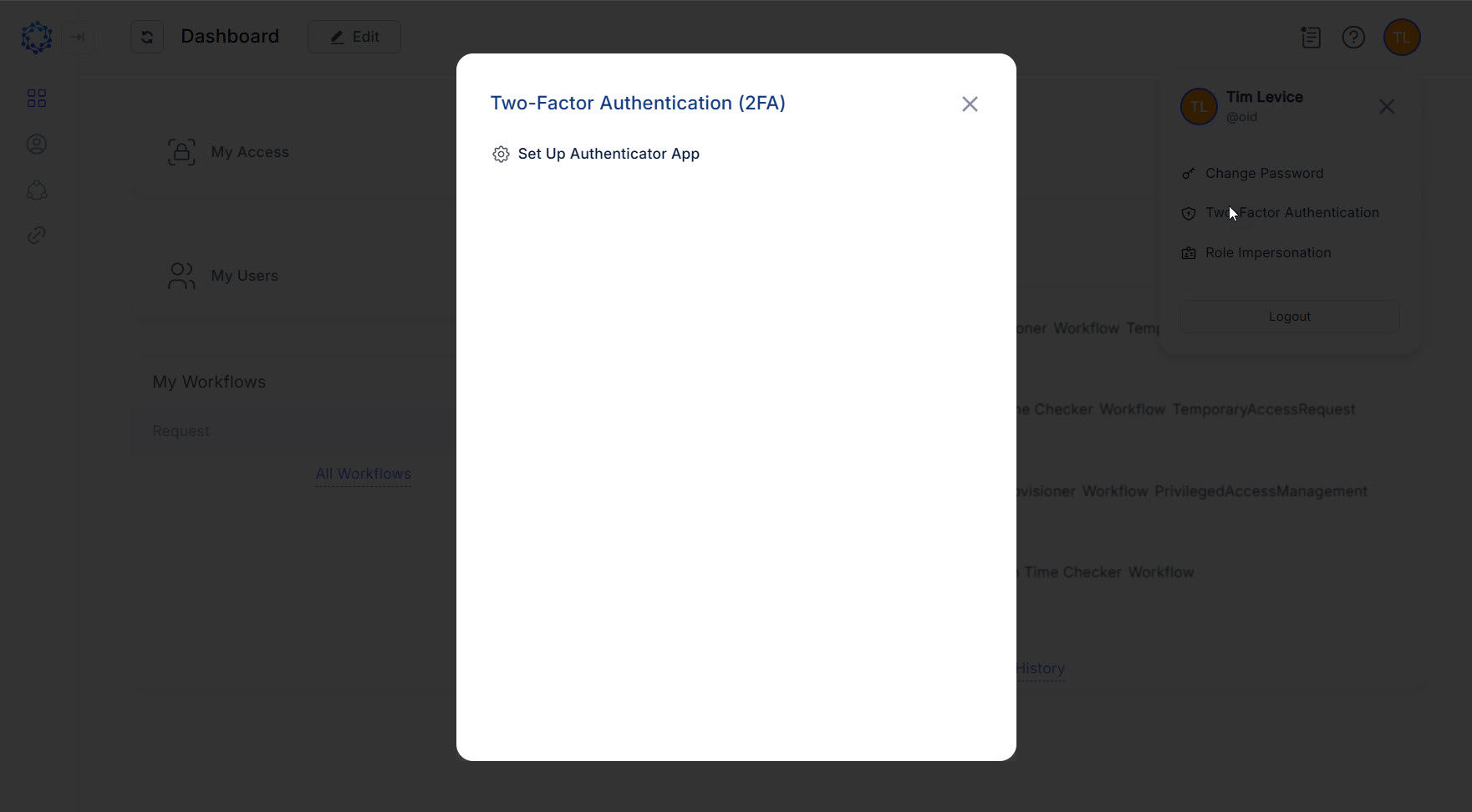 Two-Factor Authentication setup
 -
The QR code is displayed in the Two-Factor Authentication (2FA) pop-up window.
-
Open your mobile device with the Authenticator app. Select the Scan QR code option in the Authenticator app. Use your mobile device to scan the QR code displayed in the ObserveID pop-up window.
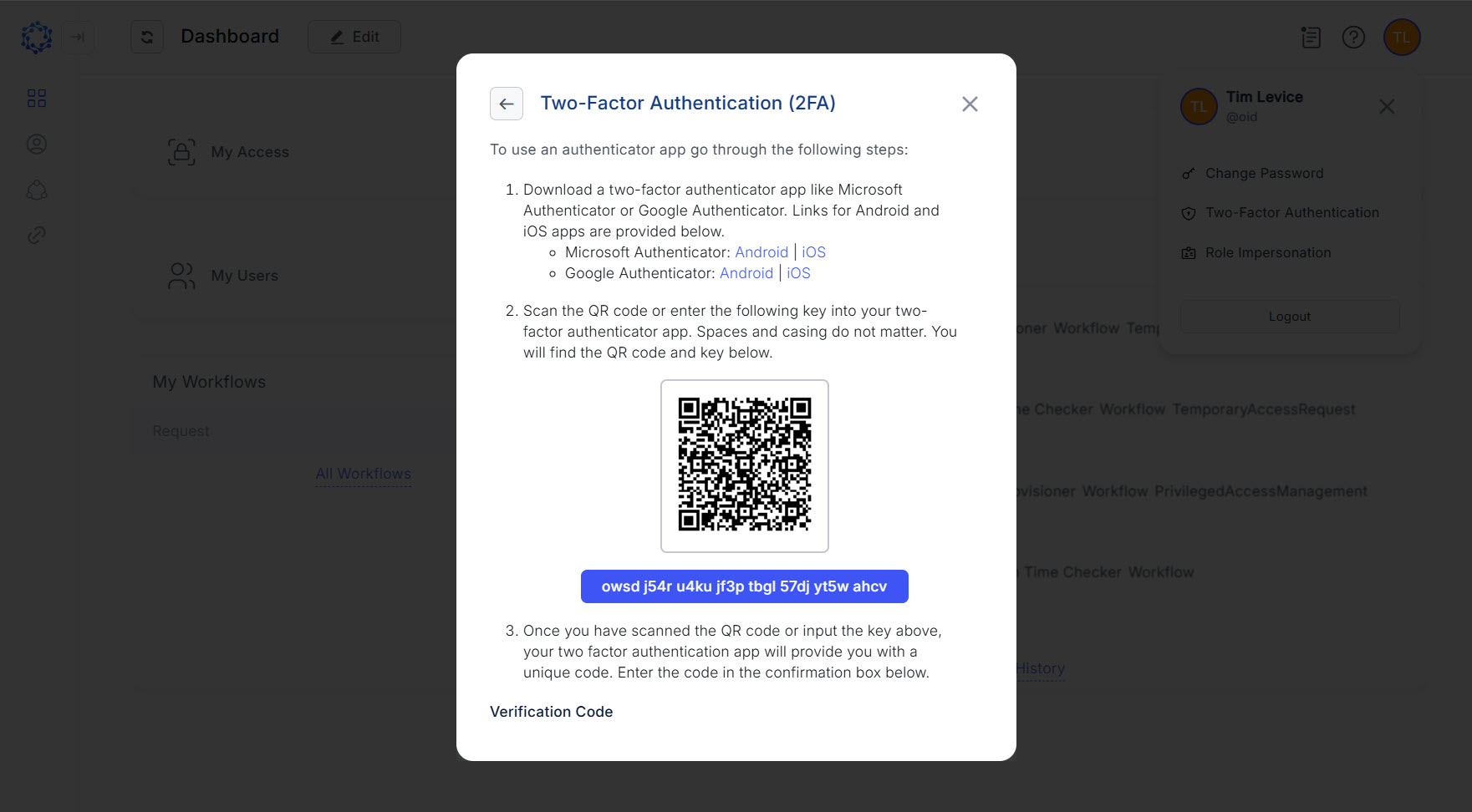 Scanning the QR code
 -
A new account for ObserveID authentication will be created in your Authenticator app on your mobile device. Shortly after, the app will generate a verification code. Enter this code in the Verification Code field in ObserveID, and click Verify.
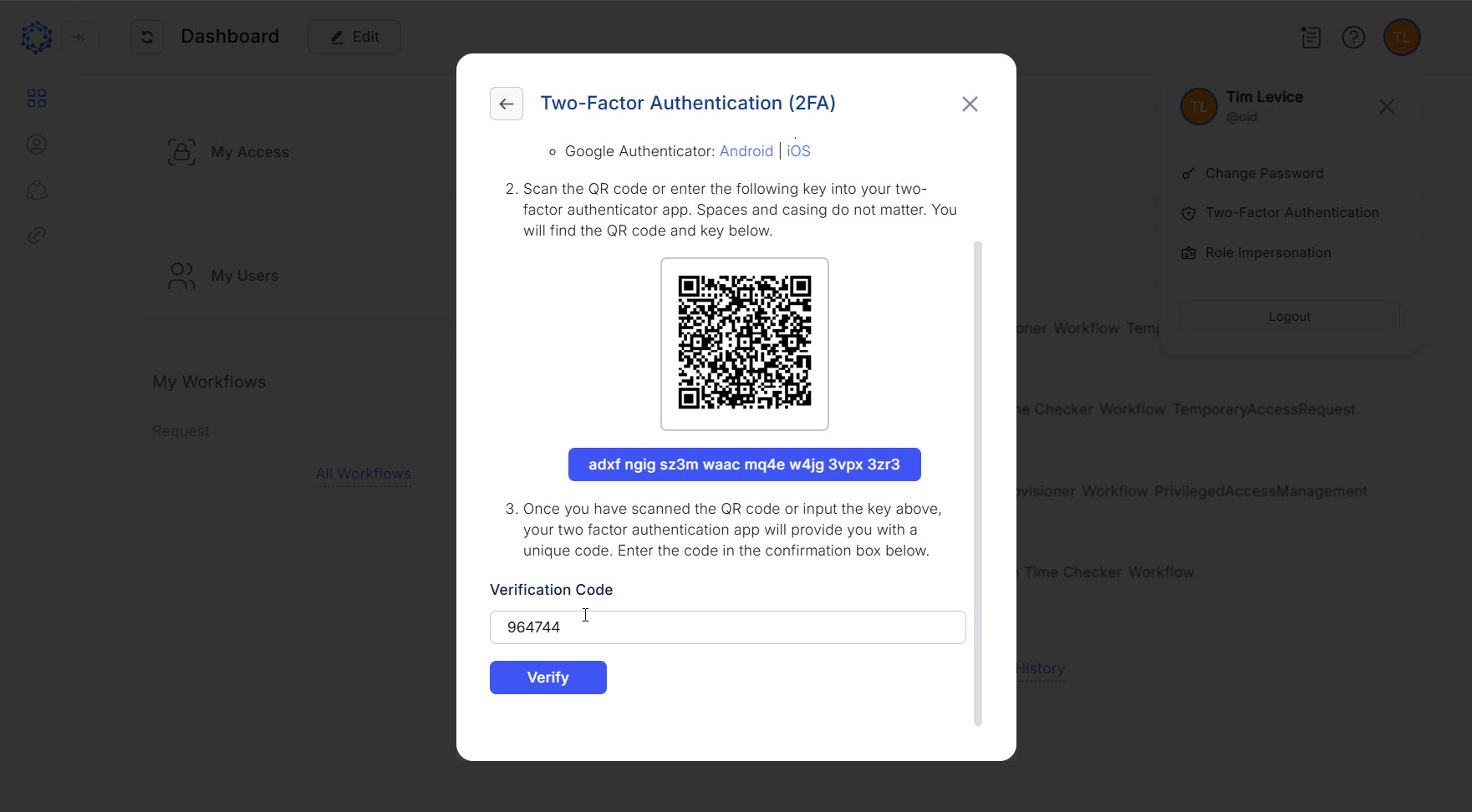 Adding Verification Code
 -
Once the Authenticator app has been successfully verified, recovery codes will be displayed for the user. It is crucial to save these codes securely in a separate location, as they can only be generated once and will not be shown again. Recovery codes are essential if you lose access to your mobile device.
 Securing the recovery codes
 -
With Two-Factor Authentication (2FA) enabled, users can regenerate recovery codes, disable 2FA, or reset the current Authenticator app and set up a new one.
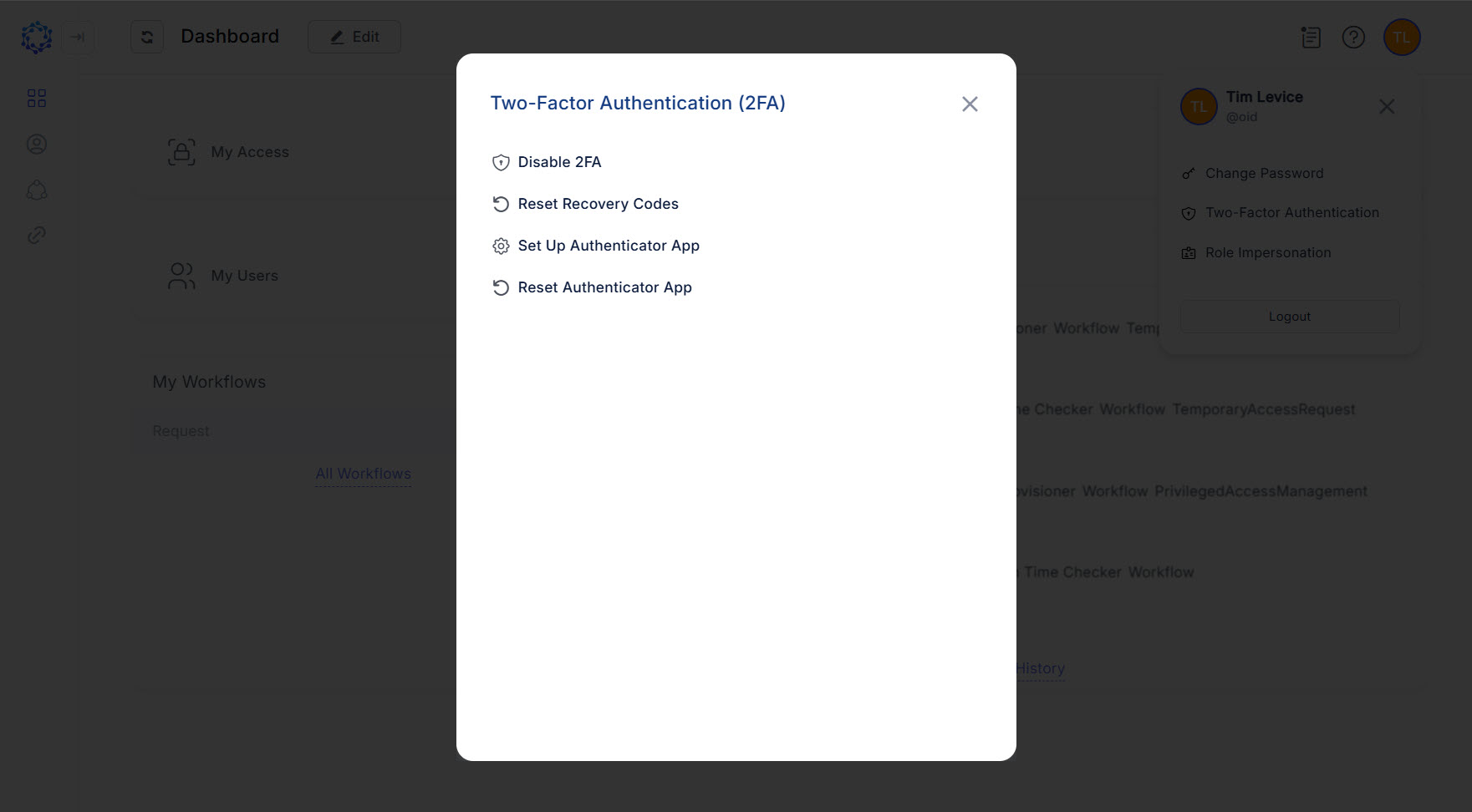 Available options for MFA