
Log in to ObserveID
To log in to ObserveID, you must be one of the Identities and have either an SSO-enabled Target Account or, as an alternative option, a Local User account for ObserveID.
SSO-enabled Target Account
Once all identities have been imported, each one will already have a Target Account set up for SSO access in ObserveID. In this case, you can simply use the existing credentials for the Target Account to log in to ObserveID. The example illustrated below shows two external authentication options available for users: an external Azure AD SSO account and an external OKTA SSO account. Azure AD and OKTA are the two SSO source systems that have been enabled in ObserveID.
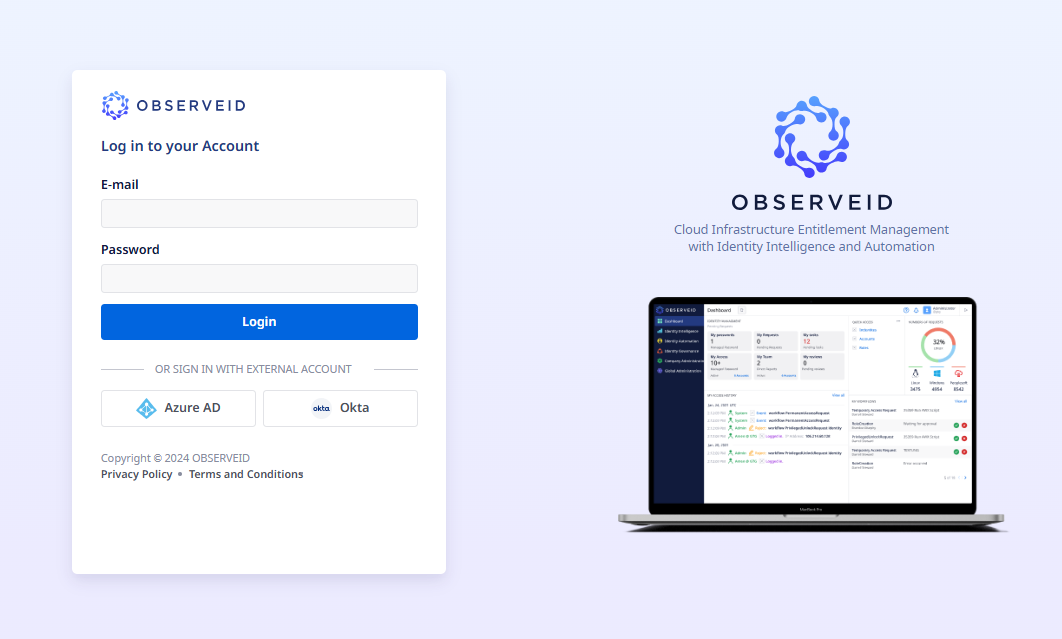 Login form with authentication options
Local User
All identities are automatically imported from the corporate HR Source system into ObserveID. For each identity, a local user is also created. Each identity can only have one local user, and this local user is automatically deleted when the identity is offboarded.
The identity can log in to ObserveID using the E-mail/Password pair provided by the local user. The email of the local user always matches the email of the identity.
Where to take SSO-enabled Target Account
To access the credentials of an SSO-enabled Target Account, you first need to identify which Integration is used as the SSO Source in ObserveID for your organization. Once you have that information, navigate to the "My Access" section in Identity Automation by following this path: ObserveID > Dashboard > Identity Automation > My Access > Target Accounts There, you can search for the Target Account associated with the specified SSO Source Integration.
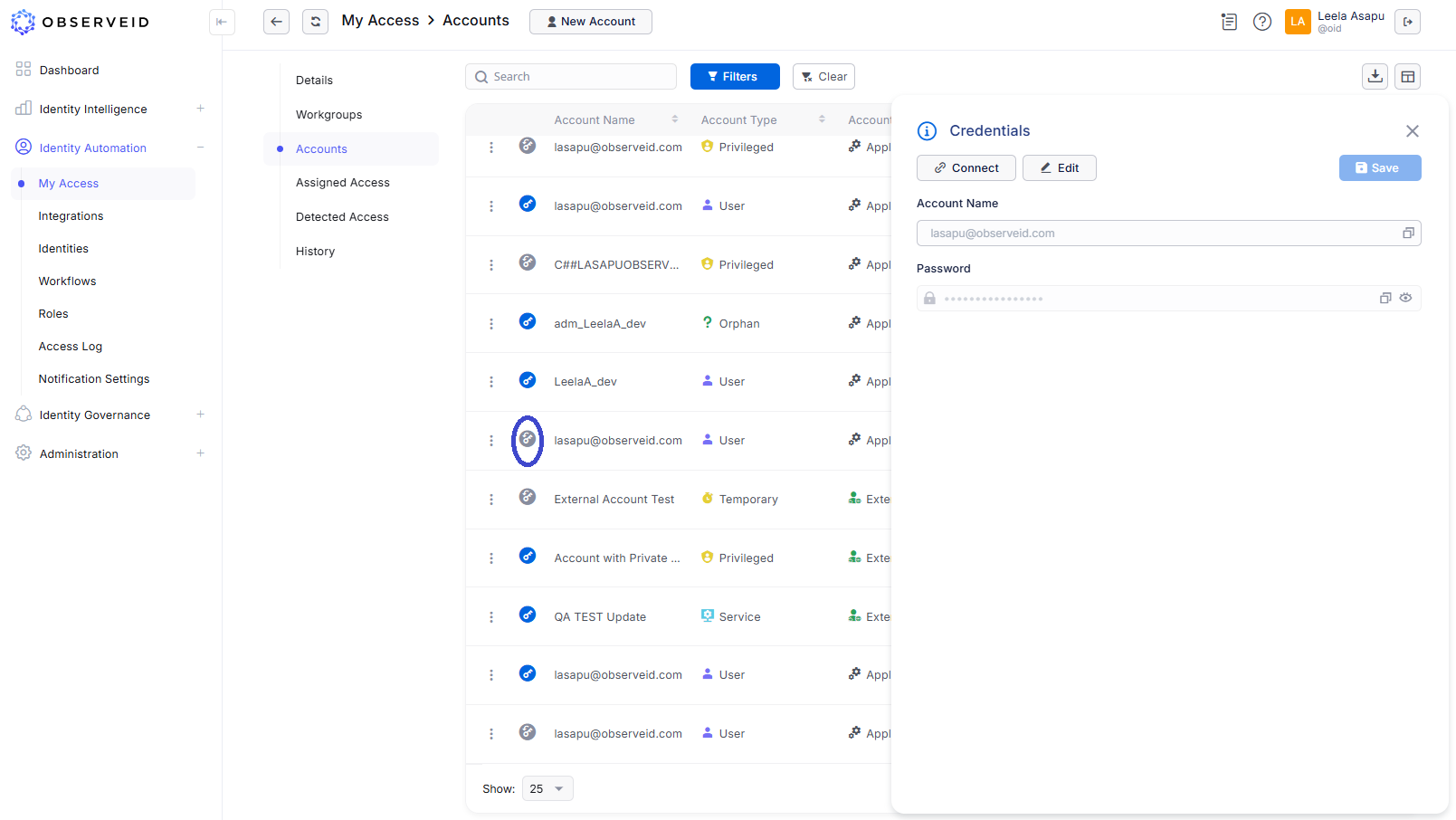 Azure Target Accounts of a logged-in Identity
To determine whether a Target Account can be used for Single Sign-On (SSO) to access ObserveID, please ensure the following criteria are met:
- The integration associated with the Target Account must be enabled as an
SSO Sourcein ObserveID. - The Target Account must be classified as a
User.
Additionally, if an identity does not have an SSO-enabled Target Account but at least one integration has been enabled as an SSO Source, the identity can request a new Target Account through an Access Request.
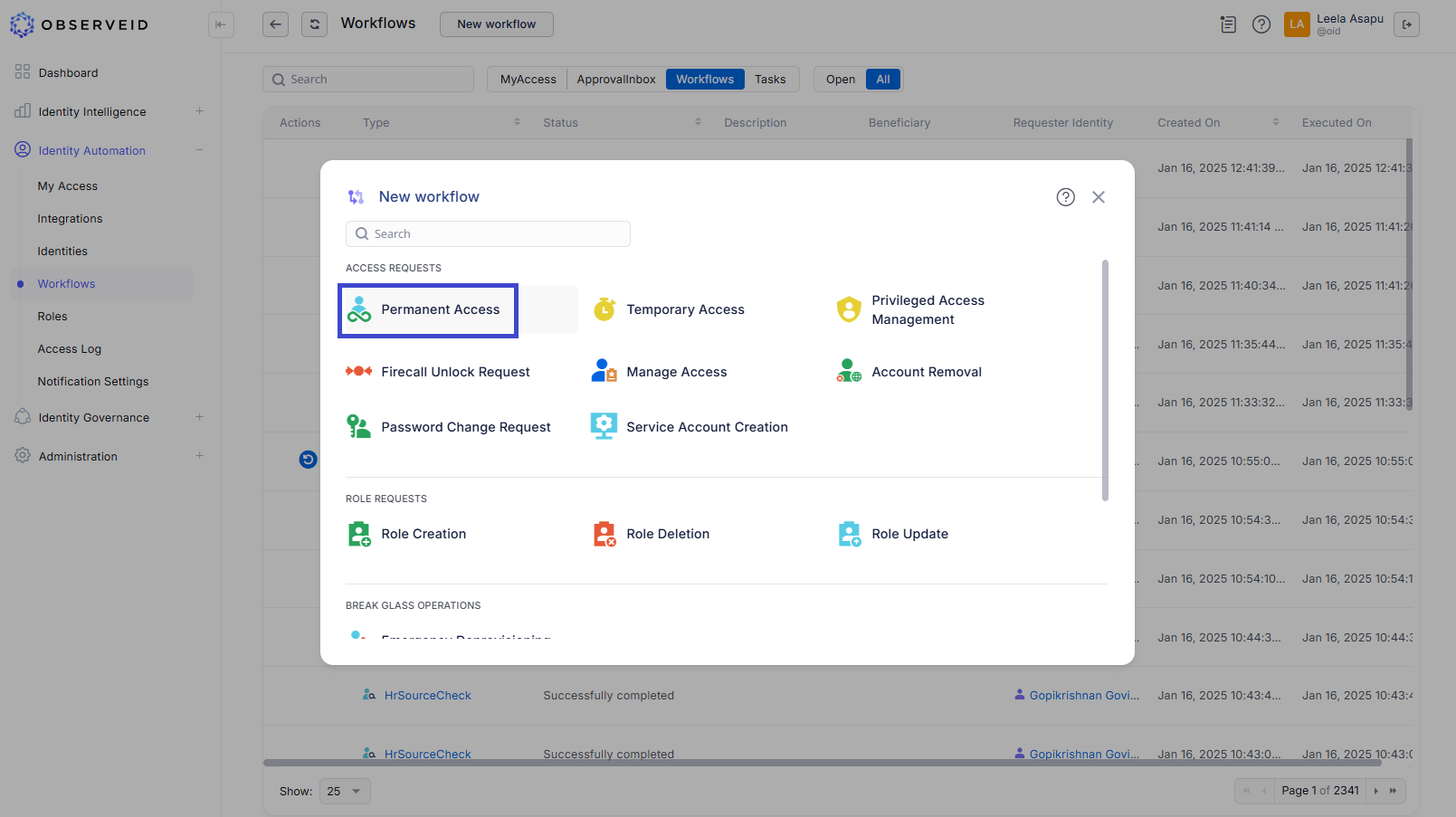 Permanent Access Request
Change the Password for an SSO-enabled Target Account
To change the password for an SSO-enabled Target Account, the user can submit a Password Change request. During this process, they will need to select the Integration and the corresponding Account. The request will also offer options for the type of password, which may include user-defined, automatically generated, permanent, or one-time passwords. These options vary depending on the requirements of the Integration.
 Password Change Request
Local User and Change Password
Click the profile icon in the top-right corner to view local user details. This section displays the name and, when clicked, allows you to change the password and manage MFA settings.
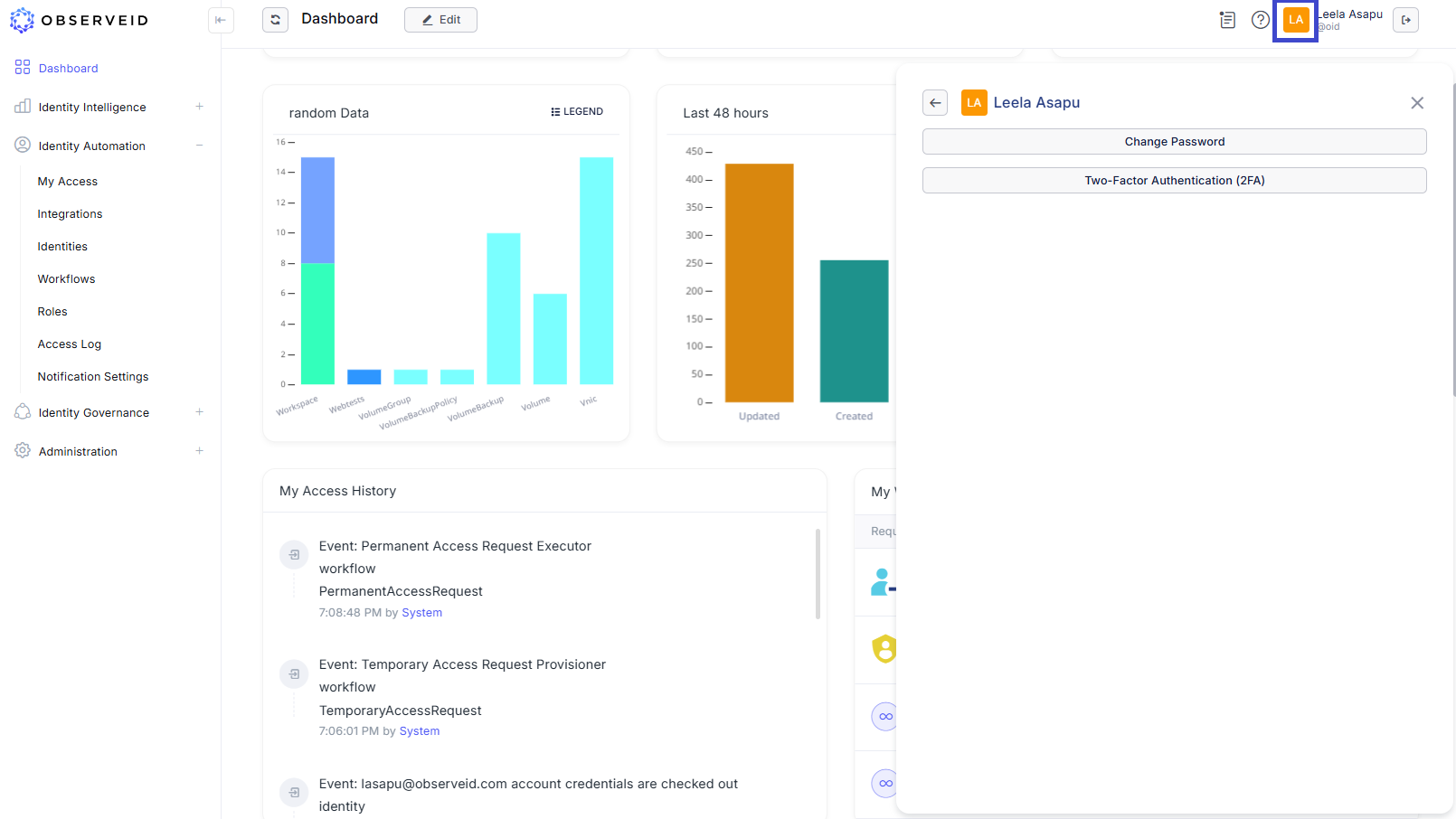 User Settings in the header
Secure E-mail\Password with MFA
Users can improve the security of their Local User account by enabling Multi-Factor Authentication (MFA). Once MFA is activated, users will log in using their email and password, then enter an authentication code generated by the Authenticator app on their mobile device. For more information on MFA, please refer to the next section.
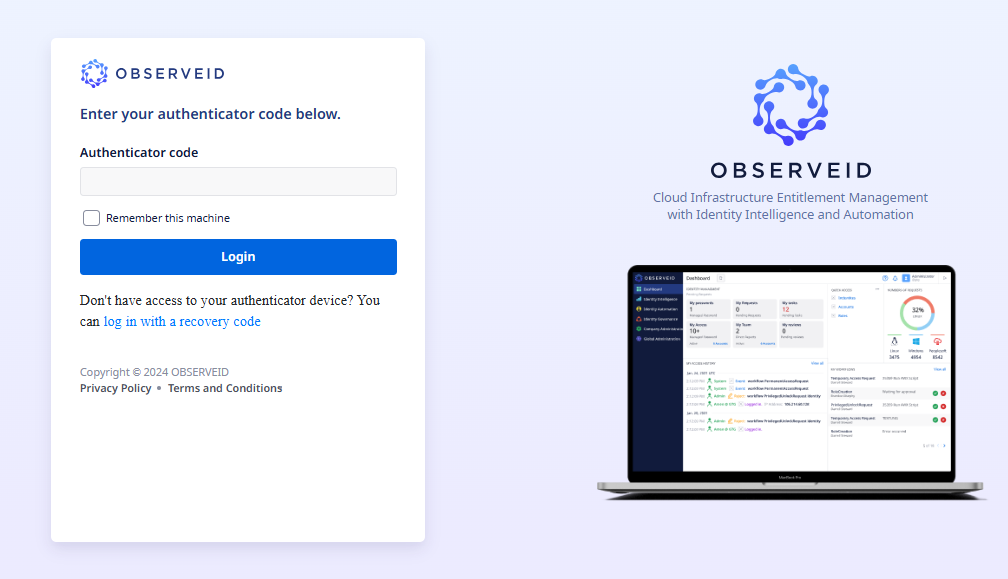 Authenticator code