
My Dashboard
The Dashboard is the initial webpage that users see upon logging in. It serves as a personalized collection of data, organized through various widgets. These widgets come in different forms, including static tiles with links, dynamic charts, threshold tracking tools, and data grids.
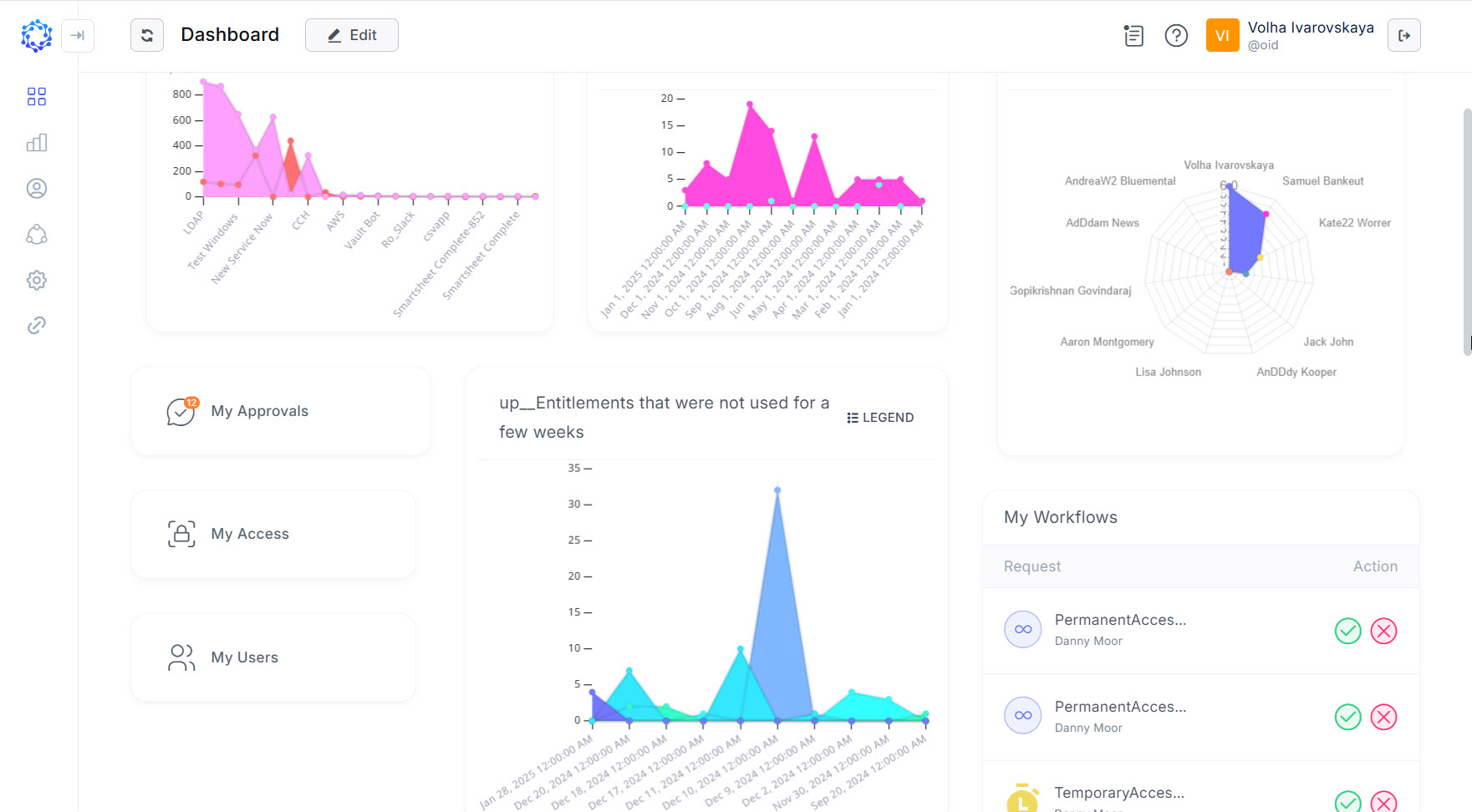 View mode of the Dashboard
The position of widgets is flexible. You can move them around the layout and adjust their order and size as needed. To change the appearance of the Dashboard, simply follow these steps:
- Click Edit - to switch the Dashboard from the View mode to the Edit mode.
- Gather and organize the needed widgets.
- Click Save to apply the changes.
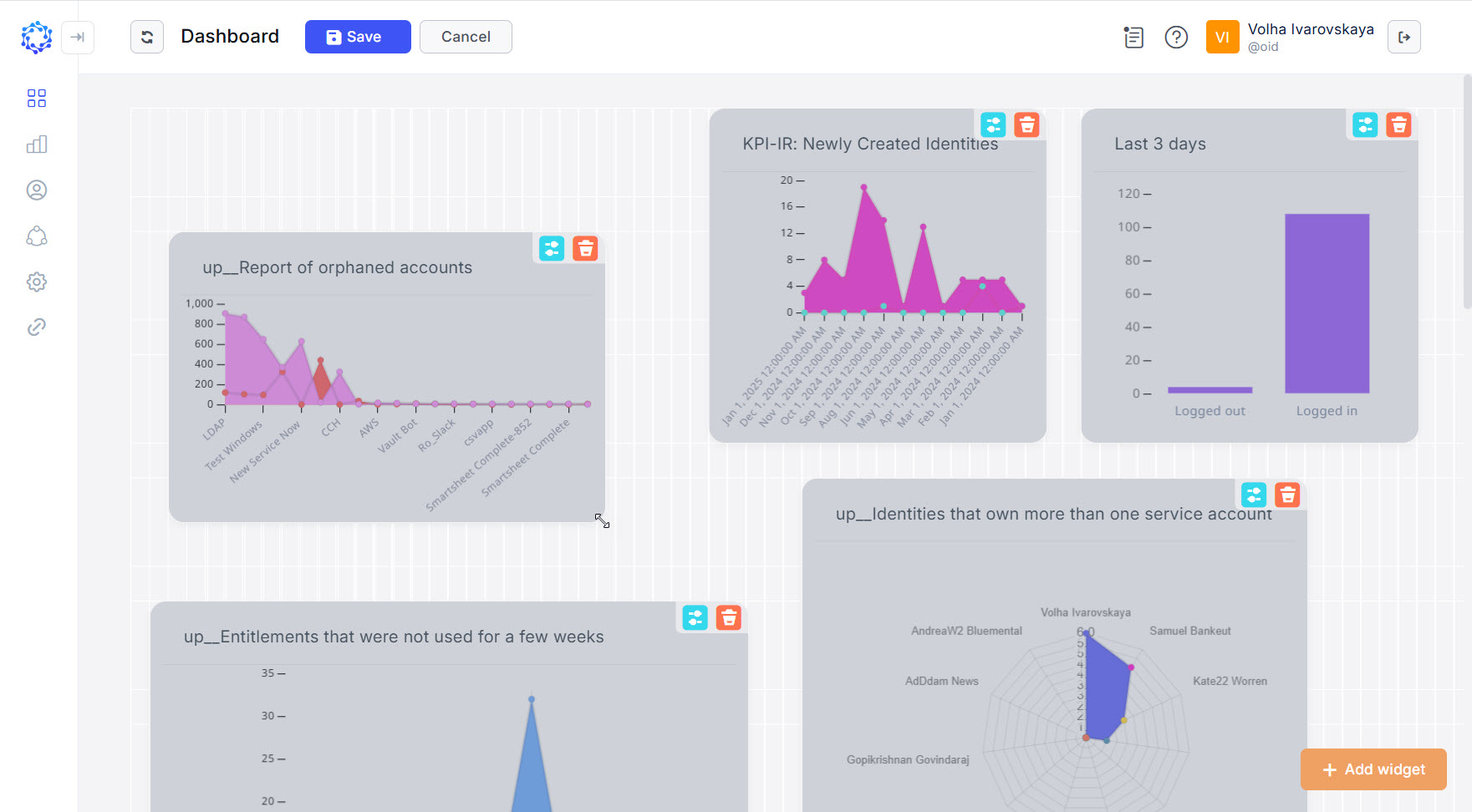 The Edit mode of the Dashboard
In Edit mode, the Dashboard displays a layout grid and allows you to add or remove as many widgets as needed. To enter Edit mode, follow these steps:
-
Add new widgets:
- Click Add widget.
- Select the desired widget, and it will appear in the top-left corner of the layout.
-
Position the widget:
- Use the drag-and-drop method to place it on the layout grid.
- Resize the widget by dragging one of its edges until it is the desired size.
-
Remove a widget:
- Click the Remove icon, which looks like a red bin.
-
Configure a widget:
- Click on the Options button for the specific widget.
- Choose an available configuration option. The available options depend on the type of widget, such as an Access Log Events widget or an Analytics widget. In the Analytics widget, the Options button shows the reports that the logged-in user currently has access to.
After reorganizing your Dashboard, remember to save your changes. This will update its appearance. If you choose not to save, click Cancel to revert to the previous layout as if you never entered Edit mode.