
Identity Accounts
The Accounts page opened for a specific Identity shows all Accounts that the current Identity has in different systems located across the corporate infrastructure. The Accounts are presented in this grid, which is multi-functional, providing the capabilities for viewing each account properties, and assigned entitlements. In this section:
- Accounts grid overview
- Account Details
- Account Properties
- Account Entitlements
- Account Management
Accounts grid overview
In the Identities area, the Accounts grid can be reached out at: Identity Automation > Identities > {specific Identity} > Accounts, see the figure below:
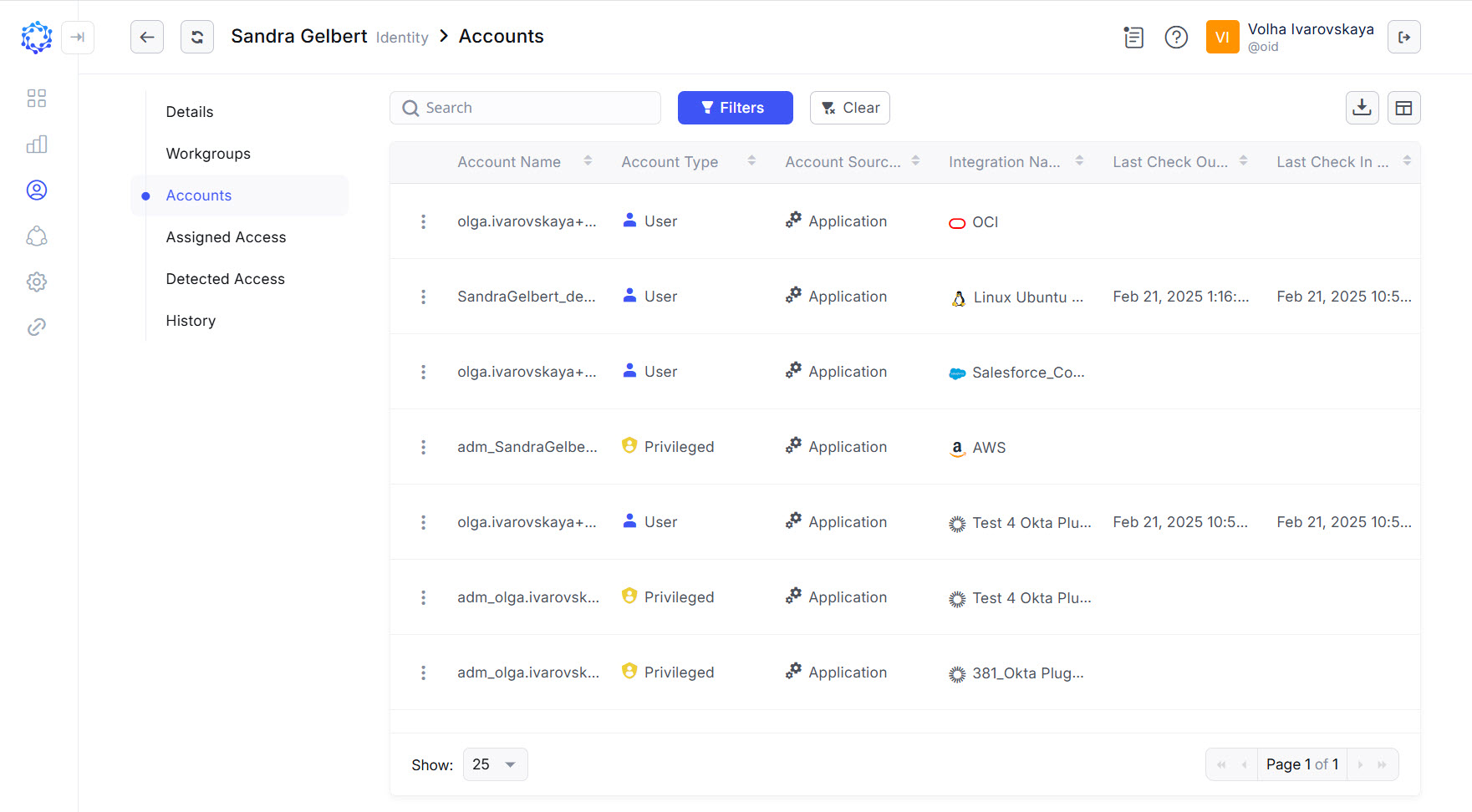 Identity’s accounts in the target systems
The Accounts grid has default columns listed below:
Account Name - the login or username of an account;
Account Type - shows one of the following types for an account:
- User - a personal account, owned by the identity; intended for basic tasks; always unlocked.
- Privileged - a personal account, owned by the identity; intended for the support of special cases; as a rule, provisioned with elevated access; always locked, unless requested to be unlocked for the given period of time.
- Temporary - a personal account, owned by the identity; intended for one-time use only; deleted after the use; and provisioned only on the request.
- Service - a system account; intended for the use by the system or a service; always unlocked.
- Firecall - an administrative account; intended for the use by the owner, who can be an identity or a workgroup of identities, assigned temporary for the period of the task. The account is always locked, unless unlocked on the request and for the given time period.
- Orphan - an account with unknown ownership.
Account Source Type - an account belongs to a system that is integrated or not integrated with ObserveID.
- Application - an account is from the system that is one of the integrations in ObserveID;
- External - an account belongs to an external application that is not an integration in ObserveID.
Integration Name - the name of the Integration Target where the account provides access to.
Last Check Out Time - date and time of when the credentials of the account were viewed last time.
Last Check In Time - date and time of when the latest viewing of the credentials of the account was finished.
Account Details
With the click on the triple dots beside the account name, the Details and Entitlements view of an account opens, see the figure below. The view has two tabs: one featuring the account attributes is called ‘Details’; and the other providing the account access perspective is called 'Entitlements'.
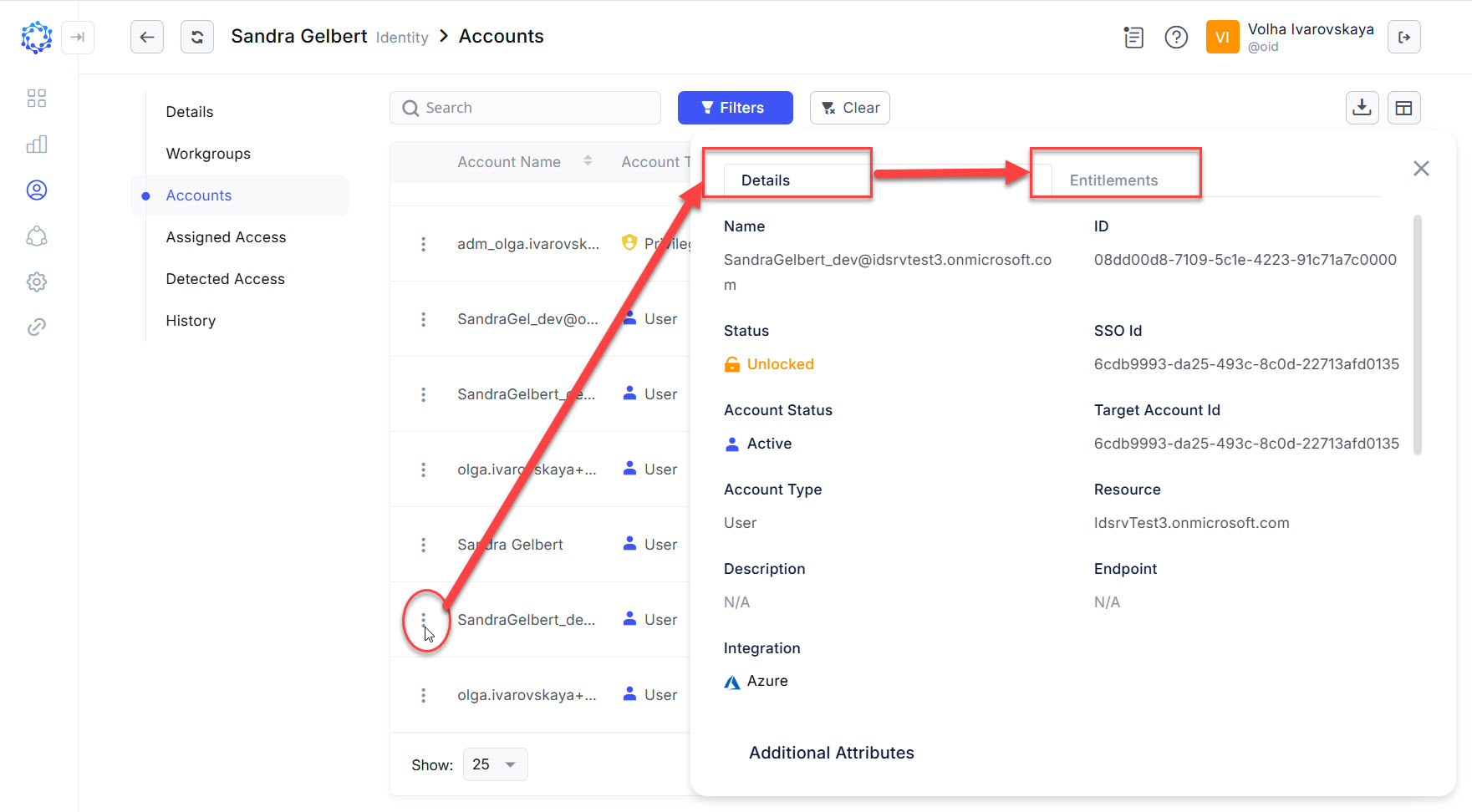 Details of an account of an Identity in the Identities area
Account Properties
In ObserveID, an account has two types of properties featured within the Details tab: System Properties located in the upper part of the view, and the Additional Properties part in the next panel. System properties are established by ObserveID when the account is created or imported. Additional Properties are governed by the target and imported as part of the integration data to ObserveID.
In the table below is an overview of the system properties of an account.
|
Name |
Description |
|
Name |
Login or username of an account. |
|
ID |
Unique identifier of an account assigned by ObserveID when the account is created or imported to the system. |
|
Target Account ID |
Unique identifier of an account established by the remote target. |
|
SSO ID |
Unique identifier of an account established by the remote target. Used to identify identities authenticated by the remote identity provider in case when the integration is enabled as an SSO Source. |
|
Status |
Unlocked or Locked are the options to classify an account by the availability of use. If the account is Unlocked, it can be used by the logged-in identity. If the account is Locked, it cannot be used by the logged-in identity. The Unlocked\Locked status can be implemented differently for a specific integration. It is based on the supported capabilities and requirements of the target. |
|
Account Status |
Active or Terminated are the options to classify an account by its lifecycle stages: active and in use, or terminated and ceased to exist. In the latter case, the method of termination can be different. It is determined on per-integration basis. For example, it can be physical deletion of the account, or the removal of all entitlements and locking, or any other options. |
|
Account Type |
User, Privileged, Temporary, Service, or Firecall are the types for an account. The type is established on one of the following occasions: the account creation, the import to ObserveID or manually by the administrator. |
|
Description |
For external accounts only. Any descriptive text. |
|
Integration |
Integration the account provides access to. |
|
Resource |
Resource of the integration that the account belongs to. |
|
Endpoint |
For external accounts only. URL of the target. |
Account Entitlements
The Entitlements of an account are opened with the triple dots beside the account name, and then switching to the Entitlements tab. The grid shows the basic information about the entitlements and provides search, pagination and sorting capabilities.
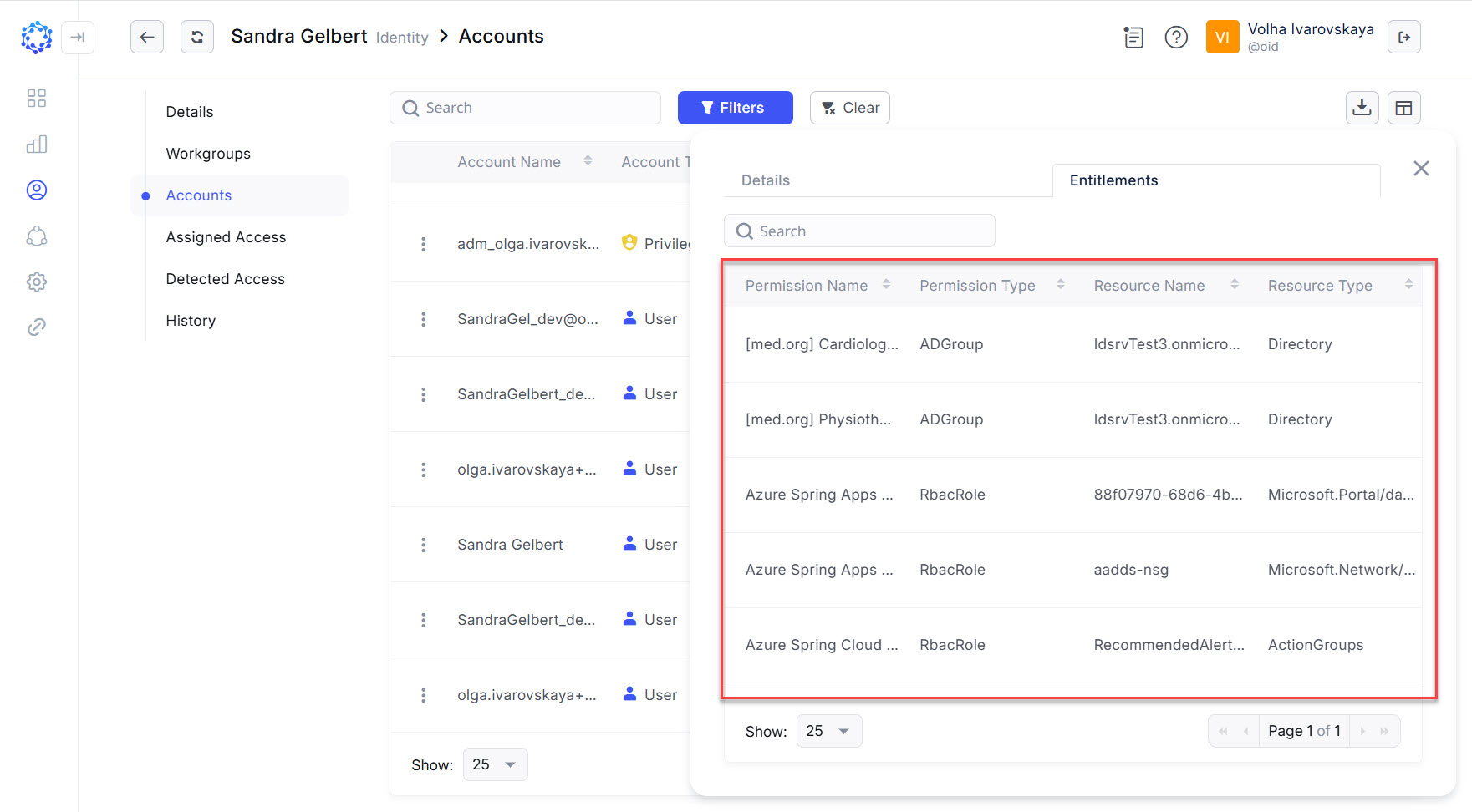 Entitlements of an account of an Identity in the Identities area
The table below describes what can be viewed in the columns of the Entitlement grid.
|
Name |
Description |
|
Permission Name |
Name of the entitlement. |
|
Permission Type |
Type of the entitlement. Determined by the target. |
|
Resource Name |
Name of the resource the entitlement governs access to. |
|
Resource Type |
Type of the resource. Determined by the target. |
Account Management
It is possible to manage Accounts in the Accounts grid of an Identity in the Identities area as follows:
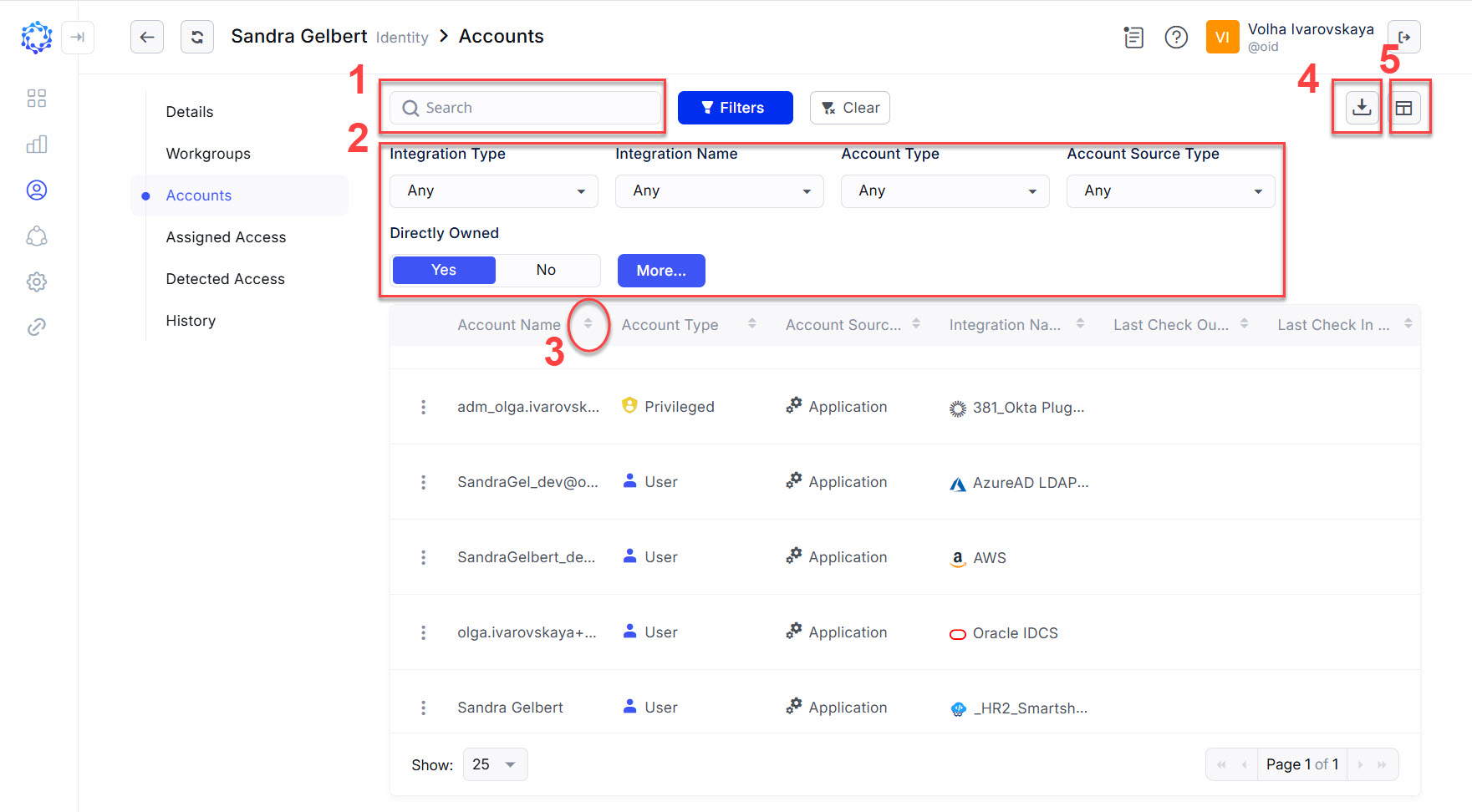 Capabilities to manage accounts in the Accounts grid
- To search for accounts by making entries in the search bar and getting search results of the data in the grid.
- To filter out accounts by criteria determined with the simple and \ or advanced filters. Simple filters are represented with the dropdown lists and immediate filtration of data, once an option is selected. Advanced filters are available on click on the More… button and allow the user to build compound clauses for the filtering condition.
- To sort columns in the descending or ascending order. The drag-and-drop method allows the user to re-arrange the order of the columns in the grid.
- To export the grid of accounts into a CSV file. With the click on the Export button, it is possible to establish options for the export and execute the generation of the file.
- To add more columns to the grid or remove unneeded columns from the grid and also, to set an order for the columns to follow. With the click on the Choose Column button, the column selector opens. By drag-and-dropping the tiles on the left, it is possible to establish the order of the columns in the Accounts grid. The Bin icon removes a column from the Accounts grid. If to expand the tree of properties on the right of the selector popup, it is possible to select more columns to display in the grid. Search bar above the tree of properties helps to find the needed account property quicker.