
Change password
The Password Change workflow:
- works for any account type;
- provides credential update mode options for selection;
- resets the previously established password and sets a new password for the account;
- verifies that the new password complies with the target password policy.
Credentials update modes are integration-specific, and depend of the requirements of the target system. If one credentials update mode, for example: an autogenerated one-time password is allowed on the Target, it is also available for selection within the Password Change workflow. For different integrations the availability of one or another credentials update mode can differ.
To run a Password Change workflow, do the following:
-
Click New Workflow in the header of the Workflows grid in Identity Automation.
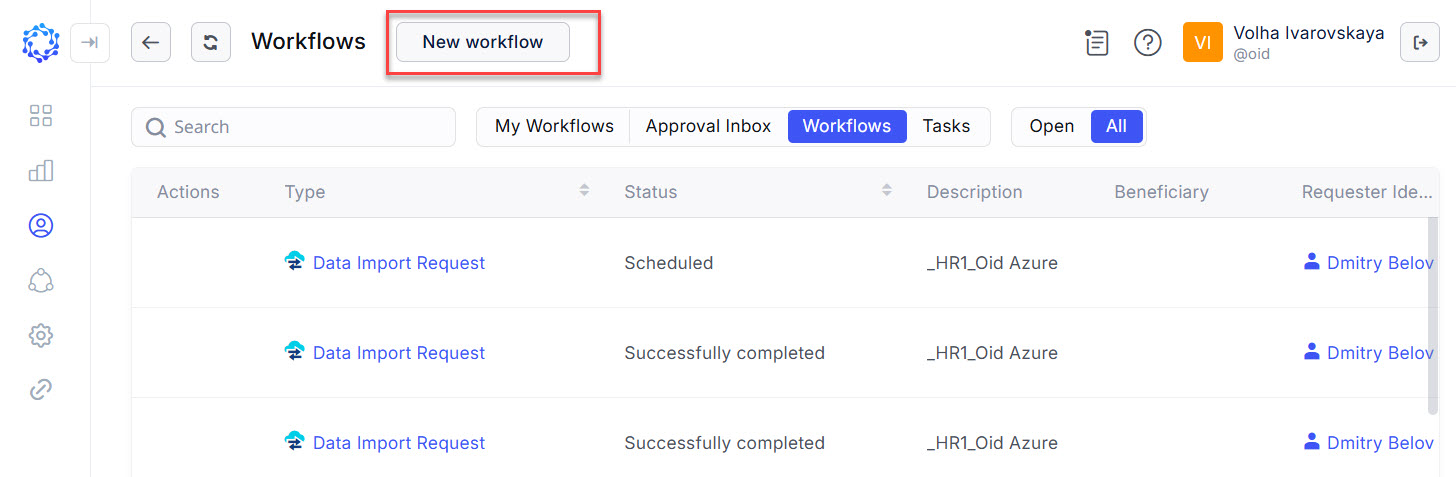 New workflow button
 -
Click Password Change Request on the New Workflow popup window. And the Password Change window opens.
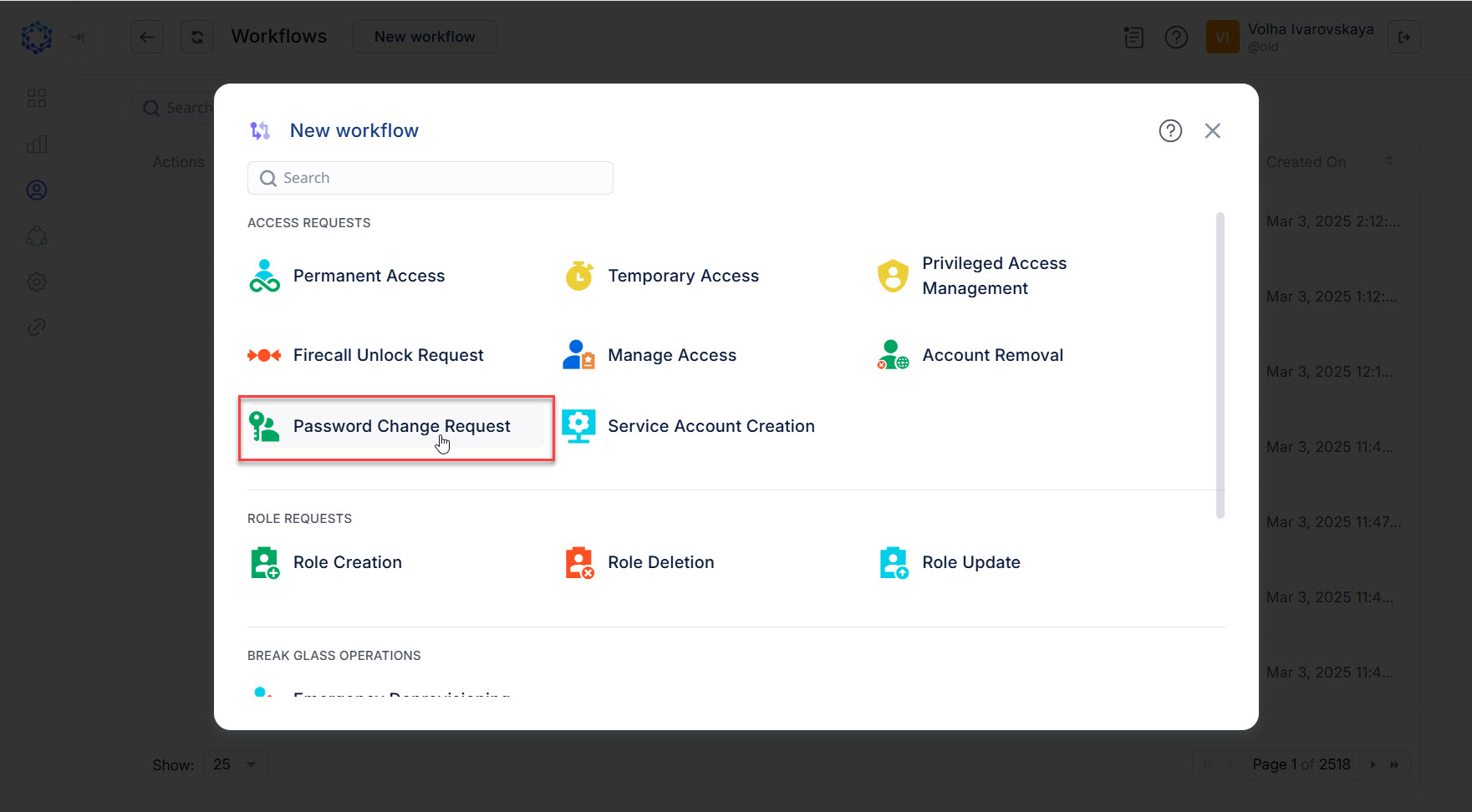 Password Change Request in the New workflow popup
 -
Select an Identity from the Beneficiary dropdown list, and click Next.
The Beneficiary is the one for whom the credentials of the accounts are expected to be changed by means of the current Password Change workflow.
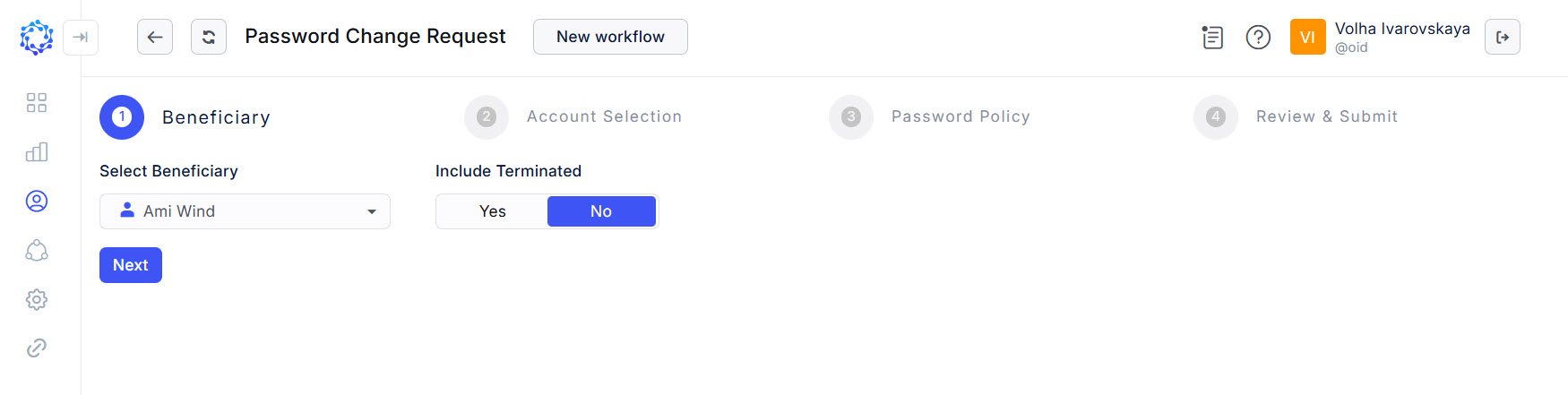 Selection of Beneficiary
 -
Select the required Accounts, and click Next.
If an Account is selected, its credentials will be updated by the workflow.
-
To find the required Account, it is needed to select the Integration first, and the adjacent Account dropdown list will show all Accounts that the Beneficiary has in the selected Integration.
-
To select one more Account, click the ‘+Add Account’ button, which adds one more row with the Integration and Account dropdown lists.
-
To delete a row with the Integration and Account dropdown lists with or without the selected options, use the bin icon at the right-hand side of the required row.
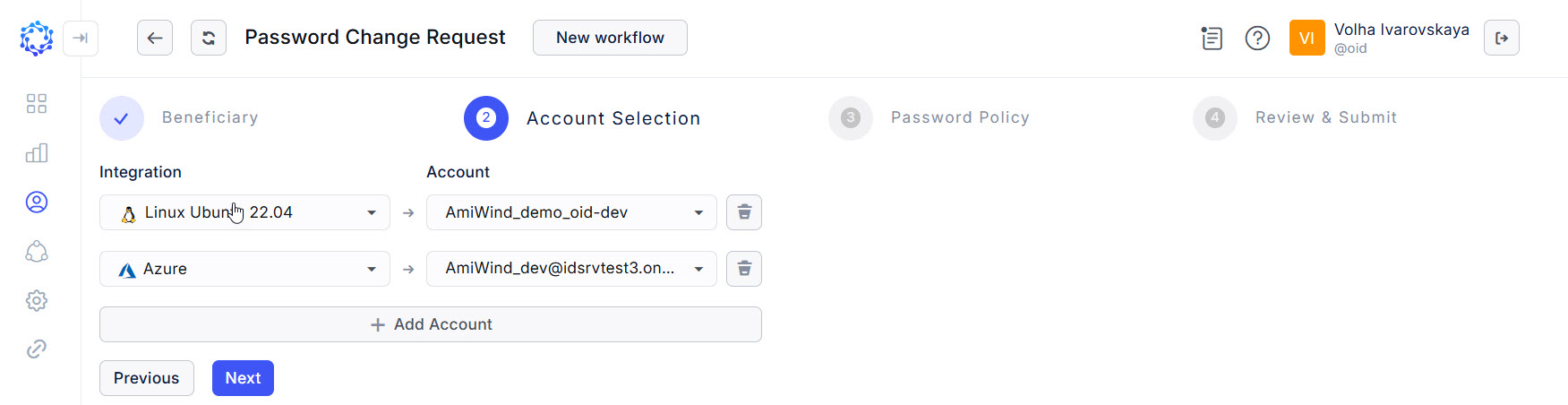 Selection of accounts
-
-
Select the credentials update mode for each account; set the password in case if selected is the “specific credentials” mode, and once done, click Next.
For different integrations the availability of the credentials update mode options could differ and include any of the following:
-
Auto Generate One Time Credentials
-
Auto Generate Permanent Credentials
-
Set Specific One Time Credentials
-
Set Specific Permanent Credentials
In case of a specific password, enter one, and it immediately gets validated against the target system password policy.
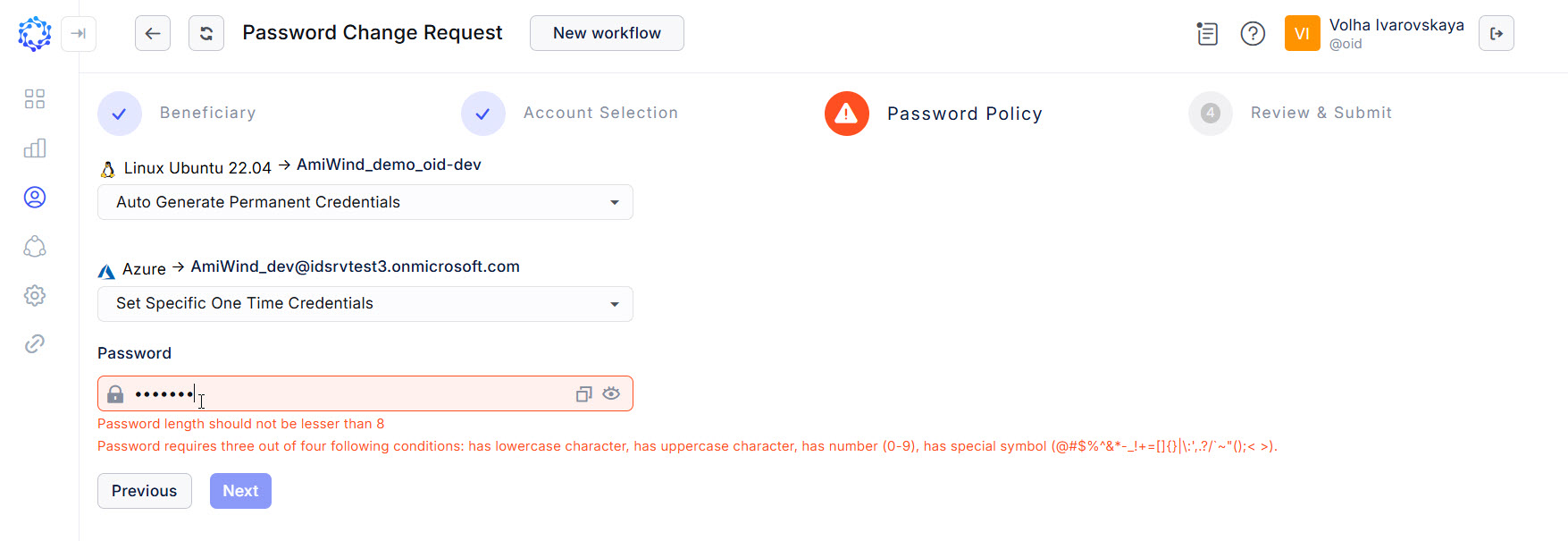 Setting up a new password for selected accounts
Different target systems can require different compliance rules for the user-defined password to meet
-
-
Review what Accounts were selected for the password change. And once ready, click Submit to start the workflow.
There are such details, as:
- the Beneficiary who is expected to own the Accounts which passwords will be updated;
- the Accounts that are expected to be updated with the new password. The Accounts are identified by the login and the name of the Integration.
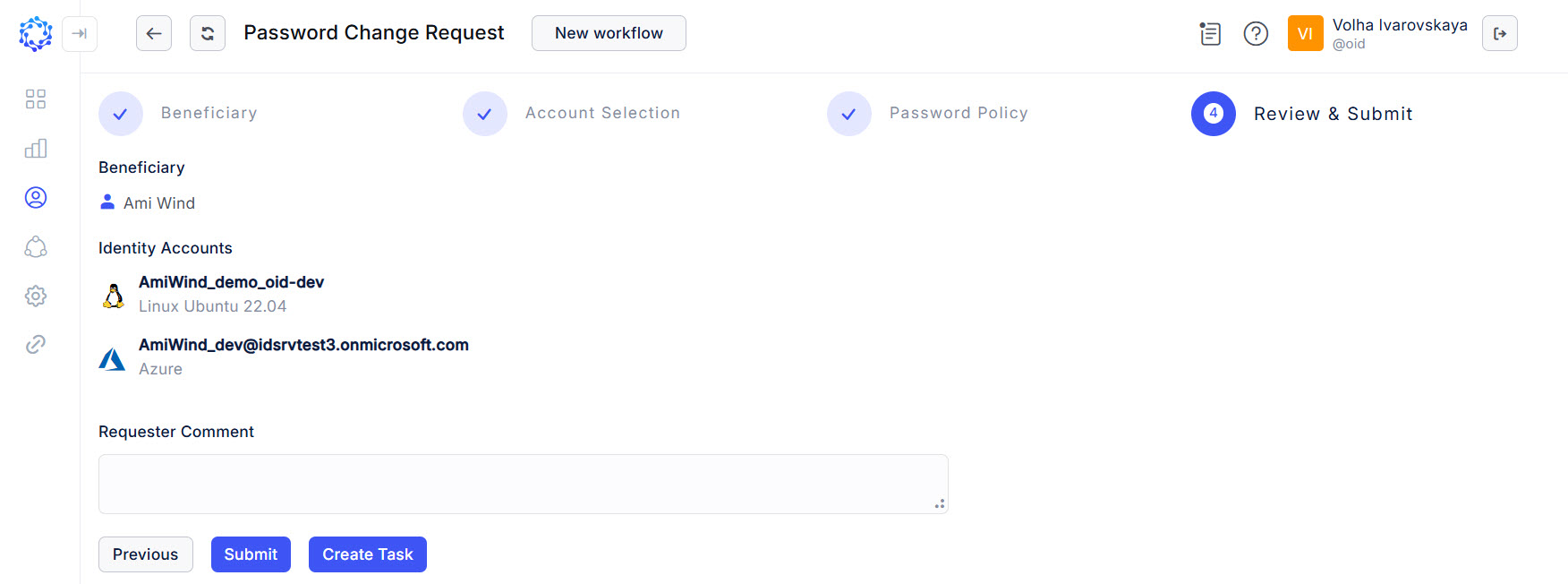 Review step
 -
If an approval process is established for the Password Change workflow, then an approval request of the Password Change will be forwarded to the Manager of the Beneficiary. Getting an approval of the Password Change request, the workflow updates the password and finishes.
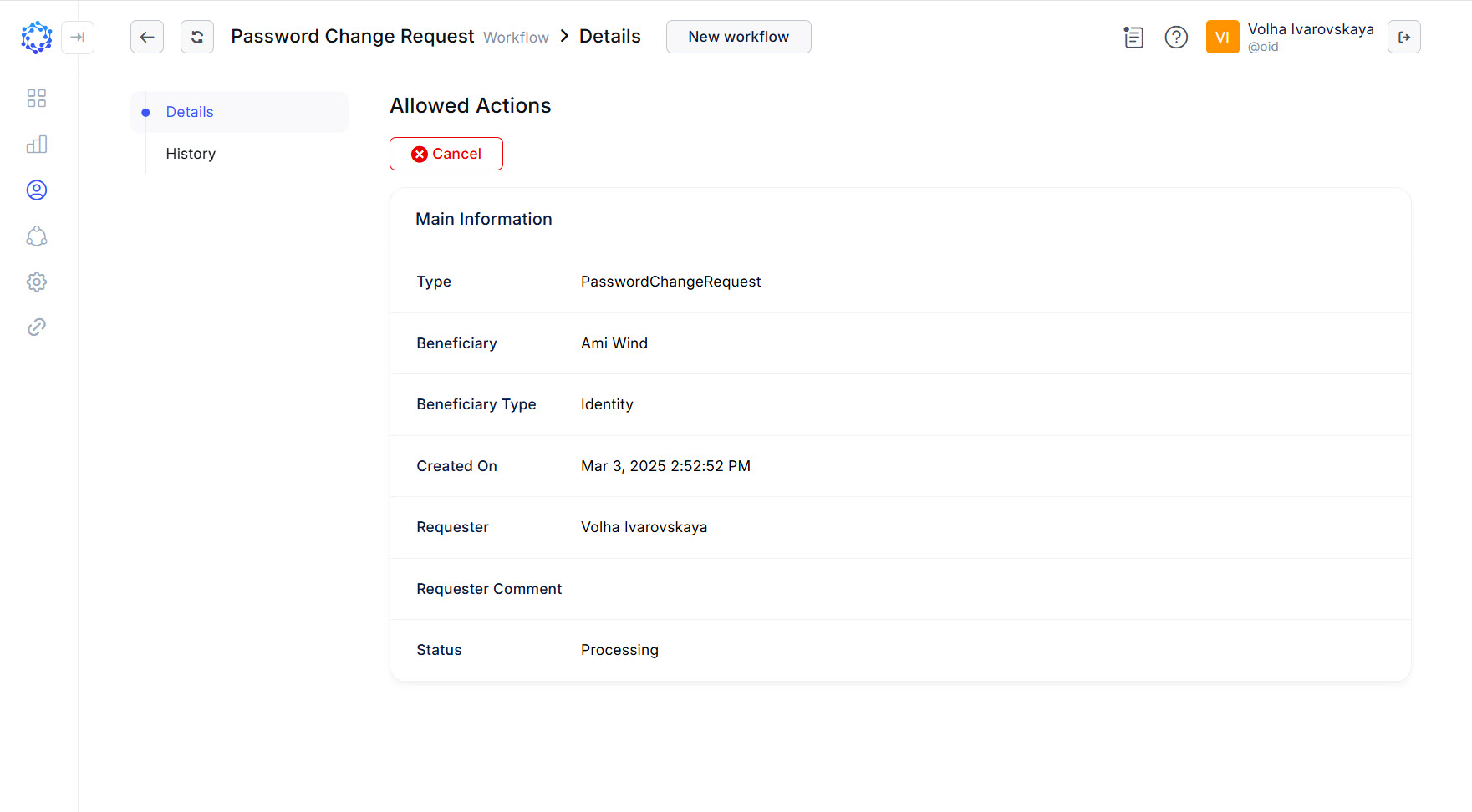 Details of the running workflow