
Delete accounts
The Account Removal workflow:
- works for all accounts of all accounts types;
- deletes accounts;
- revokes one-integration IT Roles.
Also, note that if the deleted Account revokes the Entitlements, included into a one-integration IT Role, and the IT Role was assigned to the Identity, the Account Removal workflow also deprovisions the IT Role.
To run an Account Removal workflow, do the following:
-
Click New workflow in the header on the Workflows page in Identity Automation.
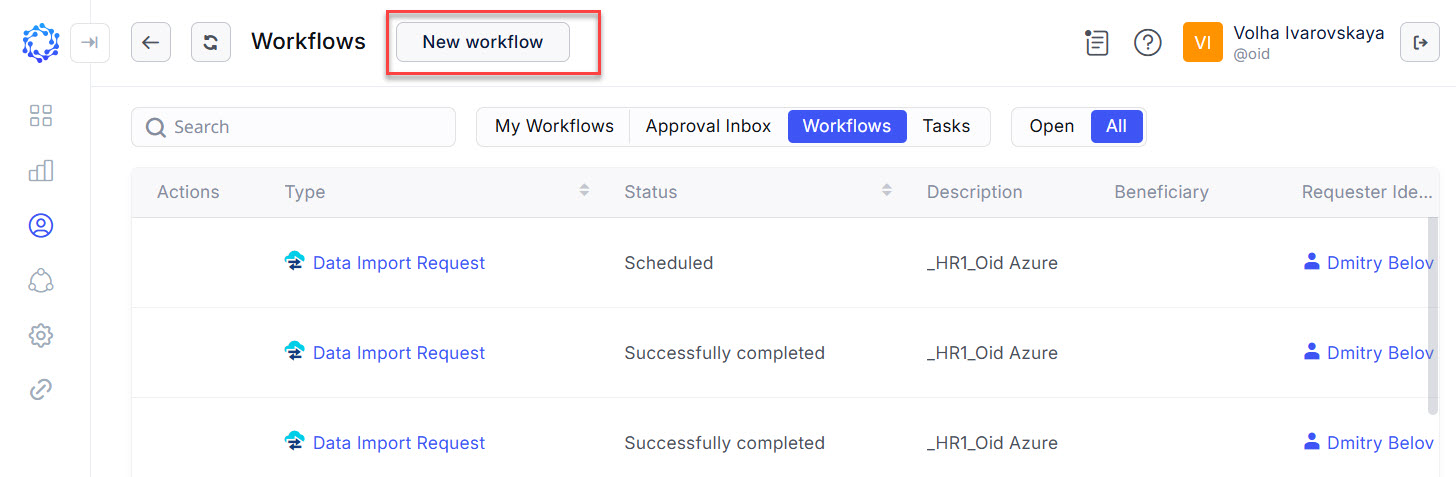 New workflow button in the header on the Workflow page in Identity Automation
 -
Click Account Removal on the New Workflow popup window. And the Account Removal window opens.
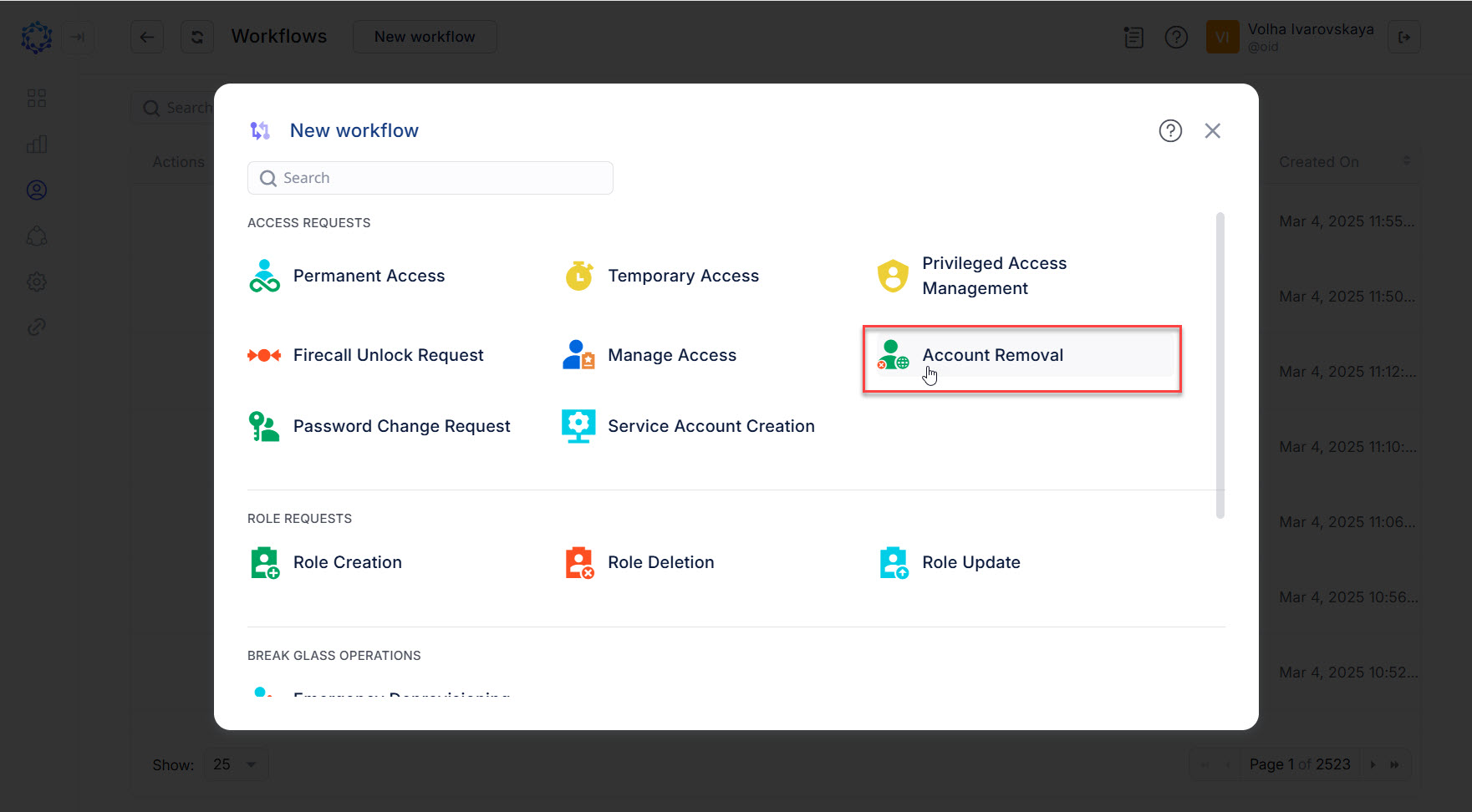 Account Removal option in the New workflow popup
 -
Select an Identity from the Beneficiary dropdown list, and click Next.
The selected person will be the one for whom the accounts are expected to be deleted by means of the current Account Removal workflow.
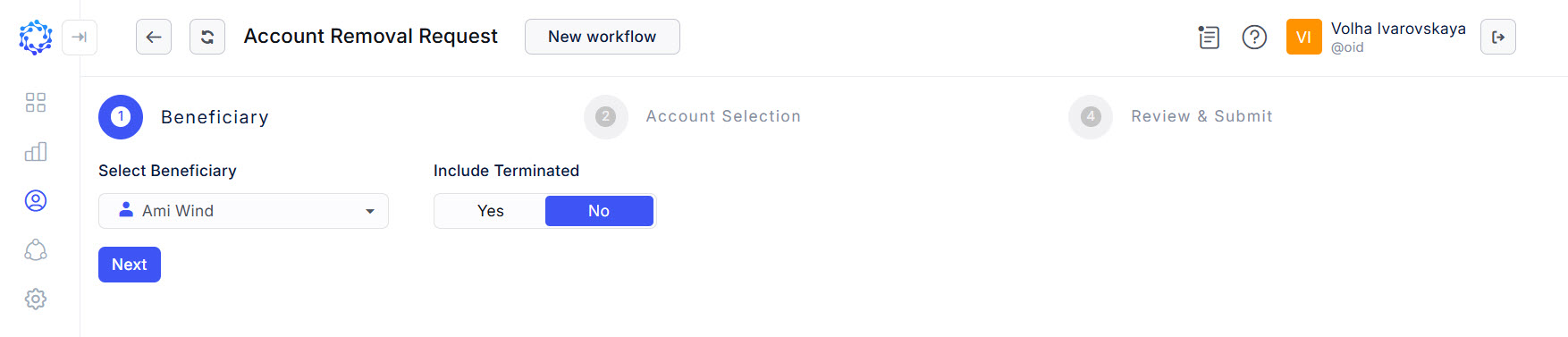 Selection of beneficiary
 -
Select the required Accounts, and click Next.
More details:
-
If an Account is selected, it will be deleted by the workflow.
-
To select the required Account, it is needed to select the Integration first, and the neighboring Account dropdown list will show all Accounts that the Beneficiary has in the selected Integration.
-
To select more Accounts, click the ‘+Add Account’ button, which adds one more row with the Integration and Account dropdown lists.
-
To remove the selection of an Account, use the bin icon at the right-hand side of the required row.
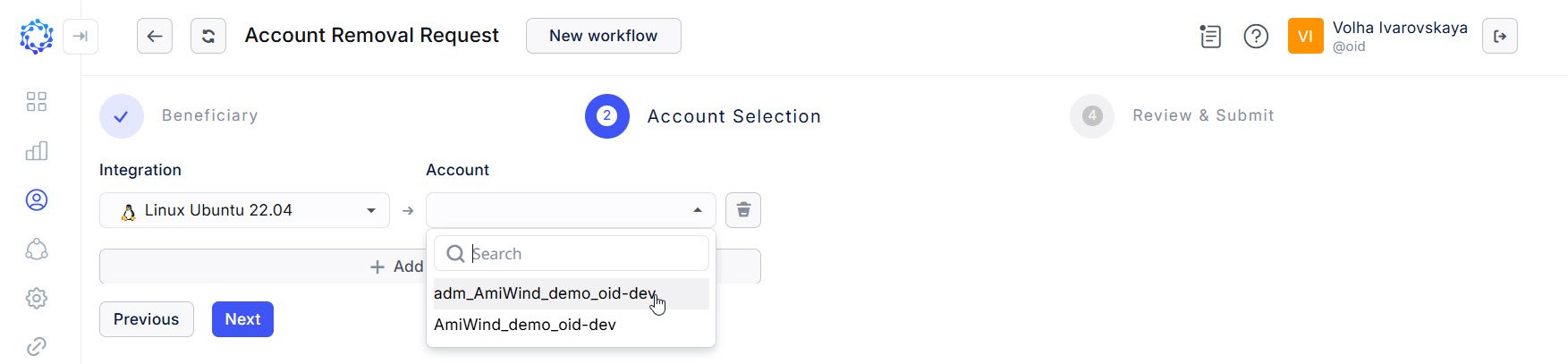 Selection of accounts
-
-
Review what Accounts were selected for removal. And once ready, click Submit to start the workflow.
There are such details, as:
- the Beneficiary who is expected to be deprovisioned of the Accounts;
- the Accounts that are expected to be deleted and identified by the login and the name of the Integration.
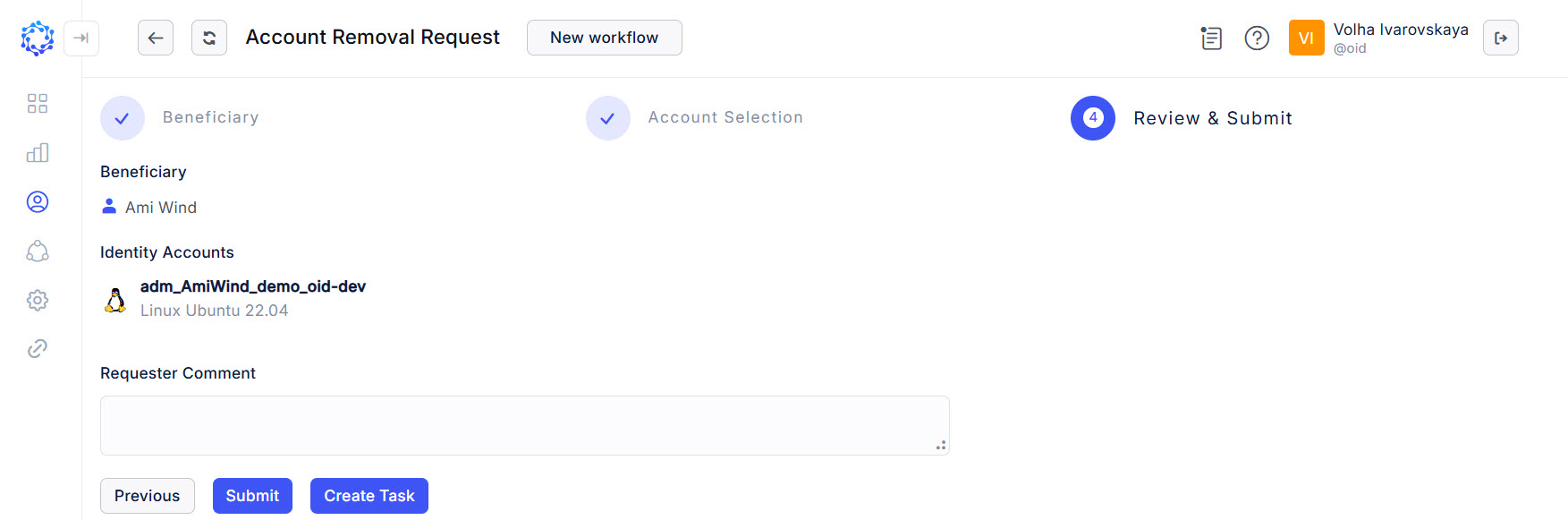 Review step of the access request
And the launched Account Removal workflow will show up in the Workflows grid among other workflows. Heed the status of the workflow. It changes with every stage the workflow goes through. If needed, click Refresh and the status will be updated. The History page of the workflow presents the results of how the workflow finished, and can help in troubleshooting.