
Manage access
The Manage Access workflow:
- works for all accounts of all account types;
- adds new entitlements to existing accounts;
- revokes unnecessary entitlements from existing accounts;
- (de)provisions one-integration IT Roles.
To run a Manage Access workflow, do the following:
-
Click New workflow in the header on the Workflows page in Identity Automation.
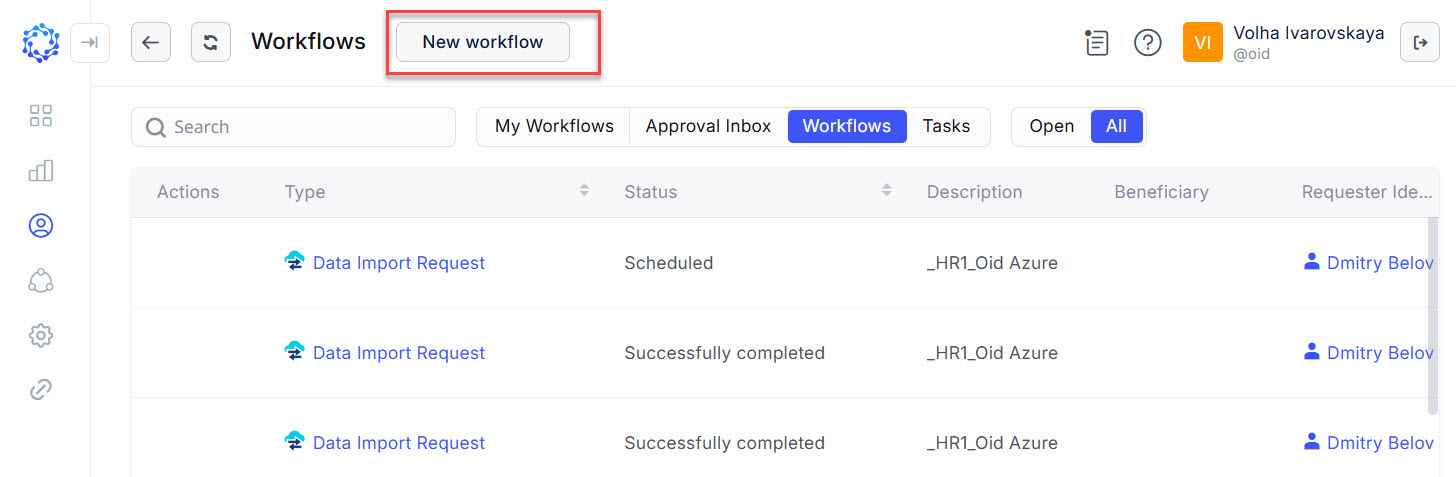 New workflow button in the header on the Workflows page in Identity Automation
 -
Click Manage Access on the New Workflow popup window. And the Manage Access window opens.
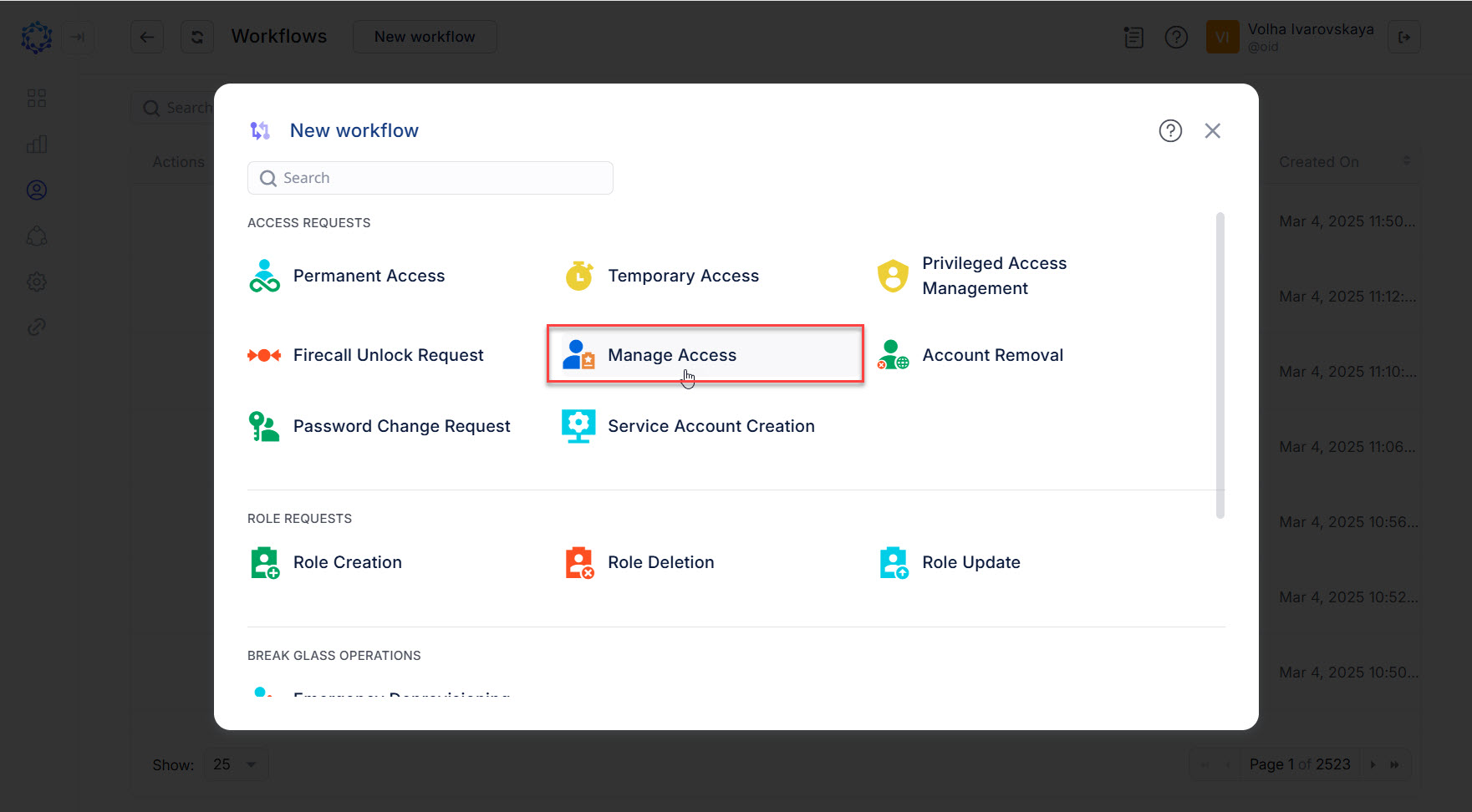 Selection of Manage Access among other access requests
 -
Select an Identity from the Beneficiary dropdown list, and click Next.
The selected person will be the one for whom the access is expected to be managed by means of the current Manage Access workflow.
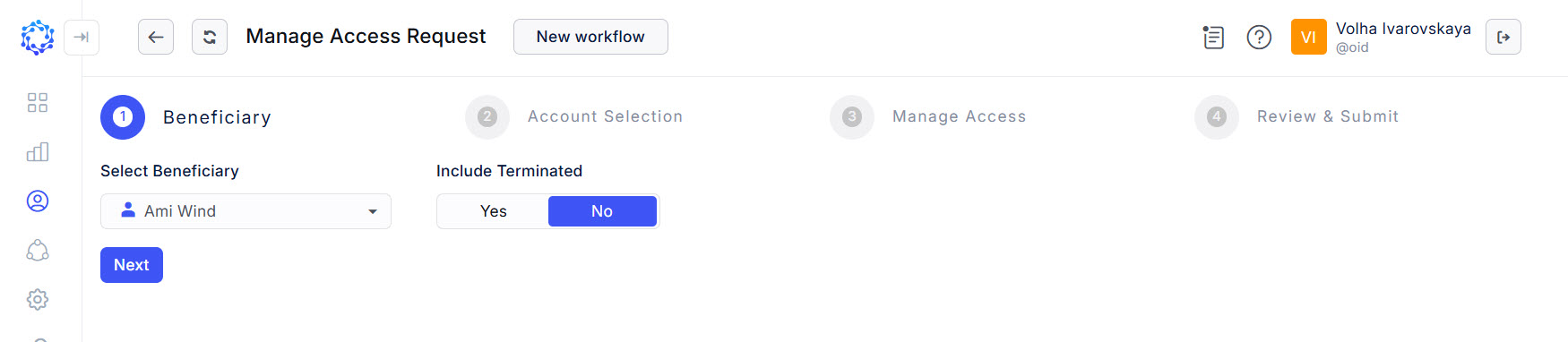 Selection of a beneficiary
 -
Select the required Accounts, and click Next.
More details:
-
All displayed Accounts belong to the Beneficiary, and are classified by the Integration.
-
Selecting an account, identify the one that needs any entitlement removal or addition.
-
To select an Account, first, select its Integration, and then the required Account.
-
To select more Accounts, click the ‘+Add Account’ button, which adds one more row with the Integration and Account dropdown lists.
-
To remove the selection of an Account, use the bin icon at the right-hand side of the required row.
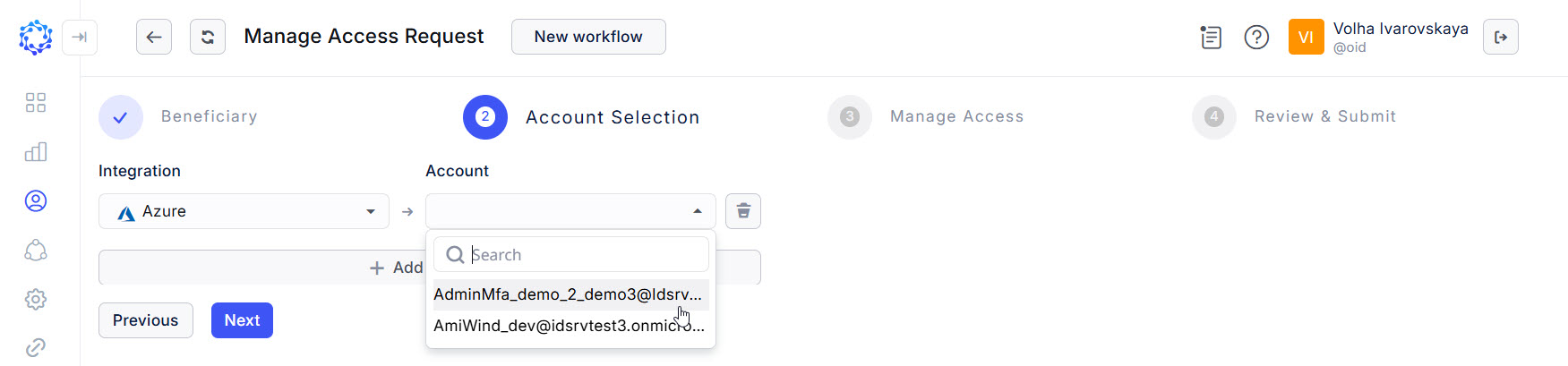 Selection of an account
-
-
Select and \ or deselect Entitlements, and click Next.
More details:
-
The grid shows Entitlements by the Account they can be used for.
-
The first column is the Accounts column. Then goes the Name of an Entitlement, and then - the Type column.
-
The Type column is compound and provides the following information separated with an arrow:
- the Integration Type that the Integration pertains to;
- the Name of the Integration that is the origin of the Entitlement; and
- the Name of the Resource that the Entitlement is associated with, and\or provides access to.
-
The Description column helps to identify the Permission Type that comes in from the Integration and that the Entitlement belongs to.
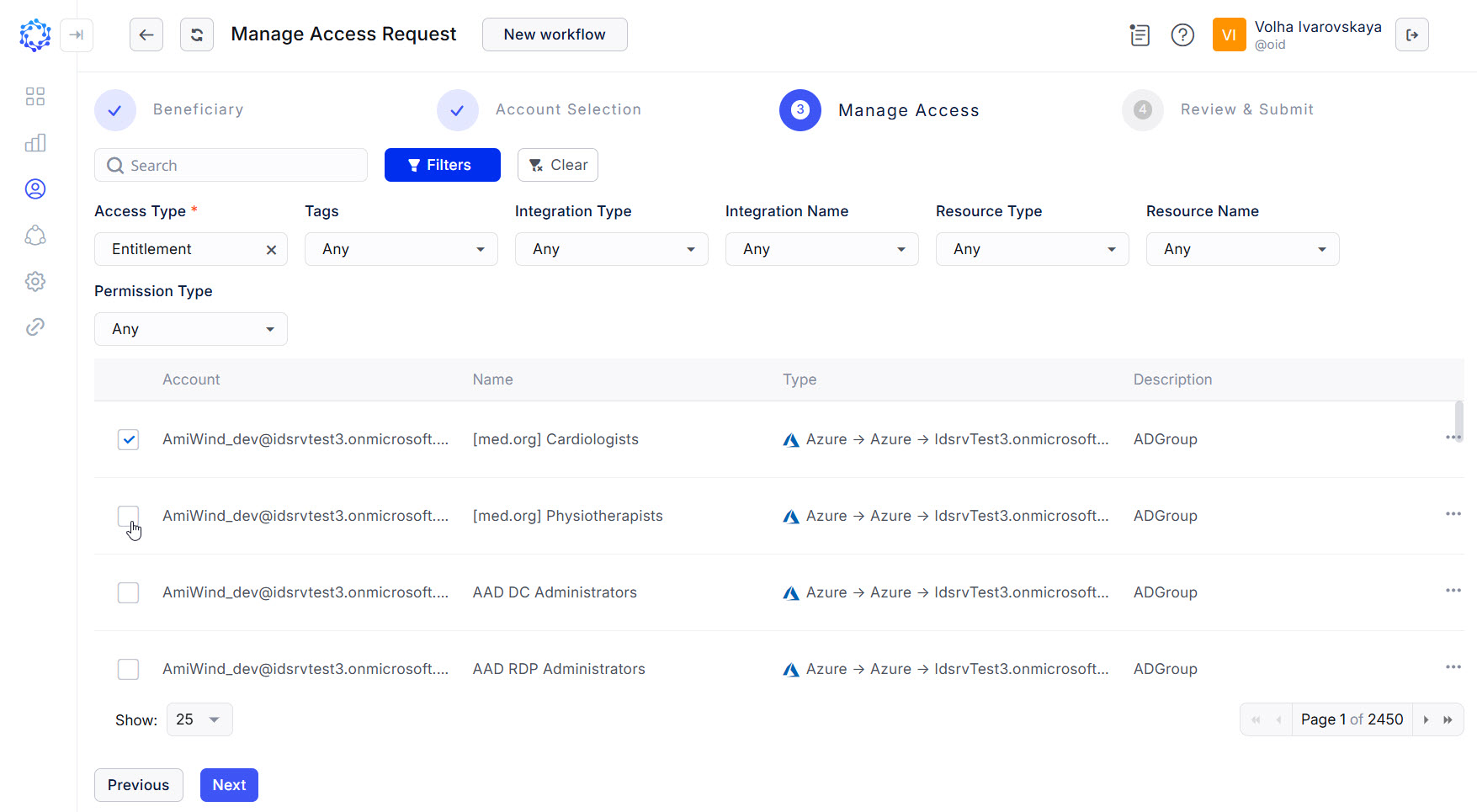 Selection of access
 -
To find the needed Entitlement, it is possible to use the search, pagination and filtering, as follows:
(a) with an entry in the search bar, textual matches will show up in the grid;
(b) with a permission selected on one page and moving to another page; the selection will preserve;
(c) search results can be combined with filtering;
(d) click Filters to view the available criteria; click Clear to discard the filters. Below is an overview of available filters:
- Access Type makes the grid show atomic permissions, and\or IT Roles configured in ObserveID.
- Integration Type makes the grid display only the permissions from the integrations of the selected Integration Types.
- Integration Name makes the grid display only the permissions from the selected integrations.
- Resource Type makes the grid display only the permissions aligned with the resources of the selected Resource Types.
- Resource Name makes the grid display only the permissions aligned with the selected resources.
- Permission Type makes the grid display only the permissions of the selected Permission Type.
-
-
Review what access is going to be established with the current workflow. If needed, it is possible to discard the changes. And once ready, click Submit, to create and launch the Manage Access workflow.
More details:
-
At the Review step, the list of changes shows Entitlements by the Account. It reveals only those changes in the scope of the Entitlements that the current workflow is expected to provide.
-
All changes fall into one of the actions: either to grant an Entitlement, or to revoke an Entitlement.
-
Each Entitlement in the list is identified by the Permission Type specified on the left of the Entitlement Name; while on the right, it is possible to use the respective action icon if it is needed to discard the change.
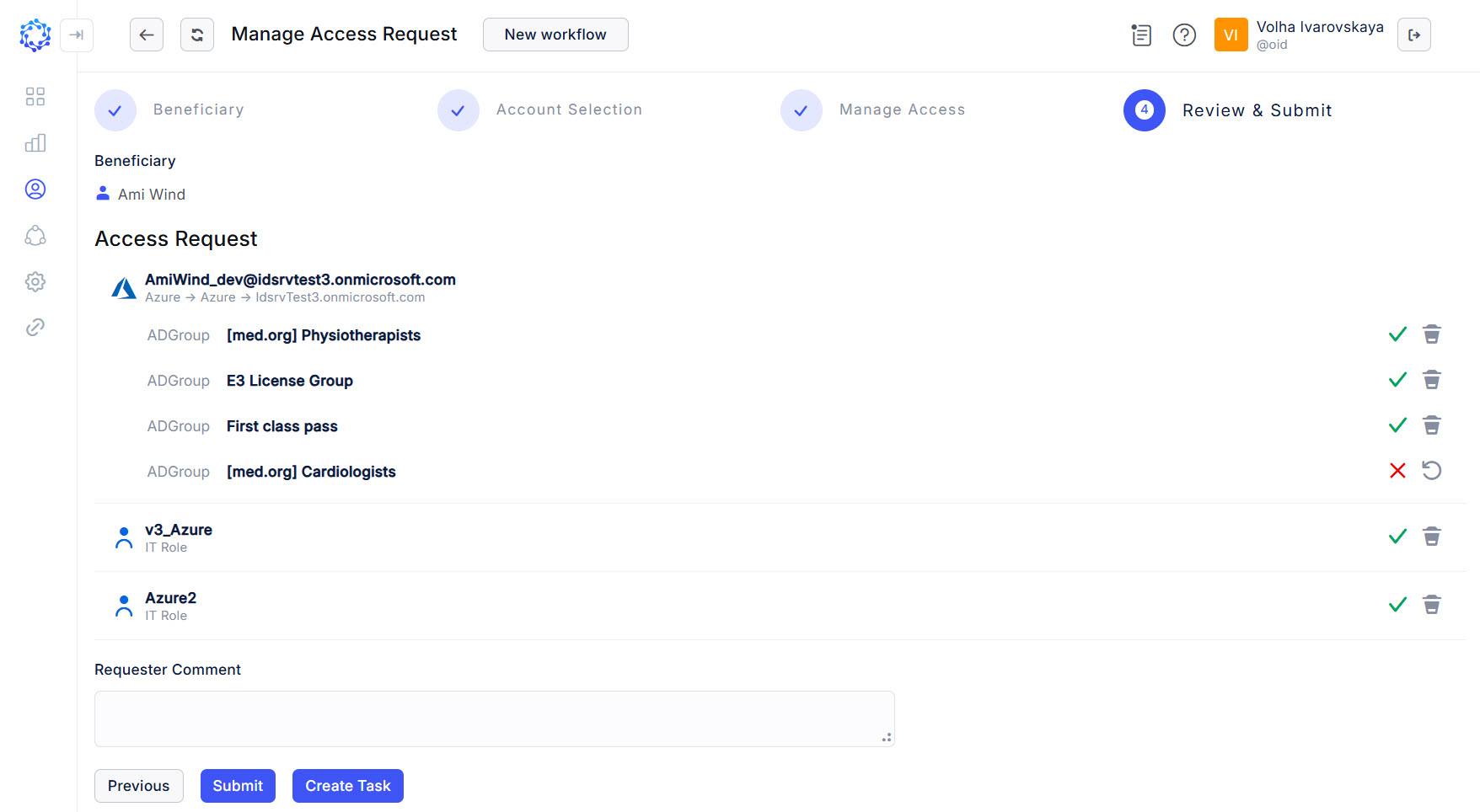 Review step of the access request
-
Being submitted, the Manage Access workflow will show up in the Workflows grid among other workflows. Heed the status of the workflow. It changes with every stage the workflow goes through. If needed, click Refresh and the status will be updated. The History page of the workflow presents the results of how the workflow finished, and can help in troubleshooting.