
Enable HR Source
Technically, a HR Source is an integration enabled as a HR Source. For a target system to behave as a HR Source, the expectation is that it is used to register employees and\or contractors in the organization and store validated information about the identity, which is tied to a real person. In this section:
- Overview of a HR Source
- Pre-requisites for an integration to be enabled as a HR Source
- Basic steps of how to set an integration as a HR Source
- Detailed description
- Enable integration as an HR Source
- Make an initial load of Identities.
- Re-configure rules for normal Identity Management
- If needed, how to disable HR Source
Overview of a HR Source
An integration can be established as an HR Source if it supplies the authoritative information required enough and sufficient for the creation of Identities based on this information. Such an integration data is used further for the management of Identities, for example, offboarding or reinstatement process, or identity attribute updates.
As a rule, the HR Source integration excludes any form of provisioning.
A human resources management system (abbrev. as ‘HRMS’) can be considered the HR Source system.
With an integration enabled as an HR Source, it is possible to:
- create Identities and proceed with onboarding,
- import the HR Source Integration Data and detect:
- who of the Identities should be terminated and then proceed with off-boarding,
- who of the Identities should be re-activated Identities and then proceed with the reinstatement of Identities;
- what attributes of the identity data should be updated and then proceed with the identity update.
Pre-requisites for an integration to be enabled as a HR Source
The integration has:
- successful Test Connection,
- successful Data Import,
- Accounts that are expected to be used for creating Identities - have the
Usertype, or thePrivilegedtype.
Note: please, that the User or Privileged type can be established for the needed accounts:
- manually, by selecting
UserorPrivilegedfrom the Type dropdown list for the needed Accounts; - automatically, for all Accounts by establishing the required type with the Customization Rule.
For example, as follows: return (AccountType.Personal, null, null, null); And with the Data Import task finished for the respective integration, the rule will be applied and the type will be established for the imported accounts.
Basic steps of how to set an integration as a HR Source
- Enable an integration as an HR Source.
- Generalize the Joiner Rule to ensure the full load.
- Turn off the Leaver Rule, the Reinstatement Rule.
- Configure the Identity Attributes Mapping Rule.
- Make an initial load of Identities.
- Re-configure the rules according to the Identity Management requirements:
- HR Source Joiner Rule
- HR Source Leaver Rule
- HR Source Reinstatement Rule
Detailed description
1. Enable integration as an HR Source
-
Go to: Identity Automation > Integrations > {Integration} > HR Source
-
Click Enabled on the top toggle to make the integration enabled as an HR Source.
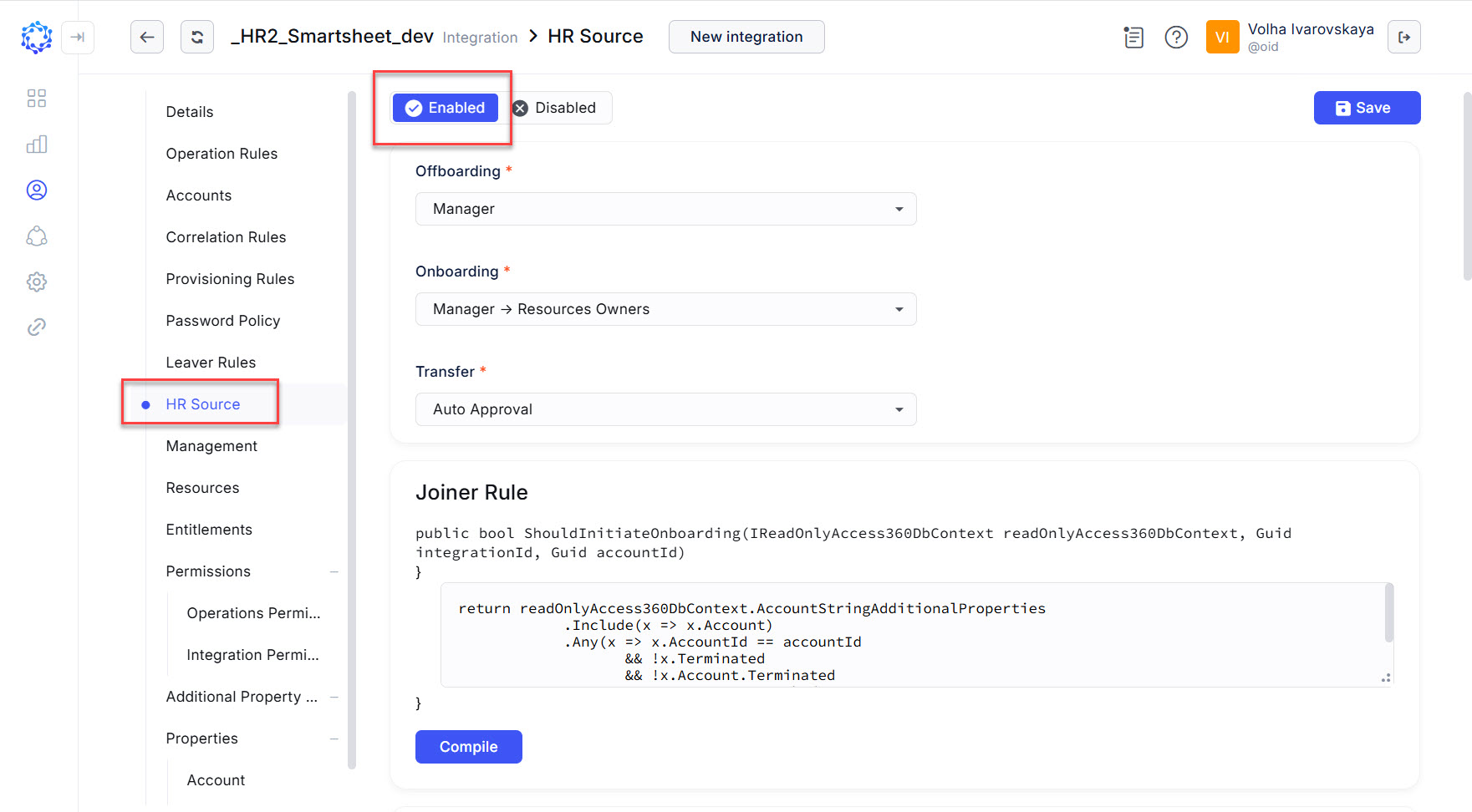 Integration enabled as a HR Source
 -
Select an approval strategy for each of the following workflows:
- the Offboarding workflow
- the Onboarding workflow
These are the workflows that are automatically created in case the respective HR Source rules are met. Being created, a workflow first goes through the approval process in line with one of the following approval strategies, depending on which of them is selected for the workflow:
- Auto Approval;
- Manager;
- Roles Owners;
- Target Owners;
- Manager - > Roles Owners - > Target Owners;
- Roles Owners - > Target Owners ->Manager;
- Roles Owners - > Target Owners;
- Manager - > Target Owners;
- Manager - > Roles Owners.
-
Type in some C# code to create the Joiner Rule. A code sample can be found at the end of this section.
The Joiner Rule should be generalized to make all ever created accounts imported from the HR Source system. Within the first run of the HR Source Check request for the HR Source system, the initial load of Identities is performed, and it is important to make certain that it creates the full store of Identities, so that within the subsequent runs of the task it will be possible to identify new and terminated Identities by means of scope comparison.
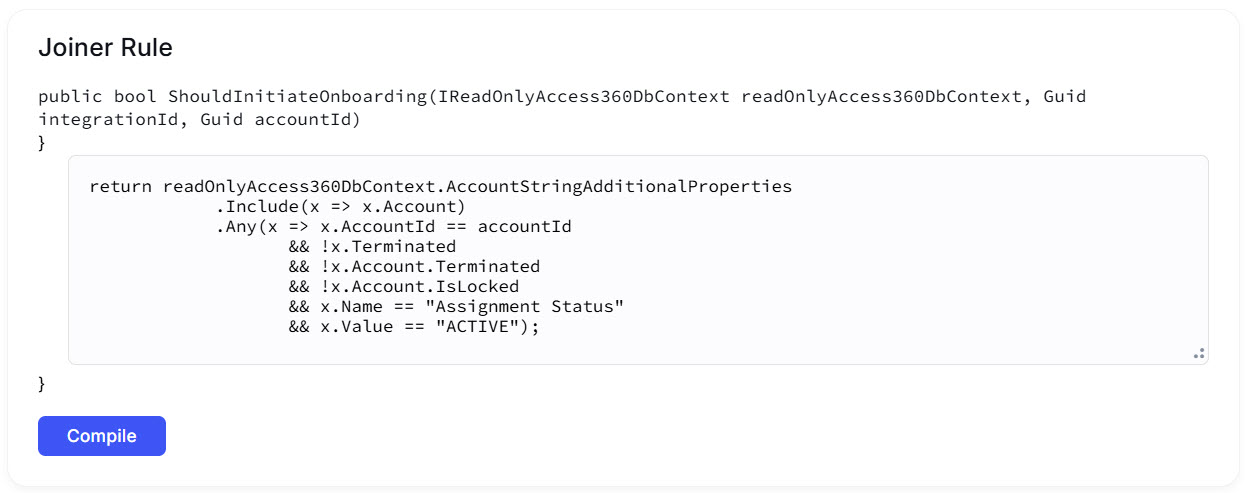 An implementation of a Joiner Rule for a HR Source integration
 -
Enter
return false;for the Leaver Rule and for the Reinstatement Rule to turn off the offboarding and reinstatement procedure for the initial load. However, once the initial load of identities is successfully finished, the rules need to be re-established and adjusted according to the HR Source integration requirements for the offboarding and reinstatement processes. -
Type in a rule in the C# programming language for the Identity Attributes Mapping Rule to determine what details to display for an Identity. The following list provides the minimum required details needed for an Identity to be created:
existingIdentityIdValue- a unique identifier of an identity;identityEmail- the email of an identity.- The following is the list of the objects returned by the rule in addition to the mandatory objects mentioned above as a part of the identity creation procedure:
identityName- the name of the identity"<name of the Local Permission>"- the permission expected to be assigned to a Local User created together with the creation of the Identity as an alternative option for the Identity to log in to ObserveID;accountManagerAccountIdValue- the unique identifier of the identity who is expected to be the manager for the created identity;startDateAccountValue- the date when the identity is expected to get the Onboarded status;TerminationDateAccountValue- the date when the identity should be offboarded.
Once the rule is ready, compile it. If there are any errors, re-visit the rule and compile again.
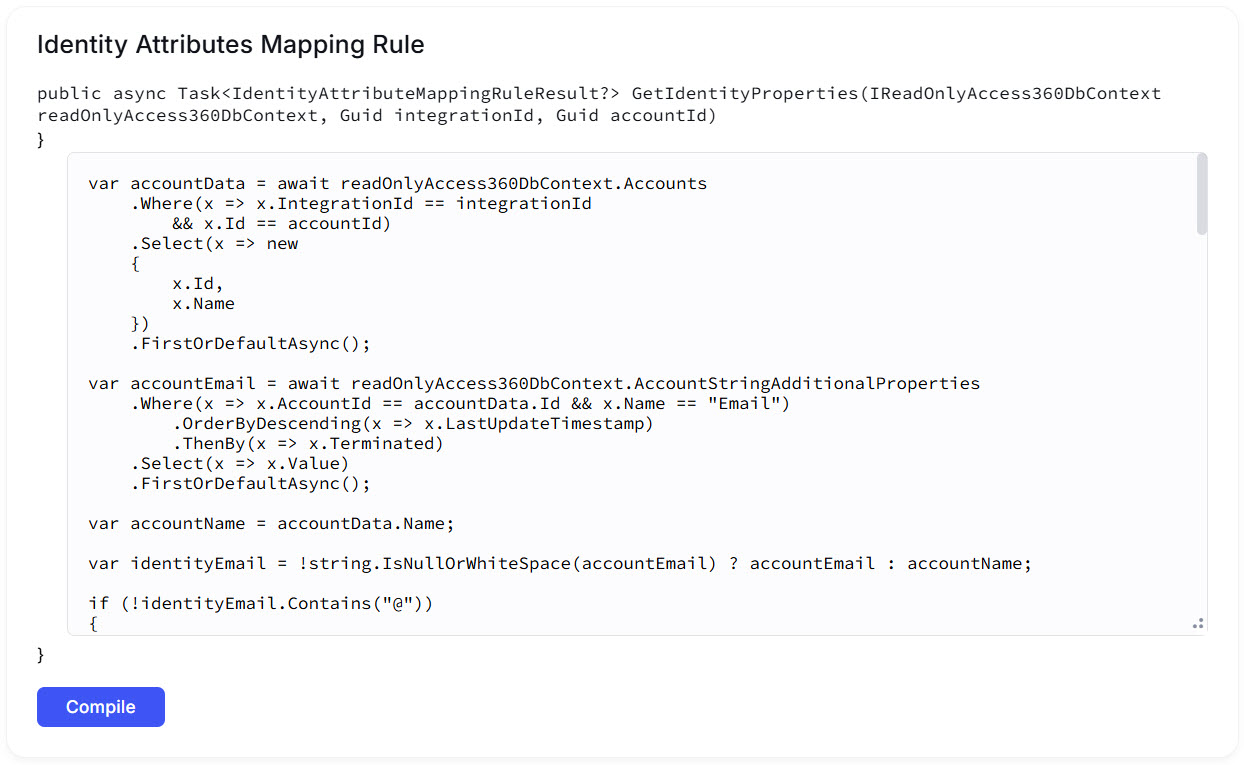 An implementation of the Identity Attributes Mapping Rule for a HR Source integration
 -
Click Save to enable the HR Source or save changes.
2. Make an initial load of Identities.
An initial load creates the full store of Identities as a point to start with identity management, onboarding, offboarding, reinstatement, access requests, etc. It is important to ensure that the resulted store of Identities represents the full scope of accounts of the HR Source integration. Any further creation of new Identities and termination of existing Identities are based on that initial representation.
To make an initial load, do the following:
-
Go to: Identity Automation > Workflows > Tasks
-
Run the Data Import task for the HR Source integration.
If there are some HR Source integrations, run the Data Import task for each of them.
-
Run the HR Source Check task.
If it is the really first run of the HR Source Check task for the new HR Source integration, the task will create an Initial Load Task for each new HR Source integration individually. One InitialLoadTask will be created for one HR Source integration, if there are some integrations enabled as HR Sources.
Once created, an InitialSourceTask will be executed automatically. With the InitialLoadTask finished successfully, the Identities area in ObserveID will be filled with Identities and represent the store for identity management.
3. Re-configure rules for normal Identity Management
Having a full store of Identities imported from the HR Source integration, it is possible to do the identity management as normal routine along their lifecycle by going through onboarding, offboarding, and\or reinstatement. It is performed as needed, according to the corporate policies.
To prepare the HR Source for onboarding, offboarding and\or reinstatement, respectively the Joiner, Leaver, and\or Reinstatement Rules are recommended to be adjusted to make it suitable for the current needs of the identity management process.
For the Joiner Rule:
-
write down the pattern by means of which new accounts will be detected;
-
remember the time, when onboarding should start is managed with the Identity Attributes Mapping Rule. For rule configuring details, refer to the administrator documentation.
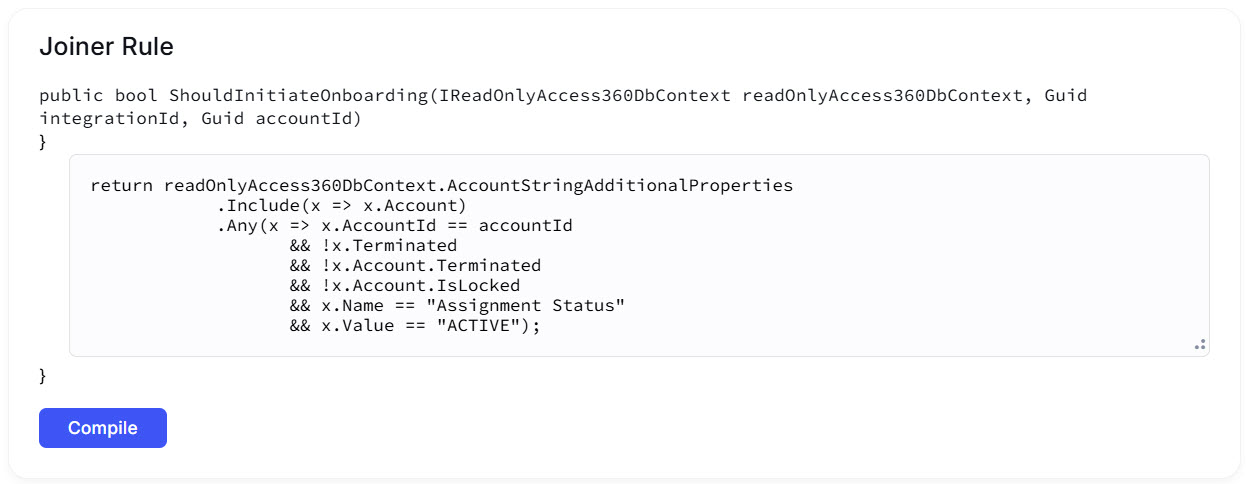 Example of a Joiner Rule
For the Leaver Rule:
-
update it into a pattern by means of which terminated accounts will be detected.
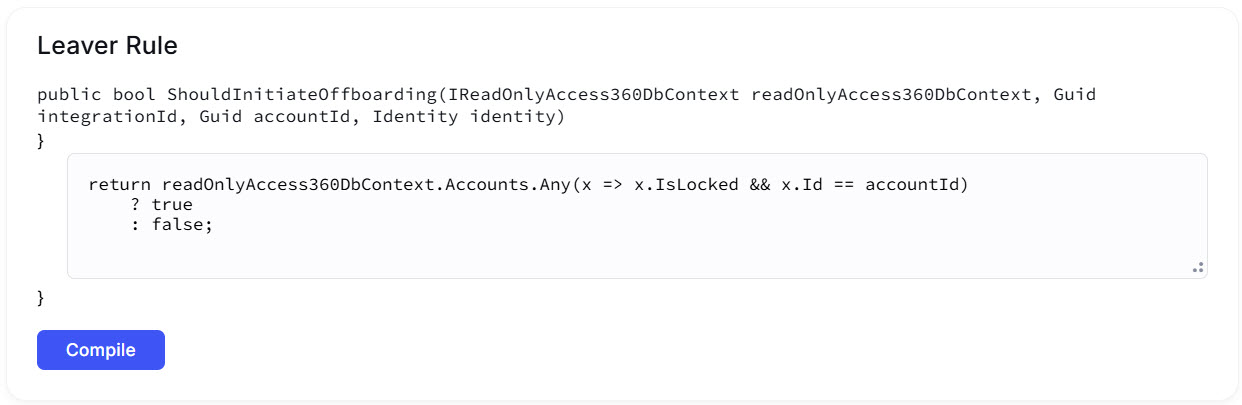 Example of a Leaver Rule
For the Reinstatement Rule:
-
update it into a pattern by means of which re-activated accounts will be detected.
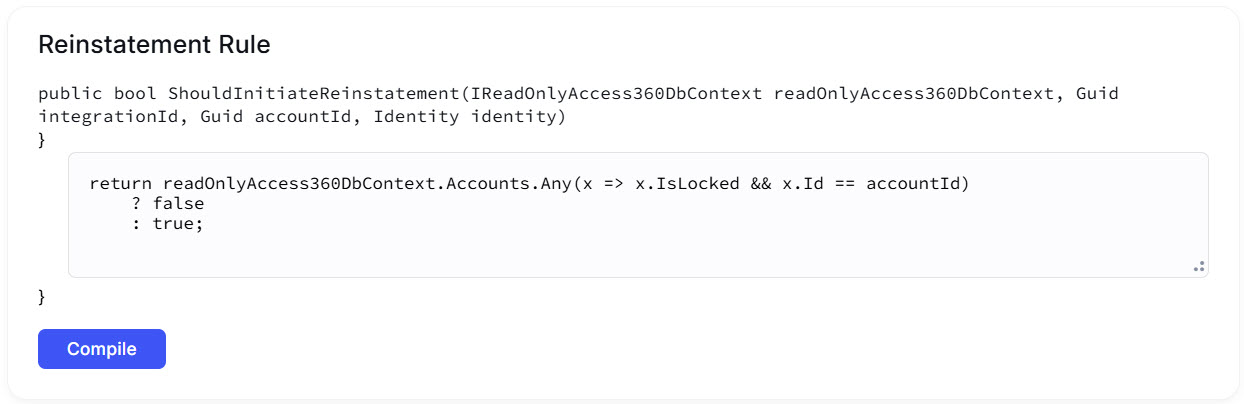 Example of a Reinstatement Rule
4. If needed, how to disable HR Source
Assuming, a HR Source integration is not needed anymore, to disable it, do the following:
- Go to: Identity Automation > Integrations > {Integration} > HR Source
- Click Disable on the top toggle to make the integration disabled as an HR Source.
- Click Save. And none of the Identities will be created, terminated, or reinstated from the current integration anymore.