
Assignment Rule
The Assignment Rules define if an Identity should get a Birthright Role. Once the Identity is determined to meet the assignment condition specified in the Assignment Rule, the Identity is automatically granted the respective Birthright Role. In this section:
- Overview
- Assignment Rule
- Base use case
- Use Case: Specific Identity
- Use Case: Revoke Role
- Use Case: Dependence on Integration Entitlement
- Use Case: Dependence on Additional Property
 Assignment Rule in the Birthright Role
Overview
Every Birthright Role has an Assignment Rule as a mandatory requirement. The Assignment Rule must be filled out for a Birthright Role to exist. The Onboarding workflow assigns a Birthright Role to an Identity, according to the Assignment Rule, in case if it is determined that the Identity meets the condition specified in the rule. Also, the Role Creation, Role Update and Identities Update workflows can assign the Birthright Role.
Assignment Rule
There are two methods to define a rule: by means of filters and by writing code in the C# programming language. The Simple mode opens the Filters popup and provides capabilities to create conditional clauses. The Advanced mode opens a code box for writing code. For the same birthright role, both options can be established. However, executed is the one which is active.
If the Simple mode is active, then what is established with filters is executed. If the Advanced mode is active, then the code is executed. The condition established with coding requires more processing rather than filters, which are much faster and efficient. However coding rules has a greater advantage in flexibility and applicable to most cases. Herein provided is a list of cases for setting up an assignment rule as examples of how the rule can be implemented.
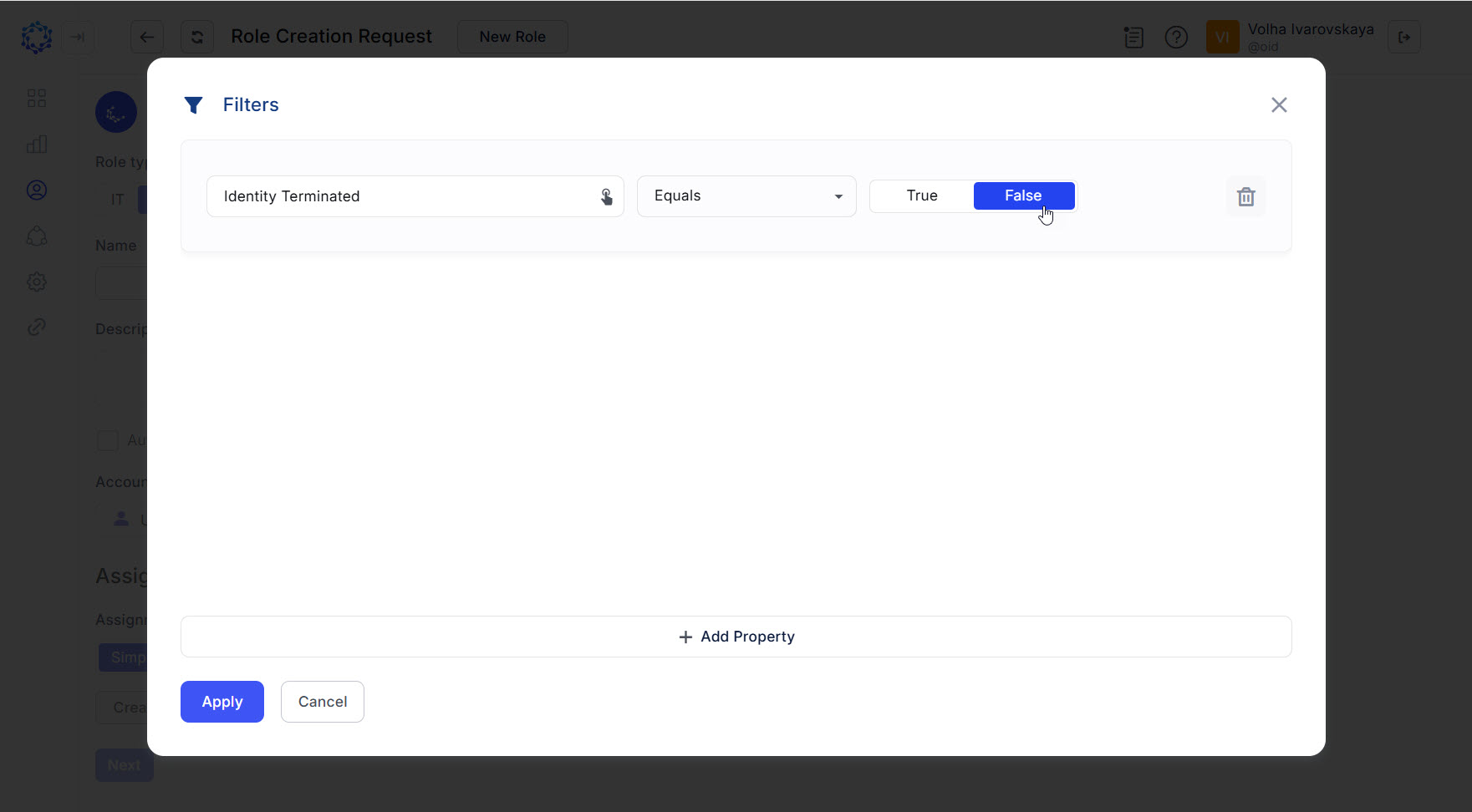 Simple mode Filters
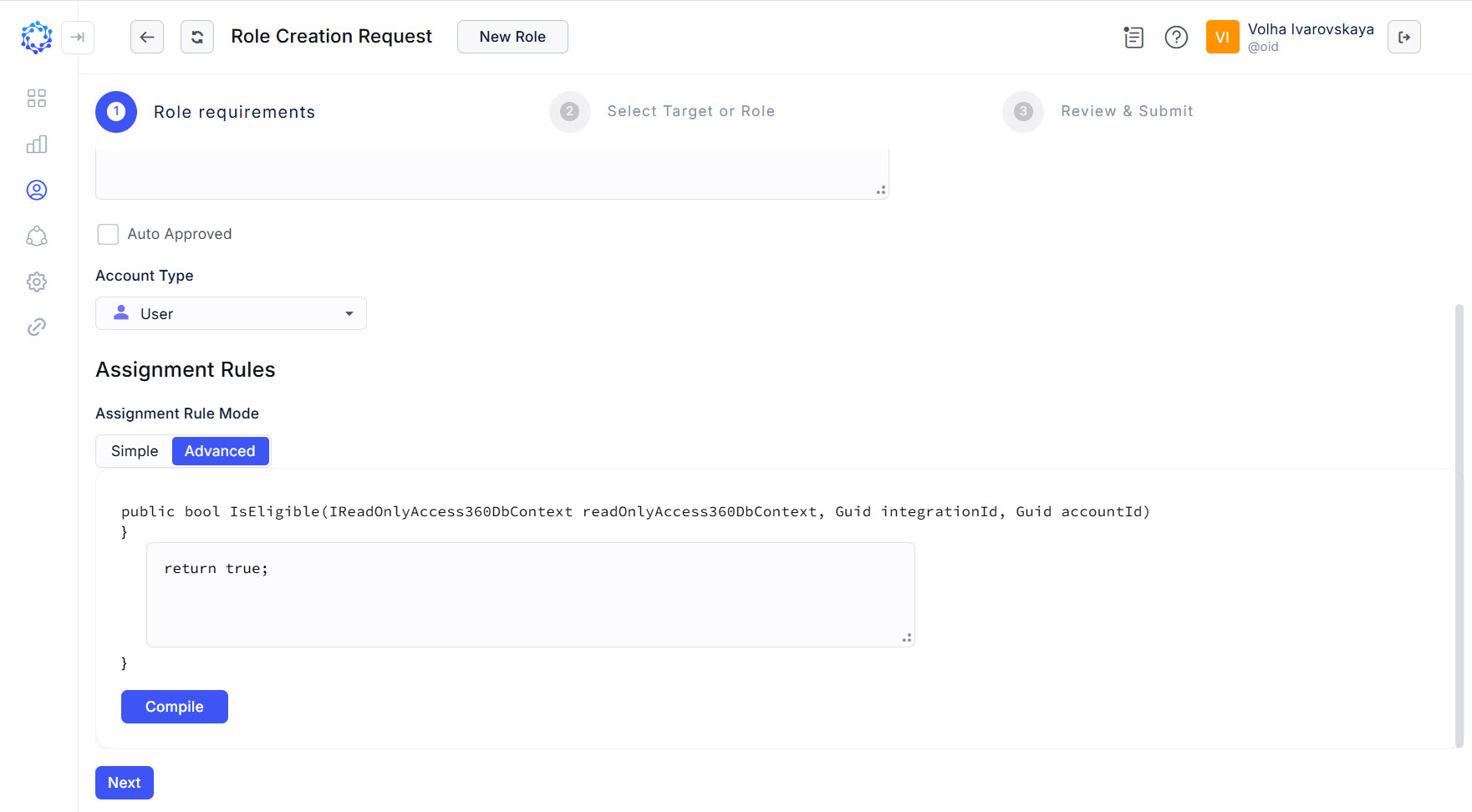 Advanced mode code block
Below is the signature of the method and its parameters:
public bool IsEligible(IReadOnlyAccess360DbContext readOnlyAccess360DbContext, Guid integrationId, Guid accountId)
The Assignment Rule executes the function: IsEligible() with the following input parameters:
IReadOnlyAccess360DbContext readOnlyAccess360DbContext- the integration data;Guid integrationId- the id of an integration;Guid accountId- the id of an account.
The function: IsEligible() determines if an Identity is eligible for the Birthright Role.
The Assignment Rule returns a true\false value which in case of true, triggers the assignment of the Role.
Base use case
As a base use case, the Birthright Role can be assigned to all Identities in general. When an event of granting a Role occurs: e.g. onboarding, creating a Role, the role is expected to be granted. To establish such a condition, it is possible to use the following code sample or filters:
return true;
 Base case established with Filters
Use Case: Specific Identity
To assign the Birthright Role to a specific Identity, it is enough to specify the ID of the Identity’s account in the HR Source integration, as shown in the following code sample; or select the Identity Name in filters:
return accountId == "<HR-Source-account-ID>";
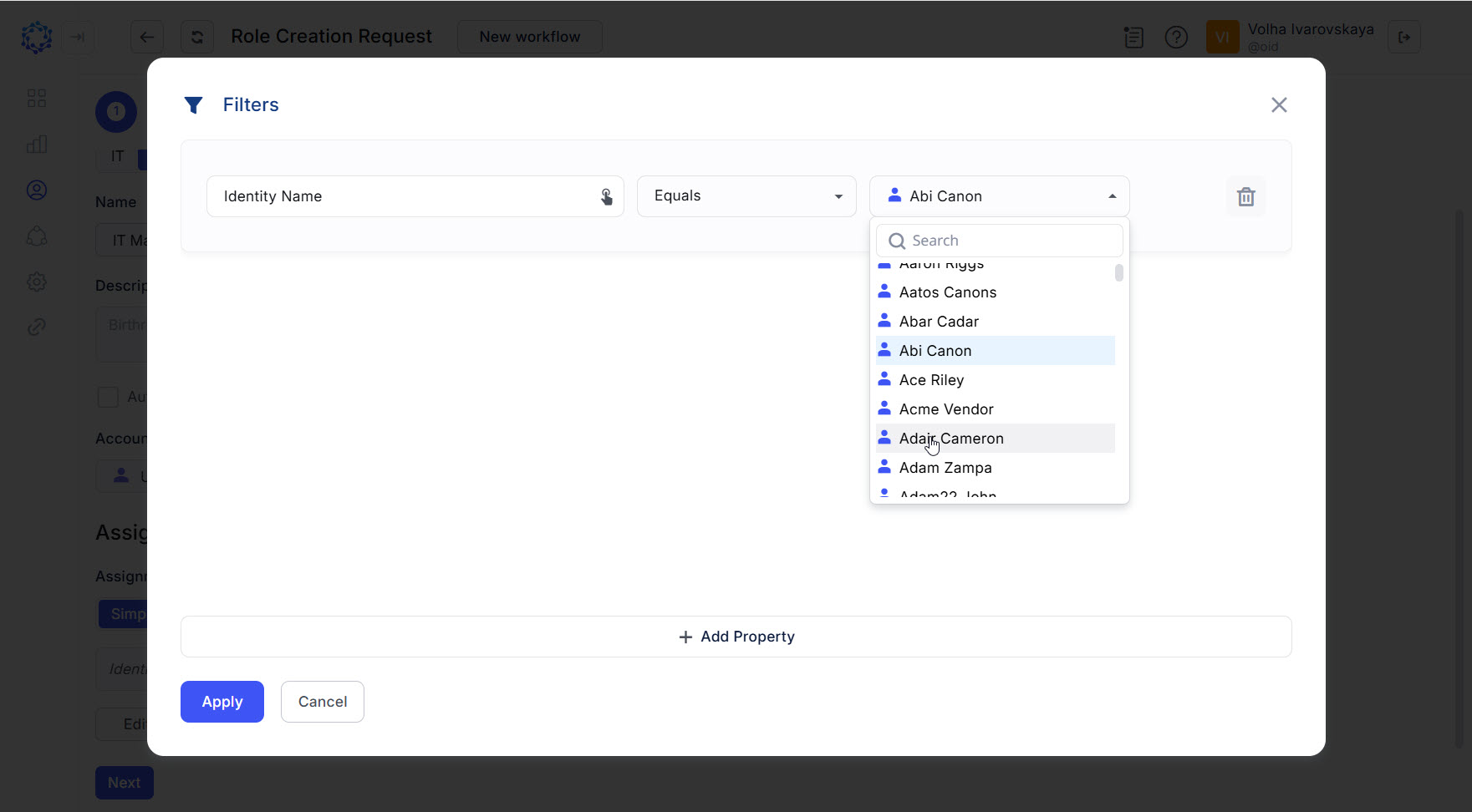 Identity selected with Filters
Use Case: Revoke Role
To revoke the Birthright Role from all Identities altogether, a Role Update workflow can be launched for the required Role. And the workflow should contain the Assignment Rule with the code as it is specified in the code sample:
return false;
Use Case: Dependence on Integration Entitlement
An Account from the HR Source integration can be imported with established Entitlements. And it is possible to allow only those Identities to be granted the Birthright Role who were created from an Account in the HR Source integration provided with the required Entitlement. Below is a code sample that grants the Birthright Role in case if the Identity’s Account in the HR Source integration has the ADS Designer role.
    return integrationBasicIndex.Data
    .AccountsEntitlements[accountId].Any(x =>
    integrationBasicIndex.EntitlementsById[x.Id].entitlement.Name == "ADS Designer");
Use Case: Dependence on Additional Property
Every Account imported from a target system is added with Additional Properties. Both the Account object and the Additional Property object are included into the Integration Data. The HR Source integration provides the Integration Data too. Based on what Additional Properties come from the HR Source integration target for an Account, the Identity can or cannot be assigned with a Birthright Role.
Department
Below is a code sample that determines for the Role to be assigned to an Identity if the Identity pertains to the Executive Management department, where department is an Additional Property of the HR Source integration Account the Identity was created from.
    if (integrationBasicIndex.AccountsById.TryGetValue(accountId, out var account)
    && account.AdditionalProperties.TryGetValue("department", out var department)
    && department.ValueString == "Executive Management")
    {
    return true;
    }
    return false;
Manager
With the HR Source Identity Attributes Mapping Rule, a manager is established for Identities. The manager is determined by the Rule from the Additional Properties of the HR Source integration Account. If the manager is established for an Identity, it is possible to set up an Assignment Rule, according to which a Birthright Role will be assigned only to the Identities of a specific manager, as it is exemplified in the code sample below. The Role is assigned to the Identities for whom the manager is established and the manager’s ID is S100028.
    if (integrationBasicIndex.AccountsById.TryGetValue(accountId, out var account)
    && account.AdditionalProperties.TryGetValue("managerId_s", out var manager)
    && manager.ValueString == "S100028")
    {
    return true;
    }
    return false;
Region
The code sample below sets up region as a criterion for an Identity to be assigned with a Birthright Role. Following the logic of this Assignment Rule, these are the Identities who have Americas established for the region as one of the Additional Properties.
    if (integrationBasicIndex.AccountsById.TryGetValue(accountId, out var accountData))
        {
            if (accountData.AdditionalProperties.TryGetValue("region", out var region))
            {
               if (region.ToString() == "Americas")
                {
                   return true;
                }
           }
       }
    return false;
Compound condition
The Additional Properties can be combined to build a compound condition for the assignment of a Birthright Role. According to the code sample below, three criteria are used, and it is needed to satisfy at least one of the following those three, to be granted the Role: or the Information Technology department; or the EMPLOYEE account type; or the CONTINGENT account type.
    if (integrationBasicIndex.AccountsById.TryGetValue(accountId, out var accountData))
       {
            if (accountData.AdditionalProperties.TryGetValue("department", out var department))
                {
                    if ((String.Equals(department.ToString().Trim(), "Information Technology", StringComparison.OrdinalIgnoreCase)))
                        {
                           return true;
                                }
                }
            if (accountData.AdditionalProperties.TryGetValue("accountType", out var workerType))
                {
                    if ((String.Equals(workerType.ToString().Trim(), "EMPLOYEE", StringComparison.OrdinalIgnoreCase)) || (String.Equals(workerType.ToString().Trim(), "CONTINGENT", StringComparison.OrdinalIgnoreCase)))
                       {
                            return true;
                        }
                }
            }
        return false;