
Delete a role
A role is deleted with the Role Deletion Request workflow. To launch the workflow, do the following:
-
Use one of the following options to initiate a Role Deletion Request workflow:
-
Select the required Role from the Roles grid, and then click Delete.
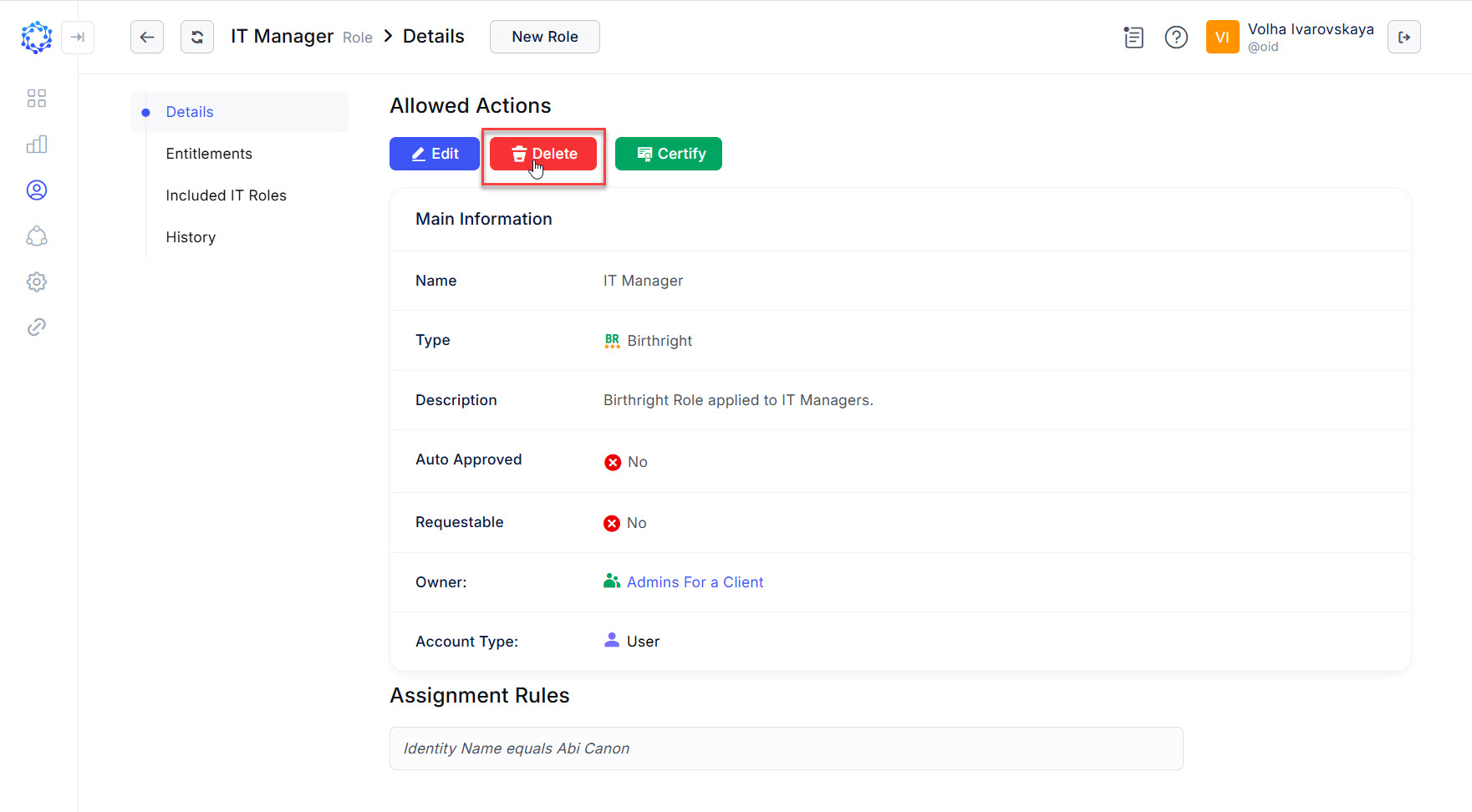 A role shows Details after being clicked in the Roles grid
 -
Click the New workflow button in the header of the Workflows area, then select Role Deletion in the opened New workflow popup. And finally, select the required Role from the Role dropdown list.
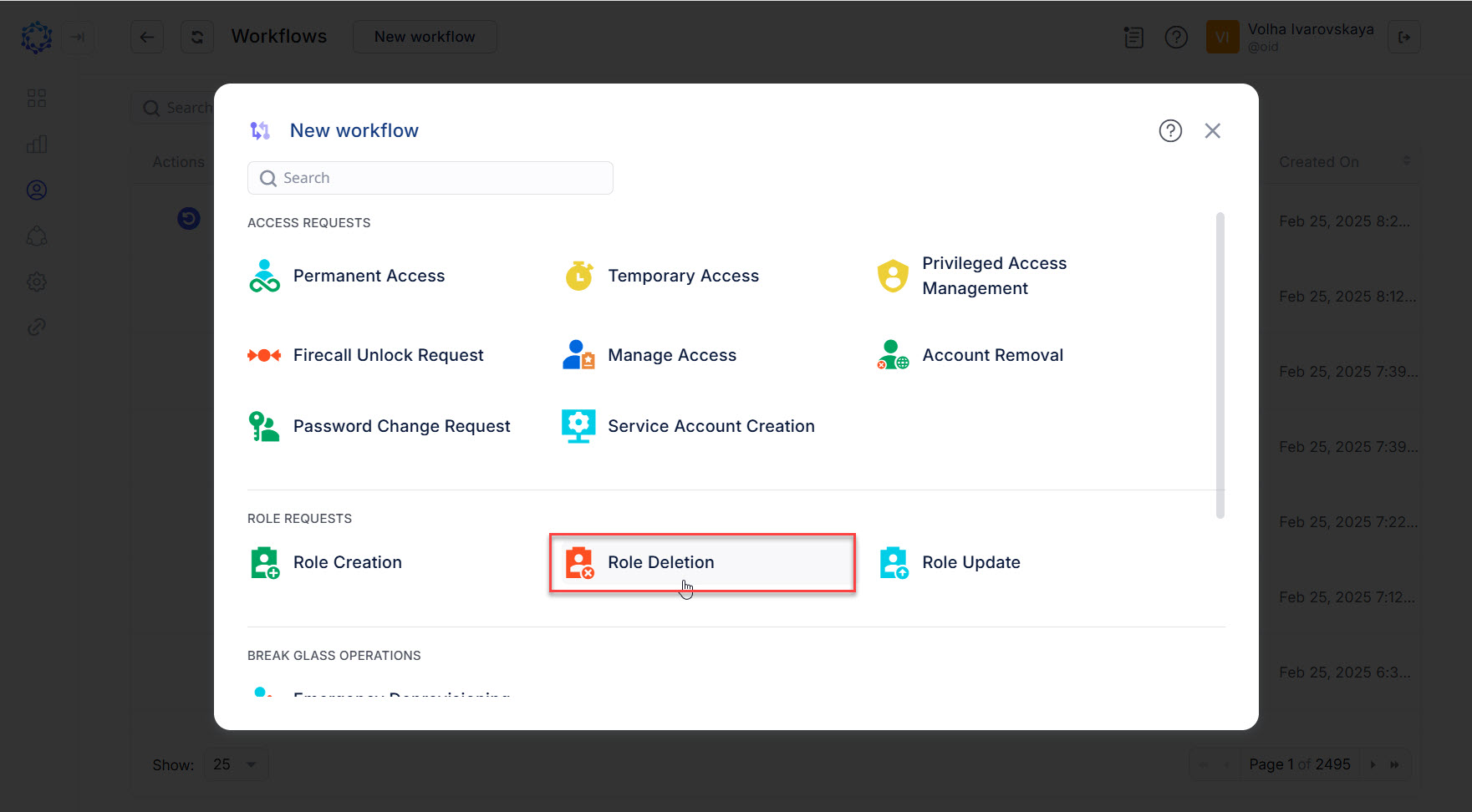 New workflow popup and selection of the Role Deletion workflow
-
-
Make certain the required role is selected in the Role dropdown list. Then click Next.
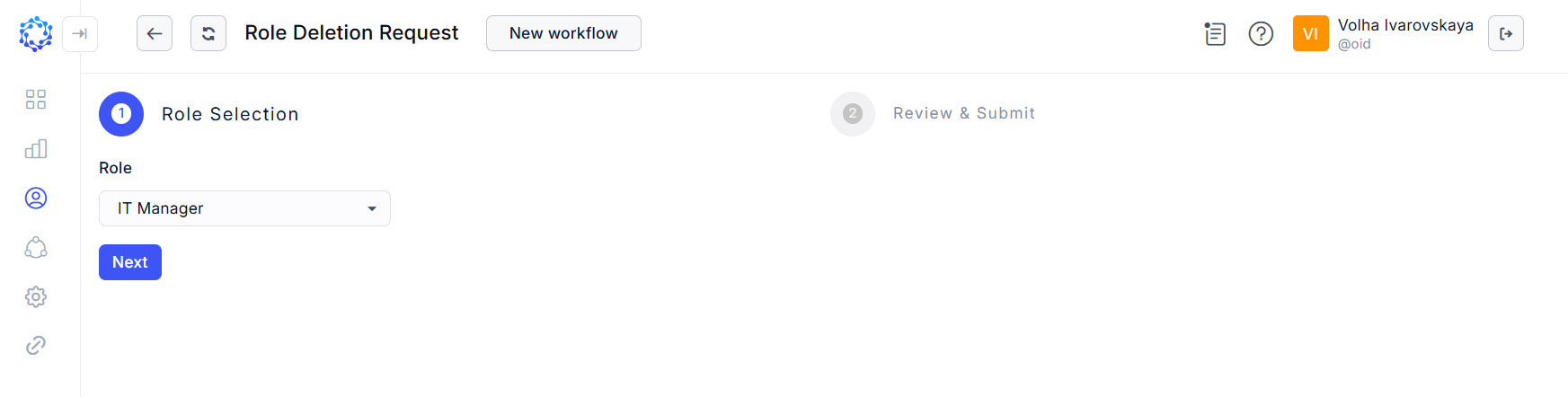
-
Review the role, and if needed, leave comments. Once ready, click Submit, to submit the role deletion request and launch the workflow.

Once launched, the Role Deletion Request workflow shows up in the Workflow grid among other workflows. Heed the status of the workflow. It changes with every stage that the workflow goes through. If necessary, click Refresh, and the status will be updated. The History page of the workflow presents the results of how the workflow is running, or finished, and can help troubleshooting.
 Workflows grid is added with a new Role Deletion Request workflow
Regardless of whether it is an IT Role, or a Birthright Role that gets deleted with the workflow, if it has been assigned to at least one Identity, when the Role Deletion workflow finishes, then in addition to deleting the Role, the Role Deletion workflow also revokes the Role from all assignments.