
Role Details
Once created and in use, a Role is available in the Roles grid. On click, the Role opens, and it is possible to view its Details as well as Entitlements and Included IT Roles. There are two types of a Role: an IT Role or a Birthright Role. Structurally, the information displayed for any type of a Role is the same. The Details provide a basic overview about the Role. The Entitlements list the access to be\being granted to an Identity with the Role. The Included IT Roles shows Role Hierarchy. In this section:
- Overview of Roles
- Details
- Entitlements
- Included IT Roles
 Role Details
Overview of Roles
Both types of Roles: an IT Role and a Birthright Role are compared in the table below. There are requirements and a summary of how each role behaves to provide those.
|
Requirement |
Description |
IT Role |
Birthright Role |
|
Eligibility |
This is the condition that determines if an Identity is eligible for being granted a Role. |
n/a |
Assignment Rule |
|
Requestable |
This is the capability for the user to request a Role with an access request workflow. |
Fixed. Established individually for every specific Role. |
n/a |
|
Role Hierarchy |
This is the capability that allows the Role to provision the access of the other roles included as members into the current role. |
Included IT Roles |
Included IT Roles |
|
Account Type |
This is in what type the accounts of the Identity should be that the Entitlements of the Role will be provisioned in. |
Flexible. Individually established for every specific event of provisioning. |
Fixed. Established individually for every specific Role. |
|
Creation |
These are the tools to use to create a new Role. |
Role Creation workflow |
Role Creation workflow |
|
Update |
These are the tools to use to update Details, Assignment Rules, Entitlements, etc. |
Role Update workflow |
Role Update workflow |
|
Deletion |
These are the tools to use to delete the Role. |
Role Deletion workflow |
Role Deletion workflow |
|
Provisioning |
These are the tools to use to assign the Entitlements bundled into a Role to one or some Accounts of an Identity. |
|
|
|
Deprovisioning |
These are the tools to use to revoke the Entitlements bundled into a Role from one or some Accounts of an Identity. |
|
|
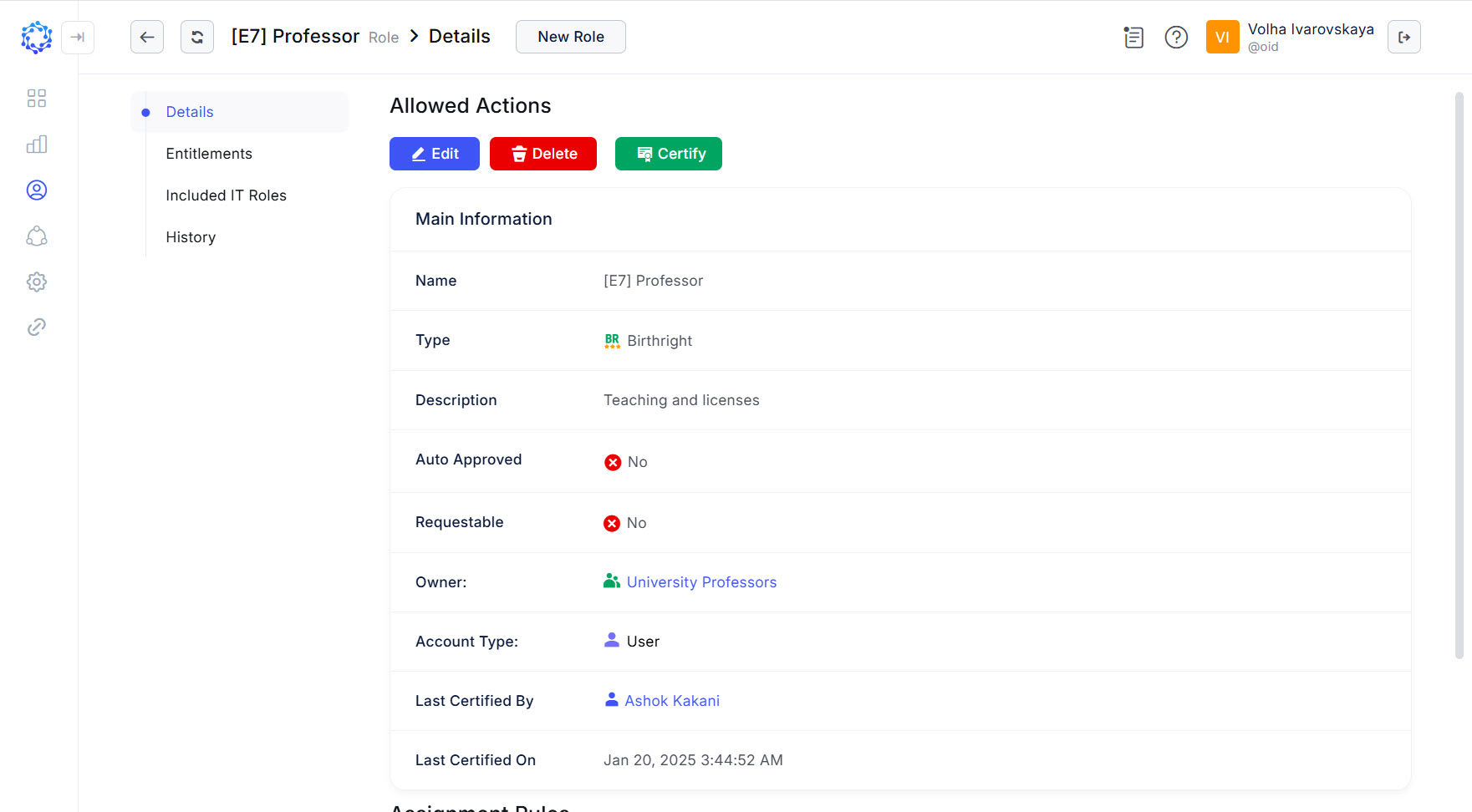
Details
The Details open when a Role is clicked in the Roles grid. The section provides basic information about the Role, described in the table below, and the following actions to manage the Role:
- Edit - launches the Role Update workflow for the Role;
- Delete - launches the Role Deletion workflow for the Role;
- Certify - leaves the certification that the Identity who clicked the button certifies the correctness of the access the Role provides.
|
Details |
Description |
|
Name |
This is the display name for the Role. |
|
Type |
The type of the role: an IT Role or a Birthright Role. |
|
Description |
More information to help the user to identify the Role among other Roles. |
|
Auto Approved |
True\false value. If true, all activity performed with the Role, or involving the Role will be approved automatically. Otherwise, the approvers according to the respective approval strategy will be requested to review and provide their decision before any actions on\with the Role are performed. |
|
Requestable |
True\false value. Used only for IT Roles. If true, an IT Role is available for selection by the user on provisioning access with an access request workflow. If false, the IT Role is not displayed for selection and cannot be provisioned to an Identity with an access request workflow. Birthright Roles are non-requestable, and by default have always the false value. |
|
Owner |
An Identity or a workgroup who will be requested to provide an approval according to the approval strategy of the respective workflow. |
|
Account Type |
Established only for Birthright Roles. It is the type of the account that will be created, or updated in case of provisioning the Birthright Role. For an IT Role, the account type is established individually in every specific access request workflow with which the IT Role is granted. |
|
Included IT Roles |
Displayed if the Role has some Included IT Roles. The Included IT Roles make up the Role Hierarchy that allows the current Role to provision own access and the access of other IT Roles included into the current Role. |
|
Last Certified By |
It is the name of the Identity who certifies the correctness of the access provisioned with the Role, especially if any role updates have been performed. |
|
Last Certified On |
It is the date and time when the Identity certified the correctness of the access provisioned with the Role, especially if any role updates have been performed. |
|
Assignment Rules |
Established only for Birthright Roles. The C#-coded condition that determines who of the Identities should automatically be granted with the Birthright Role. |
The Details, Entitlements and Included IT Roles of a deleted Role can be opened in Analytics or for viewing with the View button on the Role record in the Assigned Access section of those Identities who were assigned with the Role until it was deleted.
Entitlements
 Entitlements granted with the Role
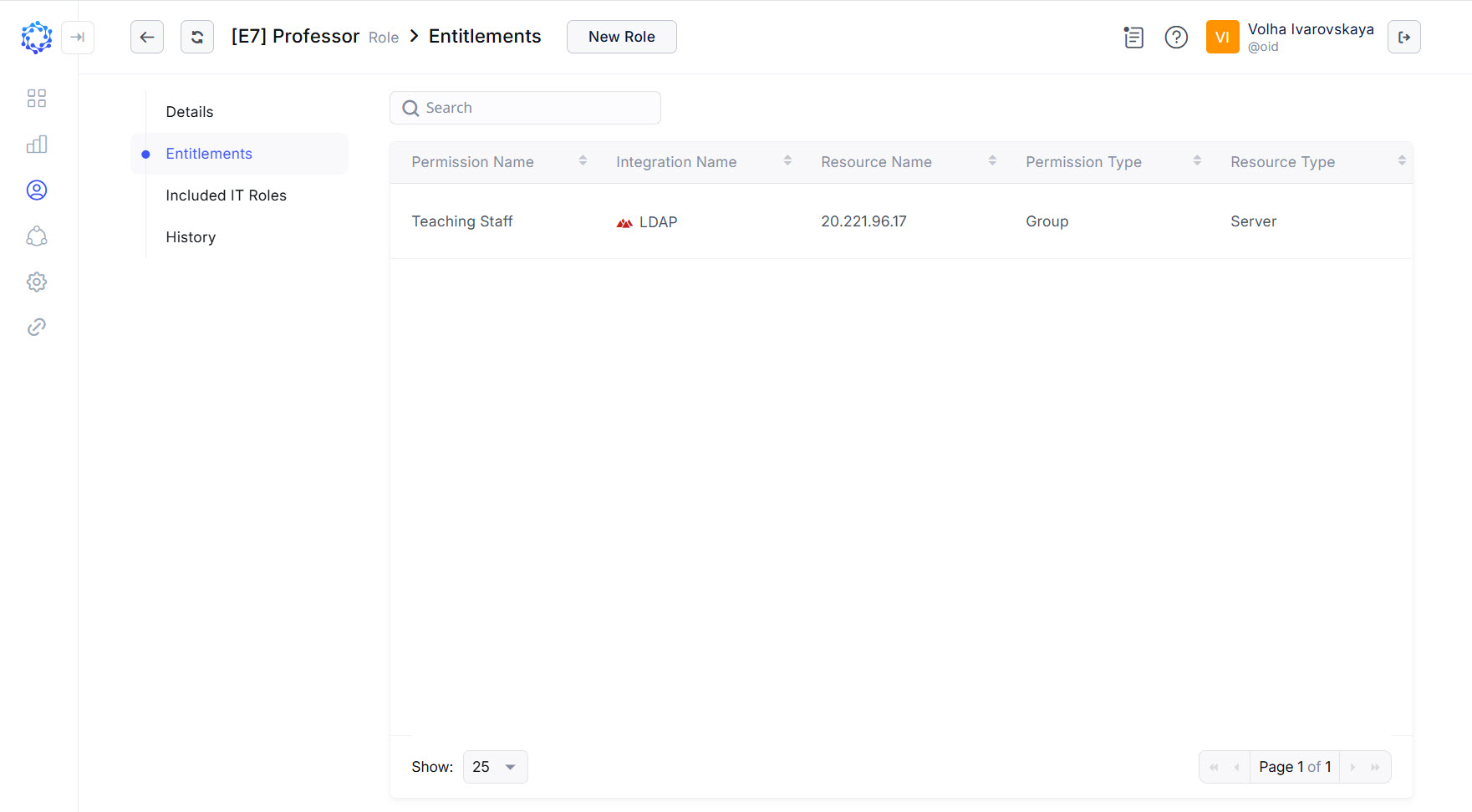
The Entitlements section of a Role presents the range of access granted to an Identity with the current Role. The access is defined with the grid of Entitlements, where every specific Entitlement allows one to do something on a specific Resource of one of the Integrations configured in ObserveID for the organization. A Role can comprise Entitlements from different Integrations. As many Integrations are listed in the Entitlements section for the Role, as many Accounts the Role will create\update for an Identity, once the Role is granted. Below is an overview of the information displayed for every Entitlement in the Entitlements section of a Role:
|
Name |
Description |
|
Permission Name |
Display name of the Permission as it comes in from the Integration. |
|
Integration Name |
Display name of the Integration as it was established in the Integration Config. |
|
Resource Name |
Display name of the Resource as it comes in from the Integration. |
|
Permission Type |
Type of the Permission recognized by ObserveID from the Integration Data. |
|
Resource Type |
Type of the Resource recognized by ObserveID from the Integration Data. |
Included IT Roles
 Included IT Roles
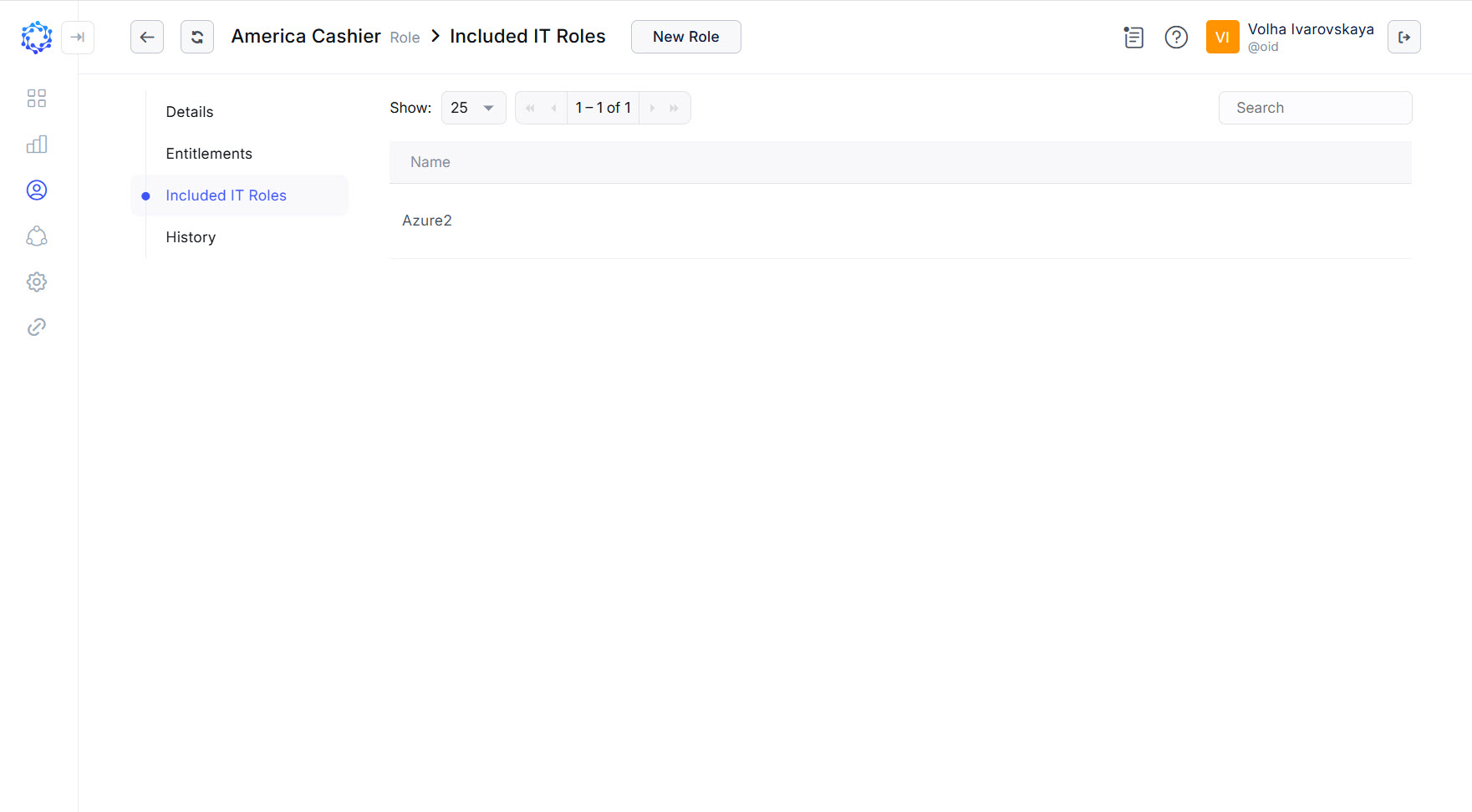
The Included IT Roles section provides a list of IT Roles that the access is inherited from when the current role: an IT Role or a Birthright Role is provisioned. The Included IT Roles are junior roles. And the Role that contains the junior roles is the senior role. Senior roles acquire the Entitlements of their junior roles, and thus, make up the Role Hierarchy.
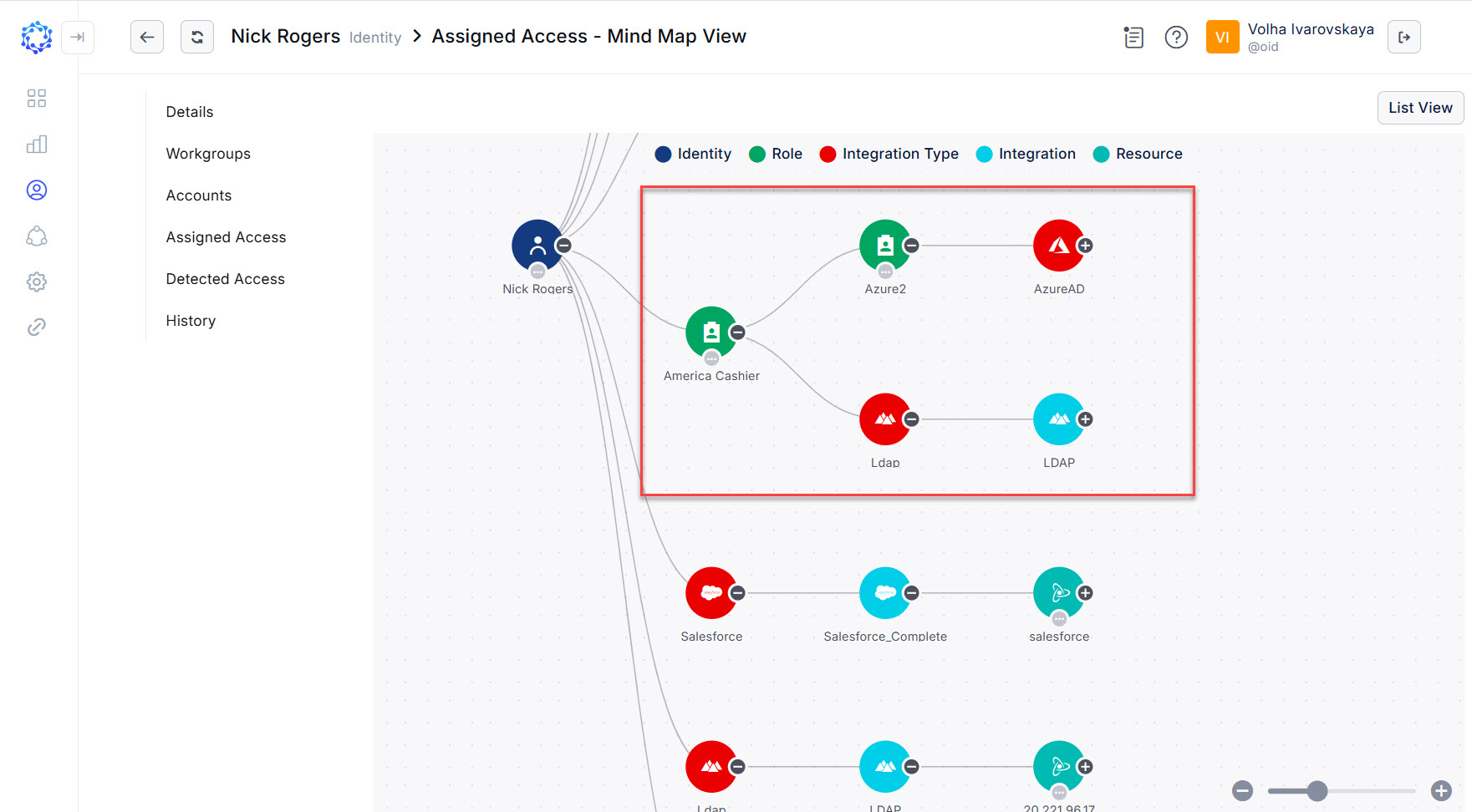
Having granted a senior Role to an Identity, all junior Roles will be listed for the Identity in their Assigned Access and Detected Access. The example of the Assigned Access Mind Map on the figure below shows how the Role Hierarchy allows one to provision more access with one senior America Cashier role. The junior role: Azure2 was granted with one senior role.
 Being granted a senior role also grants access of the junior role