
Schedule Tasks
Tasks can start running automatically, according to the schedule. The schedule establishes the frequency for a task to be executed. The frequency can be determined with a base time period for repeating the task or in dependence on other event(-s). If the frequency is time-bound, the base period can be selected as a day, a week, or a month. Otherwise, it is a one time or event-dependable run of the task. Regardless of how the frequency is determined, if it is determined, it is always an automated run of a task. For a manual run, refer to the previous sections about the tasks.
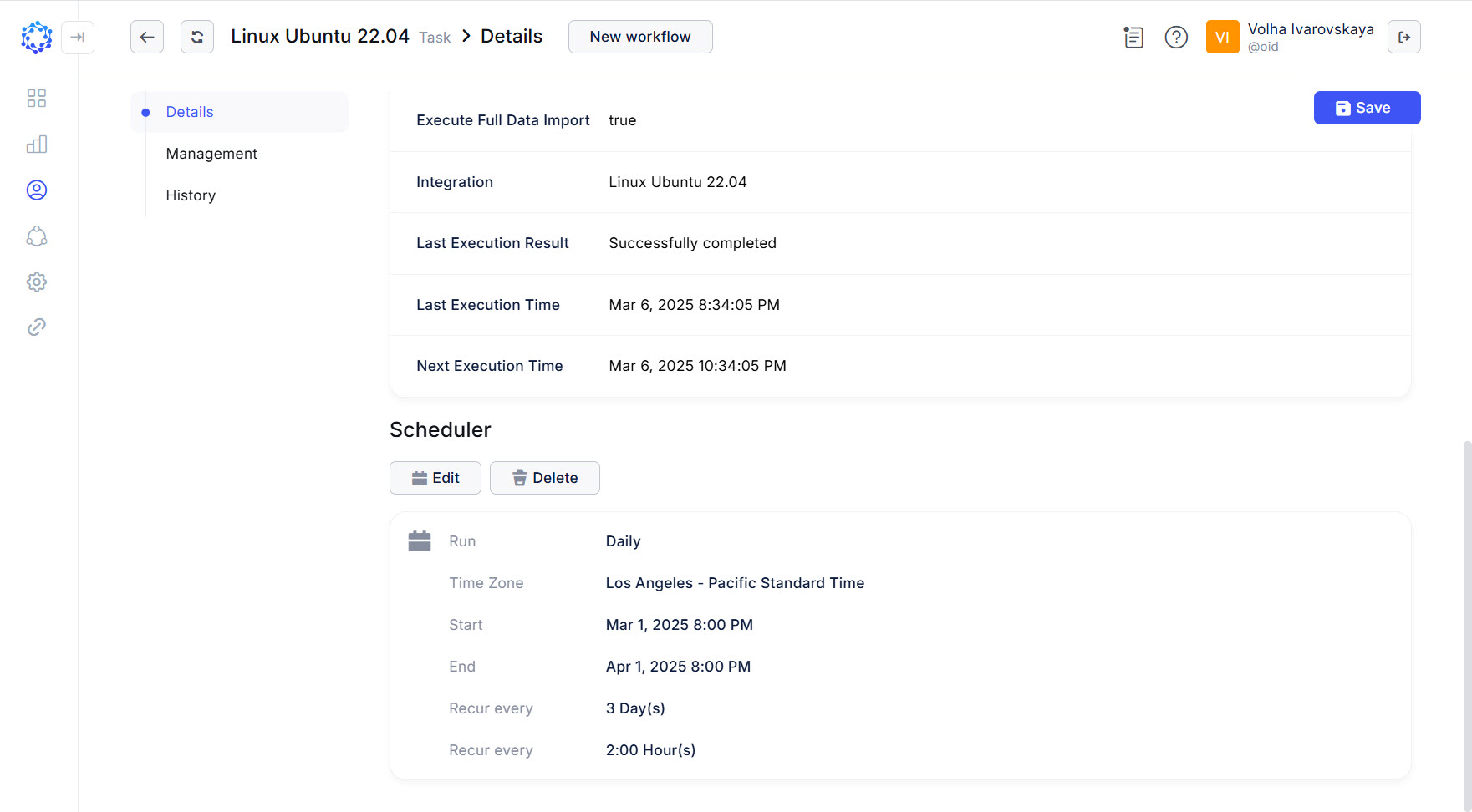 Schedule established for a Data Import task
In this section:
- Existing Schedule
- Pause a schedule
- New Schedule
- One Time Schedule
- Event-Dependent Schedule
- Time-Bound Schedule
- DAILY base period
- WEEKLY base period
- MONTHLY base period
Existing Schedule
Every task can have only one schedule. However, if a task is creatable from a workflow, a task can be created in as many instances as many schedules are required. An established schedule looks like it is displayed on the figure above.
- The established schedule can be edited, or deleted.
- Also, the established schedule can be paused.
Pause a schedule
To pause a schedule, click Edit, and then click Disable and Next, and finally, click Submit. A paused task is a task which has a schedule and none of the Next Execution Time. A paused task stops execution unless enabled back in the same manner: click Edit, and then click Enable and Next, and finally, click Submit. Once resumed, the Next Execution Time is calculated according to the schedule starting from the actual Last Execution Time before the pause period and up to the first time point which has not passed yet.
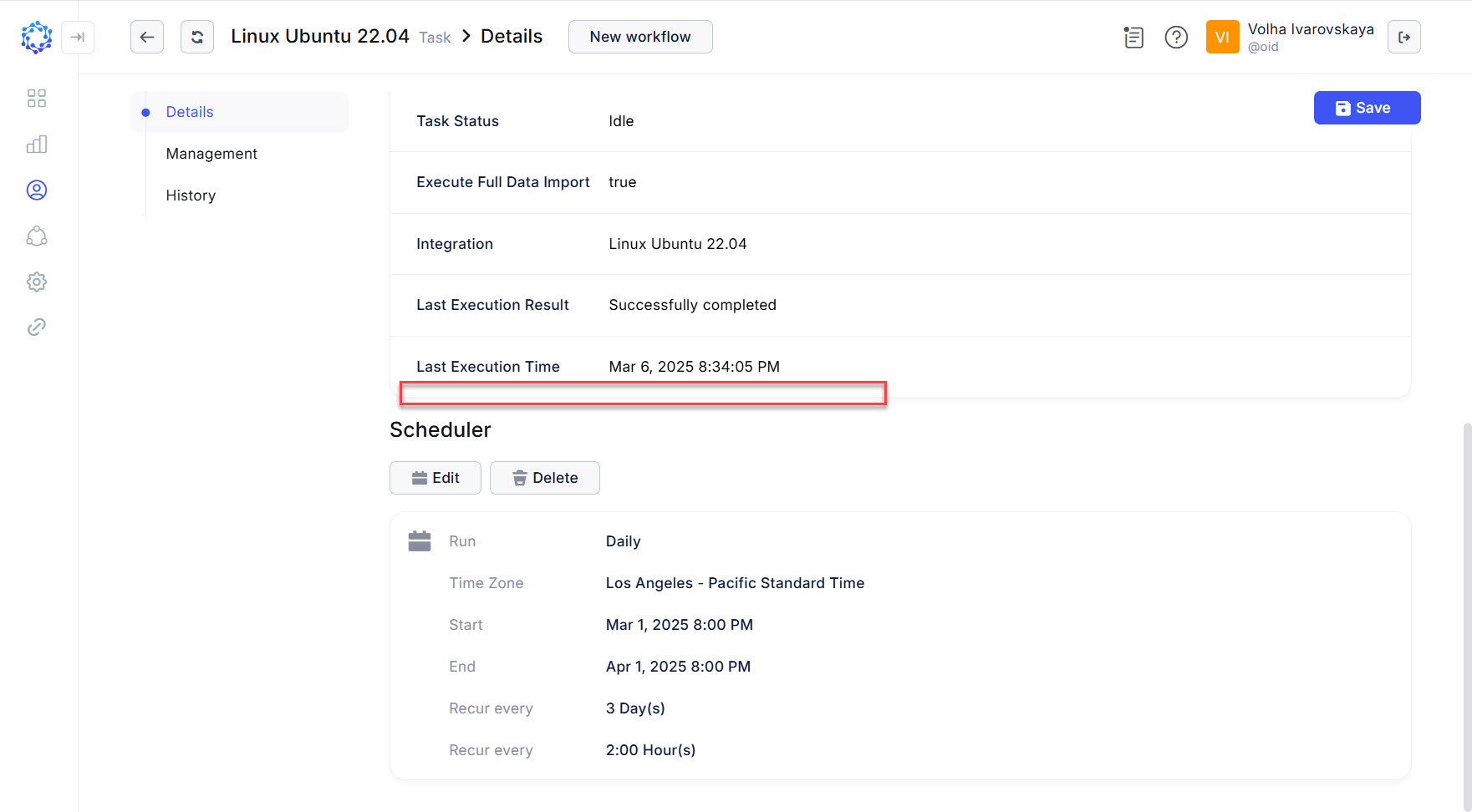 Paused task with a schedule and no next execution time
New Schedule
To set a schedule, define the following:
- Time Zone - Required. Used in calculations regarding date and time.
- Start - Required. A point in time when the task should make the first run.
- Is it a time-bound, event-dependent or one time schedule?
- If it is a time-bound schedule, define the base period and the pattern(-s) inside.
- If it is an event-dependent schedule, define what to track: what activity and performed by what task .
- If it is a one time schedule, save the Start point.
One Time Schedule
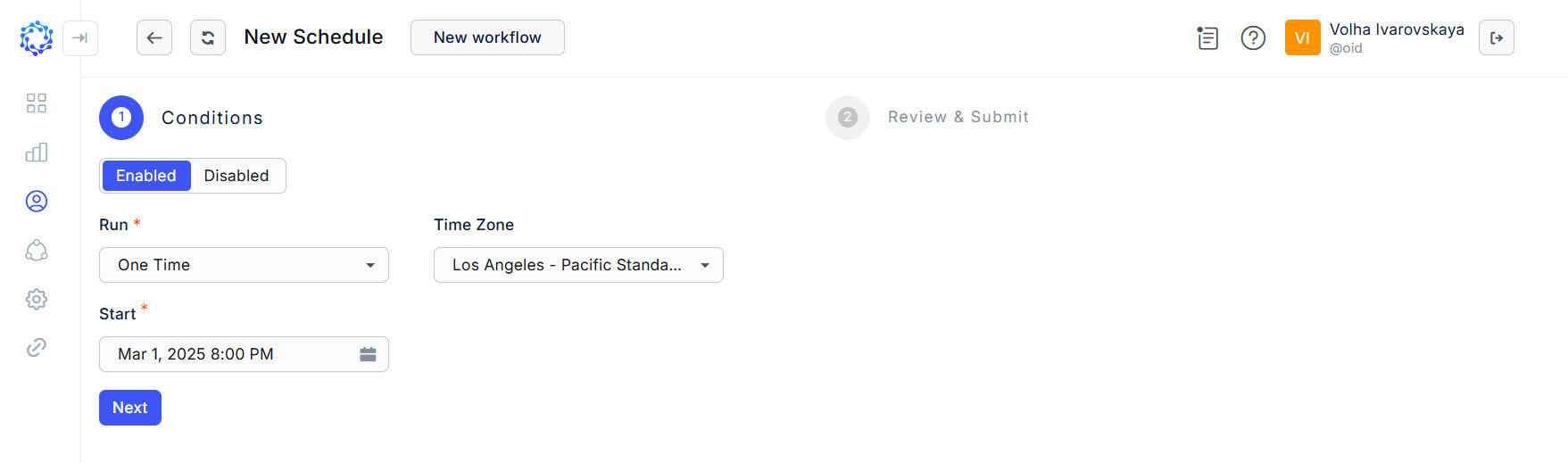 One Time schedule
The One Time schedule requires the date and time to determine when to run the task. It is performed with the Start field. Additionally, it is needed to select the One Time option as a type of the schedule in the Run dropdown list. And to lessen any possible time differences, the Time Zone is available for selection in the respective field. Once set, click Next, then review what is established, and click Submit. The task will be executed one time at the time established for the Start field.
Event-Dependent Schedule
For an event-dependent schedule, the Start field shows when the current task should start to track the activity of the specified another task. Having detected the required activity, the current task gets executed. An event-dependent schedule is set up, as follows:
-
Select Event from the Run dropdown list to define that it is an event-dependent schedule.
-
Set the Start field with the Time Zone.
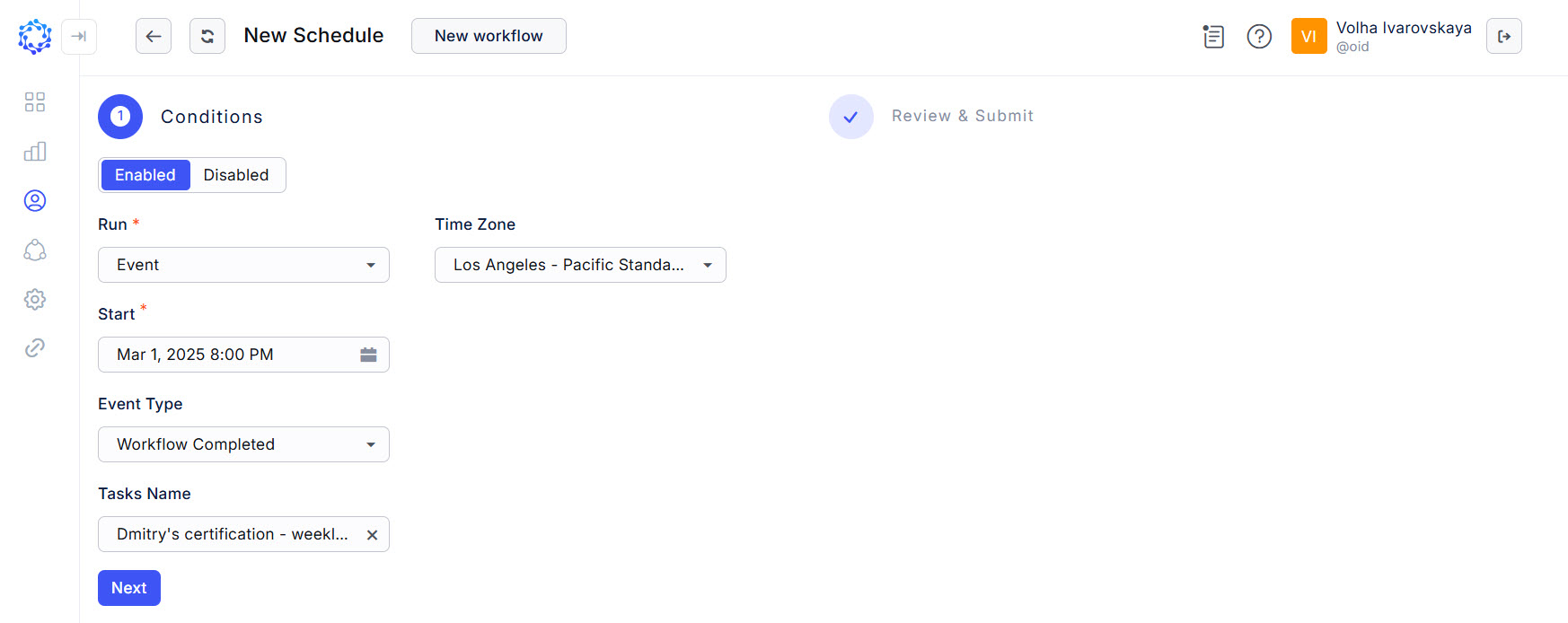 Event-dependent Schedule
 -
Select one of the following options from the Event Type dropdown list, to define what activity to track:
- if the Workflow Completed option is selected, the current task will track when another task is completed successfully;
- if the Workflow Error option is selected, the current task will track when another task ends with an error;
- If the Workflow Launched option is selected, the current task will track when another task gets manually triggered by an Identity;
- if the Workflow Launched On Schedule option is selected, the current task will track when another task gets automatically started according to the schedule;
- If the Workflow Scheduled option is selected, the current task will track when another task starts to wait for the next execution time according to the schedule.
-
Select the name of the required task(-s) from the Tasks Name dropdown list, so that to define what task(-s) to track.
-
Click Next.
-
Click Submit.
Time-Bound Schedule
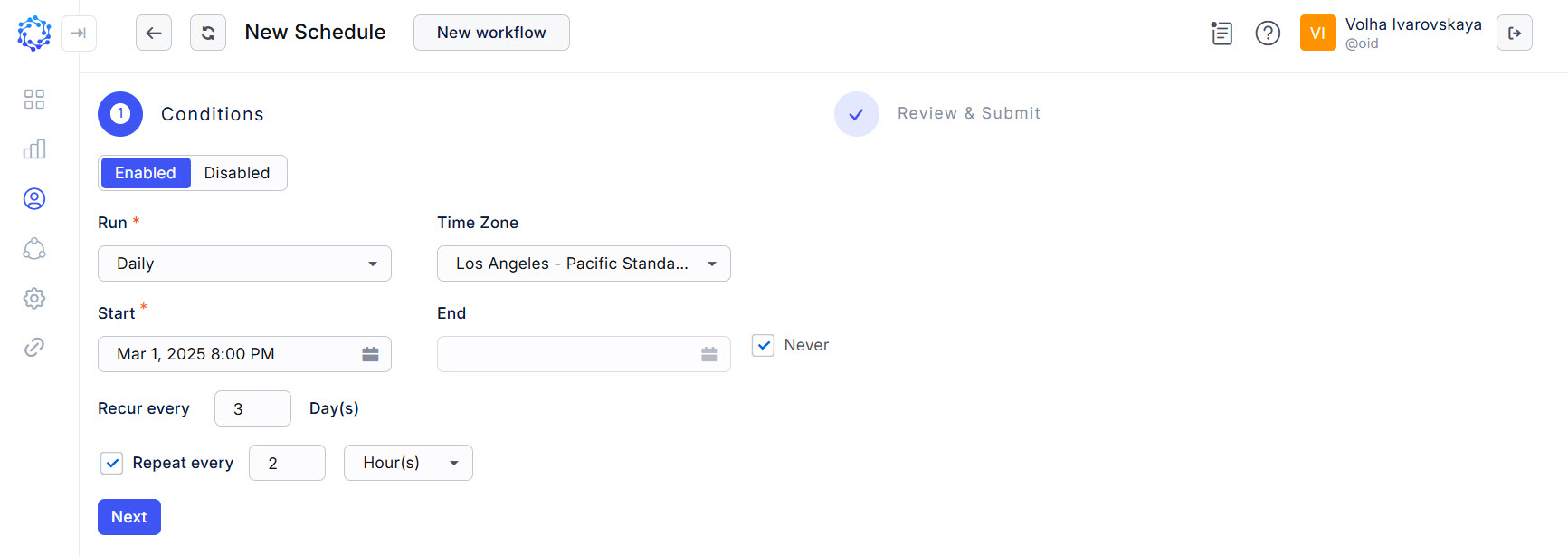 Daily schedule
There are three base periods for a time-bound schedule: a day, a week or a month. The base period determines the base frequency with which the execution should be repeated: on a daily basis, on a weekly basis, or a monthly basis. Depending on which of the periods is selected as a base, the repeat patterns of a lower-level frequency are available.
As a lower-level frequency patterns:
- for a day-long base period, it is possible to define hours and minutes;
- for a week-long base period, it is possible to define days; and then within a day, to define again hours and minutes;
- for a month-long base period, it is possible to define: either dates, or days on a specific week; and then within a day, to define again hours and minutes.
All time-bound schedules can have the End point to show when the schedule should be ended. If a task did not manage to finish before the End point, it is allowed to complete its run.
The Start point is always as established. If it is in the past, then the task will be triggered as soon as the schedule is saved. If the Start is in the future, the task will wait for for it, and the first run of the task will be performed on the Start date and time when it comes.
Once the task has started, the time, day, week and month are determined as the first point from which to start calculating the next execution time as a combination of the base period and the lower-level frequency settings.
With the Time Zone and Start \End established, the table below summarizes the settings available next to set up for a time-bound schedule.
|
Settings |
Description |
|
Run |
Defines the base period to use for the time-bound schedule:
|
|
DAILY base period | |
|
Recur every … Day(s) |
Frequency of repeating the day-long base period. E.g. the frequency of ‘every three days’ sets up that the task is executed on a day and then it waits for two days and on the third day it starts executing again. |
|
Repeat every … Minute(s) or Hour(s) |
Frequency of the task execution within a day. A new day starts at 12:00am. If the new day falls into the base period frequency, the task gets executed on that day according to the ‘Repeat every … Minute(s) or Hour(s)’ frequency. |
|
WEEKLY base period | |
|
Recur every … Week(s) |
Frequency of repeating the week-long base period. E.g. the frequency of ‘every three weeks’ sets up that the task is executed on a week and then it waits for two weeks and on the third week it starts executing again. |
|
Every |
Determines what days to execute the task on if the week falls into the week-long base period frequency. E.g. if ‘Friday and Saturday’ are selected, then the task is executed on these days if the current week falls into the week-long base period frequency. |
|
Repeat every … Minute(s) or Hour(s) |
Frequency of the task execution within a day. A new day starts at 12:00am. If the new day matches the selected days on a week and the week falls into the week-long base period frequency, the task gets executed on that day according to the ‘Repeat every … Minute(s) or Hour(s)’ frequency. |
|
MONTHLY base period | |
|
Launching Days + Every |
Determines the number of the day(s) in a month-long base period, unless the option below is selected. Some numbers can be selected. If a day number is absent in the month and included into the schedule, a warning will ask to re-schedule that month. |
|
Launching On + Every + Days |
Determines the days on a specific week of a month-long base period, unless the option above is selected. The Every dropdown allows to select weeks by the week number:
The Days dropdown allows to select days on the specified week determined with the above Every dropdown list. |
|
Months |
Determines months to execute the task in, according to the above specified month-long base period. E.g. if ‘March and October' are selected, then the task is executed in these months if the current day of the month falls into the month-long base period frequency. |
|
Repeat every … Minute(s) or Hour(s) |
Frequency of the task execution within a day. A new day starts at 12:00am. If the new day matches the selected days on a month-long base period and the month falls into the selected month list, the task gets executed on that day according to the ‘Repeat every … Minute(s) or Hour(s)’ frequency. |
Having the time-bound settings defined, click Next to review what is established, and then click Submit to finish the schedule setup.
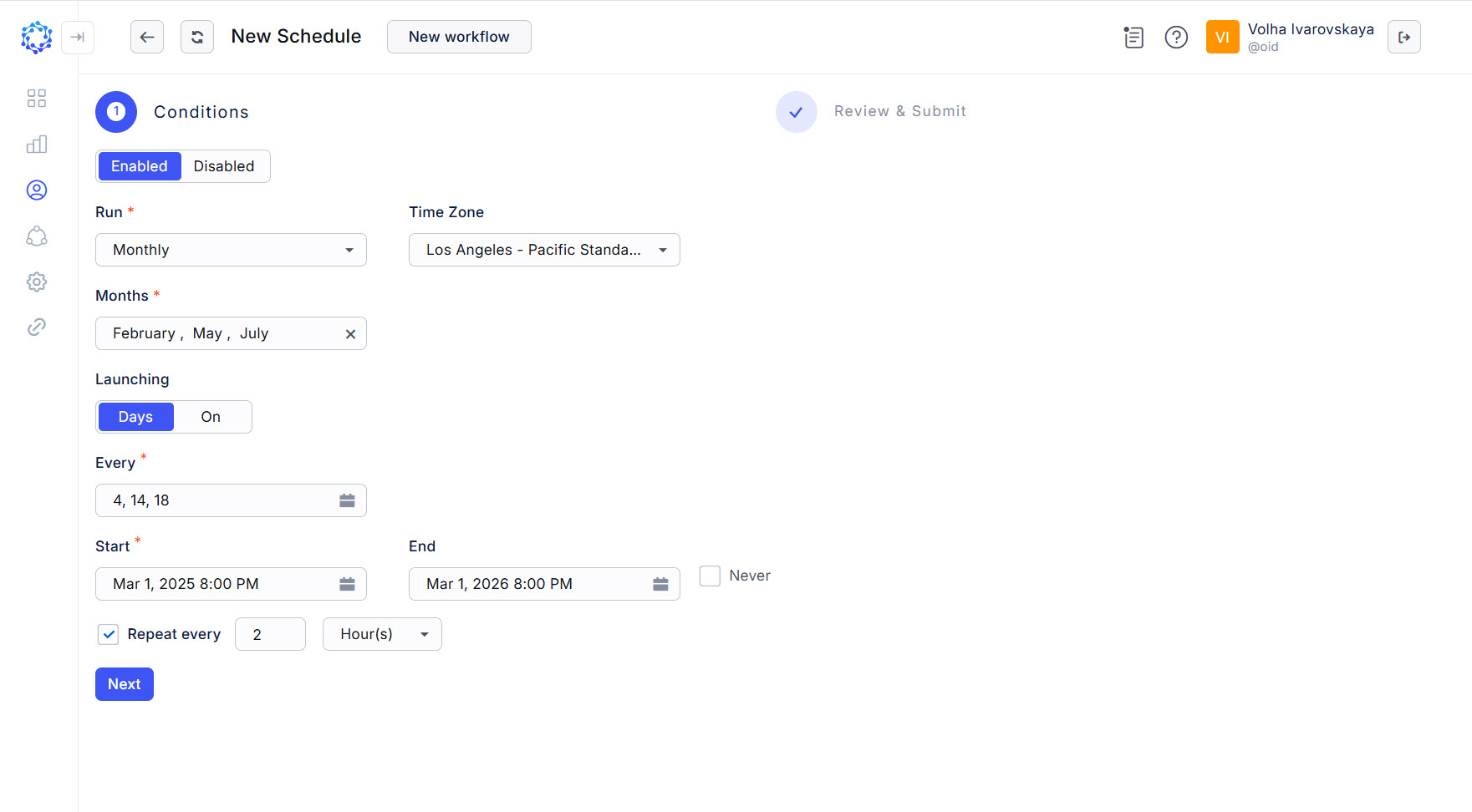 Monthly schedule