
Run Tasks
Tasks are the mechanism to repetitively perform a set of operations on an integration or some integrations. The operations are defined with the configuration that is established when a task is created from a request. Some tasks, like the Data Import tasks, are automatically created when an integration is created, or updated and saved. Other tasks are created by the user from a request. Each execution of a task results in creating an instance of the request of the given configuration. The created request instance starts running either immediately, or in line with the task schedule.
In this section:
- How to run an existing task
- How to create a new task
- Determine Task Details
- Set up email notification about task completion
How to run an existing task
All tasks are displayed in the Tasks grid. To run an existing task, click Trigger in the Actions column for the needed task. The task starts running. When the status of the triggered task is changed from Triggered to Idle, the task has completed. It is possible to view the results of the completed task by clicking the row with the task in the grid, and then clicking History in the opened details of the task.
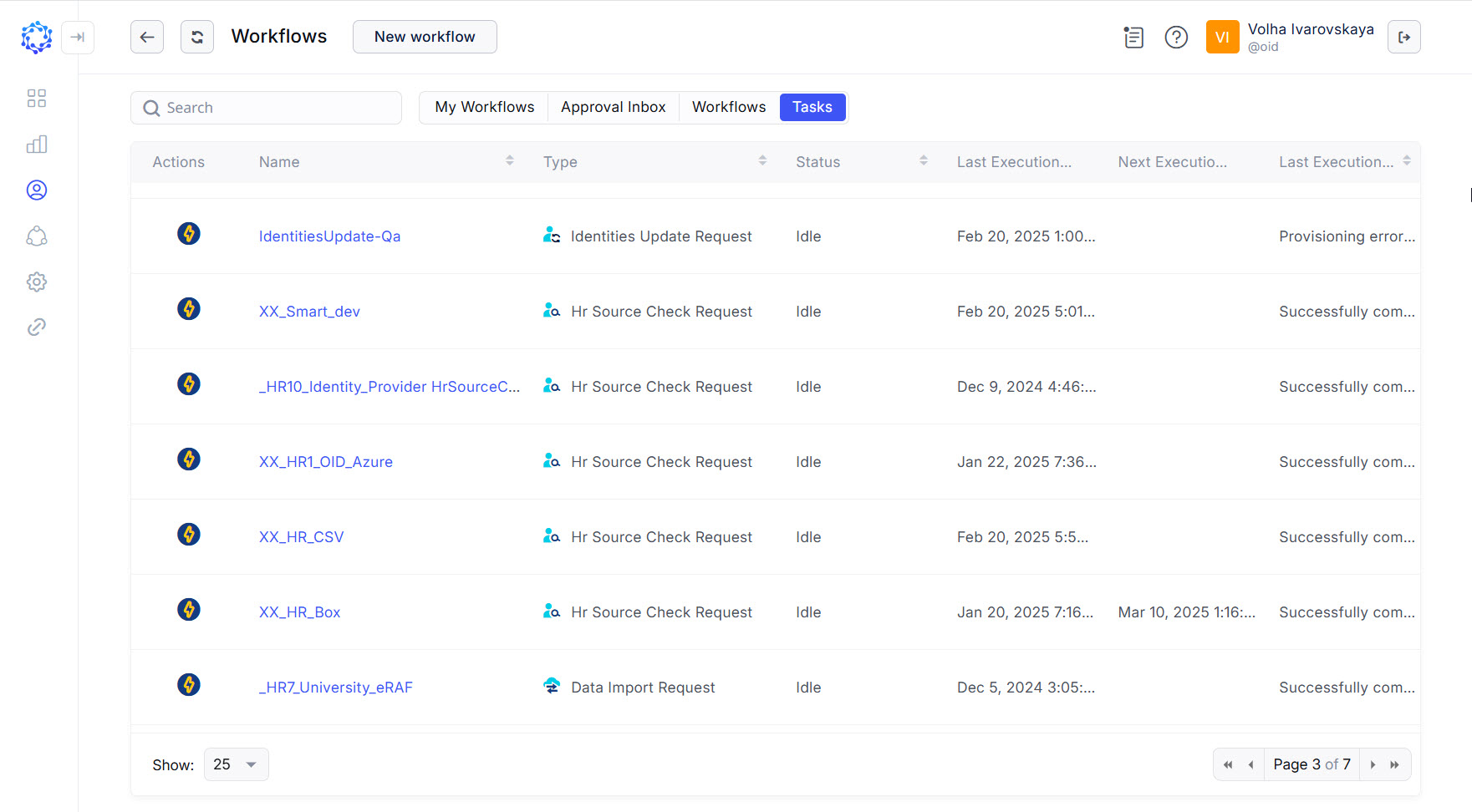 Tasks grid
For every run of a task, a request is created in the Requests grid. It repeats the details of the run of the task, and allows the user to reference every specific run of a task individually.
How to create a new task
A new task is created either automatically, or by the user. A use case for when a task is created automatically can be represented by the saving operation performed on an integration. When an integration gets saved, if at that moment it does not have a Data Import task, the Data Import will be created automatically for it.
A new task can also be created manually by the user. It is created from a request. To get the right results from a new task, it is important to understand what the request does the task comes from: whether the request creates an account; or adds \ removes entitlements from an account; or deletes an account; unlocks \ locks an account; etc. By selecting a request from which to create a task, the user defines the intended purpose of the task, the actions to be done and on what objects.
To create a task from a request, do the following:
-
Click New Request in the Requests area in Identity Automation.
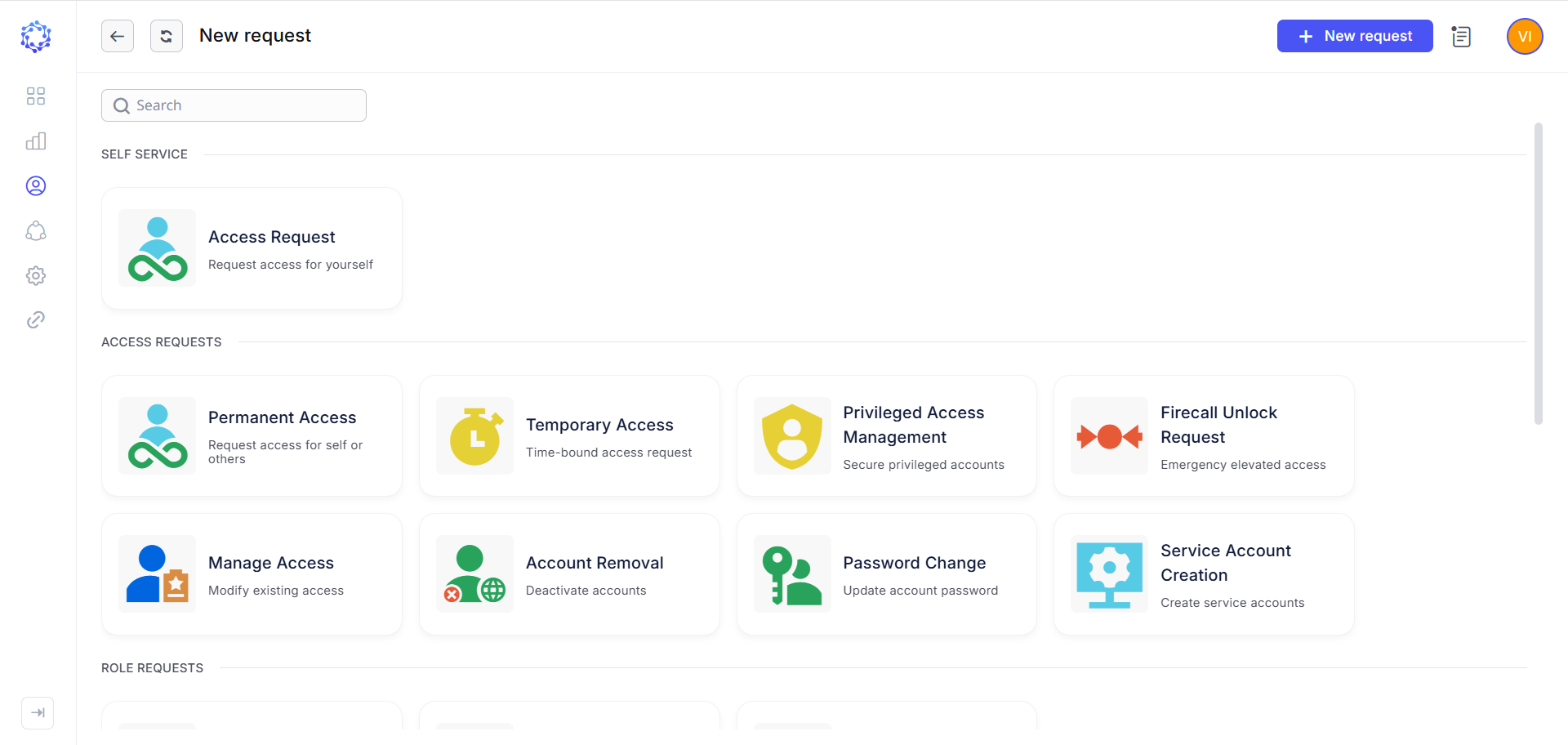 New Request page
 -
Select the required request from the opened New request popup window.
-
Go through the steps of the request wizard.
-
Stop at the Review and Submit step, and review the request configuration.
-
Click Create Task, to create a task and run the request from the task.
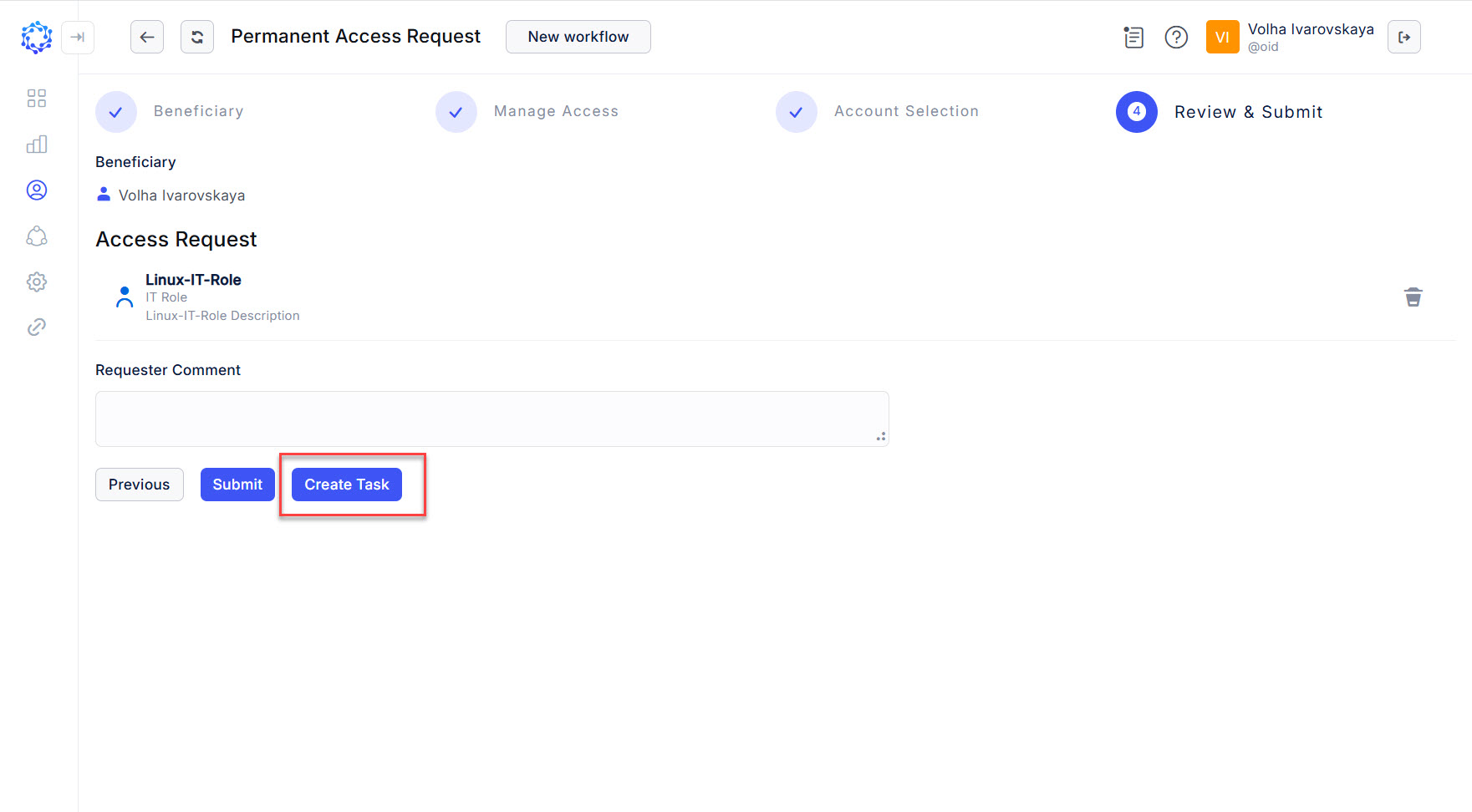 Create Task button at the last step of the wizard
Once a task is created, it shows up in the Tasks grid in: Identities Automation > Requests > Tasks, where with the Trigger icon at the left-hand end in the row, it can be manually triggered for execution.
Determine Task Details
With a click on a task in the Tasks grid, the Details page of the task opens and provides the following information to view, and\or to determine:
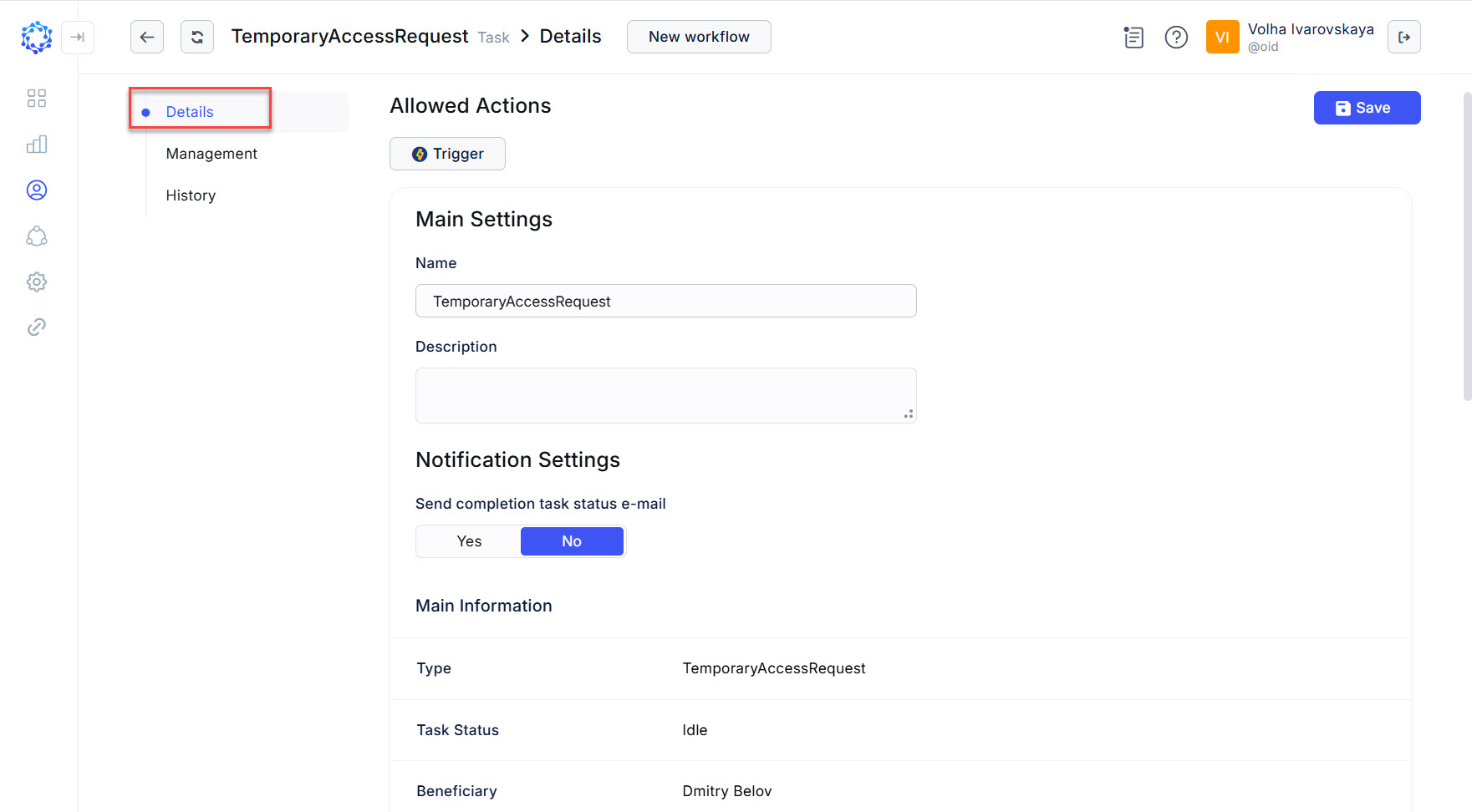 Details page of the task
|
Parameter |
Description |
|
Trigger action |
Manually to trigger the task. When a task is manually triggered, the task creates an instance of the request. And the created request instance repeats the status and results of the current run of the task. |
|
Name |
Any user-defined name of the task. Unless named by the user, the default name is available, representing the request type, according to which the task was created. |
|
Description |
Any user-defined text to describe the task. |
|
Type |
Type of the request that the task will create. |
|
Task Status |
There are the following statuses of a task:
|
|
Beneficiary |
Identity who will be granted \ revoked with the access if any access is (de)provisioned in the result of every request instance initiated by the current task. |
|
Beneficiary Type |
Identity, or Workgroup are the types of a beneficiary. |
|
Created On |
Date and time the task was created on. |
|
Last Execution Result |
Status with which the latest run of the task finished. |
|
Last Execution Time |
Date and time on which the latest run of the task finished. |
|
Requested Accounts |
Accounts updated or created in the result of the task execution. |
|
Requested Entitlements |
Entitlements added to the requested accounts in the result of the task execution. |
|
Other information. Displayed, if determined by the source request type. |
Set up email notification about task completion
Every task can be set up with notification about the results of the execution. The notification is sent by E-mail to the recipients specified for the Notification Settings of a task. Together with the execution results, the notification provides information about the task and the request instance.
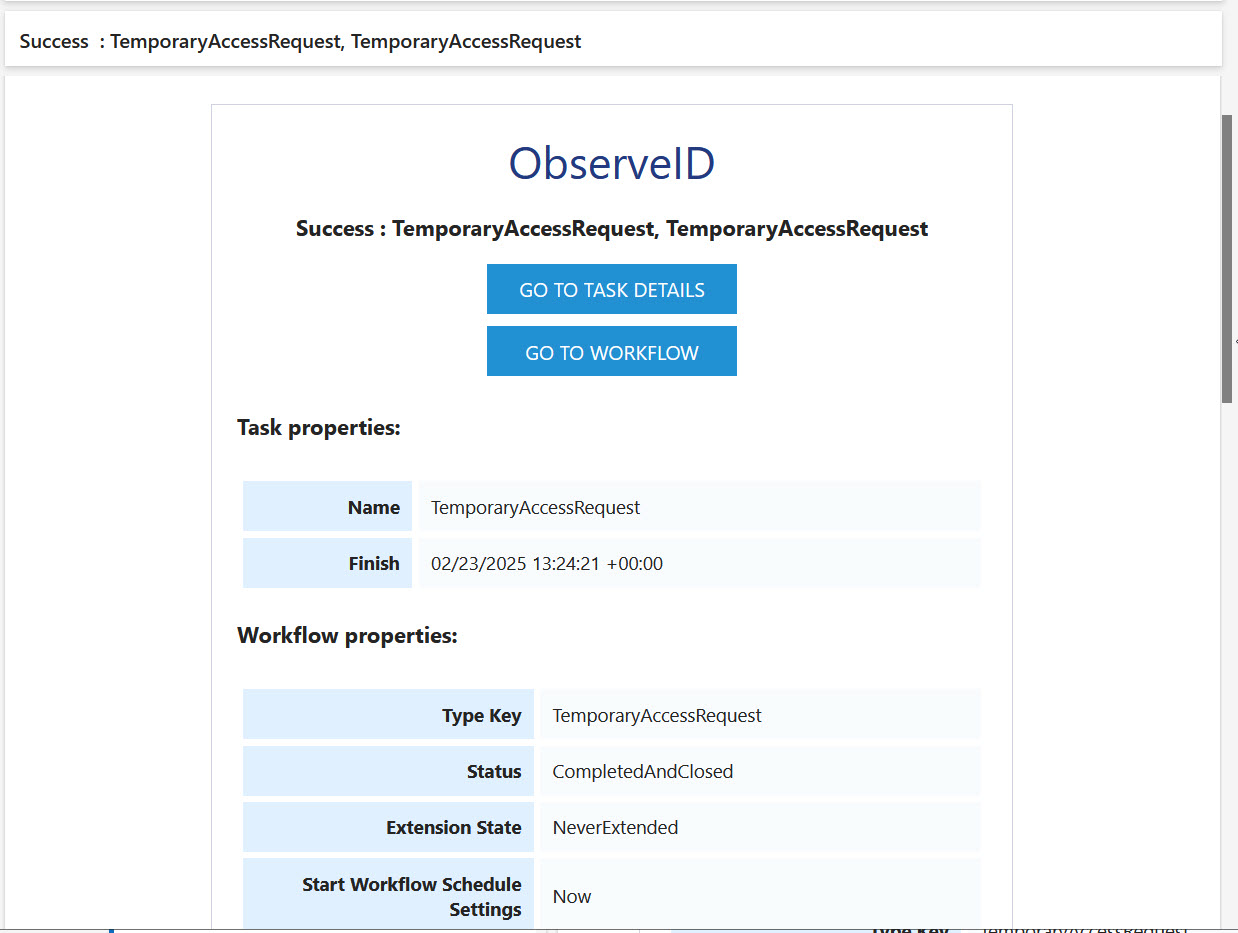 Example of the task completion notification
To set up the task notification, do the following:
- Open the Details of the task.
- Toggle to the ‘Yes’ option in the Notification Settings.
- Select the Identities who are expected to receive the notification by email.
- Click Save.
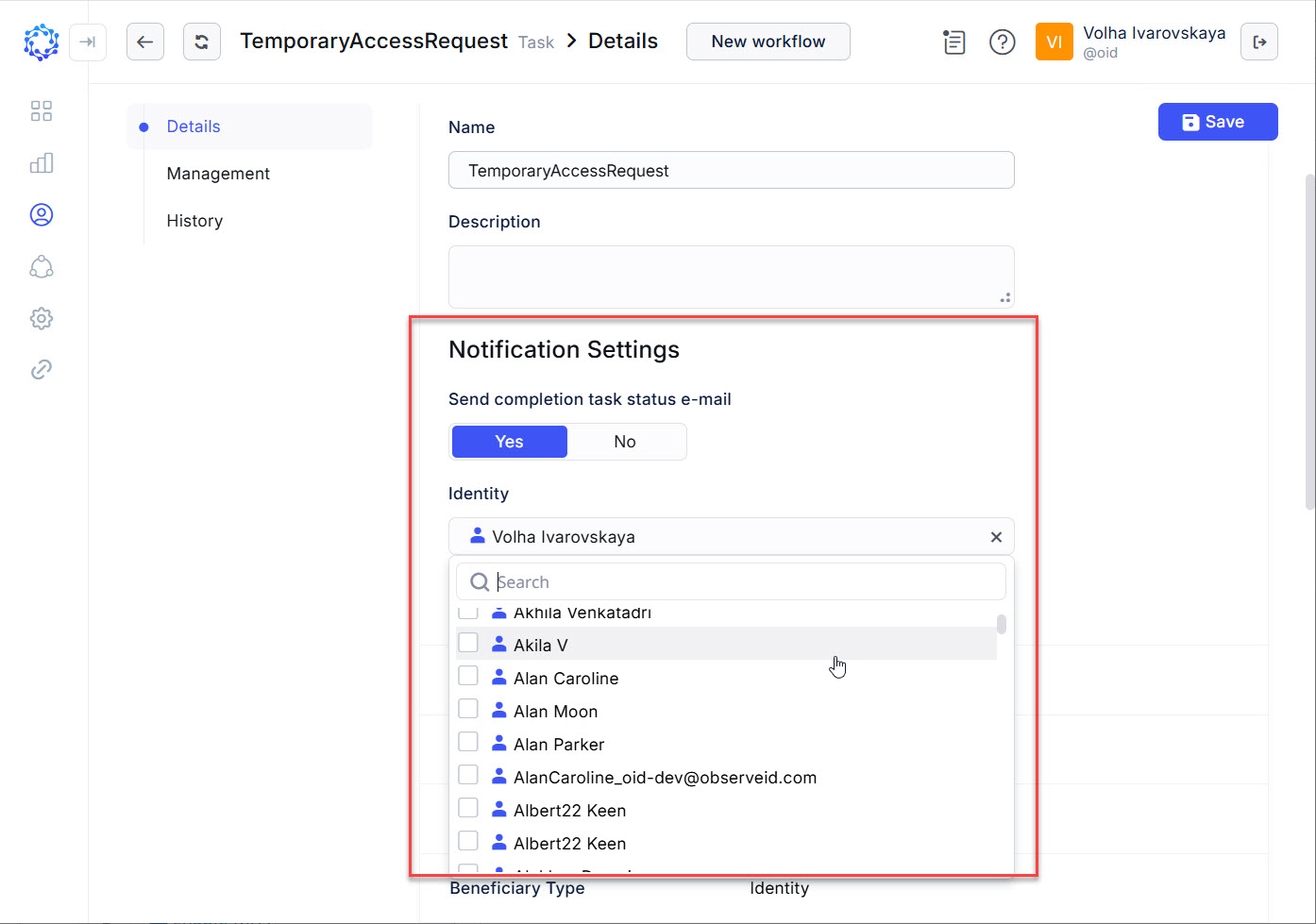 Notification Settings of a task