
Manage Workgroups
A Workgroup is intended for grouping Identities by a criterion, like Job Title, or Department, or Job/Project Role, etc. Workgroups can be used for approvals if established as Owners of any of the following: Integrations, Resources, Entitlements, or Roles. Thus, the members of such a Workgroup can be asked for an approval, for example, during access provisioning.
There is a grid of all Workgroups, available in: Identity Automation > Identities > Workgroups. It is the Workgroups area that allows the user to create new Workgroups, to update existing Workgroups, and if needed, to delete ones.
In this section:
- Create a Workgroup
- Add or remove members
- Update a Workgroup
- Delete a Workgroup
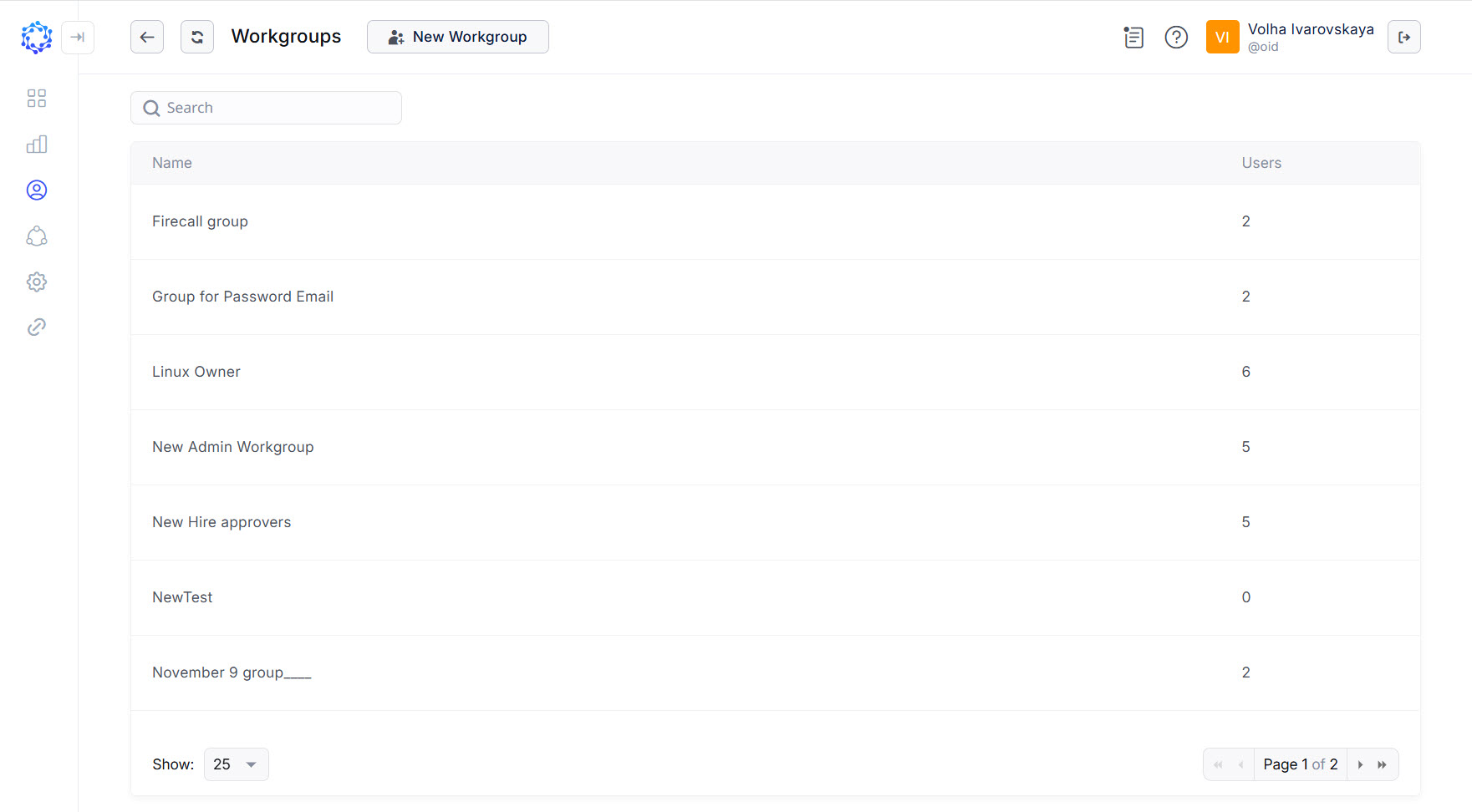 Workgroups grid
Create a Workgroup
- Click New Workgroup on the header pane.
- Enter a name for the new Workgroup.
- Click Save.
 New Workgroup
Add or remove members
- Click a Workgroup in the grid
- Click Members in the menu.
- Add or remove members to\from the Workgroup, as follows:
- type the Identity’s name in the search bar,
- check the needed Identity to add as a member, or uncheck to remove a member,
- click Save, and repeat, if it is needed to add, or remove more members.
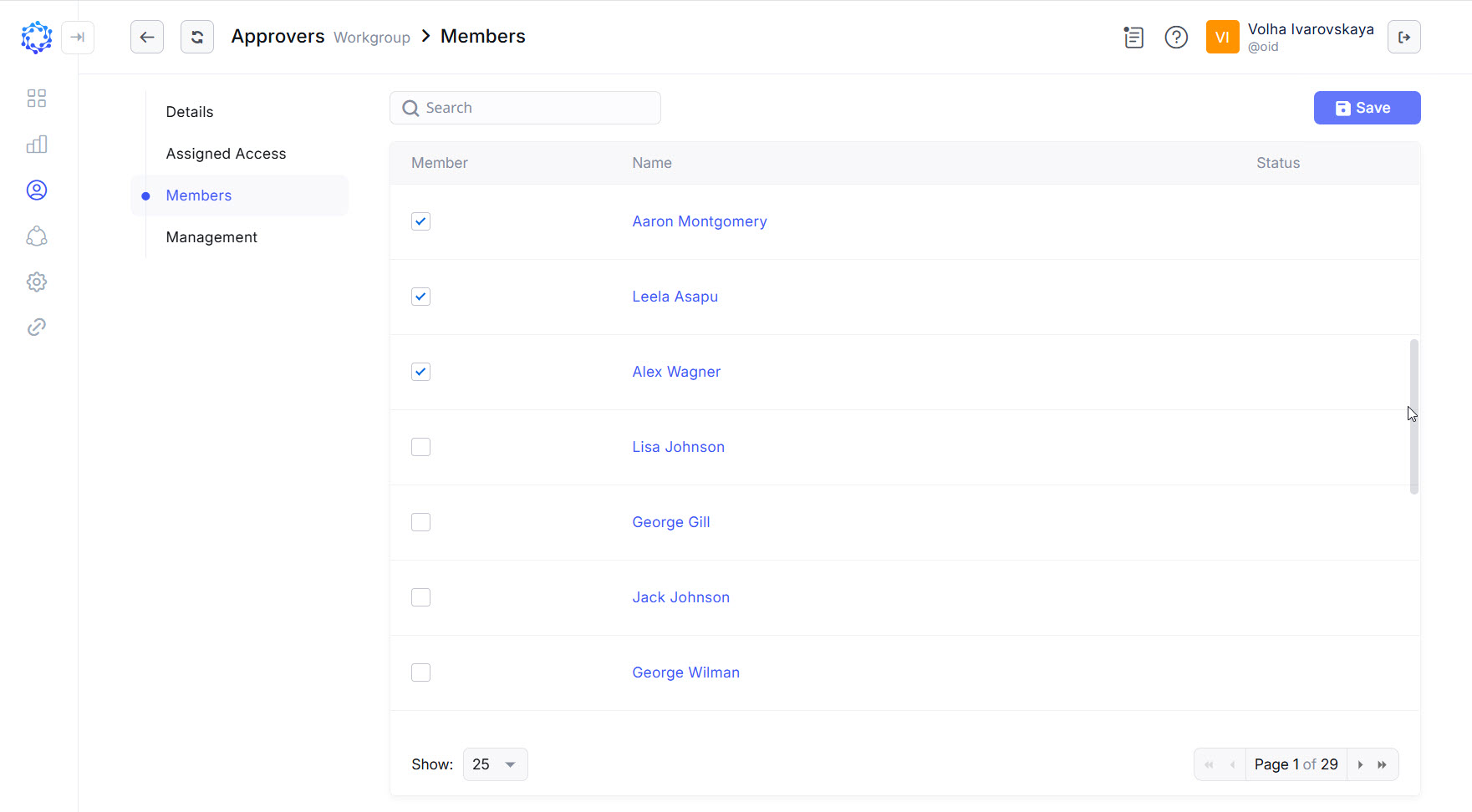 Members of a Workgroup
Update a Workgroup
- Click a Workgroup in the Workgroups grid.
- Update required fields.
- Click Save.
Delete a Workgroup
-
Click a Workgroup in the Workgroups grid.
-
Click Management in the menu.
-
Click Delete.
-
If requested, transfer the ownership by selecting a new Owner from the Select new owner dropdown list(-s), and click Next to move to the next step.
For deleting a Workgroup, the ownership of the Workgroup in any of integrations, resources or entitlements must be resolved. If the Workgroup is detected as the Owner of any of the integration data, transferring of the ownership is required first before moving further with the deletion.
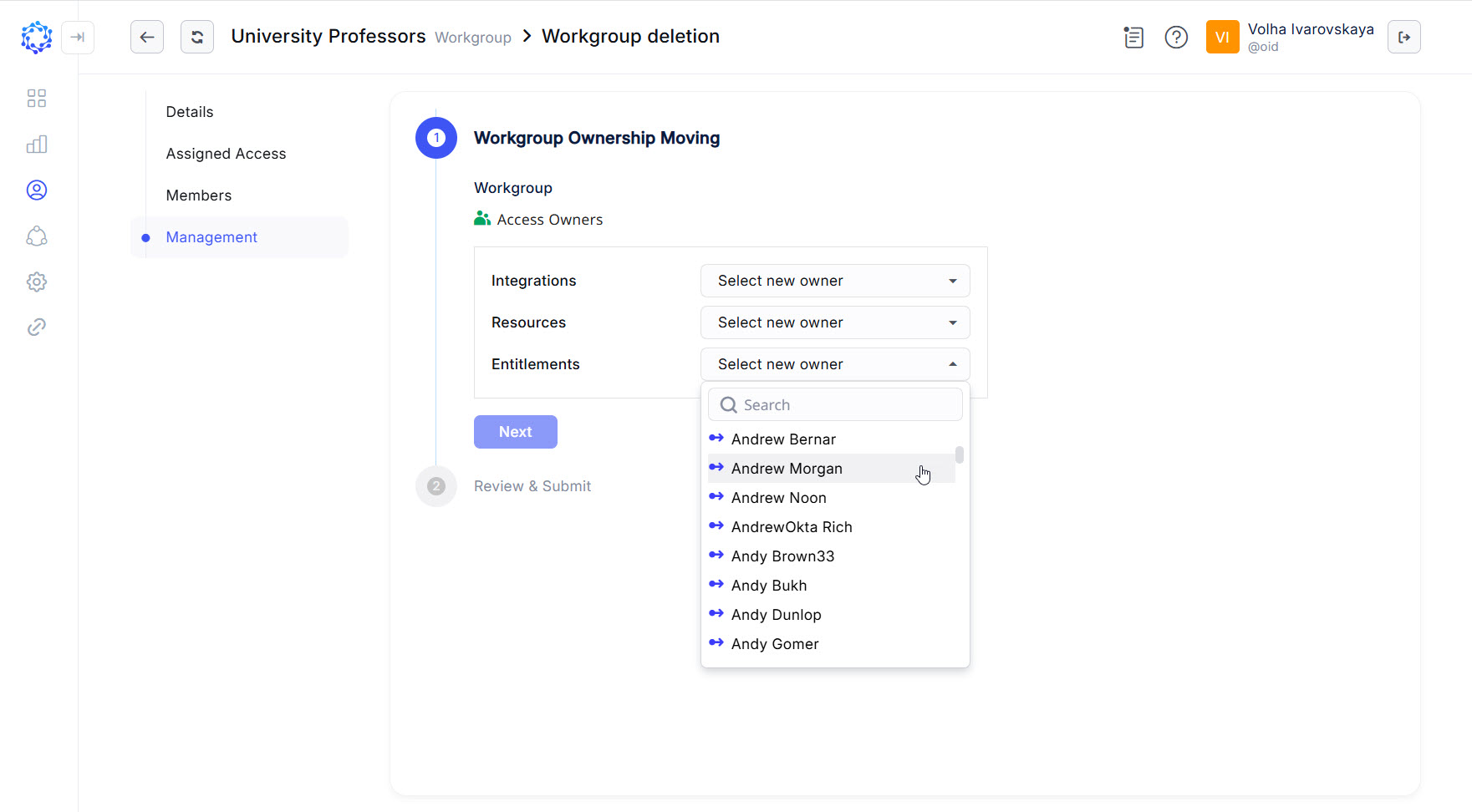 Selection of who to transfer the ownership to
 -
Review the textboxes with the integration data selected for transferring the ownership to the selected owners. The new Owner is displayed at the top of each box. If the replacement is correct, scroll down and click Submit to finish the procedure, and delete the Workgroup. Otherwise, click Previous to move back and re-consider Owners.
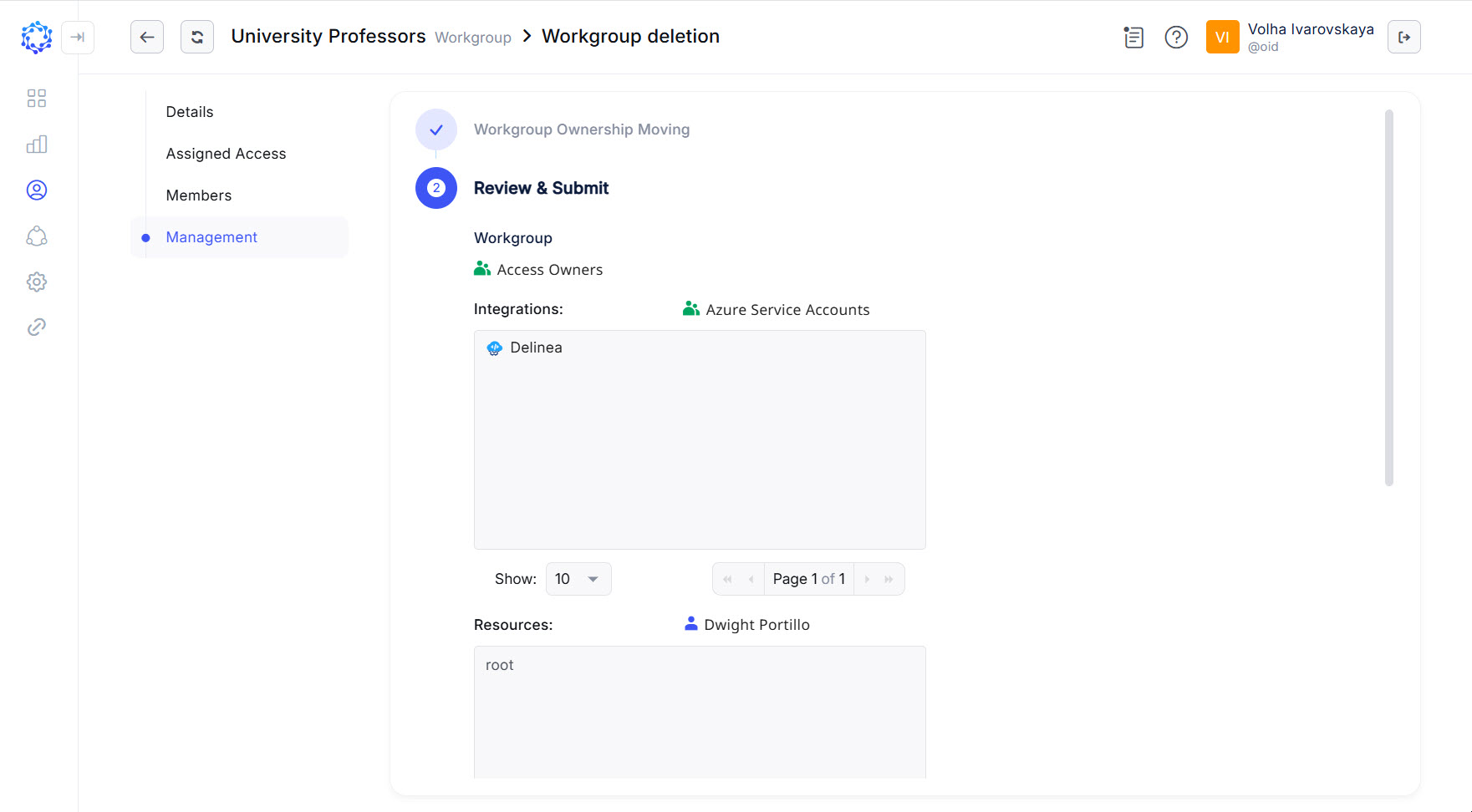 Review of new owners