
Multi-Factor Authentication
Multi-factor authentication (MFA) can be optional or required for users who authenticate to ObserveID with local credentials. When MFA is enabled for a user, the sign-in process requires an additional authentication factor. The user is prompted to enter a verification code generated by an authenticator application. ObserveID validates the verification code before completing authentication.
Administrators can require MFA for all users who use local authentication. When MFA enforcement is not enabled, users can individually enable MFA for their local user accounts.
MFA configured in ObserveID applies to local authentication. For users who authenticate through an external SSO provider, MFA is configured and enforced by the corresponding identity provider.
For information about enabling and configuring MFA, refer to User Guide for MFA
Grace period for mandatory MFA enforcement
Administrators can configure a grace period, specified in days, during which users can sign in to ObserveID without completing MFA setup.
During the grace period, users who have not yet configured MFA can select Skip on the MFA setup step and continue signing in with primary authentication only. The grace period provides users with a limited amount of time to enroll an MFA method before MFA becomes mandatory.
After the grace period expires, the Skip option is no longer available. Users who have not configured MFA must complete MFA setup before they can successfully sign in to ObserveID.
Only administrators can configure or modify the MFA grace period.
Set Up an Authenticator App
ObserveID supports time-based one-time password (TOTP) authentication as an additional authentication factor for local users. One of the following authenticator apps is required for MFA TOTP:
- Microsoft Authenticator
- Google Authenticator
Having installed a supported authenticator app on a mobile device, the local user account needs to be enrolled in ObserveID MFA.
During enrollment, ObserveID provides a QR code and a setup key that contain the information required to configure the authenticator app. It is needed to scan the QR code with the authenticator app or manually enter the setup key. Then the authenticator app adds the account and begins generating time-based verification codes.
After the user successfully provides the local username and password during sign-in, ObserveID prompts for an additional authentication factor. The user is expected to open the authenticator app, retrieve the current verification code, and enter it in the Authenticator code field on the ObserveID sign-in page, as shown in the following figure.
The authenticator app generates verification codes by using the Time-Based One-Time Password (TOTP) algorithm. Each code is valid for a limited period. ObserveID validates the submitted code against the TOTP configuration established during enrollment. If the code is valid, MFA verification succeeds and the sign-in process continues.
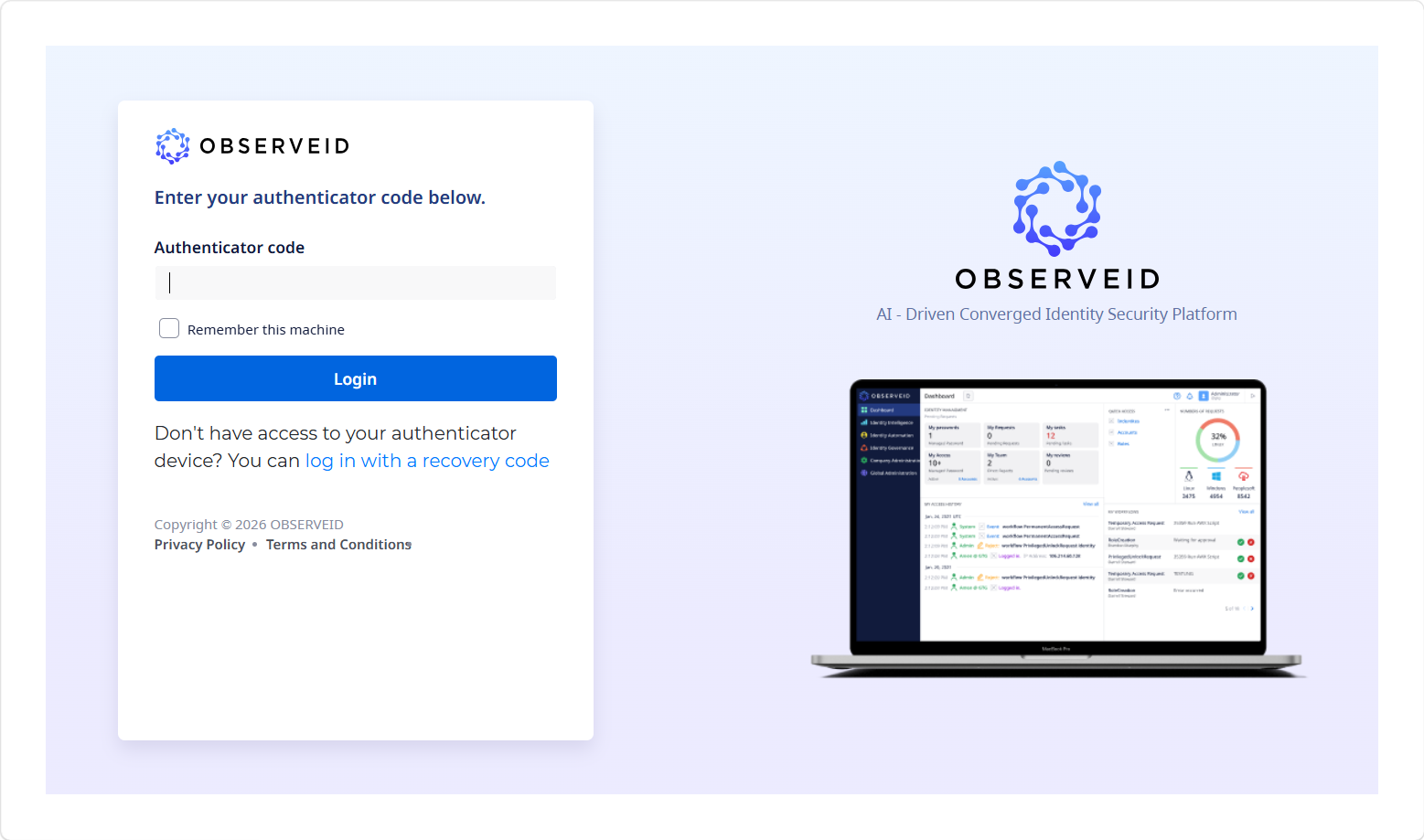 Authenticator Code
Recovery Codes
As the final step of authenticator app setup, ObserveID generates a set of recovery codes. It is important to copy the recovery codes and store them in a secure location. Recovery codes provide an alternative method for completing authentication if access to the registered authenticator is unavailable.
Each recovery code can be used only once. After a recovery code is used, it becomes invalid and cannot be used again.
If necessary, a user with a registered authenticator can generate a new set of recovery codes. Generating a new set invalidates the previously generated recovery codes.
Recovery code management is available as a self-service operation. A signed-in user can generate a new set of recovery codes for their own account from the Two-Factor Authentication (2FA) section of their profile.
The following figure shows the option for generating a new set of recovery codes.
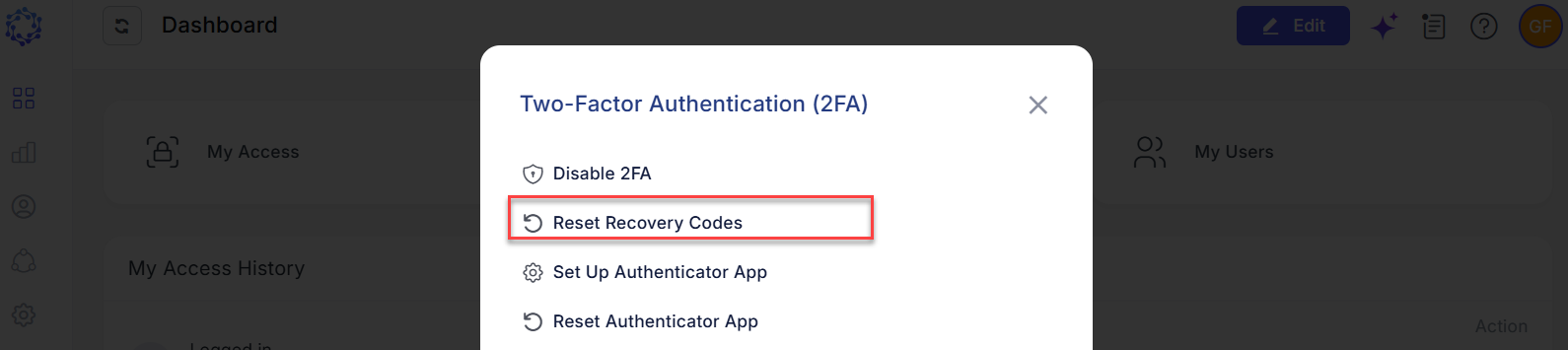 Reset Recovery Codes
Reset Authenticator App
The Reset Authenticator App removes the user's current TOTP enrollment and its associated shared secret from ObserveID. As a result, ObserveID can no longer verify one-time codes generated by the previously registered authenticator app. The reset also invalidates all recovery codes associated with the enrollment. After the reset, the user is signed out of ObserveID.
At the next sign-in, the authentication flow depends on whether MFA is mandatory or optional:
- If MFA is mandatory, the user must enroll a new authenticator app before completing the sign-in process.
- If MFA is optional, the user can complete primary authentication without being prompted for an authenticator app. To enable MFA again, the user can select Set Up Authenticator App and complete the authenticator enrollment process.
An administrator can reset MFA for an individual local user. In the administration area, open the required local user, select the Management tab, and then select Reset MFA. The reset removes the user's existing MFA enrollment. If MFA is mandatory, the user must enroll a new authenticator app at the next sign-in. If MFA is optional, the user can set up a new authenticator app when needed.