
Sign in to ObserveID
Use your organization’s ObserveID address to open the sign-in page. The options shown depend on your organization’s configuration. If you do not know the address or which option to use, contact your IT support team.
Choose a sign-in method
You can sign in to ObserveID using your organization's single sign-on (SSO) provider or authenticate directly with your ObserveID account.
Local authentication supports password-based sign-in, which may require additional verification, or passwordless sign-in using a registered passkey, if supported and enabled for your account.
Before signing in with an authenticator app or passkey, you must complete the corresponding registration process.
The following table describes the available authentication methods, their prerequisites, and the steps required to sign in using each method.
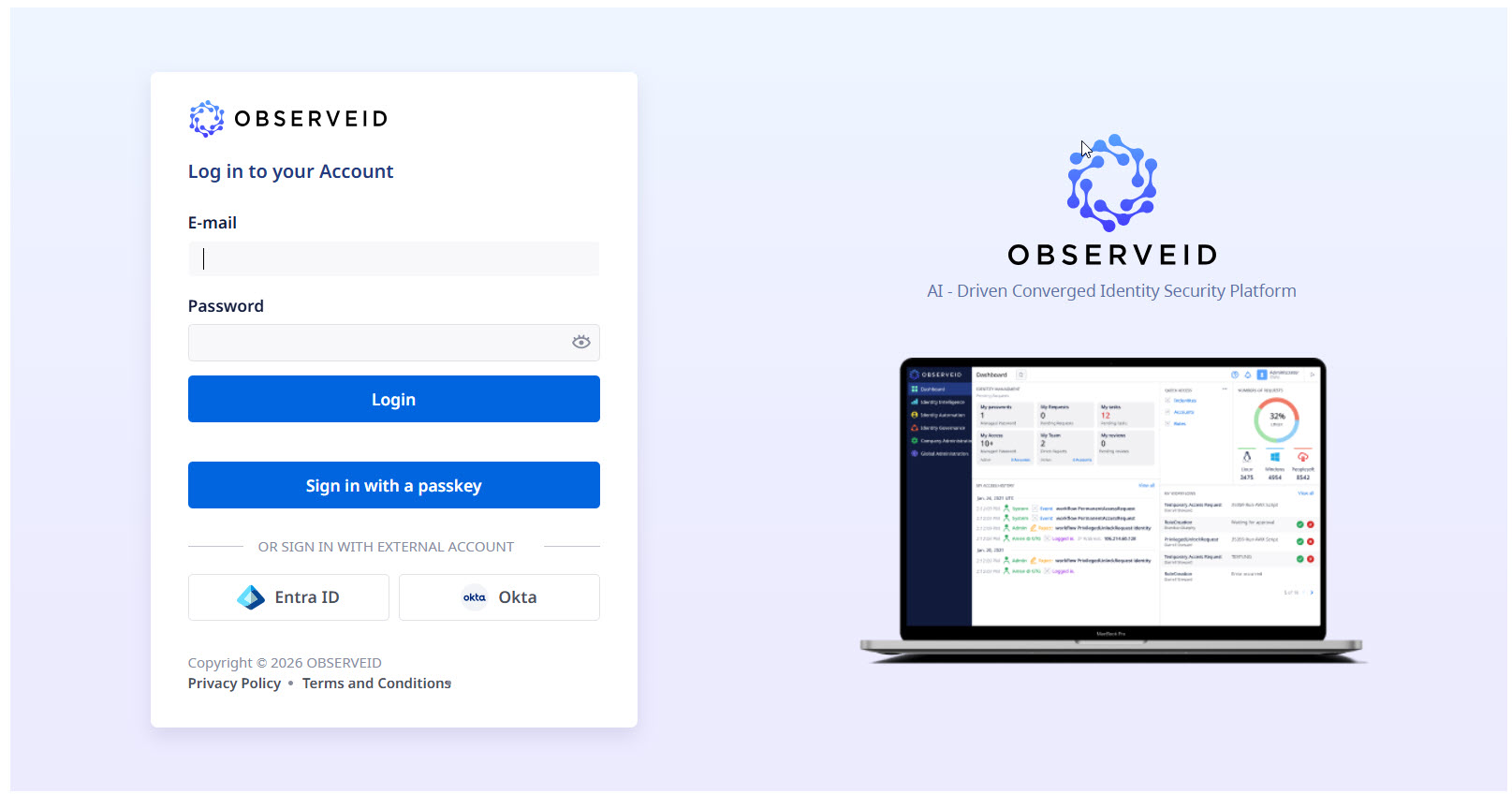 Log in to ObserveID
| Authentication Method | Prerequisites | Sign-In Procedure |
|---|---|---|
| Single sign-on (SSO) | Your organization’s account with a configured provider, such as Microsoft Entra ID, Okta, or Google | Select the provider and follow its prompts. Complete any MFA required by that provider. |
| SSO and passkey or security key | Your organization’s account, and a registered device credential or physical security key | Select the provider and follow its prompts, then complete the device or key prompt. |
| Local password | Your identity email address and password | Enter your local credentials. Complete additional verification if prompted |
| Password and authenticator app | Your local credentials and an authenticator app registered for ObserveID | Enter your password, then the current code from the app. |
| Password and passkey or security key | Your local credentials and a registered device credential or physical security key | Enter your password, then complete the device or key prompt. |
| Passwordless passkey | A registered passkey accessible through a compatible device, passkey manager, or security key | Select the passkey option and verify with the required device PIN or biometric. |
Sign in with single sign-on
Use this option when your organization directs you to sign in with an existing work account.
- Open your organization’s ObserveID sign-in page.
- Select the configured SSO provider.
- Follow the provider’s prompts. If you already have an active session, the provider may continue without asking for your credentials again.
- Complete any additional verification required by the provider.
After successful authentication, you return to ObserveID.
Your SSO provider manages authentication and MFA for this route. If you cannot complete the provider’s sign-in steps, follow your organization’s support process for that provider.
Verify your identity with a passkey or security key after SSO
After you authenticate through single sign-on (SSO), ObserveID may require additional verification using a passkey or security key. If prompted, complete the following steps:
-
Click Continue with passwordless sign-in
-
Follow the on-screen instructions to use your passkey or connect your security key. To use a different passkey, click Choose a different passkey and select the preferred authentication method.
-
Complete the requested verification, such as touching your security key, entering a PIN, or using biometric authentication.
If you cancel the verification prompt, the additional verification is not completed, and you cannot finish signing in to ObserveID until the required verification succeeds.
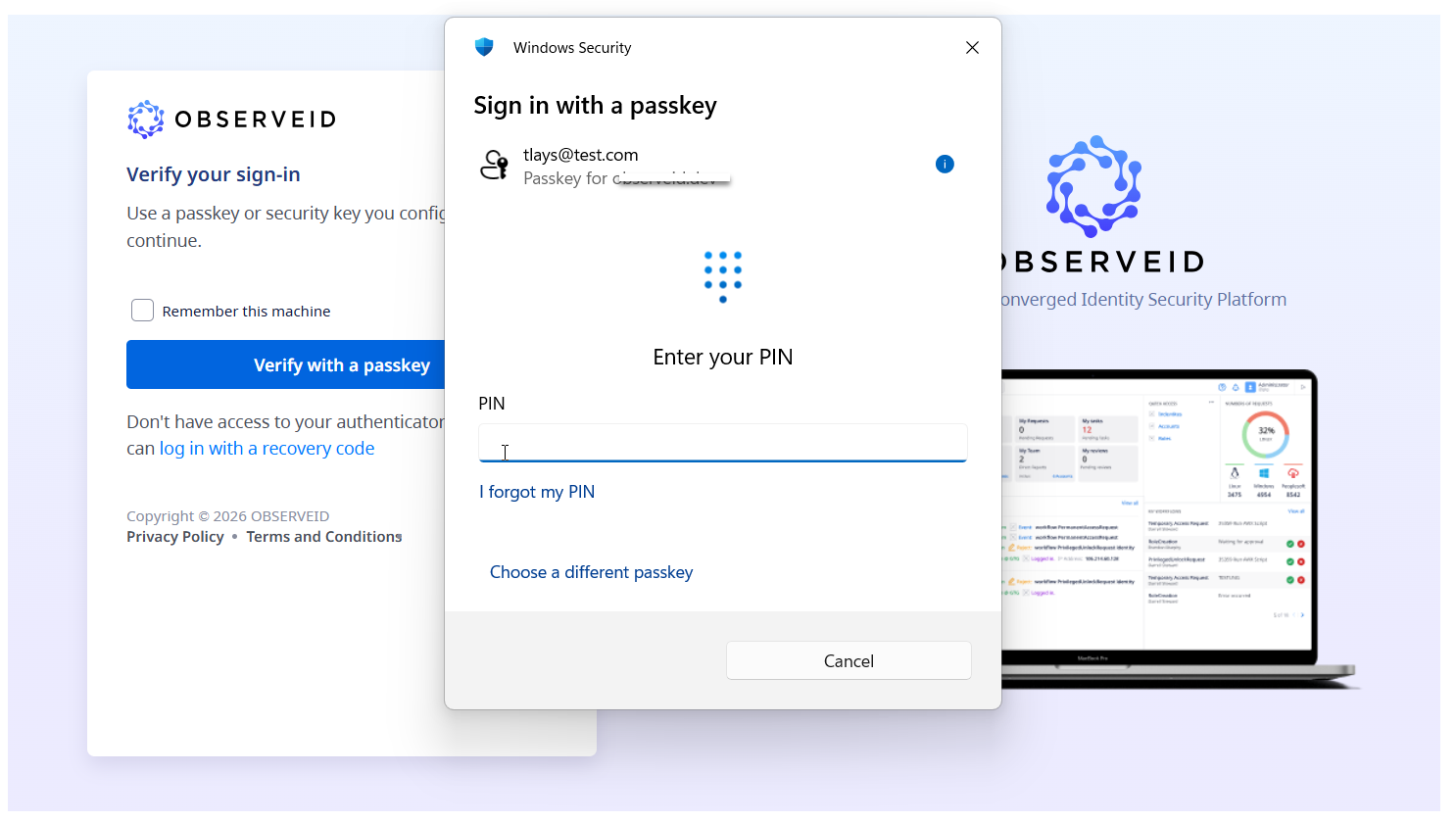 Entering a PIN
Sign in with your ObserveID password
Use the local credentials associated with your ObserveID account. Having an identity in ObserveID does not necessarily mean that local authentication credentials have been configured. If you do not have local credentials or cannot sign in, contact your administrator.
-
Open your organization’s ObserveID sign-in page.
-
Enter your identity email address and password in the local sign-in form.
-
Submit the form.
-
Complete any required authentication setup, additional verification, or password-change steps. When all required steps are complete, ObserveID opens your session.
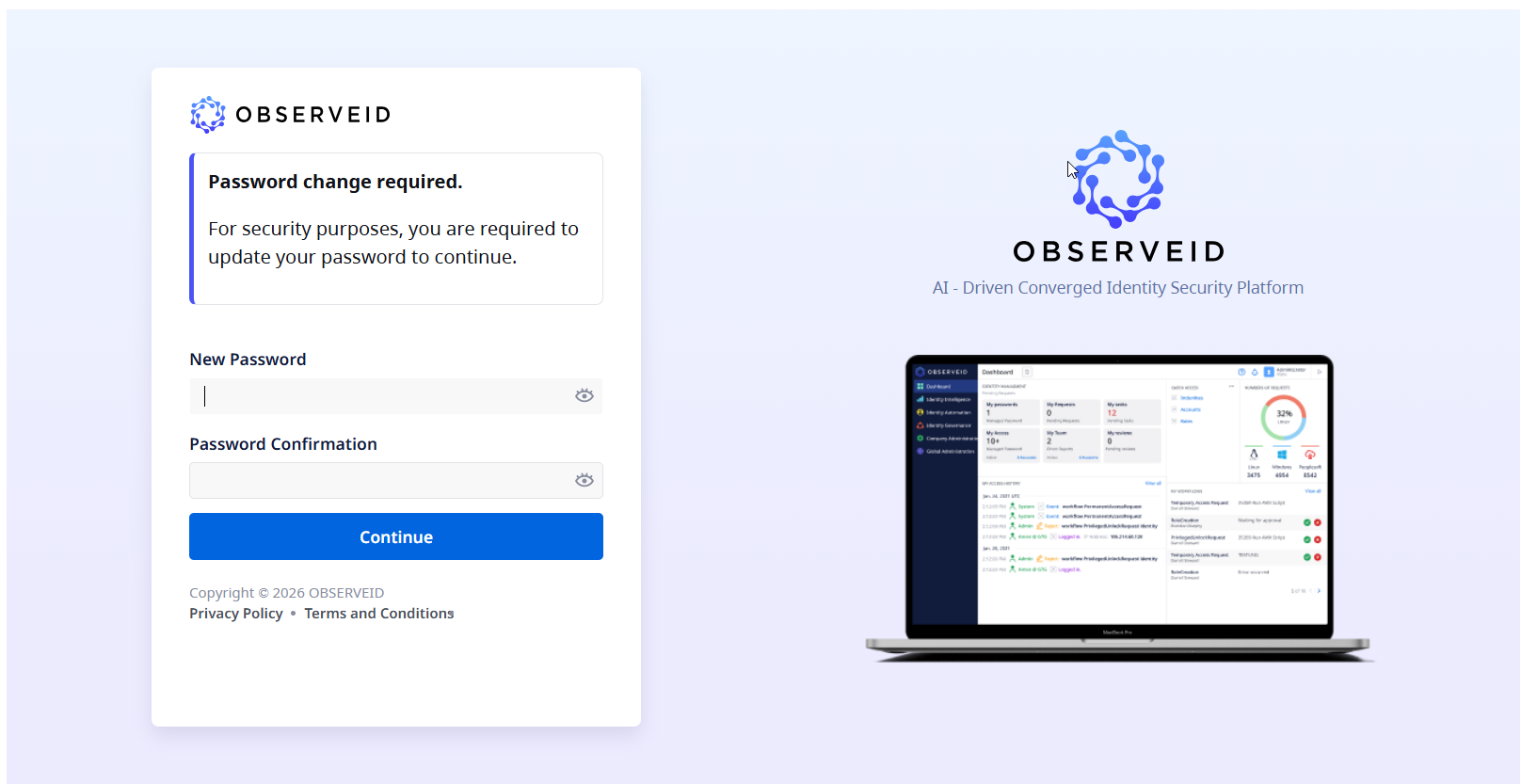 Password change
Use an authenticator-app code
If ObserveID asks for an authenticator code after your password:
- Open the app you registered for ObserveID, such as Microsoft Authenticator or Google Authenticator.
- Find the ObserveID entry and its current code.
- Enter the code in Authenticator code and select Login.
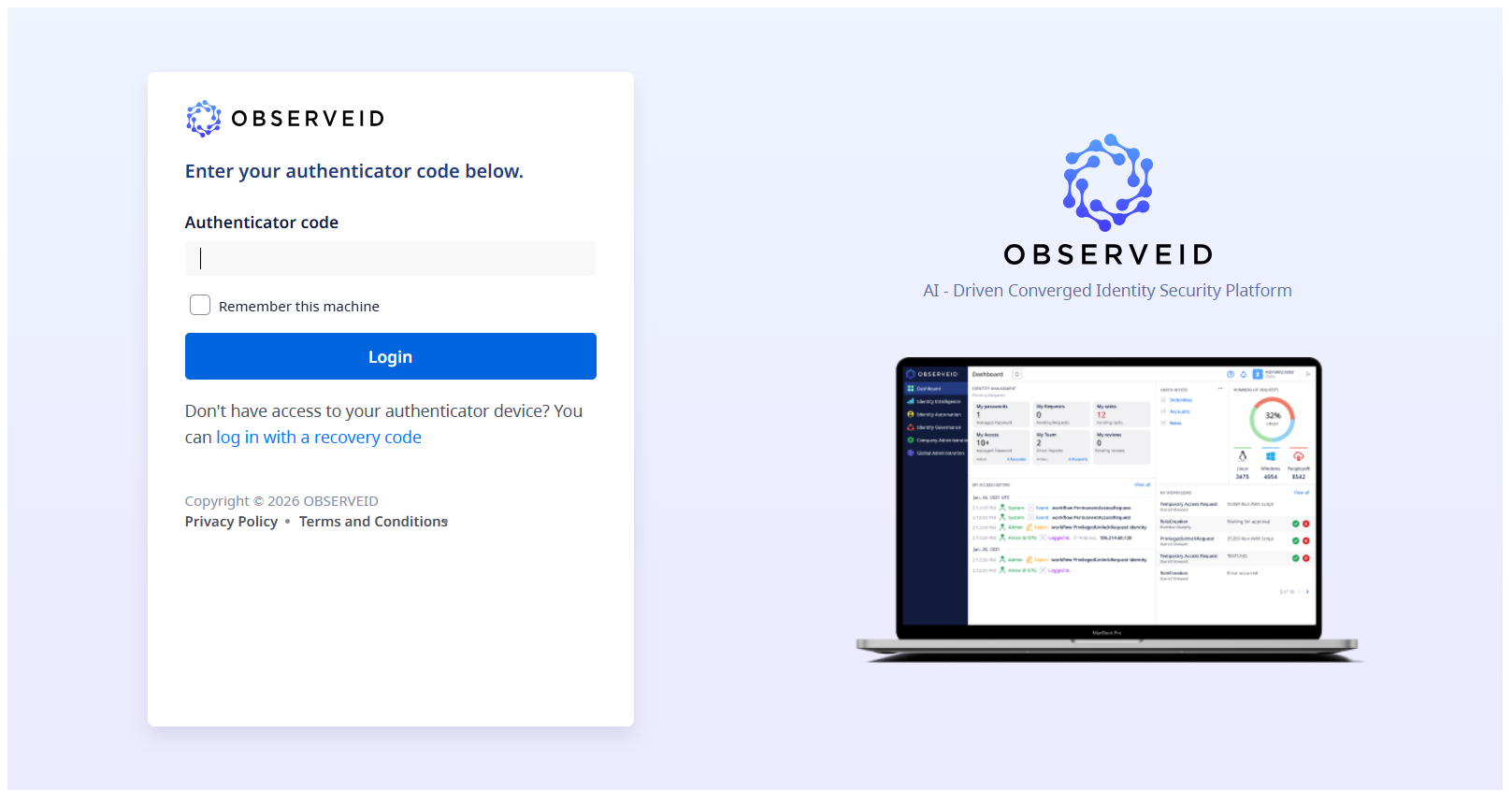 Authenticator code
Use a passkey or security key after your password
If ObserveID prompts you to verify your identity using a passkey or security key, complete the following steps:
-
Click Continue with passwordless sign-in
-
Follow the on-screen instructions to use your passkey or connect your security key. To use a different passkey, click Choose a different passkey and select the preferred authentication method.
-
Complete the requested verification, such as touching your security key, entering a PIN, or using biometric authentication.
If you cancel the verification prompt, the additional verification is not completed, and you cannot finish signing in to ObserveID until the required verification succeeds.
Sign in with a passwordless passkey
Use this method if passwordless passkey authentication is available for your account and you have already registered a passkey.
-
Open your organization’s ObserveID sign-in page.
-
Select Sign in with a passkey.
-
In the browser or passkey provider prompt, select the passkey registered for your ObserveID account.
-
Follow the on-screen instructions to verify your identity using your device PIN, biometric authentication, or another supported verification method.
-
Complete any additional steps required by ObserveID to finish signing in.
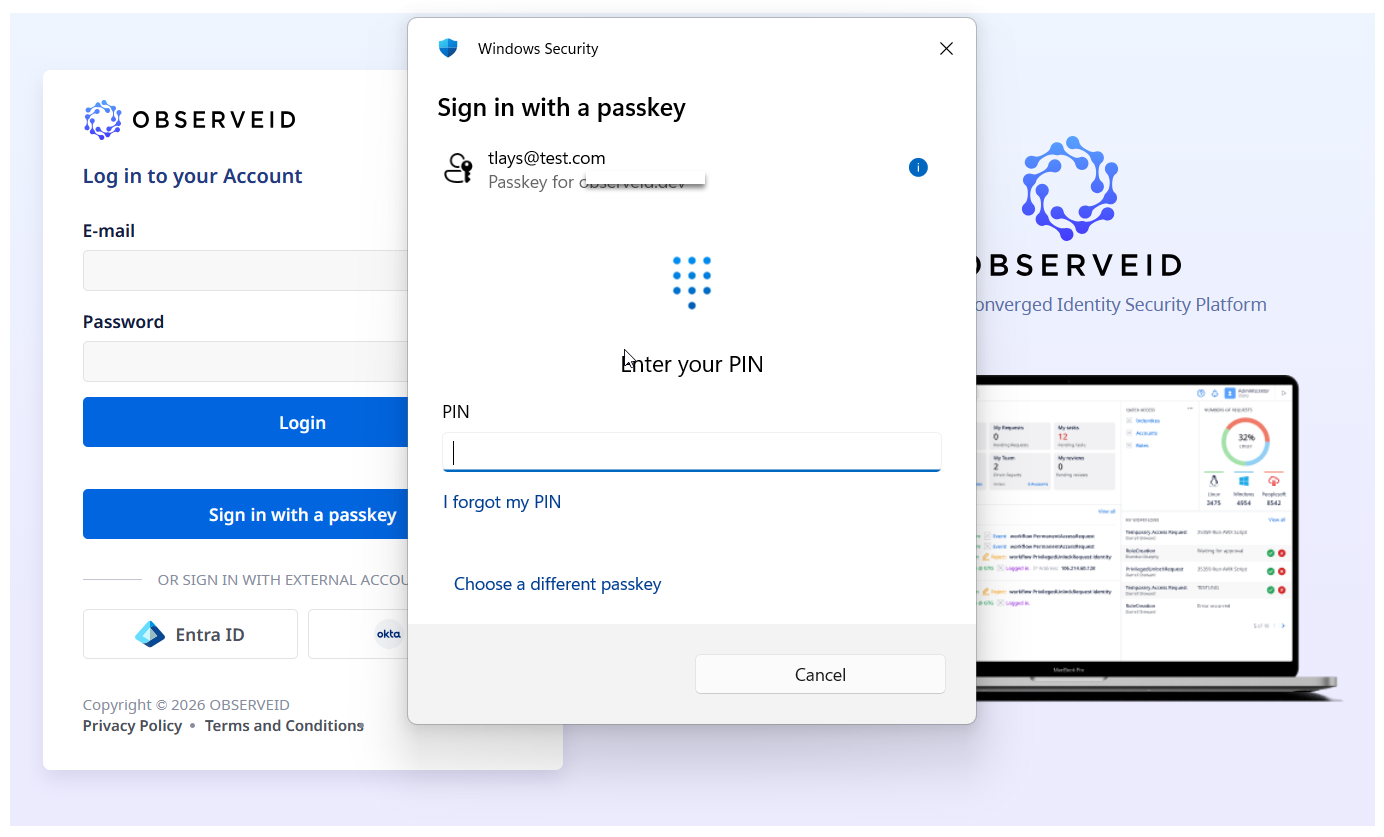 Passwordless sign-in
Depending on your account configuration, ObserveID may require additional actions, such as changing an expired password, before granting access.
About passwordless authentication
When signing in with a passwordless passkey, you do not need to enter your ObserveID username or password. A separate authenticator app verification code is not required for this sign-in method. Your device PIN or biometric verification unlocks the passkey through your device or passkey provider. These verification methods are local to your device or authenticator and do not replace or expose your ObserveID password.
Prepare for account recovery
To avoid losing access to ObserveID if your device is lost, replaced, or unavailable, ensure that you have an alternative sign-in or account recovery method configured. Keep recovery information in a secure location and verify that your alternative authentication methods remain available when needed.
Complete MFA setup when prompted
Your organization may require you to register a multi-factor authentication (MFA) method when signing in with your ObserveID password. To complete MFA setup:
-
Start signing in to ObserveID with your identity email address and password.
-
If prompted to configure MFA, select Configure.
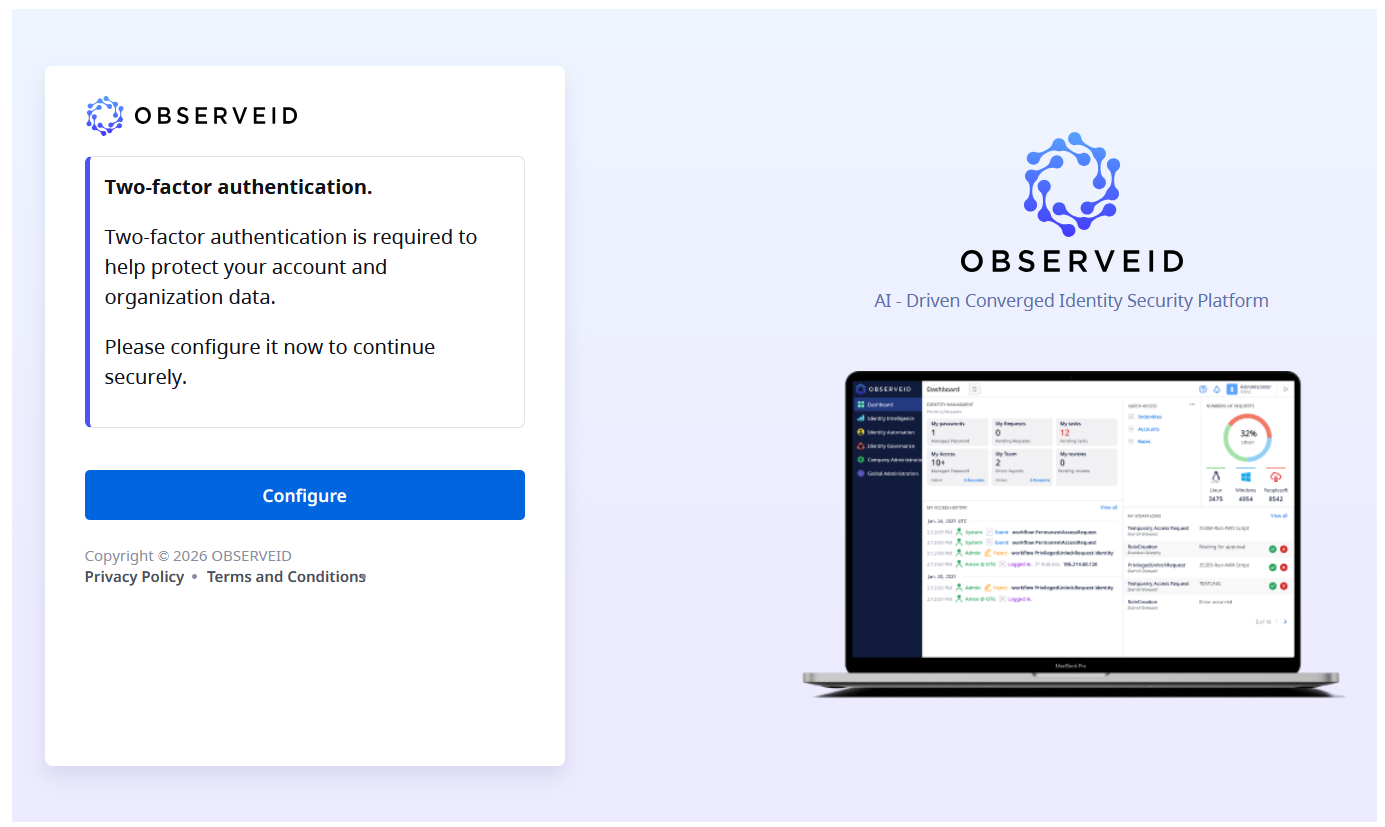 Two-factor authentication configuration
-
Select one of the available authentication methods and follow the corresponding instructions:
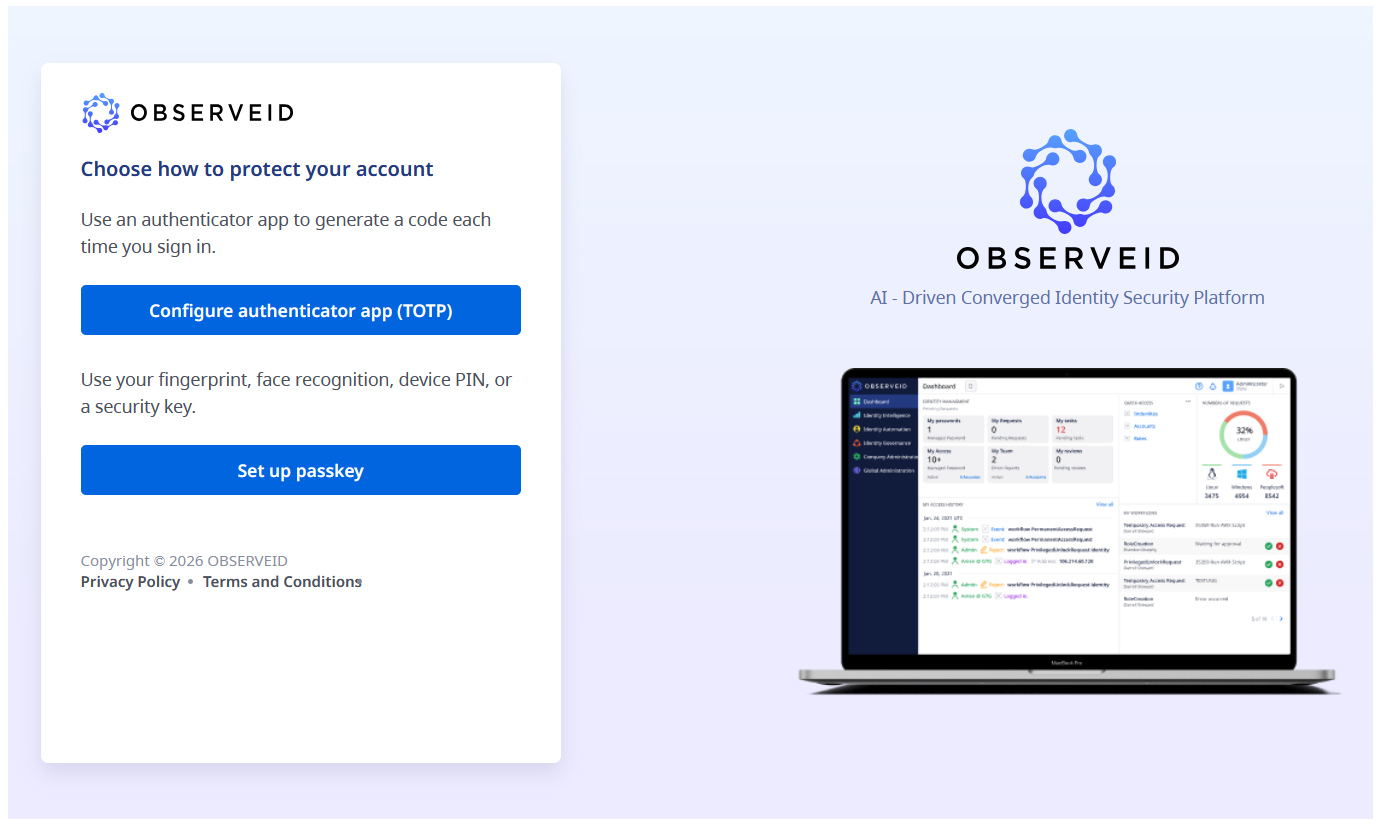 Authentication methods
Authenticator app: Open a compatible authenticator app, scan the QR code displayed by ObserveID, and enter the generated verification code to complete registration.
Passkey: Select a compatible device, passkey provider, or security key, and follow the on-screen instructions to create a passkey. Complete any required PIN or biometric verification.
-
If recovery codes are provided, save them in a secure location where you can access them if your primary authentication method becomes unavailable.
-
Follow any remaining on-screen instructions to complete sign-in.
If Skip is available, you can defer MFA setup according to your organization's authentication policy. When MFA setup becomes mandatory, you must complete registration before continuing.
To register additional authentication methods or manage existing ones after signing in, open your profile and select Authentication Methods.
Review your identity information
After signing in to ObserveID, you are directed to the Dashboard, which may provide quick links to My Access and Profile. Both areas allow you to review your identity information.
Your Profile provides quick access to your ObserveID account information and authentication methods. You can also use it to manage your ObserveID password, if permitted, and customize the interface appearance.
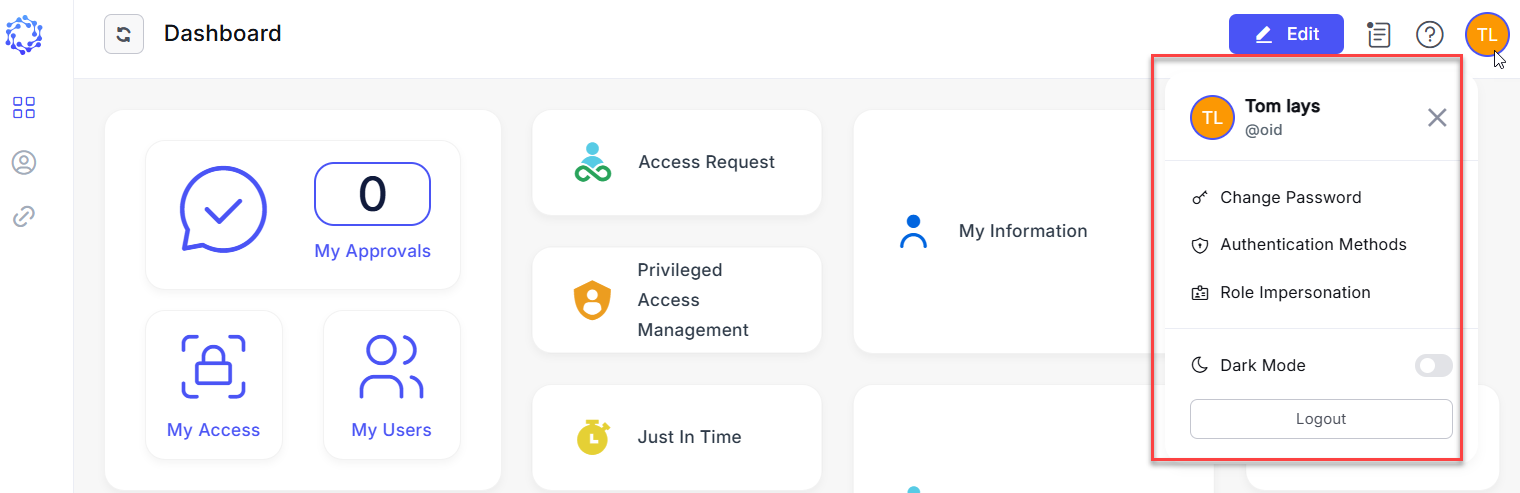 Profile
Go to Identity Automation > My Access to review your identity information, associated accounts, and assigned access.
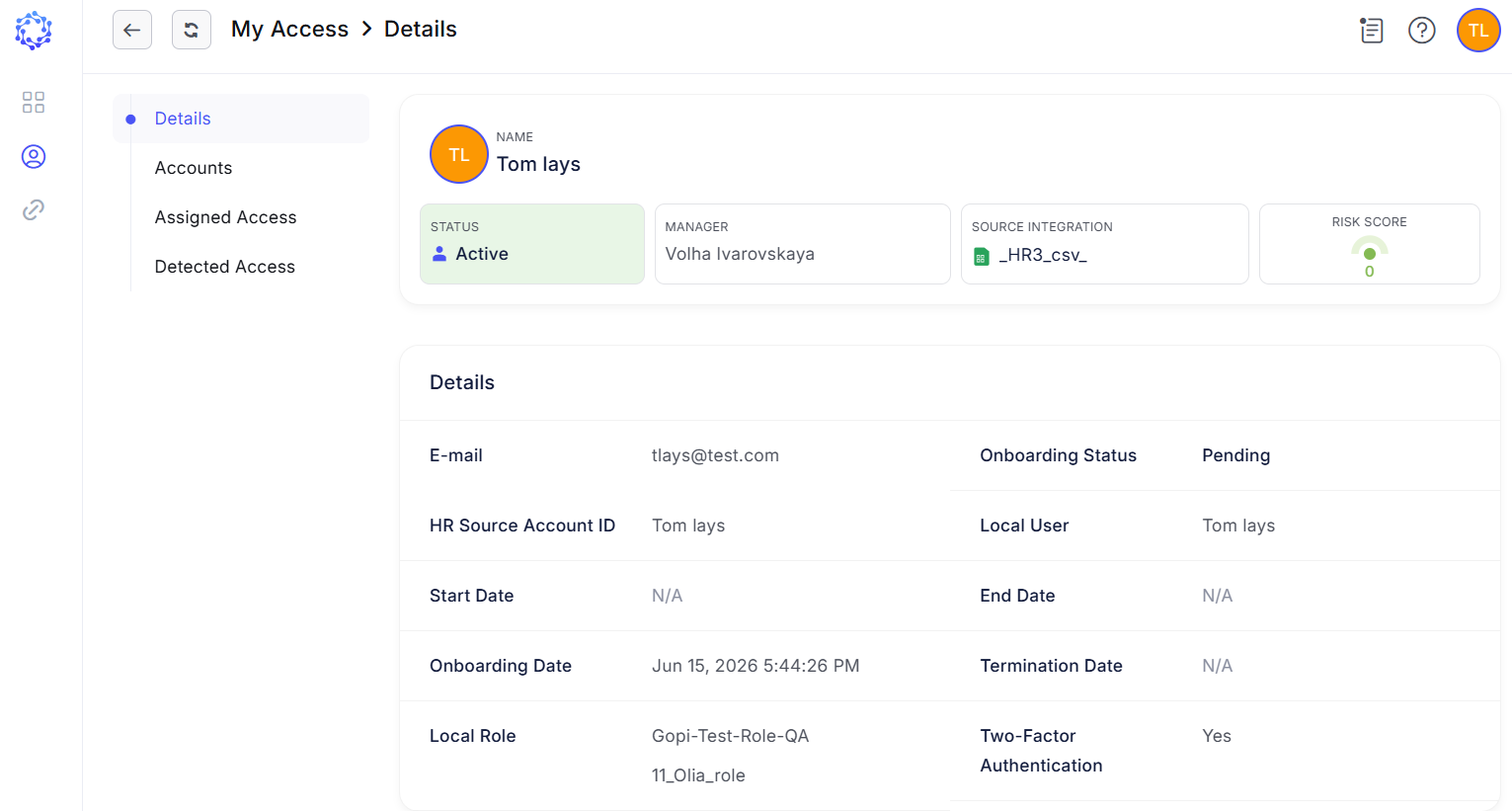 My Access